
If you’ve ever built a custom SPFx web part and wished you could show it only to certain people — like just the HR team, or only managers — you’re not alone. This is one of the most common requests I hear from SharePoint developers.
The good news: it’s totally doable. And once you understand how the pieces fit together, it’s not as complicated as it might look at first.
In this tutorial, I’ll walk you through three practical approaches to audience targeting in SPFx web parts — from using the built-in SharePoint search-based approach, to building a reusable wrapper component with Microsoft Graph API, to using the PnP People Picker property control. I’ll show you real code you can actually use.
What Is Audience Targeting in SPFx?
Audience targeting lets you control who sees what in SharePoint. Instead of everyone on a site seeing the same content, you can show certain web parts — or content inside a web part — only to specific groups of people.
For example:
- Show a “Benefits Portal” web part only to full-time employees
- Display a management dashboard only to people in the “Managers” Azure AD group
- Show department-specific announcements to each department separately
Out-of-the-box SharePoint web parts like News, Highlighted Content, and Navigation already have audience targeting built in. But when you build a custom SPFx web part, you need to wire this up yourself. That’s what this tutorial covers.
Want to learn SharePoint Framework development? Check out the SPFx training course.
How Audience Targeting Works Under the Hood
Before we write any code, it helps to understand the basic idea.
When audience targeting is in play, SharePoint (or your code) needs to answer one question: Is the current user a member of the target group?
There are two main ways to answer that:
- SharePoint REST API — Call
_api/Web/CurrentUser/Groupsto get the groups the current user belongs to on that SharePoint site - Microsoft Graph API — Call
me/memberOforme/getMemberGroupsto get all Azure AD / Microsoft 365 groups, including transitive memberships
The Graph API approach is more powerful because it catches indirect memberships (like when a user is in a nested group). The REST API approach is simpler and works well for SharePoint-native groups.
SPFx Web Part Audience Targeting
I’m assuming you already have the SPFx development environment set up. If not, install it using the steps from the Microsoft documentation (Node.js, Yeoman, and the SharePoint Generator).
Create a new web part using Yeoman:
yo @microsoft/sharepoint
Walk through the wizard — pick React as the framework and give your web part a meaningful name. I’ll call mine AudienceTargetingWebPart for this tutorial.
Method 1: Check Group Membership Using SharePoint REST API
This is the simplest approach and works great when you’re working with SharePoint groups (like “Sales Team Members” created directly in your SharePoint site).
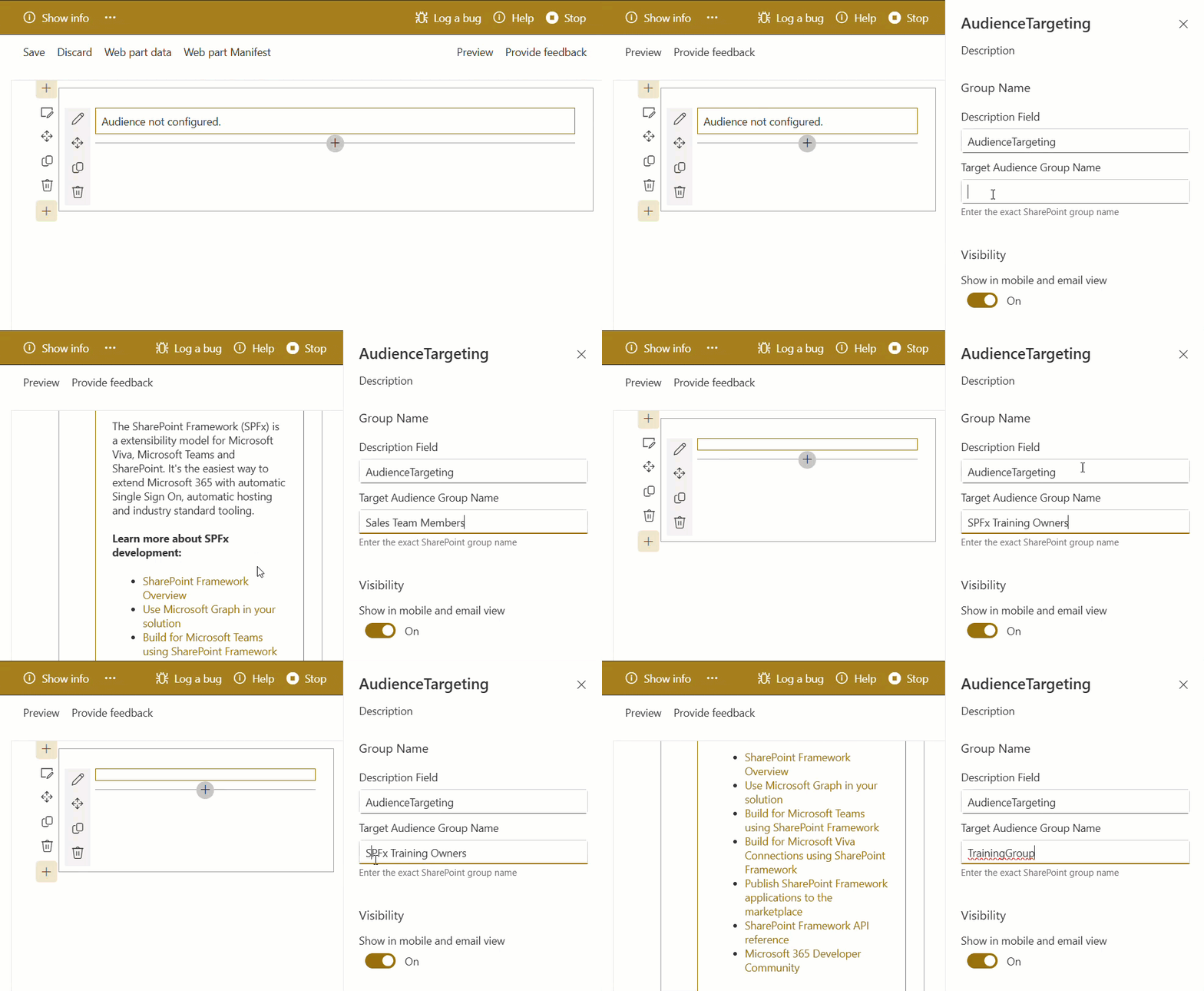
In the example below, when I enter the name of a SharePoint group I belong to, the web part is displayed. If I enter a group that I’m not a member of, the web part is hidden.
Step 1: Create a Service Function
Inside your web part’s src folder, create a file called groupService.ts:
import { WebPartContext } from "@microsoft/sp-webpart-base";

export async function isCurrentUserInGroup(
  context: WebPartContext,
  groupName: string
): Promise<boolean> {
  const apiUrl = `${context.pageContext.web.absoluteUrl}/_api/Web/CurrentUser/Groups`;
  console.log(`[AudienceTargeting] Checking group membership...`);
  console.log(`[AudienceTargeting] Target group (configured): "${groupName}"`);
  console.log(`[AudienceTargeting] API URL: ${apiUrl}`);

  const response = await fetch(apiUrl, {
    headers: {
      Accept: "application/json;odata=verbose",
    },
  });

  console.log(`[AudienceTargeting] API response status: ${response.status} ${response.statusText}`);

  if (!response.ok) {
    console.error(`[AudienceTargeting] API call failed with status ${response.status}`);
    throw new Error(`API call failed: ${response.status} ${response.statusText}`);
  }

  const data = await response.json();
  const groups: { Title: string }[] = data.d.results;

  console.log(`[AudienceTargeting] Groups fetched (${groups.length} total):`);
  groups.forEach((g) => console.log(`  - "${g.Title}"`));

  const isMember = groups.some(
    (group) => group.Title.toLowerCase() === groupName.toLowerCase()
  );

  console.log(`[AudienceTargeting] Is user a member of "${groupName}"? → ${isMember}`);
  return isMember;
}
In this method, I added some console statements so you can see whether you belong to the enter group.

Step 2: Use It in Your Web Part Component
In your React component, call this function when the component mounts:
import * as React from 'react';
import { useState, useEffect } from 'react';
import styles from './AudienceTargeting.module.scss';
import type { IAudienceTargetingProps } from './IAudienceTargetingProps';
import { escape } from '@microsoft/sp-lodash-subset';
import { isCurrentUserInGroup } from '../../../services/groupService';
const AudienceTargeting: React.FC<IAudienceTargetingProps> = (props) => {
const {
description,
isDarkTheme,
environmentMessage,
hasTeamsContext,
userDisplayName,
context,
targetGroup
} = props;
const [canView, setCanView] = useState<boolean>(false);
const [loading, setLoading] = useState<boolean>(true);
const [notConfigured, setNotConfigured] = useState<boolean>(false);
useEffect(() => {
console.log(`[AudienceTargeting] targetGroup prop received: "${targetGroup}"`);
if (!targetGroup) {
console.warn('[AudienceTargeting] No target group configured — showing "Audience not configured" message.');
setNotConfigured(true);
setCanView(false);
setLoading(false);
return;
}
setNotConfigured(false);
setLoading(true);
isCurrentUserInGroup(context, targetGroup)
.then((isMember) => {
console.log(`[AudienceTargeting] Membership result: ${isMember} — web part will be ${isMember ? 'SHOWN' : 'HIDDEN'}.`);
setCanView(isMember);
setLoading(false);
})
.catch((err) => {
console.error('[AudienceTargeting] Error checking group membership:', err);
setCanView(false);
setLoading(false);
});
}, [targetGroup]);
if (loading) return <div>Loading...</div>;
if (notConfigured) {
return <div>Audience not configured.</div>;
}
if (!canView) return null;
return (
<section className={`${styles.audienceTargeting} ${hasTeamsContext ? styles.teams : ''}`}>
<div className={styles.welcome}>
<img alt="" src={isDarkTheme ? require('../assets/welcome-dark.png') : require('../assets/welcome-light.png')} className={styles.welcomeImage} />
<h2>Well done, {escape(userDisplayName)}!</h2>
<div>{environmentMessage}</div>
<div>Web part property value: <strong>{escape(description)}</strong></div>
</div>
<div>
<h3>Welcome to SharePoint Framework!</h3>
<p>
The SharePoint Framework (SPFx) is a extensibility model for Microsoft Viva, Microsoft Teams and SharePoint. It's the easiest way to extend Microsoft 365 with automatic Single Sign On, automatic hosting and industry standard tooling.
</p>
<h4>Learn more about SPFx development:</h4>
<ul className={styles.links}>
<li><a href="https://aka.ms/spfx" target="_blank" rel="noreferrer">SharePoint Framework Overview</a></li>
<li><a href="https://aka.ms/spfx-yeoman-graph" target="_blank" rel="noreferrer">Use Microsoft Graph in your solution</a></li>
</ul>
</div>
</section>
);
};
export default AudienceTargeting;
The key line here is if (!canView) return null; — That’s what makes the web part invisible to users who don’t belong to the target group. It’s a clean, no-fuss approach.
Step 3: Add a Property Pane Field for the Group Name
In your main web part file (MyWebPartWebPart.ts), add a text field so site owners can type in the group name without touching code:
import { PropertyPaneTextField } from "@microsoft/sp-property-pane";

// In your getPropertyPaneConfiguration():
groupFields: [
  PropertyPaneTextField("targetGroup", {
    label: "Target Audience Group Name",
    description: "Enter the exact SharePoint group name",
  }),
];
Pass this.properties.targetGroup down to your React component and you’re done. Site owners can now configure the audience directly from the property pane.
Check out SPFx Environment Variables
Method 2: Graph API with a Reusable Audience Wrapper (Recommended)
This is the approach I prefer for most enterprise solutions. It uses the Microsoft Graph API to check group membership, which works with Azure AD groups, Microsoft 365 groups, and security groups — not just SharePoint groups.
The key advantage of this approach is the use of a reusable AudienceWrapper component. Instead of embedding audience logic directly inside each web part, you can wrap any component and control its visibility through a pluggable access check.
We are doing the same above example, but using the Microsoft Graph API.
Install the PnP Graph Package
npm install @pnp/graph @pnp/sp @pnp/spfx
Create the Group Check Logic
Create a file called graphGroupService.ts:
- This function uses
MSGraphClientV3to call the/me/memberOfendpoint - It retrieves all groups the current user belongs to
- Then performs a case-insensitive match against the configured group name
It returns:
true→ if the user is a memberfalse→ otherwise
Note: You can optionally add sessionStorage caching here to avoid repeated API calls and improve performance, especially when multiple audience-targeted components are used on the same page.
import { MSGraphClientV3 } from '@microsoft/sp-http';
import { WebPartContext } from '@microsoft/sp-webpart-base';

export async function isCurrentUserInGraphGroup(
  context: WebPartContext,
  groupDisplayName: string
): Promise<boolean> {
  if (!groupDisplayName) return false;

  const graphClient: MSGraphClientV3 = await context.msGraphClientFactory.getClient('3');

  console.log(`[GraphAudienceWrapper] Checking Graph group membership for: "${groupDisplayName}"`);

  // GET /me/memberOf returns all groups/roles the user is a direct member of
  const response = await graphClient
    .api('/me/memberOf')
    .version('v1.0')
    .select('displayName,id')
    .top(999)
    .get();

  const groups: { displayName: string; id: string }[] = response?.value ?? [];

  console.log(`[GraphAudienceWrapper] Groups returned (${groups.length}):`);
  groups.forEach((g) => console.log(`  - "${g.displayName}" (${g.id})`));

  const isMember = groups.some(
    (g) => g.displayName.toLowerCase() === groupDisplayName.toLowerCase()
  );

  console.log(`[GraphAudienceWrapper] Is member of "${groupDisplayName}"? → ${isMember}`);
  return isMember;
}

Build the Reusable Wrapper Component
Create a file called AudienceWrapper.tsx and add the following code:
import * as React from 'react';
import { useState, useEffect } from 'react';
import type { IAudienceWrapperProps } from './IAudienceWrapperProps';

const AudienceWrapper: React.FC<IAudienceWrapperProps> = (props) => {
  const {
    checkAccess,
    children,
    isConfigured,
    loadingMessage = 'Checking access...',
    notConfiguredMessage = 'Audience not configured.'
  } = props;

  const [canView, setCanView] = useState<boolean>(false);
  const [loading, setLoading] = useState<boolean>(true);

  useEffect(() => {
    if (!isConfigured) {
      setLoading(false);
      setCanView(false);
      return;
    }

    setLoading(true);
    checkAccess()
      .then((result) => {
        setCanView(result);
        setLoading(false);
      })
      .catch((err) => {
        console.error('[AudienceWrapper] Access check failed:', err);
        setCanView(false);
        setLoading(false);
      });
  }, [isConfigured]);

  if (loading) return <div>{loadingMessage}</div>;
  if (!isConfigured) return <div>{notConfiguredMessage}</div>;
  if (!canView) return null;

  return <>{children}</>;
};

export default AudienceWrapper;
Create a file called GraphAudienceWrapper.tsx:
import * as React from 'react';
import styles from './GraphAudienceWrapper.module.scss';
import type { IGraphAudienceWrapperProps } from './IGraphAudienceWrapperProps';
import { escape } from '@microsoft/sp-lodash-subset';
import AudienceWrapper from '../../../components/AudienceWrapper/AudienceWrapper';
import { isCurrentUserInGraphGroup } from '../../../services/graphGroupService';


const GraphAudienceWrapper: React.FC<IGraphAudienceWrapperProps> = (props) => {
  const {
    description,
    isDarkTheme,
    environmentMessage,
    hasTeamsContext,
    userDisplayName,
    context,
    targetGroup
  } = props;

  return (
    <AudienceWrapper
      isConfigured={!!targetGroup}
      checkAccess={() => isCurrentUserInGraphGroup(context, targetGroup)}
      loadingMessage="Checking group membership via Graph API..."
      notConfiguredMessage="Audience not configured. Please set a target group in the web part properties."
    >
      <section className={`${styles.graphAudienceWrapper} ${hasTeamsContext ? styles.teams : ''}`}>
        <div className={styles.welcome}>
          <span className={styles.badge}>Method 2 — Graph API</span>
          <h2>Welcome, {escape(userDisplayName)}!</h2>
          <div>{environmentMessage}</div>
          <div>Web part property value: <strong>{escape(description)}</strong></div>
        </div>
        <div>
          <h3>Audience Targeting via Microsoft Graph API</h3>
          <p>
            This web part is visible because you are a member of the Azure AD /
            Microsoft 365 group <strong>{escape(targetGroup)}</strong>.
            Group membership was verified using the Microsoft Graph API endpoint{' '}
            <code>/me/memberOf</code> through the reusable{' '}
            <code>AudienceWrapper</code> component.
          </p>
          <h4>Architecture highlights:</h4>
          <ul>
            <li>
              <strong>AudienceWrapper</strong> — a generic React component that
              accepts any async <code>checkAccess</code> function and renders
              children only when it resolves to <code>true</code>.
            </li>
            <li>
              <strong>graphGroupService</strong> — calls{' '}
              <code>MSGraphClientV3</code> to fetch all groups the current user
              belongs to and performs a case-insensitive name match.
            </li>
            <li>
              Works with <strong>Azure AD Security groups</strong> and{' '}
              <strong>Microsoft 365 groups</strong> (requires the Graph
              permission <code>GroupMember.Read.All</code>).
            </li>
          </ul>
          <h4>Theme: {isDarkTheme ? 'Dark' : 'Light'}</h4>
        </div>
      </section>
    </AudienceWrapper>
  );
};

export default GraphAudienceWrapper;
In this implementation:
- You are using a generic
AudienceWrappercomponent - It accepts:
isConfigured→ checks if a group is providedcheckAccess→ async function to validate accessloadingMessage→ shown while checkingnotConfiguredMessage→ shown when no group is set
The important part is this:
<AudienceWrapper
  isConfigured={!!targetGroup}
  checkAccess={() => isCurrentUserInGraphGroup(context, targetGroup)}
  loadingMessage="Checking group membership via Graph API..."
  notConfiguredMessage="Audience not configured. Please set a target group in the web part properties."
>
This means:
- If no group is configured → shows a message
- If user is in the group → renders children
- If not → hides the content
Check out Migrate from Gulp based to Heft based Toolchain in SharePoint Framework (SPFx)
Method 3: PnP People Picker in the Property Pane
For Method 2 to work properly, site owners need a way to select Azure AD groups from the property pane without manually entering GUIDs. The PnP People Picker control does exactly this.
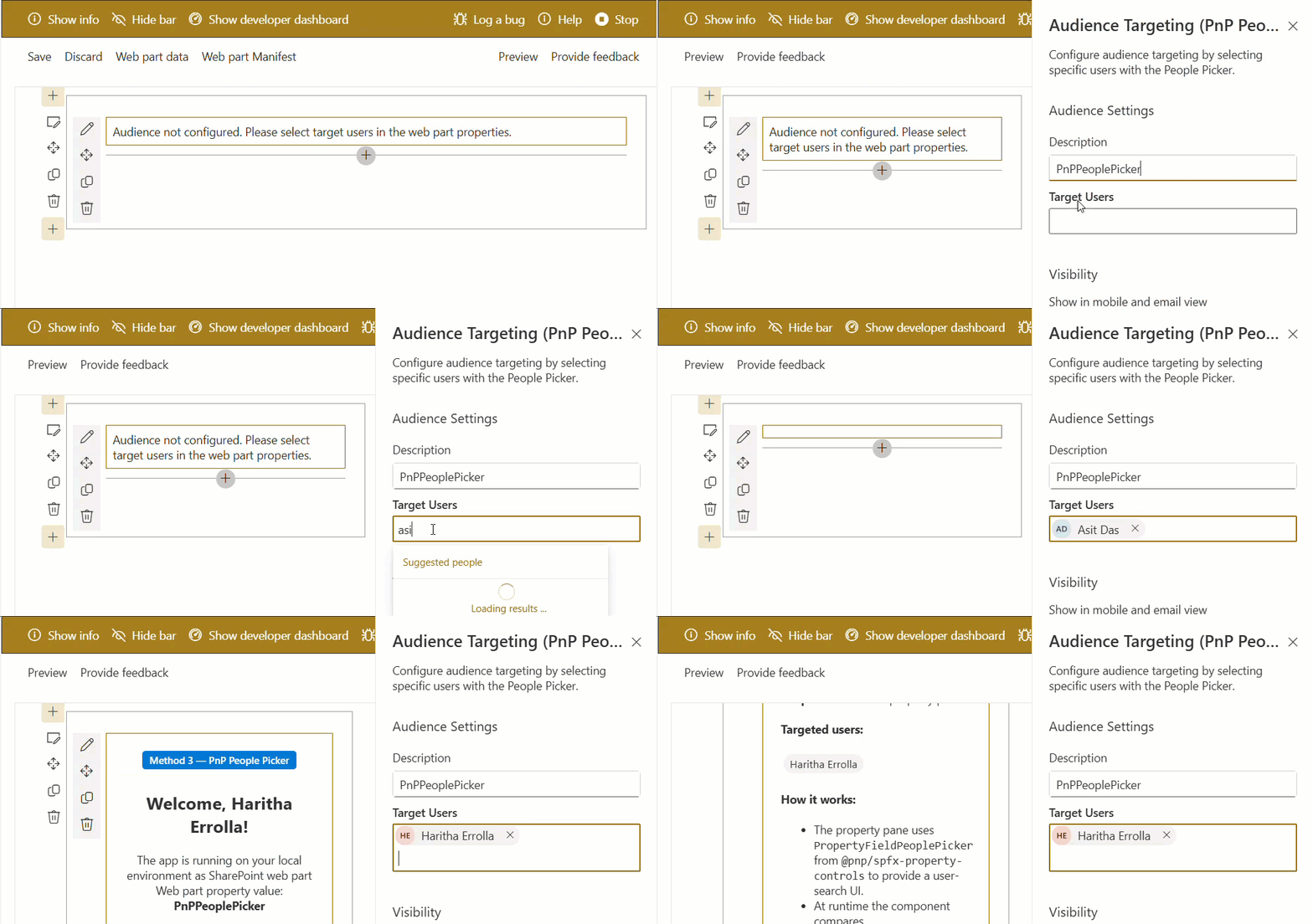
As in the previous example, I followed the same approach here. In the property pane, I added the target user names people picker. If the logged-in user matches any of the specified users, the web part is displayed; otherwise, it remains hidden.
Let’s see how to achieve this!
Install the PnP Property Controls
npm install @pnp/spfx-property-controls
Import What You Need
In your main web part file:
import {
  IPropertyFieldGroupOrPerson,
  PropertyFieldPeoplePicker,
  PrincipalType,
} from "@pnp/spfx-property-controls/lib/PropertyFieldPeoplePicker";
Add the Property to the Interface
export interface IAudienceWebPartProps {
  targetAudience: IPropertyFieldGroupOrPerson[];
}
Add the People Picker to the Property Pane
protected getPropertyPaneConfiguration(): IPropertyPaneConfiguration {
  return {
    pages: [
      {
        header: { description: "Configure Audience Targeting" },
        groups: [
          {
            groupName: "Audience Settings",
            groupFields: [
              PropertyFieldPeoplePicker("targetAudience", {
                label: "Target Audience",
                initialData: this.properties.targetAudience,
                allowDuplicate: false,
                principalType: [
                  PrincipalType.SharePoint,
                  PrincipalType.Security,
                  PrincipalType.Users,
                ],
                onPropertyChange: this.onPropertyPaneFieldChanged,
                properties: this.properties,
                context: this.context as any,
                key: "targetAudiencePicker",
              }),
            ],
          },
        ],
      },
    ],
  };
}
The principalType array on line 15 is worth paying attention to. You can mix and match:
PrincipalType.SharePoint— SharePoint groupsPrincipalType.Security— Azure AD security groupsPrincipalType.Users— individual users
For most scenarios, including all three gives site owners maximum flexibility.
Check out Set Up Your SharePoint Framework (SPFx) Development Environment using Heft Toolchain
CSS Hide vs. Returning Null — Which Should You Use?
You’ll sometimes see people use CSS (display: none) to hide web parts from certain users instead of returning null from React. I’d steer clear of that approach for anything sensitive.
Here’s why:
- CSS hiding is purely visual — a determined user can open DevTools and remove the CSS rule to see the content
- Returning
nullfrom React, the DOM nodes are never rendered at all - For truly sensitive content, combine React’s
nullreturn with server-side filtering so the data never reaches the browser in the first place
Think of it this way: CSS hiding is like putting a curtain over a window. Returning null is like removing the window entirely. And server-side filtering is like the content not even being in the building.
Putting It All Together — Full Working Flow
Here’s the typical flow for a production-ready audience-targeted SPFx web part:
- Site owner opens property pane → uses PnP People Picker to select one or more Azure AD groups as the target audience
- Page loads for a user → your SPFx component calls Graph API to get the current user’s group memberships (cached in sessionStorage)
- Membership check runs → if the user is in any of the selected groups, content renders; otherwise, the component returns null
Common Issues and How to Fix Them
“The People Picker isn’t showing groups, only users.“
— Make sure you’re passing PrincipalType.Security and PrincipalType.SharePoint in the principalType array. By default, it only searches users.
“My group membership check always returns false.”
— The group ID format IPropertyFieldGroupOrPerson includes the full claim format, like c:0o.c|federateddirectoryclaimprovider|<guid>. You need to split on | and grab the last part (the raw GUID) to compare against Graph API results.
“The web part flickers on load.”
— Add a loading state (like I showed in Method 1) so the web part shows a spinner while the membership check is running, instead of briefly showing content to everyone before hiding it.
“My sessionStorage cache is stale.”
— If a user’s group memberships change mid-session, the cached result won’t reflect that. For most cases, this is fine. If you need real-time accuracy, set an expiry on the cache or skip caching altogether.
Quick Summary of All Three Approaches
| Approach | Works With | Best For | Complexity |
|---|---|---|---|
| SharePoint REST API | SharePoint groups only | Simple intranet sites | Low |
| Graph API + Wrapper Component | Azure AD, M365, Security groups | Enterprise solutions | Medium |
| CSS Hide | Any | Non-sensitive UI tweaks only | Very Low |
Conclusion
I hope you found this article helpful. In this guide, I explained how audience targeting works in SPFx. I also demonstrated different methods for displaying content to specific users or groups using SharePoint Framework audience targeting. These approaches are simple once you understand the basic pattern.
If you are working with user groups, choose the method that fits your needs. The Graph API with PnP People Picker is a flexible and useful option. It also makes it easy to manage audiences without much effort. This helps you show the right content to the right people.
Also, you may like:
- Create a Modal Popup in SPFx (4 Methods with Full Examples)
- Bind SharePoint List Items to SPFx Fluent UI React Dropdown (Step-by-Step)
- Customize SharePoint List Command Bar Download Button Using SPFx Extension
- Upload File to SharePoint Document Library With Metadata in SPFx

Hey! I’m Bijay Kumar, founder of SPGuides.com and a Microsoft Business Applications MVP (Power Automate, Power Apps). I launched this site in 2020 because I truly enjoy working with SharePoint, Power Platform, and SharePoint Framework (SPFx), and wanted to share that passion through step-by-step tutorials, guides, and training videos. My mission is to help you learn these technologies so you can utilize SharePoint, enhance productivity, and potentially build business solutions along the way.

