
If you’ve been building SharePoint Framework web parts for a while, you’ve probably hit a point where you need to show a modal popup — maybe to confirm a delete action, collect some input, or display detailed info without navigating away from the page.
The good news? SPFx gives you multiple ways to do this. In this tutorial, I’ll walk you through three practical methods with real code so you can pick the one that fits your scenario.
Here’s what we’ll cover:
- Method 1 — Fluent UI
<Modal>component (best for web parts) - Method 2 — Fluent UI
<Dialog>component (great for confirmations) - Method 3 —
BaseDialogfrom@microsoft/sp-dialog(best for extensions) - Method 4 — Using Native HTML <dialog> Element
Prerequisites
Before we start, make sure you have:
- Node.js (v18.x recommended for SPFx 1.18+)
- SPFx Yeoman generator installed (
@microsoft/generator-sharepoint) - A React-based SPFx solution scaffolded and ready
- Basic familiarity with TypeScript and React hooks
If you haven’t scaffolded a solution yet, run:
yo @microsoft/sharepoint
Choose WebPart, React framework, and give it a name like ModalDemo.
“Modal” vs “Dialog” in SPFx
People often use these terms interchangeably, and honestly, in everyday SPFx work, they mean the same thing — a pop-up that appears over the page content. Technically, a modal blocks interaction with the rest of the page, while a dialog may or may not. But for this tutorial, I’m using both terms to mean the same thing.
Create a Modal Popup in SharePoint Framework (SPFx)
Now, let us see different methods to create a modal popup in SharePoint Framework (SPFx).
Method 1: Fluent UI <Modal> Component
This is my go-to method for web parts. The <Modal> component from @fluentui/react gives you a lot of control over how your pop-up looks and behaves. It’s a proper overlay that blocks the rest of the page while it’s open.
When to use this
- You need a fully custom layout inside the pop-up
- You want to show a form, a table, or rich content
- You’re building inside a web part (not an extension)
Step 1 — Install Fluent UI (if not already installed)
In most SPFx 1.16+ projects, @fluentui/react is already available. Just double-check your package.json. If it’s missing:
npm install @fluentui/react --save
Also, install the hooks package:
npm install @fluentui/react-hooks --save
Step 2 — Build the Modal Component
Create a new file: "\src\webparts\spFxModelPoPups\components\MyModal.tsx"
import * as React from 'react';
import { Modal } from '@fluentui/react/lib/Modal';
import { PrimaryButton, DefaultButton, IconButton } from '@fluentui/react/lib/Button';
import { mergeStyleSets, FontWeights } from '@fluentui/react/lib/Styling';

const contentStyles = mergeStyleSets({
  container: {
    display: 'flex',
    flexFlow: 'column nowrap',
    alignItems: 'stretch',
    width: 500,
  },
  header: {
    flex: '1 1 auto',
    display: 'flex',
    alignItems: 'center',
    fontWeight: FontWeights.semibold,
    padding: '12px 12px 14px 24px',
    backgroundColor: '#0078d4',
    color: '#fff',
  },
  body: {
    flex: '4 4 auto',
    padding: '0 24px 24px',
    overflowY: 'hidden',
  },
  footer: {
    padding: '0 24px 24px',
    display: 'flex',
    justifyContent: 'flex-end',
    gap: '8px',
  },
});

interface IMyModalProps {
  isOpen: boolean;
  onDismiss: () => void;
}

const MyModal: React.FC<IMyModalProps> = ({ isOpen, onDismiss }) => {
  return (
    <Modal
      isOpen={isOpen}
      onDismiss={onDismiss}
      isBlocking={true}
      containerClassName={contentStyles.container}
    >
      <div className={contentStyles.header}>
        <span>Employee Details</span>
        <IconButton
          iconProps={{ iconName: 'Cancel' }}
          ariaLabel="Close popup modal"
          onClick={onDismiss}
          styles={{ root: { marginLeft: 'auto', color: '#fff' } }}
        />
      </div>
      <div className={contentStyles.body}>
        <p>Name: John Smith</p>
        <p>Department: Engineering</p>
        <p>Location: Bengaluru</p>
      </div>
      <div className={contentStyles.footer}>
        <DefaultButton text="Close" onClick={onDismiss} />
        <PrimaryButton text="Save" onClick={() => { alert('Saved!'); onDismiss(); }} />
      </div>
    </Modal>
  );
};

export default MyModal;

Step 3 — Use it in Your Main Web Part Component
Open "\src\webparts\spFxModelPoPups\components\SpFxModelPoPups.tsx" and update it:
Note: The web part name and file names in the path above may vary based on your project structure. Please adjust them accordingly to match your actual file names.
import * as React from 'react';
import { useState } from 'react';
import { PrimaryButton } from '@fluentui/react/lib/Button';
import MyModal from './MyModal';

const SpFxModelPoPups: React.FC = () => {
  const [isModalOpen, setIsModalOpen] = useState(false);

  return (
    <div style={{ padding: '20px' }}>
      <h2>Employee Directory</h2>
      <PrimaryButton text="View Details" onClick={() => setIsModalOpen(true)} />
      <MyModal
        isOpen={isModalOpen}
        onDismiss={() => setIsModalOpen(false)}
      />
    </div>
  );
};

export default SpFxModelPoPups;

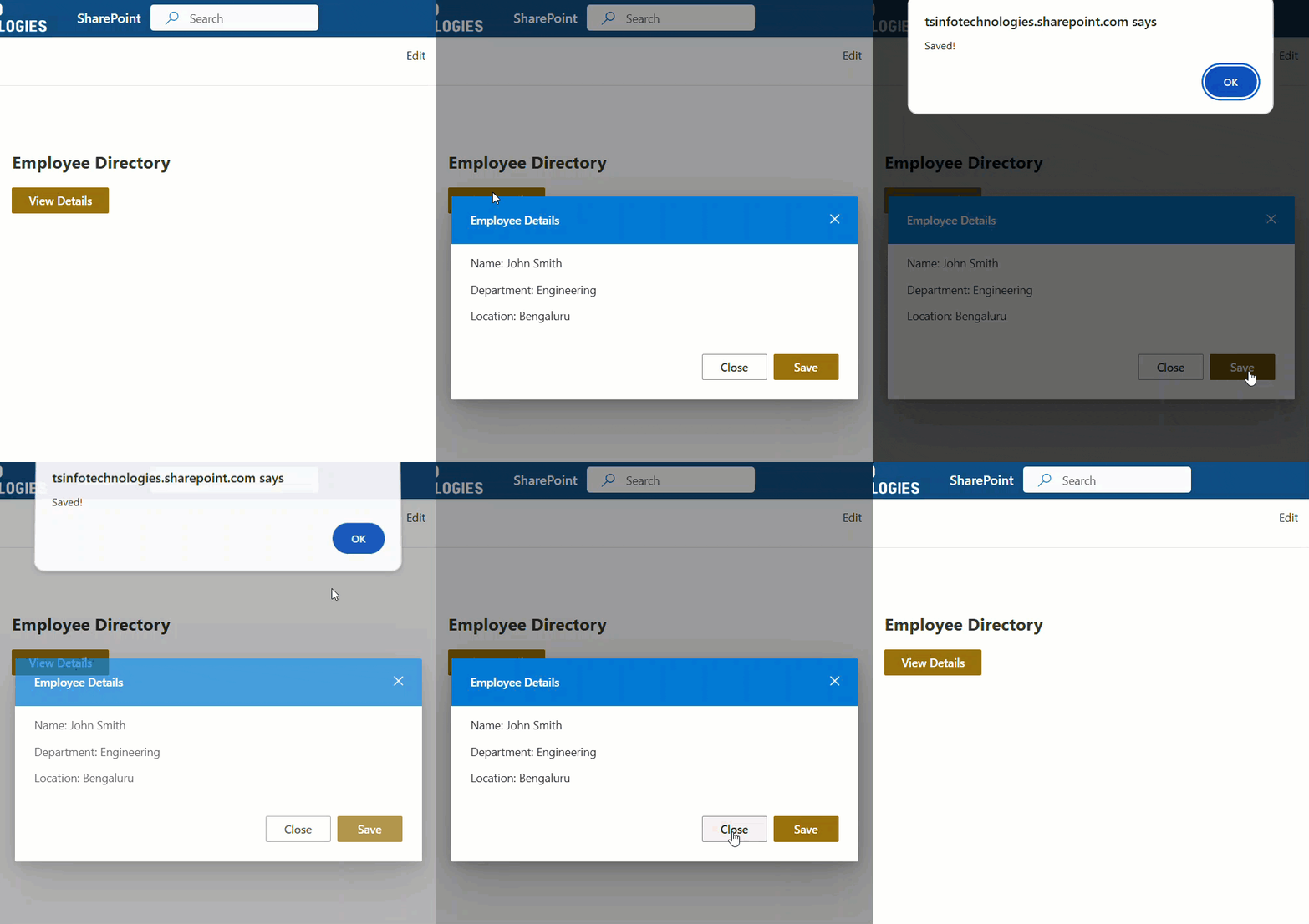
That’s it for Method 1. Click the button, modal opens. Click the X or Close button, modal dismisses.
Key <Modal> Props You Should Know
| Prop | What it does |
|---|---|
isOpen | Controls whether the modal is visible |
isBlocking | If true, user can’t click outside to close |
onDismiss | Called when modal wants to close (Escape key, backdrop click) |
containerClassName | Lets you apply custom styles to the outer container |
dragOptions | Makes the modal draggable |
Check out Bind SharePoint List Items to SPFx Fluent UI React Dropdown
Method 2: Fluent UI <Dialog> Component
If all you need is a confirm/cancel type popup in SPFx — like “Are you sure you want to delete this item?” — the <Dialog> component is cleaner and takes less code than <Modal>.
The <Dialog> component is purpose-built for quick confirmations and simple messages. It handles the layout for you: title, subtitle, buttons in the footer — all baked in.
A Real-World Example: Delete Confirmation
Here is a real world example to display a Delete confirmation message dialog box on a button click.
import * as React from 'react';
import { useState } from 'react';
import {
  Dialog,
  DialogType,
  DialogFooter,
} from '@fluentui/react/lib/Dialog';
import { PrimaryButton, DefaultButton } from '@fluentui/react/lib/Button';

const DeleteConfirmation: React.FC = () => {
  const [hideDialog, setHideDialog] = useState(true);

  const dialogContentProps = {
    type: DialogType.normal,
    title: 'Delete Item',
    subText: 'Are you sure you want to delete this item? This action cannot be undone.',
  };

  const modalProps = {
    isBlocking: true,
  };

  const handleDelete = () => {
    // your delete logic here
    console.log('Item deleted!');
    setHideDialog(true);
  };

  return (
    <div>
      <DefaultButton text="Delete Item" onClick={() => setHideDialog(false)} />
      <Dialog
        hidden={hideDialog}
        onDismiss={() => setHideDialog(true)}
        dialogContentProps={dialogContentProps}
        modalProps={modalProps}
      >
        <DialogFooter>
          <PrimaryButton onClick={handleDelete} text="Delete" />
          <DefaultButton onClick={() => setHideDialog(true)} text="Cancel" />
        </DialogFooter>
      </Dialog>
    </div>
  );
};

export default DeleteConfirmation;
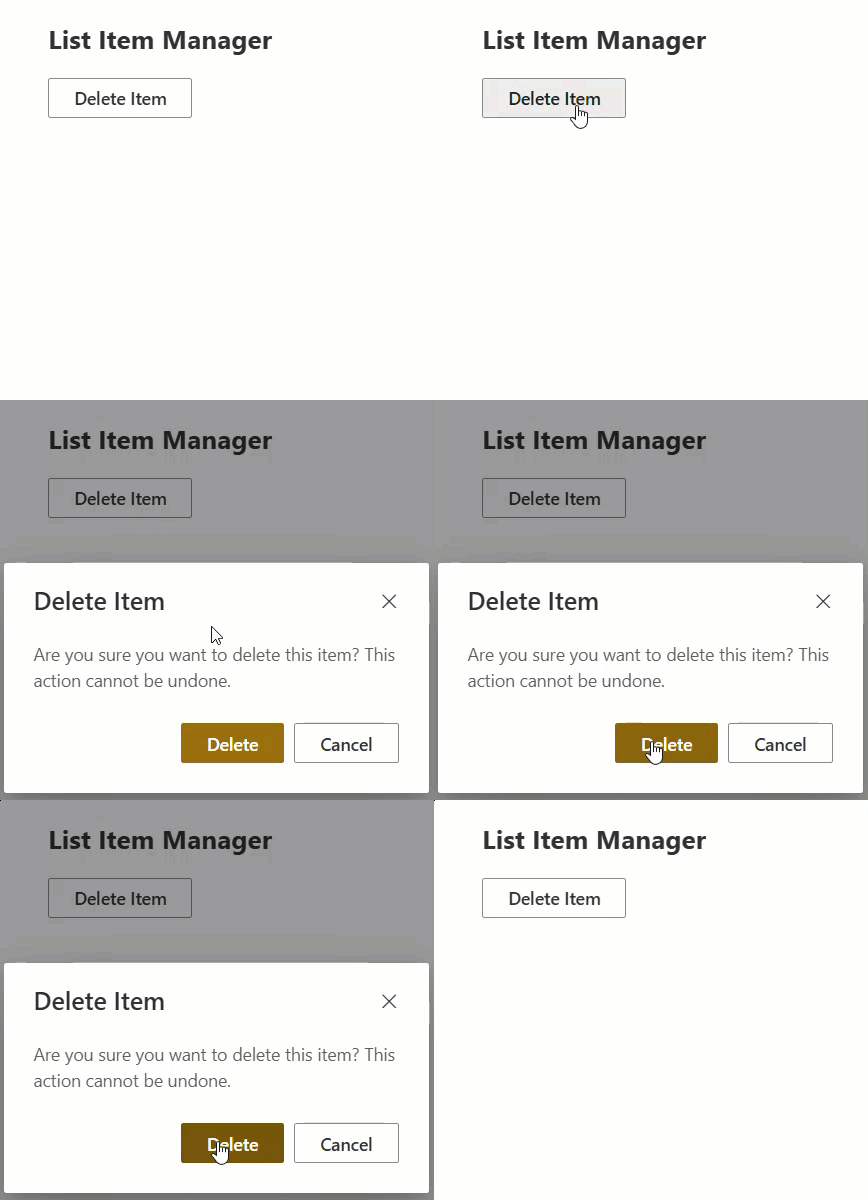
Notice that <Dialog> uses hidden (the opposite of isOpen). It’s a small thing but it trips people up when switching between Dialog and Modal.
Using useBoolean for Cleaner State Management
One thing I love about the Fluent UI hooks package is useBoolean. Instead of managing useState manually for your open/close logic, you can do this:
import { useBoolean } from '@fluentui/react-hooks';

const [isDialogVisible, { setTrue: showDialog, setFalse: hideDialog }] = useBoolean(false);
Now instead of setIsDialogVisible(true) you just call showDialog(). Much more readable, especially when you have multiple dialogs on a page.
Method 3: BaseDialog from @microsoft/sp-dialog
This method is specifically for SPFx Extensions — ListView Command Sets and Application Customizers. The BaseDialog class from @microsoft/sp-dialog is designed to render dialogs outside the normal React component tree, which is exactly what you need in extensions where you don’t have a typical component hierarchy.
Important: When you scaffold a ListView Command Set, React is not included by default. So unlike web parts, you should build your dialog using vanilla DOM manipulation inside BaseDialog — no JSX, no Fluent UI imports needed.
When to use this
- You want to display selected item details in a dialog
- You’re building a ListView Command Set extension
- You need to trigger a popup from a toolbar button on a SharePoint list
Step 1 — Scaffold an Extension
yo @microsoft/sharepointSelect:
- Extension → ListView Command Set
- Name it:
TaskDialog
Step 2 — Create the Dialog File
Create src/extensions/taskDialog/TaskDialog.ts.
This file contains a class that extends BaseDialog. Instead of using React or JSX, we build the dialog content using vanilla DOM methods — document.createElement, textContent, and addEventListener. SharePoint provides this.domElement as the dialog container, and we append our built elements directly into it.
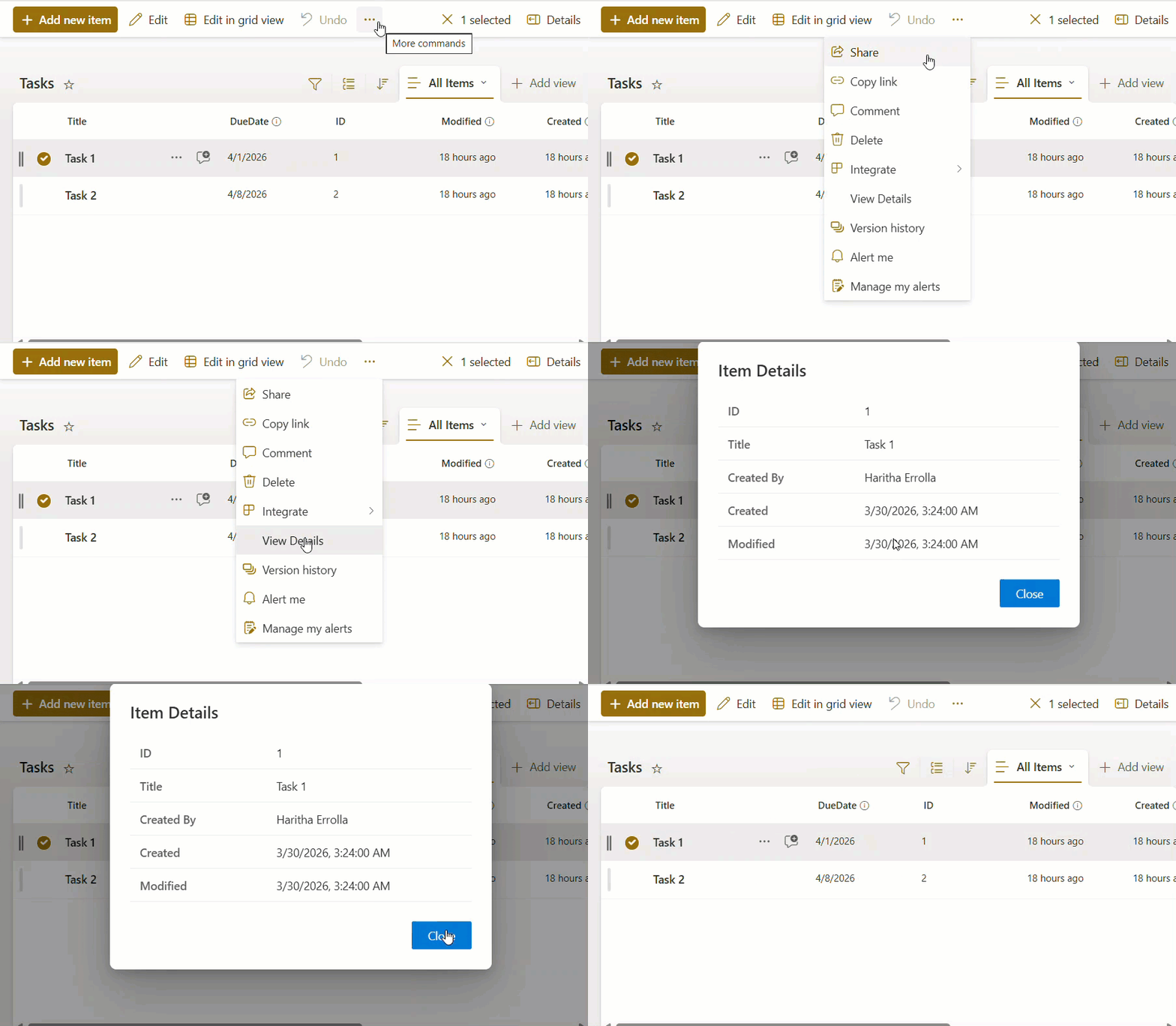
The dialog shows five fields from the selected list item: ID, Title, Created By, Created date, and Modified date. A styled Close button calls this.close() to dismiss the dialog.
In onAfterClose(), we clear this.domElement.innerHTML to clean up the DOM between openings — this is the equivalent of ReactDOM.unmountComponentAtNode in React-based dialogs.
import { BaseDialog, IDialogConfiguration } from '@microsoft/sp-dialog';

export interface IItemDetails {
  id: string;
  title: string;
  createdBy: string;
  created: string;
  modified: string;
}

export default class TaskDialog extends BaseDialog {
  public itemDetails: IItemDetails;

  constructor(itemDetails: IItemDetails) {
    super({ isBlocking: true });
    this.itemDetails = itemDetails;
  }

  public render(): void {
    const { id, title, createdBy, created, modified } = this.itemDetails;

    const container = document.createElement('div');
    container.style.cssText = 'padding:24px;min-width:420px;font-family:"Segoe UI",sans-serif;';

    const heading = document.createElement('div');
    heading.style.cssText = 'font-size:20px;font-weight:600;margin-bottom:20px;color:#323130;';
    heading.textContent = 'Item Details';

    const table = document.createElement('table');
    table.style.cssText = 'width:100%;border-collapse:collapse;';

    const rows: [string, string][] = [
      ['ID',         id],
      ['Title',      title],
      ['Created By', createdBy],
      ['Created',    created],
      ['Modified',   modified],
    ];

    rows.forEach(([label, value]) => {
      const tr = document.createElement('tr');

      const td1 = document.createElement('td');
      td1.style.cssText = 'font-weight:600;padding:10px 12px;border-bottom:1px solid #edebe9;color:#605e5c;width:40%;';
      td1.textContent = label;

      const td2 = document.createElement('td');
      td2.style.cssText = 'padding:10px 12px;border-bottom:1px solid #edebe9;color:#323130;';
      td2.textContent = value;

      tr.appendChild(td1);
      tr.appendChild(td2);
      table.appendChild(tr);
    });

    const footer = document.createElement('div');
    footer.style.cssText = 'margin-top:24px;text-align:right;';

    const closeBtn = document.createElement('button');
    closeBtn.style.cssText = 'padding:8px 20px;background-color:#0078d4;color:#fff;border:none;border-radius:2px;cursor:pointer;font-size:14px;';
    closeBtn.textContent = 'Close';
    closeBtn.addEventListener('click', () => {
      this.close().catch(() => { /* handle error */ });
    });

    footer.appendChild(closeBtn);
    container.appendChild(heading);
    container.appendChild(table);
    container.appendChild(footer);

    this.domElement.appendChild(container);
  }

  public getConfig(): IDialogConfiguration {
    return { isBlocking: true };
  }

  protected onAfterClose(): void {
    super.onAfterClose();
    this.domElement.innerHTML = '';
  }
}
Step 3 — Trigger It from Your Command Set
In TaskDialogCommandSet.ts, we import TaskDialog and wire it to COMMAND_1. The command stays hidden by default and only becomes visible when exactly one row is selected — handled inside _onListViewStateChanged.
When clicked, we read the selected row’s field values using getValueByName(). The Author field is a person field — SPFx returns it as an array of objects, so we extract the title property from the first element.
import { Log } from '@microsoft/sp-core-library';
import {
  BaseListViewCommandSet,
  type Command,
  type IListViewCommandSetExecuteEventParameters,
  type ListViewStateChangedEventArgs
} from '@microsoft/sp-listview-extensibility';
import TaskDialog from './TaskDialog';

export interface ITaskDialogCommandSetProperties {
  sampleTextOne: string;
}

const LOG_SOURCE: string = 'TaskDialogCommandSet';

export default class TaskDialogCommandSet extends BaseListViewCommandSet<ITaskDialogCommandSetProperties> {

  public onInit(): Promise<void> {
    Log.info(LOG_SOURCE, 'Initialized TaskDialogCommandSet');

    const viewDetailsCommand: Command = this.tryGetCommand('COMMAND_1');
    viewDetailsCommand.visible = false;

    this.context.listView.listViewStateChangedEvent.add(this, this._onListViewStateChanged);

    return Promise.resolve();
  }

  public onExecute(event: IListViewCommandSetExecuteEventParameters): void {
    switch (event.itemId) {
      case 'COMMAND_1': {
        const row = event.selectedRows[0];

        const id       = String(row.getValueByName('ID') || '');
        const title    = String(row.getValueByName('Title') || '');
        const created  = new Date(row.getValueByName('Created')  as string).toLocaleString();
        const modified = new Date(row.getValueByName('Modified') as string).toLocaleString();

        // Author is a person field — SPFx returns an array of objects with a title property
        const authorRaw = row.getValueByName('Author');
        let createdBy = '';
        if (Array.isArray(authorRaw) && authorRaw.length > 0) {
          const first = authorRaw[0];
          createdBy = typeof first === 'object' && first !== null
            ? String((first as { title?: string; Title?: string }).title || (first as { title?: string; Title?: string }).Title || first)
            : String(first);
        }

        const dialog = new TaskDialog({ id, title, createdBy, created, modified });
        dialog.show().catch((err) => { console.error('TaskDialog error:', err); });
        break;
      }
      default:
        throw new Error('Unknown command');
    }
  }

  private _onListViewStateChanged = (_args: ListViewStateChangedEventArgs): void => {
    Log.info(LOG_SOURCE, 'List view state changed');

    const viewDetailsCommand: Command = this.tryGetCommand('COMMAND_1');
    if (viewDetailsCommand) {
      // Show only when exactly one row is selected
      viewDetailsCommand.visible = this.context.listView.selectedRows?.length === 1;
    }

    this.raiseOnChange();
  }
}
Manifest file (TaskDialogCommandSet.manifest.json)
Only COMMAND_1 is defined. The title is set to “View Details” so the toolbar button is meaningful to the user.
{
  "$schema": "https://developer.microsoft.com/json-schemas/spfx/command-set-extension-manifest.schema.json",
  "id": "0465f20d-8ea6-4117-9e72-4924124472e1",
  "alias": "TaskDialogCommandSet",
  "componentType": "Extension",
  "extensionType": "ListViewCommandSet",
  "version": "*",
  "manifestVersion": 2,
  "requiresCustomScript": false,
  "items": {
    "COMMAND_1": {
      "title": { "default": "View Details" },
      "iconImageUrl": "icons/request.png",
      "type": "command"
    }
  }
}
Important: Always clean up the DOM
Always clear this.domElement.innerHTML in onAfterClose(). If you skip this, the previous dialog content remains in the DOM, and you’ll see stale or duplicated data the next time the dialog is opened.
Method 4: Native HTML <dialog> Element
This one’s worth knowing about. Modern browsers have a built-in <dialog> HTML element that works perfectly fine in SPFx. No Fluent UI needed. No extra packages. Just plain HTML and TypeScript.
It’s a bit more of a “do it yourself” approach, but it’s lightweight, and it works well for non-React web parts.
export default class NativeDialogWebPart extends BaseClientSideWebPart<{}> {
  private _dialog: HTMLDialogElement;

  public render(): void {
    this.domElement.innerHTML = `
      <div>
        <button id="openBtn">Open Dialog</button>
        <dialog id="myDialog">
          <h2>Hello from a native dialog!</h2>
          <p>This is a lightweight modal using the HTML dialog element.</p>
          <button id="closeBtn">Close</button>
        </dialog>
      </div>
    `;

    this._dialog = this.domElement.querySelector('#myDialog') as HTMLDialogElement;

    this.domElement.querySelector('#openBtn')!.addEventListener('click', () => {
      (this._dialog as any).showModal();
    });

    this.domElement.querySelector('#closeBtn')!.addEventListener('click', () => {
      this._dialog.close();
    });
  }
}

One heads-up: TypeScript’s type definitions in SPFx don’t always recognize the showModal() method on the HTMLDialogElement, so you may need to cast it to any like I did above. It’s a known limitation in the SPFx TypeScript setup, not a bug in your code.
Which Method Should You Pick?
Here’s a simple way to think about it:
- Building a web part? → Use Fluent UI
<Modal>(Method 1) for complex UIs, or<Dialog>(Method 2) for confirmations - Building a ListView Command Set extension? → Use
BaseDialog(Method 3) - Want something ultra-lightweight with no extra packages? → Native HTML
<dialog>(Method 4) - Need clean state management code? → Combine any React method with
useBooleanfrom@fluentui/react-hooks
Common Issues and How to Fix Them
Here are some common issues that I faced and the fixes
| Scenario | Best Approach |
|---|---|
| Modal is not blocking (user can click outside to close) | Set isBlocking={true} on your <Modal> or <Dialog> component, or set isBlocking: true in modalProps. |
| Dialog re-renders show stale data | This usually happens in BaseDialog if you forget to call ReactDOM.unmountComponentAtNode in onAfterClose(). Always clean up. |
TypeScript error: showModal is not a function | Cast your HTMLDialogElement to any before calling showModal(). It’s a TypeScript types issue, not a runtime issue. |
| Icons not rendering in Modal header | Make sure you’ve registered the Fluent UI icon set early in your component with initializeIcons() from @fluentui/react/lib/Icons.import { initializeIcons } from '@fluentui/react/lib/Icons'; |
| Modal appears behind other elements | This can happen if a parent element has a z-index or overflow: hidden set. SPFx’s modal should handle z-index automatically, but custom CSS on parent containers can interfere. |
Testing Your Modal Popup in SPFx
Run your solution locally:
gulp serve
For web parts, it opens your local workbench at https://tenantname.sharepoint.com/sites/sitename/_layouts/15/workbench.aspx. For extensions, update the pageUrl in config/serve.json to point to an actual SharePoint list URL in your tenant.
When prompted in the browser, click Load debug scripts to allow your local code to run on the SharePoint page.
Download SPFx Modal Popup Solution
Click the button below to download the SPFx solution packages for all examples covered in this post, plus access to 100+ additional solutions.
Wrapping Up
In this tutorial, I explained various methods to create modal popups in SharePoint Framework (SPFx). For most web part scenarios, the Fluent UI <Modal> or <Dialog> component is all you need. For extensions, BaseDialog it gives you the right structure.
The key thing to remember is that Fluent UI keeps things consistent with the SharePoint UI. Your modal will look and feel native to SharePoint rather than like something bolted on.
Also, you may like:
- SharePoint Framework (SPFx) Fluent UI Basic List Example
- Fluent UI DocumentCard in SPFx Web Part
- Build a Custom Slides Manager in SPFx Web Part Property Pane (Drag & Drop, Reorder, Hide Slides)
- SPFx SwatchColorPicker Office UI Fabric React Control example

Hey! I’m Bijay Kumar, founder of SPGuides.com and a Microsoft Business Applications MVP (Power Automate, Power Apps). I launched this site in 2020 because I truly enjoy working with SharePoint, Power Platform, and SharePoint Framework (SPFx), and wanted to share that passion through step-by-step tutorials, guides, and training videos. My mission is to help you learn these technologies so you can utilize SharePoint, enhance productivity, and potentially build business solutions along the way.