
This tutorial explains how to bind SharePoint list items to a Fluent UI React dropdown in an SPFx React web part using PnP JS, so that any new items added to the list automatically appear in the dropdown.
By the end, you will have an SPFx client-side web part where the dropdown is dynamically populated from a SharePoint list and always stays in sync with the items in that list.
Prerequisites and Scenario
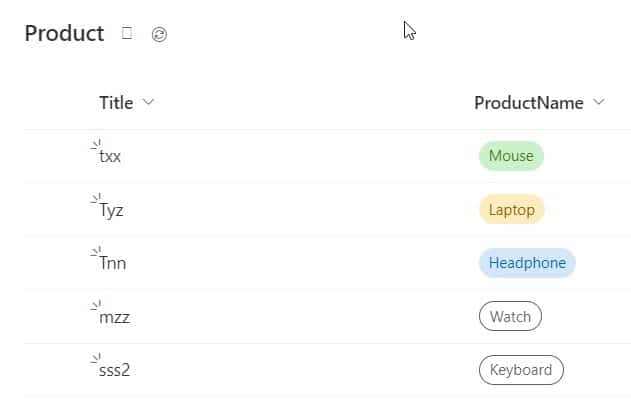
In this example, a SharePoint list named Product is used, with the columns: Title (Single line of text) and ProductName (Single line of text). Here is the SharePoint list in the screenshot below:
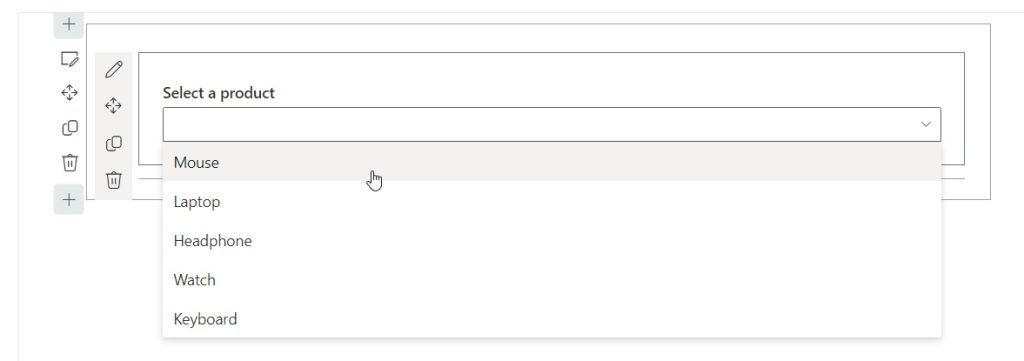
The goal is to fetch items from this Product list using PnP JS and bind them to a Fluent UI React dropdown in an SPFx web part. The output will come like the screenshot below:
Check out Display SharePoint List Items in SPFx Web Part
Create the SPFx React Web Part
- Open Node.js command prompt and create a folder, then go inside it:
mkdir ProductDropdown
cd ProductDropdown- Run the SharePoint Framework Yeoman generator:
yo @microsoft/sharepoint- Answer the prompts (example values):
- Solution name:
product-dropdown - Which type of client-side component to create?:
WebPart - Web part name:
ProductDropdown - Which template would you like to use?:
React
- Solution name:
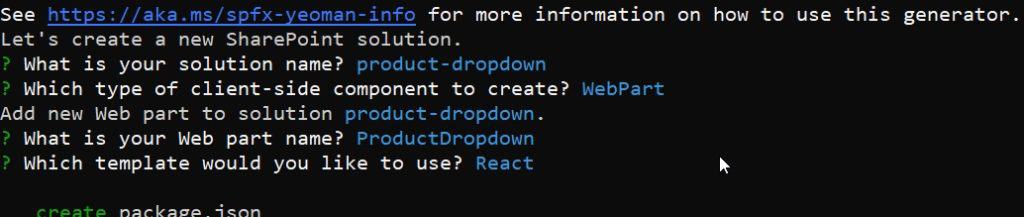
The generator will install all dependencies and scaffold the SPFx project.

Install Fluent UI and PnP JS
After project creation, install the required libraries.
- Fluent UI React:
npm install @fluentui/react- PnP JS (sp-pnp-js):
npm install sp-pnp-jsThen open the project in VS Code:
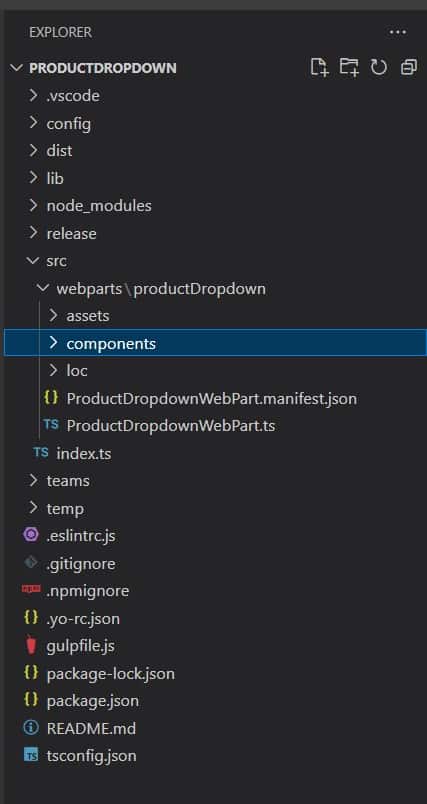
Code .You can see the project structure on the left side of the code editor(VS Code editor).
Check out Build a SharePoint Folder Tree View Using SharePoint Framework (SPFx)
Create Interfaces and Classes for List Items
Navigate to src\webparts\productDropdown\components.
1. Create the interface file IProducts.ts
First, create an interface like below. This interface defines the shape of each SharePoint list item returned by PnP JS, mapping the Id, Title, and ProductName fields.
export interface ISPListProductItem{
    Id:any;
    Title:string;
    ProductName:string;
  }
2. Create the class file ClassProduct.ts
This class takes a raw SharePoint list item and exposes only the properties we need — Id and ProductName — to keep the dropdown logic clean and simple.
import { ISPListProductItem } from "./IProducts";

export class  ClassProduct{
    public ProductName:string;
    public Id:any
    constructor(it