
If you’ve ever built a Power Apps canvas app connected to a SharePoint list, you’ve probably run into a situation where you only need one record — the first one in a list, the most recent entry, or just the top result from a filtered query. That’s exactly where the First function in Power Apps comes in handy.
In this tutorial, I’m going to walk you through everything you need to know about the First function — what it does, how the syntax works, and practical examples you can use right away in your own apps.
What Is the First Function in Power Apps?
First function in Power Apps returns the very first record from a table or data source. It doesn’t matter whether your data comes from a SharePoint list, a collection, or an Excel table — First grabs the top record and hands it back to you as a single record.
Think of it like asking someone, “Hey, who’s first in line?” — you get back exactly one person, not the whole queue.
This is incredibly useful when you want to:
- Show the most recent approval request submitted
- Pre-fill a form with the first available option
- Grab a default value from a reference list
- Get the first result from a filtered dataset
Power Apps First Function Syntax
First( source )
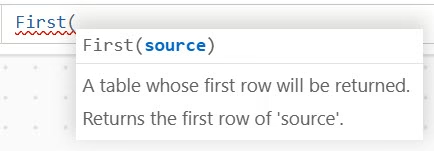
That’s it. Simple.
- Source — this is required. You pass in the name of your data source, collection, or table expression.
The function returns a single record (not a table). This distinction matters a lot — I’ll explain why in a moment.
Power Apps First vs. FirstN — What’s the Difference?
Before we dive into examples, let me clear up the difference between the Power Apps First and FirstN functions, because they’re related but not the same.
| Function | Returns | Use When… |
|---|---|---|
| First(Table) | A single record | You need exactly one row |
| FirstN(Table, N) | A table of N records | You need multiple rows |
Power Apps First gives you a record. Power Apps FirstN gives you a table. This difference trips up a lot of people. If you use FirstN and try to bind the result to a Text label, you’ll get an error — because a label expects a single value, not a table.
So the rule of thumb is: use First when you need a single record, and use FirstN when you need multiple records in a gallery or data table.
How to Use Power Apps First Function
Let’s discuss some real use cases for the Power Apps First function. Let’s get started!
Example 1: Power Apps Get First Record from a SharePoint List
Let’s say I have a SharePoint list called Employee Onboarding with columns like Employee ID, Name, Gender, Joining Date, and Department.
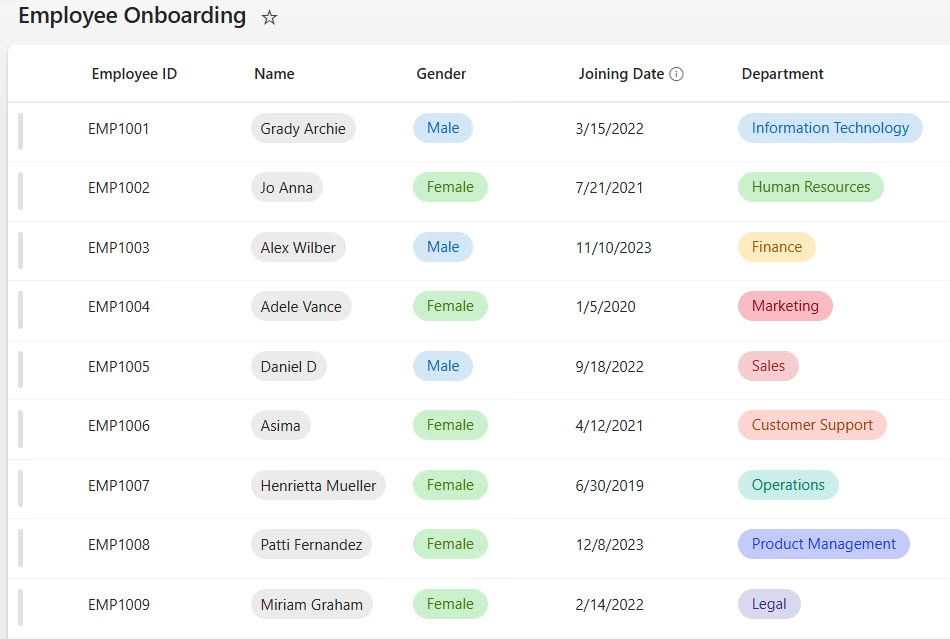
I want to display the first record from the SharePoint list in a Data table control in Power Apps.
Here’s what I do:
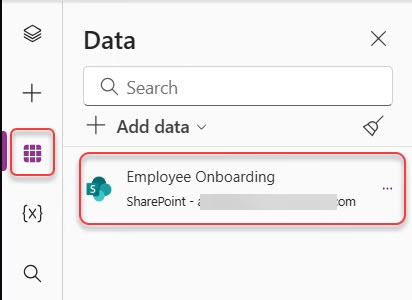
- First, open Power Apps and go to the app where you want to display the data. Then click Data from the left panel and select Add data, search for SharePoint, and choose the SharePoint connector.
- After that, enter your SharePoint site address, click Connect, and select the Employee Onboarding list to add it to your app.
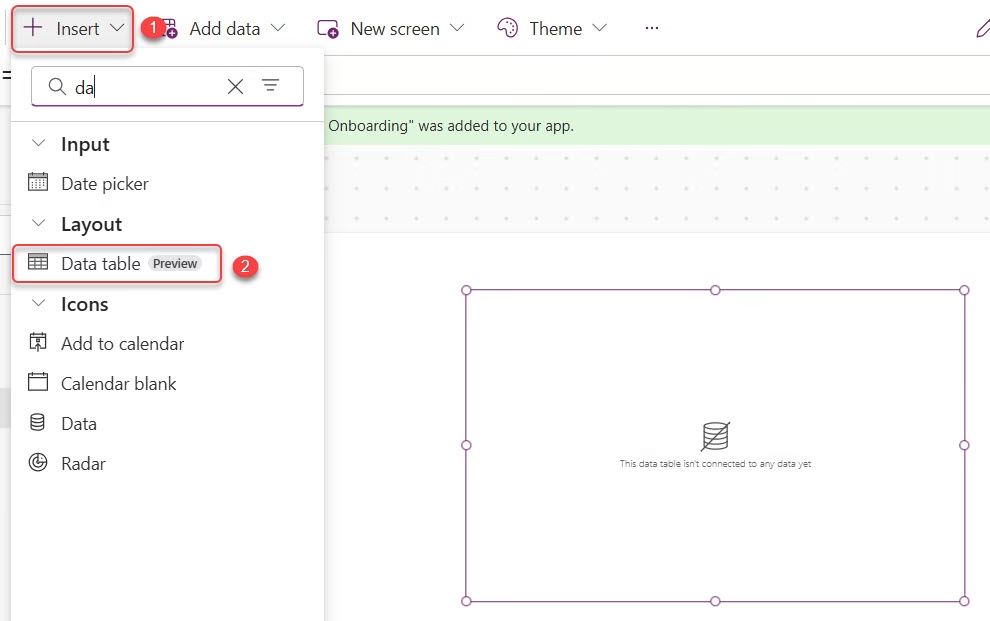
- Insert a Data table control on the screen by going to the Insert menu in Power Apps. Then select the Data table from the list of controls, and it will be added to the screen.
- Set the Items property of the Data table to the following formula, so it only shows the first record from the SharePoint list:
First('Employee Onboarding')

When I preview the app, the data table shows just the first employee record from the list. Clean and simple.
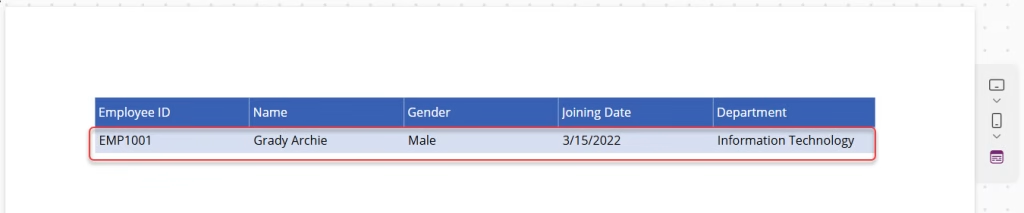
Now the Data table will display only the first record from the Employee Onboarding list.
Example 2: Power Apps Get First N Records from a SharePoint List
Now, let’s say I want the first four records instead of just one. For this example, I am using the same SharePoint list and the same Power Apps app.
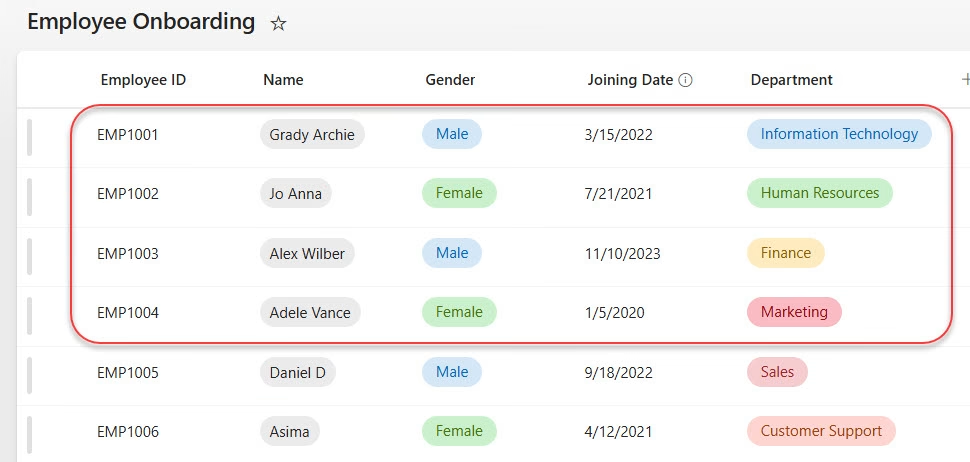
This is where the FirstN function is useful. To show the first few records, set the Items property of the Data table to the following formula:
FirstN('Employee Onboarding', 4)
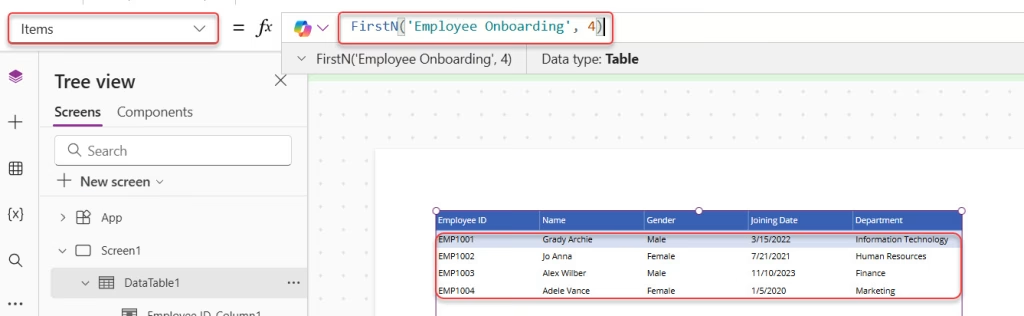
The 4 here is the number of records you want. You can replace this with any number — or even a variable if you want it to be dynamic.
⚠️ Important: FirstN is not delegable with SharePoint as a data source. This means Power Apps will pull records locally and apply the function on the client side. If your list has thousands of rows, you may not get accurate results. Keep this in mind when working with large datasets.
Example 3: Get the First Record from a Power Apps Collection
Collections are temporary, in-memory tables that you create inside Power Apps. The First function works perfectly with these, too.
Let’s say I create a collection called BookCollection using the app’s OnStart property:
Collect(
    BookCollection,
    { BookName: "The Testaments", Author: "Margaret Atwood" },
    { BookName: "Cheque Book", Author: "Vasdev Mohi" },
    { BookName: "The Overstory", Author: "Richard Powers" },
    { BookName: "Come! Let's Run", Author: "Ma. Subramanian" },
    { BookName: "Spare", Author: "J. R. Moehringer" }
)
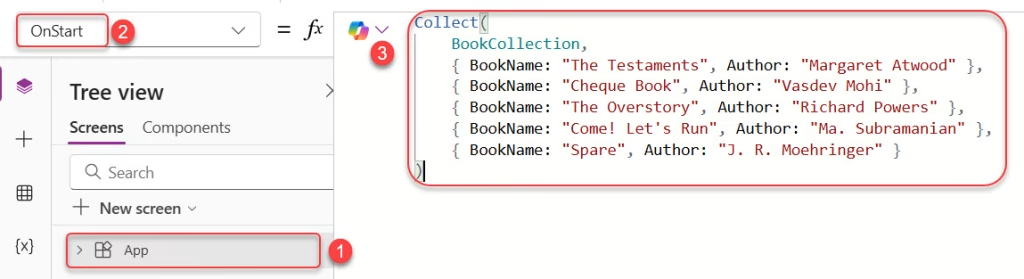
Now, if I insert a Gallery control and set its Items property to:
First(BookCollection)
The gallery will show only the first book, The Testaments by Margaret Atwood.
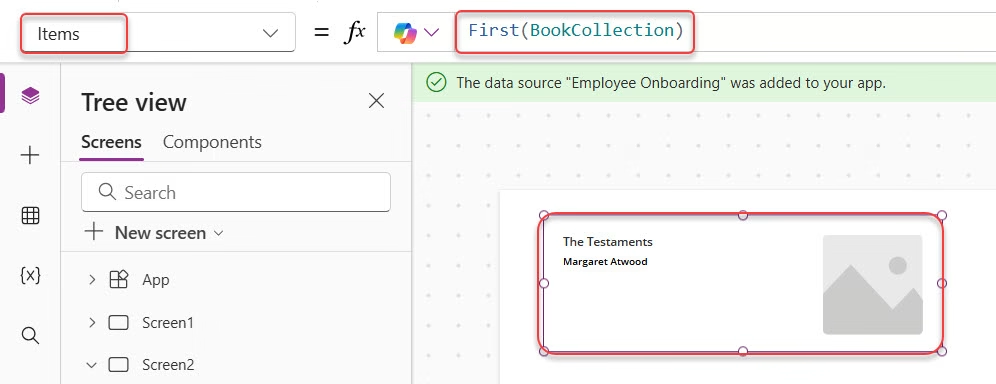
Note:
After adding the collection in the OnStart property, you need to run OnStart once to create the collection. You can do this by clicking Run OnStart from the App menu in Power Apps.
And if I want the first 4 books:
FirstN(BookCollection, 4)
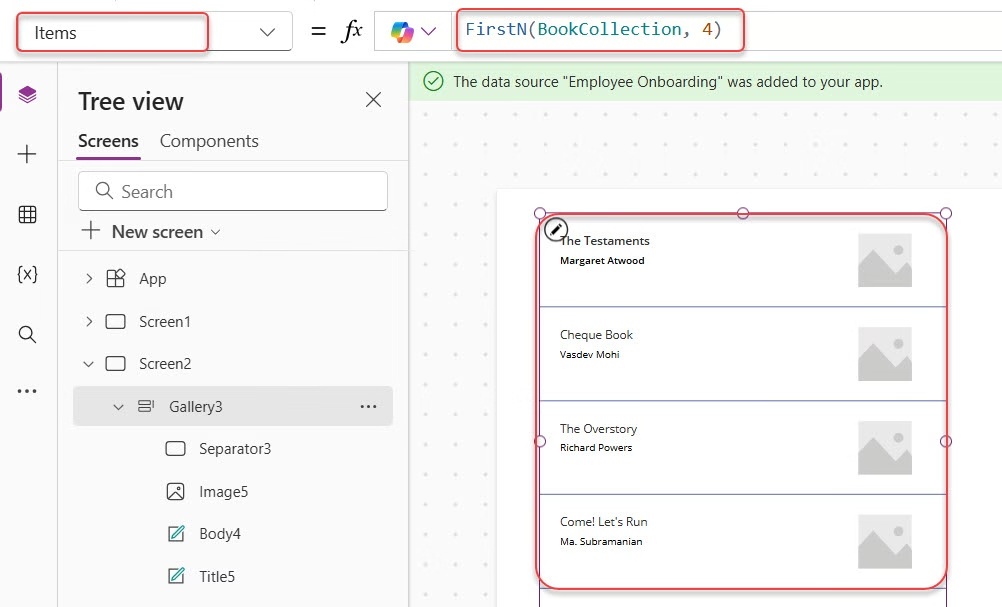
This returns a table with the top 4 records, which works perfectly in a gallery.
Example 4: Read a Specific Field from the First Record in Power Apps
Let me show you something I use all the time in real projects — pulling a specific column value from the first record.
For example, if I want to display just the Name of the first employee on the screen, I can use a Text label control.
Note:
In this example, the Name column is a Person column in SharePoint. Person fields store multiple properties such as DisplayName, Email, and Department. That’s why we need to access the DisplayName property to show the person’s name.
First, insert a Label control on the screen from the Insert menu. Then select the label and set its Text property to the following formula:
First('Employee Onboarding').Name.DisplayName
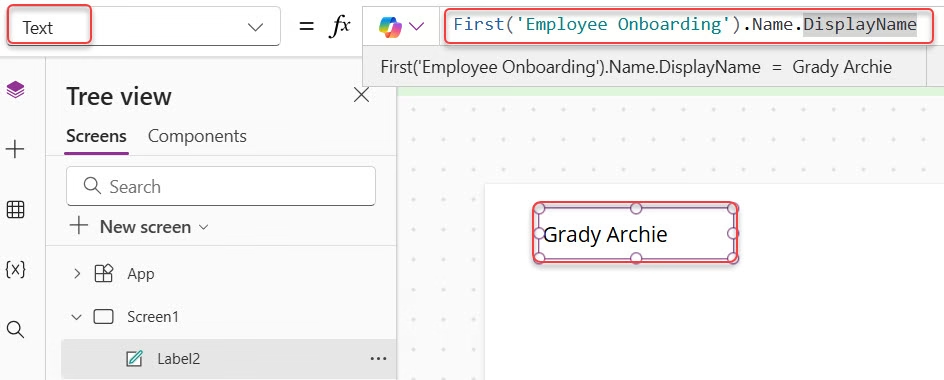
The dot (.) after First(…) lets you drill into a specific field from that record. This is super handy when you want to pre-fill a label, a text input, or pass a value into another formula.
You can do the same for any column:
First('Employee Onboarding').Department.Value
First('Employee Onboarding').JoiningDate
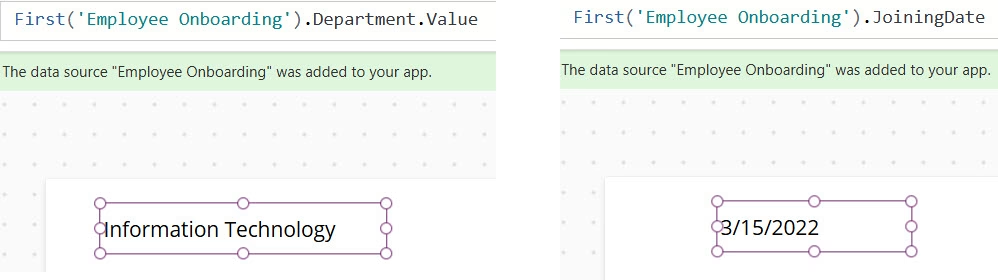
Example 5: Combine First with Power Apps Filter
This is where things get really powerful. Instead of just grabbing the first record of the entire list, you can get the first record that matches a specific condition.
Let’s say I want the first employee record where the Department is “Human Resources”:
First(Filter('Employee Onboarding', Department.Value = "Human Resources"))
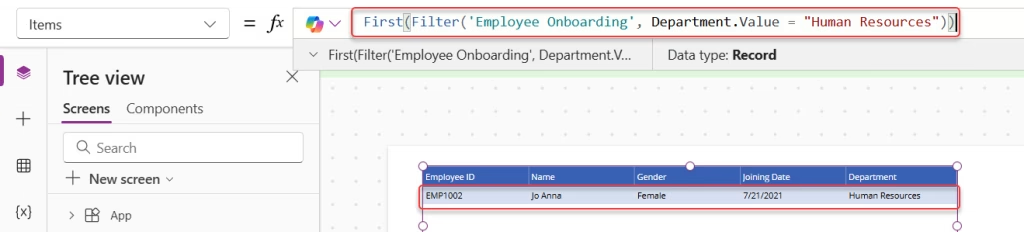
What this does is:
- Filter narrows down the list to only Human Resources employees
- First picks the top record from that filtered result
This combo is something I use constantly — especially for lookup scenarios, pre-filling forms based on a user selection, or pulling the latest record matching specific criteria.
Example 6: Use First to Avoid Errors in Power Apps Empty Galleries
One practical trick I’ve used in real apps — if you have a gallery that might sometimes be empty, using First and checking for blank values beforehand can prevent errors from cascading through your app.
For example:
If(
    IsBlank(First('Employee Onboarding').Title),
    "No records found",
    First('Employee Onboarding').Title
)
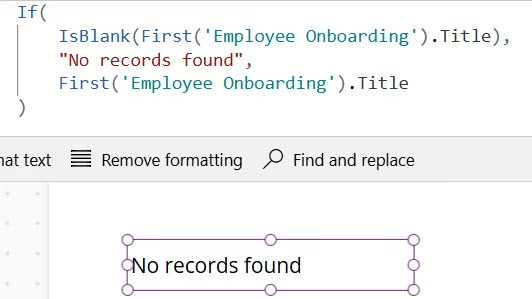
This way, your app gracefully handles empty data instead of showing a confusing blank or crashing the formula chain.
A Note About Power Apps Record vs. Table
This is worth repeating because it causes real confusion.
- First(‘Employee Onboarding’) → returns a record (one row)
- FirstN(‘Employee Onboarding’, 1) → returns a table with one row
These look similar, but they behave differently. If you try to use FirstN result where a record is expected (like in a Patch formula or a text label), you’ll run into type mismatch errors.
When in doubt:
- Use First → for single record operations (Patch, Set, labels, text inputs)
- Use FirstN → for gallery or data table items properties
Common Mistakes to Avoid
Here are a few things that catch people off guard when using the First function:
- Trying to use FirstN with a text label — it won’t work because FirstN returns a table, not a value. Use .FieldName with First instead.
- Assuming First returns records in a specific order — unless you sort your data first, the “first” record depends on the order the data source returns it. Always combine First with SortByColumns if order matters.
- Forgetting delegation limits with SharePoint — First itself is delegable with SharePoint, but if you wrap it inside certain non-delegable functions, you may hit the 500/2000 record limit.
- Using First on an empty table without a null check — this returns a blank record, which can cause issues downstream if you don’t handle it.
Quick Reference: Power Apps First Function
The table below is a quick cheat sheet for learning what does the Power Apps First and FirstN functions.
| Formula | What It Does |
|---|---|
| First(MyList) | Returns the first record of MyList |
| First(MyList).Title | Returns the Title field of the first record |
| FirstN(MyList, 5) | Returns the first 5 records as a table |
| First(Filter(MyList, Status=”Active”)) | Returns the first active record |
| First(SortByColumns(MyList, “Created”, Descending)) | Returns the most recently created record |
Wrapping Up
The First function is one of those simple Power Apps functions that you’ll end up using in almost every app you build. Whether you’re pulling a default record, grabbing the top result from a filter, or reading a specific field value, First is your go-to.
The key things to remember: First returns a record, FirstN returns a table, and always think about sort order if you care about which record comes first. Once you get comfortable with these basics, combining First with Filter and SortByColumns opens up a whole new level of possibilities in your apps.
Also, you may like some more Power Apps tutorials:
- Confirm() Function in Power Apps
- Set Combo Box Value On Button Click in Power Apps
- Set Default Value in Power Apps Modern Radio Button
- Power Apps Naming Conventions
- Power Apps Dropdown Show Only Unique Values

Hey! I’m Bijay Kumar, founder of SPGuides.com and a Microsoft Business Applications MVP (Power Automate, Power Apps). I launched this site in 2020 because I truly enjoy working with SharePoint, Power Platform, and SharePoint Framework (SPFx), and wanted to share that passion through step-by-step tutorials, guides, and training videos. My mission is to help you learn these technologies so you can utilize SharePoint, enhance productivity, and potentially build business solutions along the way.

