
If you’ve ever connected a Power Apps dropdown to a SharePoint list and ended up with the same value appearing 15 times, you know how frustrating that can be. Your users don’t need to see “Marketing” repeated over and over — they just want to pick it once and move on.
In this tutorial, I’m going to walk you through exactly how to show only unique values in a Power Apps dropdown. I’ll cover multiple methods so you can pick the one that fits your situation best — whether you’re pulling from a SharePoint list, a Dataverse table, or a collection.
Power Apps Dropdown Show Only Unique Values
When you connect a Power Apps dropdown to a data source like a SharePoint list, Power Apps pulls every single row from that list and displays whatever column you point it to. So if your SharePoint list has 50 rows and 20 of them say “HR” in the Department column, your dropdown will show “HR” 20 times.
That’s not a bug — it’s just how the control works by default. The fix is to tell Power Apps: only give me each value once.
So let’s start with some real use case examples.
Method 1: Power Apps Distinct() Function (The Most Common Way)
Power Apps Distinct() function is the go-to solution here. It takes a table and a column, and returns only the unique values from that column — no duplicates.
Basic syntax:
Distinct(DataSource, ColumnName)
Example:
Say you have a SharePoint list called Employee Leave Summary with a Department column. To populate your dropdown with unique departments, set the Items property of your dropdown to:
Distinct('Employee Leave Summary', Department)
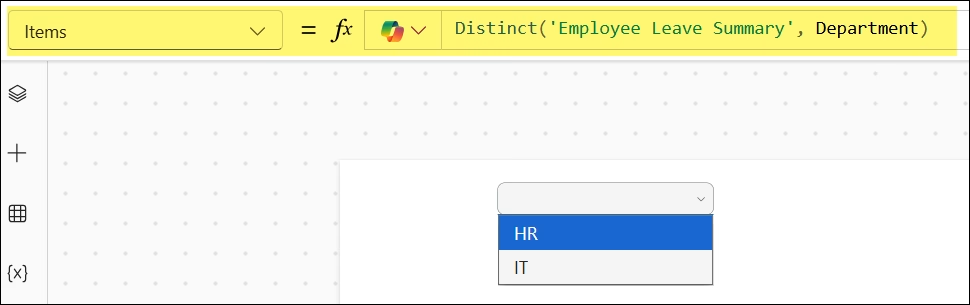
That’s it. Power Apps will now show each department only once.
One important thing to know: Distinct() returns a single-column table where the column is named Result — not the original column name. So if your dropdown looks blank or shows a wrong field, you’ll need to also set the Value property of your dropdown to Result.
Here’s how to do that:
- Click on your dropdown control
- Go to the Value property (in the properties panel on the right)
- Set it to
Result
Your dropdown should now display the unique values correctly.
Method 2: Using a Power Apps Collection to Store Unique Values
Here’s something I’ve run into more than once: Distinct() works great in theory, but sometimes when you use it directly in the dropdown’s Items property, the dropdown shows up blank. This is a known quirk in Power Apps, and the workaround is to store your distinct values in a collection first.
Step 1: Go to your App’s OnStart property (or the Screen’s OnVisible property) and add this:
ClearCollect(colDepartments, Distinct('Employee Leave Summary', Department));

This creates a local collection called colDepartments that holds all unique department names.
Step 2: Now set your dropdown’s Items property to:
colDepartments

And set the Value property to Result.
This approach is more reliable because the collection is built once when the app loads, and the dropdown simply reads from it. It also tends to be faster since you’re not hitting the data source every time the screen renders.
Method 3: Power Apps Distinct() with Sorted Results
Nobody wants a dropdown where values appear in random order. Luckily, wrapping Distinct() inside a Sort() is easy.
Sort(Distinct(Employees, Department), Result, Ascending)
Set this as the Items property of your dropdown, and your unique values will appear in alphabetical order. Much cleaner for your users.
If you’re using a collection approach, you can sort during the collection creation step:
// If Department = SharePoint Text field
ClearCollect(colDepartments, Sort(Distinct('Employee Leave Summary', Department), Result, SortOrder.Ascending))


// If Department = SharePoint Choice field
ClearCollect(
    colDepartments,
    Sort(
        Distinct('Employee Leave Summary', Department.Value),
        Value,
        SortOrder.Ascending
    )
);

Method 4: Adding an “All” Option to Power Apps Dropdown
This one comes up a lot in filtering scenarios. You want unique values in the dropdown, plus an “All” option at the top so users can reset the filter and see everything.
Here’s the formula to put in your Power Apps dropdown’s Items property:
// If Department = SharePoint Text field

Ungroup(
  Table(
    {DropdownAll: Table({Result: "All"})},
    {DropdownAll: ForAll(
      Sort(
                    Distinct(
                        'Employee Leave Summary',
                        Department), Result),
      {Result: ThisRecord.Result}
    )}
  ),
  'DropdownAll'
)


// If Department = SharePoint Choice field

Ungroup(
    Table(
        {DropdownAll: Table({Result: "All"})},
        {
            DropdownAll: ForAll(
                Sort(
                    Distinct(
                        'Employee Leave Summary',
                        Department.Value
                    ),
                    Value
                ),
                {Result: ThisRecord.Value}
            )
        }
    ),
    'DropdownAll'
)
This looks a bit dense, so let me break it down:
Distinct(Employees, Department)— gets unique department valuesSort(..., Result)— sorts them alphabeticallyForAll(..., {Result: ThisRecord.Result})— wraps each value into the right formatTable({Result: "All"})— creates the “All” optionUngroup(...)— combines the “All” option with the distinct values into one flat list

The end result: your dropdown shows “All” at the top, followed by each unique department in alphabetical order.
Method 5: Using Power Apps Choices() for Choice Columns in SharePoint
If your SharePoint column is a Choice column (not a text column), there’s actually an even simpler approach. You can use the Choices() function instead of Distinct().
Choices('Employee Leave Summary'.Department)

This pulls the predefined choice options from your SharePoint column — and since those are already unique by definition, you don’t need to deduplicate anything. It’s clean and delegation-friendly.
- Works only with Choice columns, not text columns
- Returns the choices as defined in SharePoint, not just the values currently in use
- Set the Value property of your dropdown to
Value(notResult)
How to Use Power Apps Dropdown to Filter a Gallery
Getting unique values in the dropdown is half the job. The other half is actually using that selected value to filter something — usually a Power Apps gallery.
Here’s how to wire it up:
Set your Gallery’s Items property to:
If(
    ddDepartment.Selected.Result = "All",
    'Employee Leave Summary',
    Filter(
        'Employee Leave Summary',
        Department.Value = ddDepartment.Selected.Result
    )
)

This says: if the user picked “All,” show every record. Otherwise, filter the gallery to show only records where the Department matches the selected value.
If you’re not using the “All” option, a simpler version works fine:
Filter('Employee Leave Summary', Department = ddDepartment.Selected.Result)
Handling Lookup Columns and Complex Fields Using Power Apps Distinct()
If your column is a Lookup column in SharePoint (not a plain text or choice field), things get a little trickier. The value isn’t just a string — it’s a record with .Value and .Id fields inside it.
In that case, try:
Distinct(Employees, Department.Value)
The .Value part extracts just the display text from the lookup record. Without it, your dropdown might display blank items or cause errors.
If that still doesn’t work, build a collection with the lookup value explicitly:
ClearCollect(
  colDepartments,
  Distinct(Employees, Department.Value)
)
Common Issues and Quick Fixes
Here are the problems I see people run into most often:
- Dropdown shows blank items — The column might have some empty rows. Wrap your formula:
Filter(Distinct(Employees, Department), !IsBlank(Result)) - Dropdown is completely empty — Check that the
Valueproperty is set toResult(orValuefor Choice columns) - Delegation warning —
Distinct()is not delegable for some data sources. This means it will only process the first 500 (or 2000) records. If your list is large, consider pre-filtering or using indexed columns - Lookup column shows blank — Add
.Valueafter the column name:Distinct(Employees, Department.Value) - Order is random — Wrap with
Sort():Sort(Distinct(Employees, Department), Result, Ascending)
Which Method Should You Use?
Here’s my quick recommendation depending on your setup:
- Plain text column, small list → Use
Distinct()directly in the Items property - Plain text column, list with 500+ rows → Use a Collection in
OnStart - Choice column in SharePoint → Use
Choices() - Lookup column → Use
Distinct(DataSource, Column.Value) - Need an “All” option → Use the
Ungroup + Table + ForAllapproach - Need sorted results → Wrap any of the above with
Sort()
Final Thoughts
The Distinct() function is one of those things that feels confusing the first time but becomes second nature really fast. The key things to remember: always check the Value property on your dropdown, use a collection if the direct formula gives you blank results, and wrap with Sort() if order matters to your users.
Additionally, you may like some more Power Apps tutorials:
- Connect Default User Information List in Power Apps
- Power Apps CountRows Function
- Clear a Text Input in Power Apps
- Add ID Value in Mirror ID Using Power Apps
- Get Choice Field Value in Power Apps

Hey! I’m Bijay Kumar, founder of SPGuides.com and a Microsoft Business Applications MVP (Power Automate, Power Apps). I launched this site in 2020 because I truly enjoy working with SharePoint, Power Platform, and SharePoint Framework (SPFx), and wanted to share that passion through step-by-step tutorials, guides, and training videos. My mission is to help you learn these technologies so you can utilize SharePoint, enhance productivity, and potentially build business solutions along the way.

