
Are you ready to know about the new Power Apps experience, recently announced by Microsoft? Power Apps Vibe, the AI-Native Power Apps experience for future app development.
I will explain everything about it and also show an example of creating a fully functional App using Power Apps Vibe.
Power Apps Vibe Introduction
The new Power Apps experience is an AI-native platform designed to help users build comprehensive business solutions by automatically generating requirements, data models, and full applications with code. It enables automation of workflows, seamless integration of various data sources, and accelerates app development — all without needing extensive coding skills.
Prerequisites
Since Power Apps Vibe is now in preview, here are some prerequisites.
- The Vibe Power Apps feature is currently in preview, meaning it is not intended for production use and may have limited functionality.
- Preview features come with supplemental terms of use and provide early access to gather customer feedback before official release.
- Copilot must be enabled both in your tenant and environment to use this feature.
- This capability is not available in default environments.
- It is currently limited to the US region and supports only the English language.
- The data source it supports now is Dataverse.
Build an App using Power Apps Vibe
Now, let me explain, step by step, how to build a Power Apps app using Vibe.
- Open https://vibe.preview.powerapps.com/. Make sure the environment region is “United States,” as this is now available for the United States. You can even create an environment from the Power Platform admin center.
- This will open the home page, where it will ask you to describe what you want to build. Basically, it asks you to describe the Power Apps app you want to develop. This will also give you some suggestions you can try.
- On the home page, you can also see options such as:
- Home: Takes you back to the main landing page.
- Plans: Allows you to access and manage your plans.
- Apps: Let you open, play, or edit apps you’ve created or that others have shared with you.
- Profile: You can see the logged-in user name, email address, current environment, Session details, etc.
Here is the hope page that you can see:

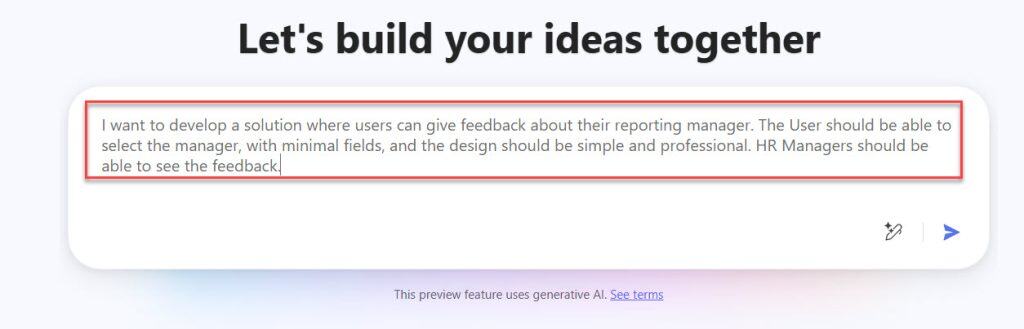
- Now, we can provide a prompt to generate the Power Apps app. Here, I have given this prompt: “I want to develop a solution where users can give feedback about their reporting manager. The User should be able to select the manager, with minimal fields, and the design should be simple and professional. HR Managers should be able to see the feedback.” You can even enhance your prompt by using the enhance button. Here is a screenshot for your reference:
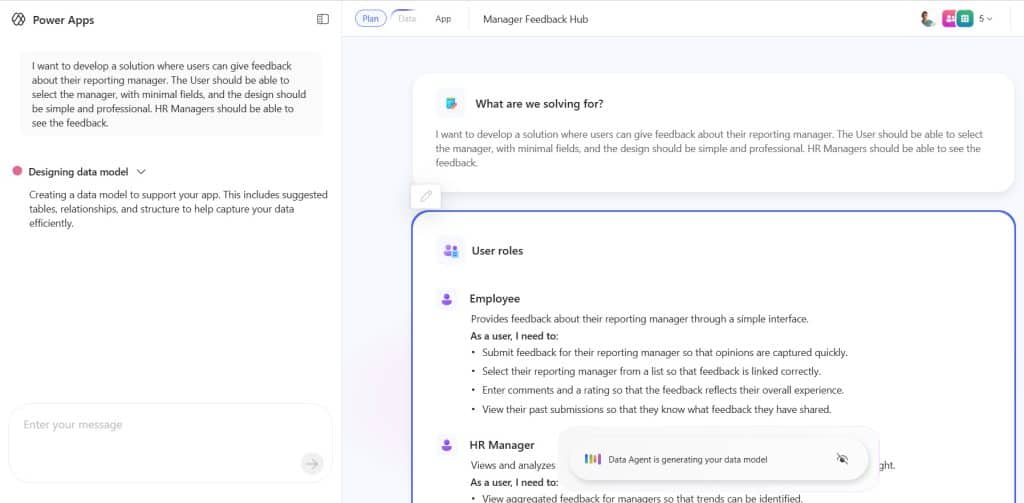
- Then it will generate the plan, then the Data model, and finally it will create the App. You can see in the screenshot below that it is processing.
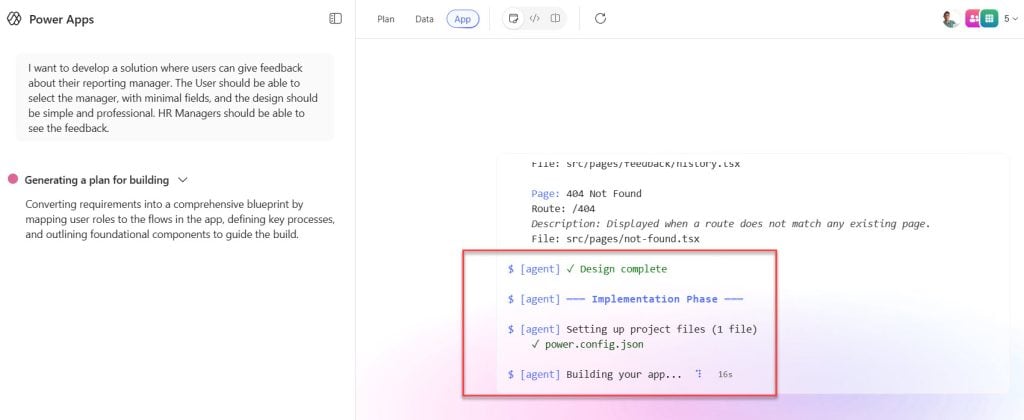
- You can also see in the screenshot below that it started generating the code.
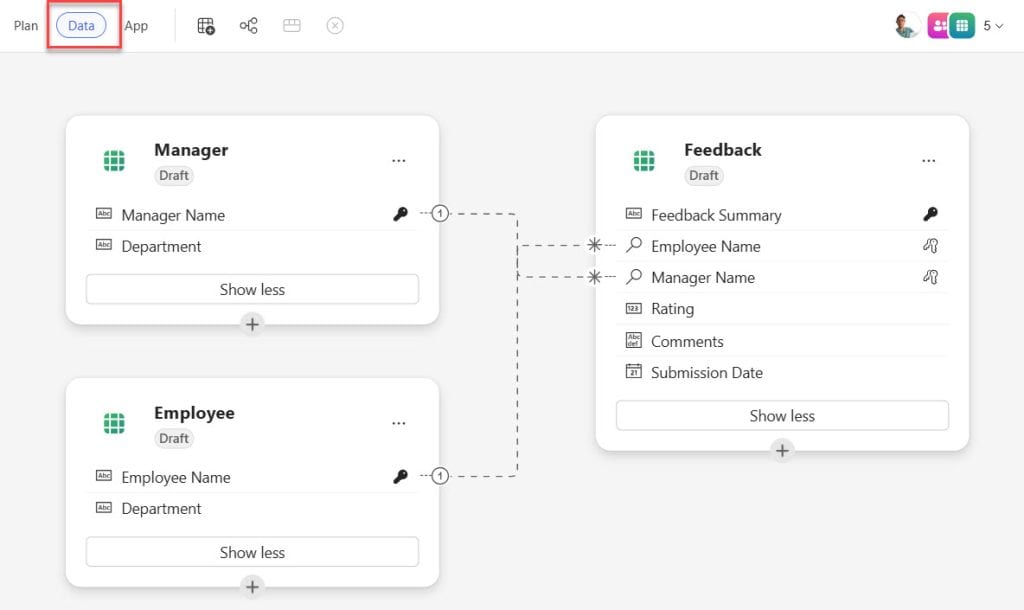
- When you click on the “Data” option, you can see the entire data model. You can see the table structure and the relationships also.
- Note: The tables are not yet created in the Dataverse. Once you publish, the tables will be created.
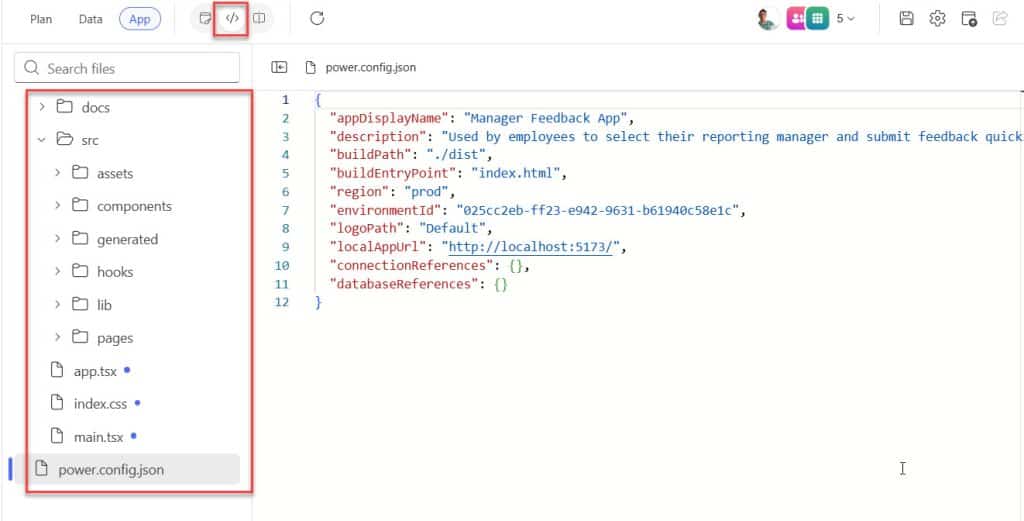
- If you click on the code icon as highlighted in the screenshot below, you can see the entire code structure and the code itself.
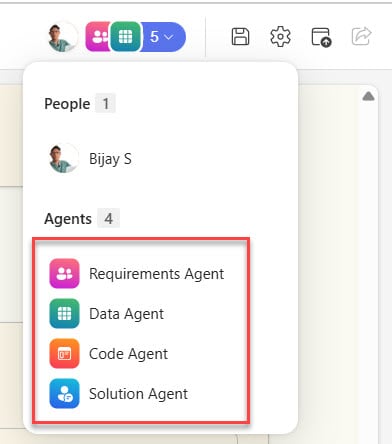
- Here, you can see four agents are working to develop the complete app: Requirements Agent, Data Agent, Code Agent, Solution Agent, etc.
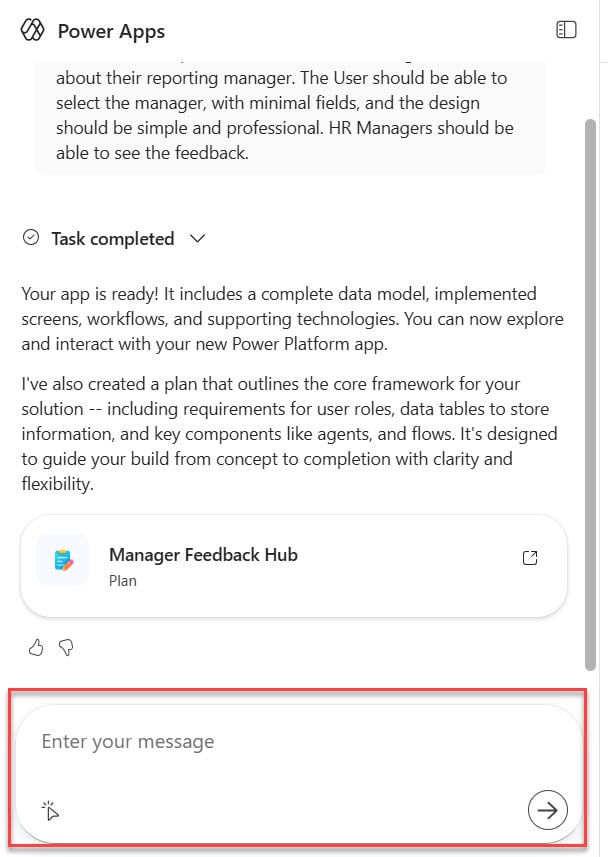
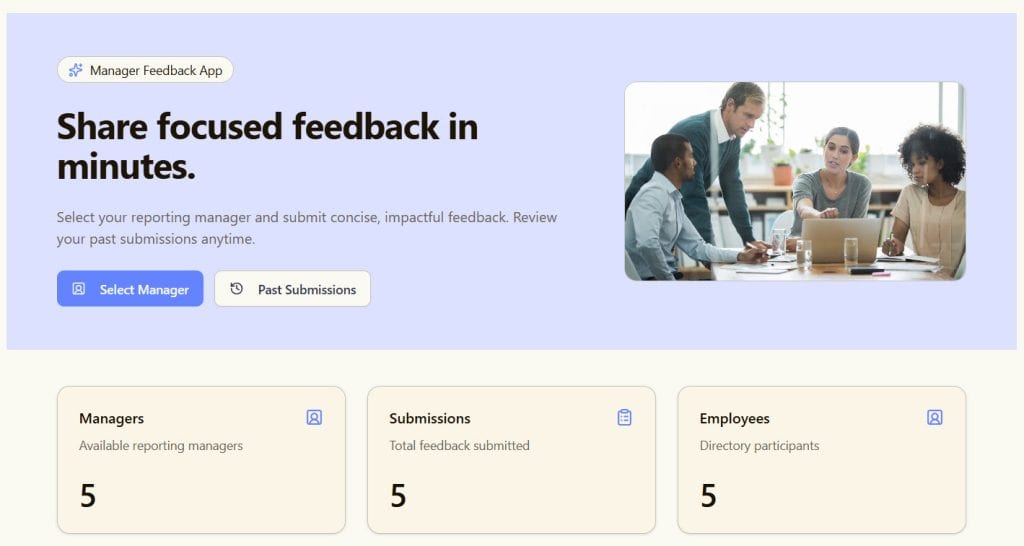
- Once the complete App is ready, you can see the entire look and feel of the App. Here is a screenshot of our Power Apps app built using Vibe.

Edit Power Apps App
- If you want to modify the app, you can provide a prompt or chat, and the agents will work on it.
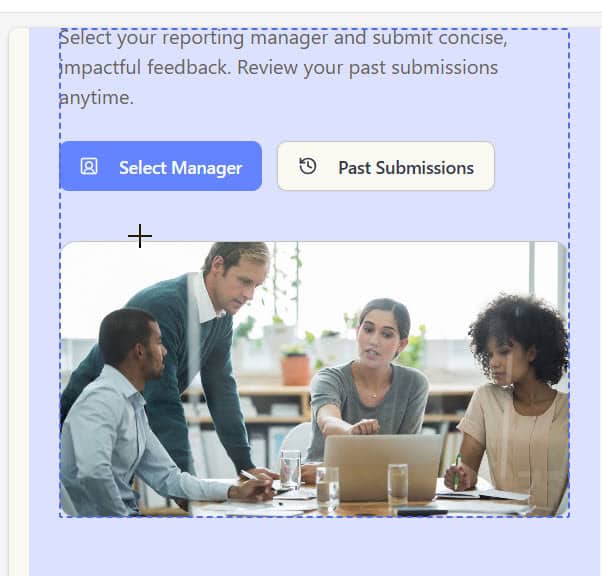
- You can also toggle the inline editing option and edit the app directly without any agent’s help.
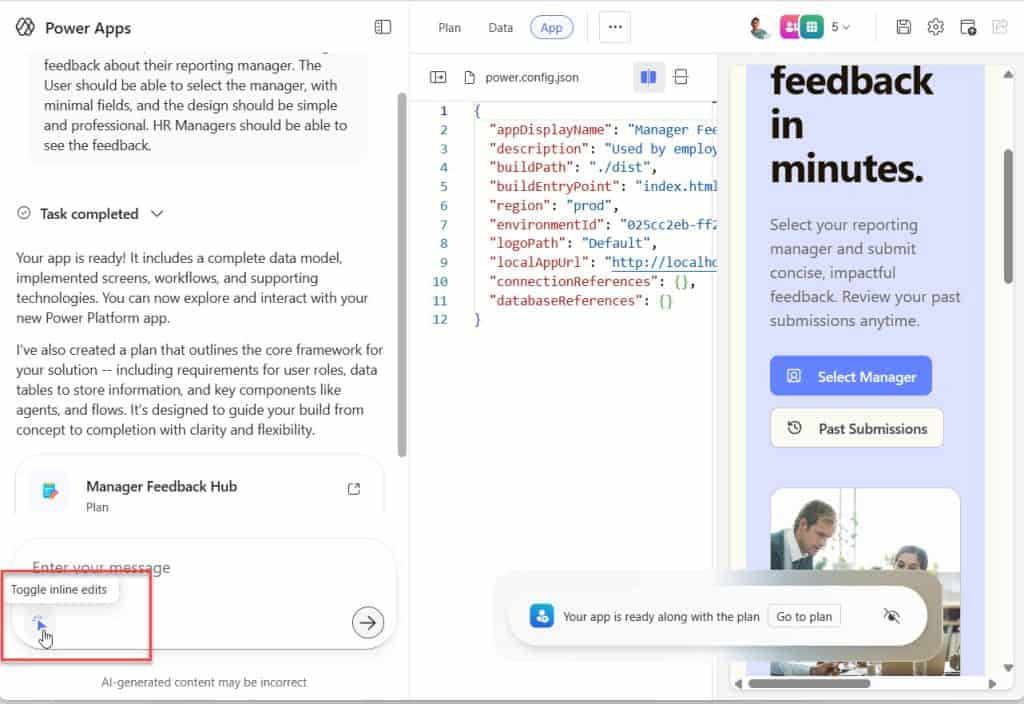
- Once you enable inline editing, you can edit each section as shown below.
Publish Power Apps App in Vibe
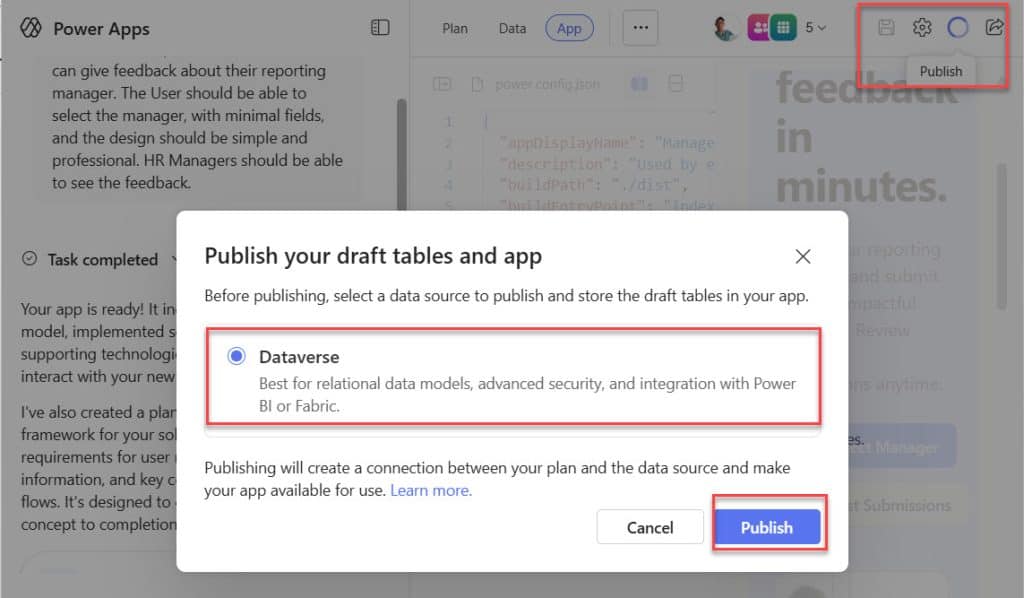
Once the Power Apps App is ready and the design is over, you can publish the app by clicking on the Publish icon. Also, since the Auto Save is not enabled, you have to click on the Save button to save your work manually.
In the top-right corner, click the Publish button, and then the “Publish your draft tables and app” dialog box will appear. Here, the only option available now in Dataverse is to publish the app.
Then click on the Publish button.
Once you click on the Publish button, it will take some time to publish the app.
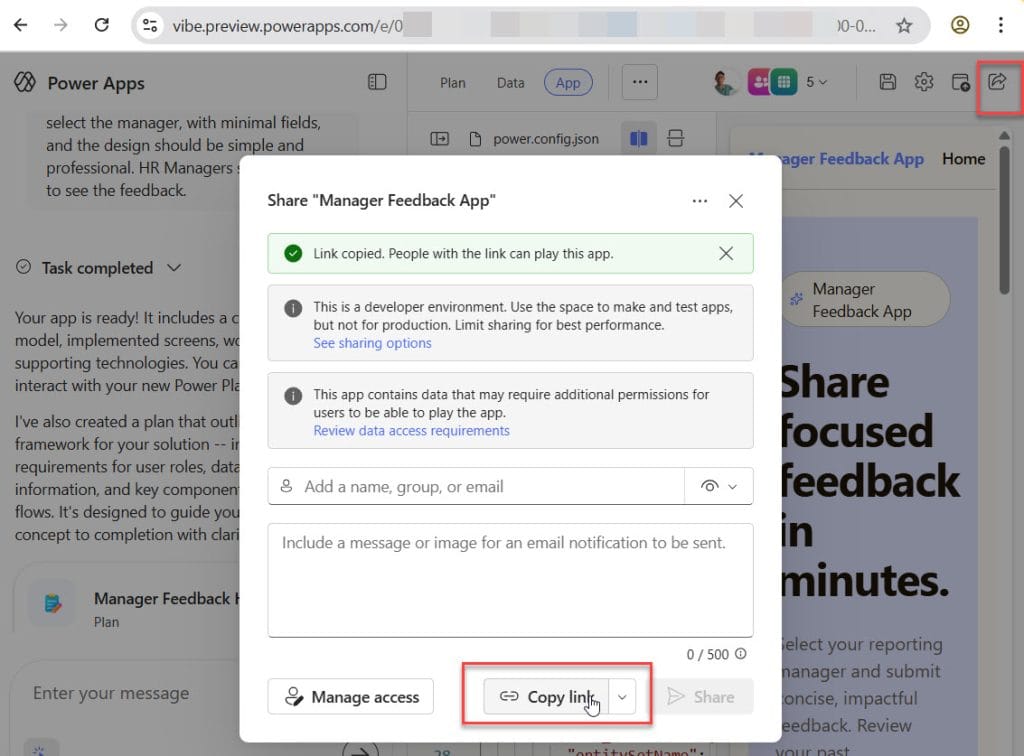
Once it is published successfully, you can click on the Share button to share with users. You can even copy the app link and open it in a new tab to see the fully functional app.
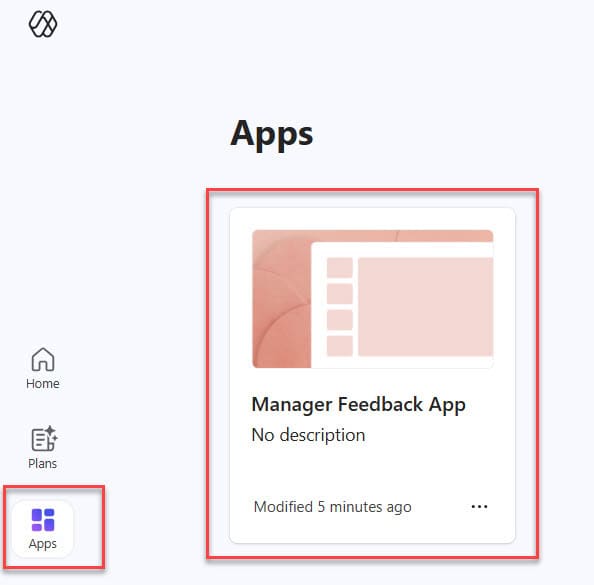
Anytime, you can navigate to the Home page -> Apps to see the apps you have created. Here is a screenshot for your reference.
Run the App Built using Power Apps Vibe
When you run the app, you can see a nice dashboard that it has created, as shown below.
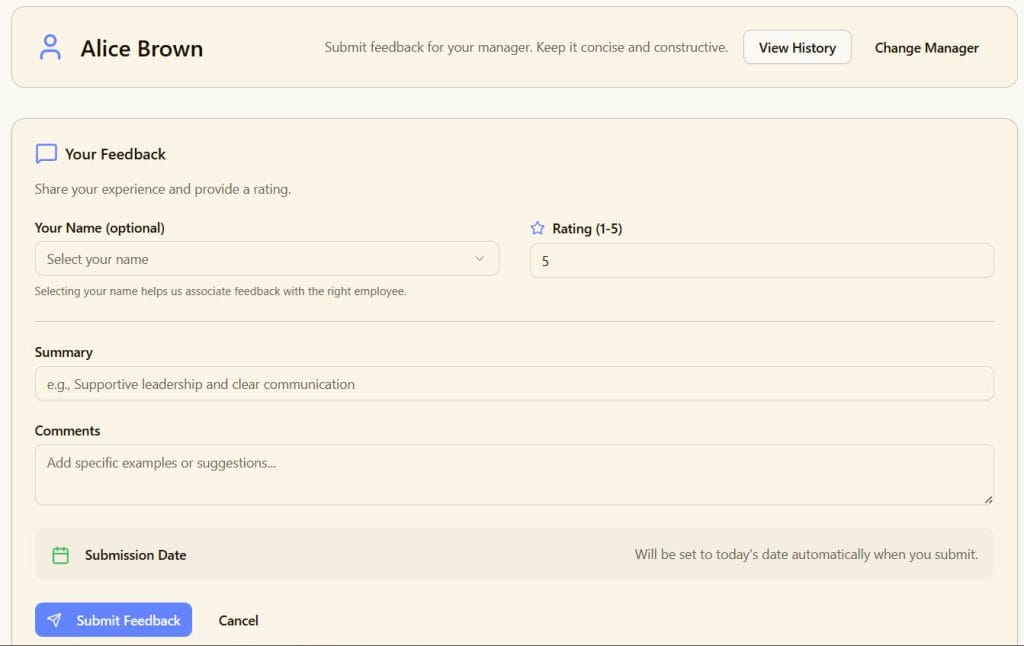
Even users can submit their feedback about the selected manager.
Conclusion
The new Power Apps Vibe experience is very different from the classic way of developing apps. It is very helpful for anyone looking to build powerful, AI-driven business applications quickly and with minimal coding. In this tutorial, I explained how to use Power Apps Vibe to build an app in no time.
Do let me know if you have any questions in the comments below.
You may also like the following tutorials:
- How to Detect Text in Dataverse Using AI Builder
- Create a Dataverse Table from Excel or CSV in Power Apps
- Set Autonumber for Primary Name Column in Dataverse
- Create Table in Microsoft Dataverse

Hey! I’m Bijay Kumar, founder of SPGuides.com and a Microsoft Business Applications MVP (Power Automate, Power Apps). I launched this site in 2020 because I truly enjoy working with SharePoint, Power Platform, and SharePoint Framework (SPFx), and wanted to share that passion through step-by-step tutorials, guides, and training videos. My mission is to help you learn these technologies so you can utilize SharePoint, enhance productivity, and potentially build business solutions along the way.

