
While managing automation processes for an internal business system, I set up more than 200 Power Automate flows, each responsible for handling different parts of operations, such as approvals, notifications, and data updates.
Everything worked great until one day, a few important flows failed silently. I didn’t even realise it until someone from another department reported missing updates. That’s when I realised how difficult it is to track failed runs manually. You have to open the Power Automate portal, search for the specific flow, and then look through the run history to find out what went wrong, which can be time-consuming, especially when you have hundreds of flows.
To make this process easier, I decided to automate the monitoring itself. My goal was simple: whenever a flow fails, I should immediately receive an email containing a direct link to that failed run in the Power Automate portal.
In this tutorial, I will show you how to automatically send an email with the flow run history link whenever a flow fails in Power Automate.
Send an Email with Flow Run History in Power Automate
For this example, I created a manually triggered flow that added an Initialise variable (integer) and set the value to blank.
Then add a Set variable action, select the name of the variable, and in the value:
string('Test')
So when we run this flow, it will give an error:
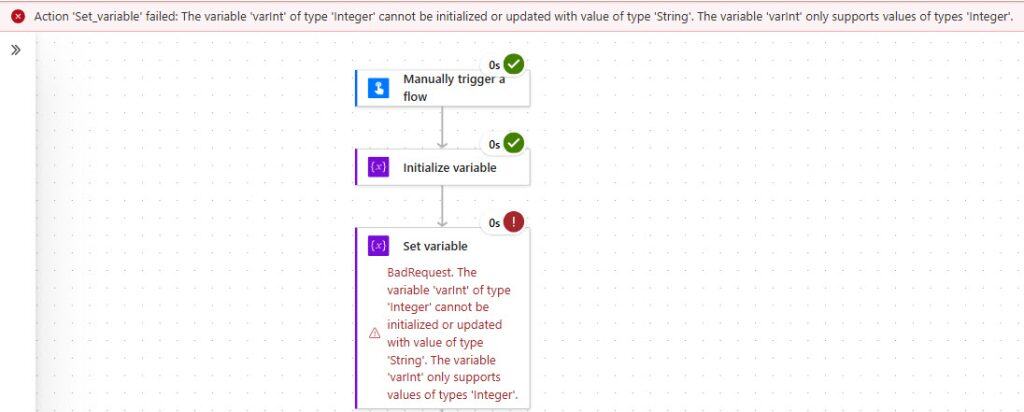
Before we start sending the email notification, it’s important to understand how the Flow Run History URL works in Power Automate.
When you manually open any flow and go to the Run History, you’ll see a list of previous runs. If you click on one of them, Power Automate opens a detailed page showing the actions, inputs, and outputs for that specific run.
Now, take a look at the URL in your browser’s address bar. It usually looks something like this:
https://make.powerautomate.com/environments/Default-1234abcd-5678efgh-ijklmnop/fl ows/2a1b2c3d4e5f6g7h8i9j0k/runs/0858578457984201234567890123456789Let’s break this down:
- environments/Default-1234abcd-5678efgh-ijklmnop -> represents your environment ID
- flows/2a1b2c3d4e5f6g7h8i9j0k -> this is your Flow ID
- runs/0858578457984201234567890123456789 -> this is the Run ID (the specific execution instance of your flow)
Every time your flow runs, Power Automate generates a unique run ID, which changes with each execution.
So, if we can dynamically generate this exact URL inside the flow when it fails, we can include it in the failure notification email.
That way, when you receive the email, you can click the link and go directly to the failed run without opening Power Automate or searching for it manually.
Now, I will show you how to build this URL using expressions in Power Automate dynamically and include it in our failure email notification.
- I hope you have your flow. Now add a Scope action (name it Try). Inside this Scope, include all your main flow logic (for this example, just the Set variable).
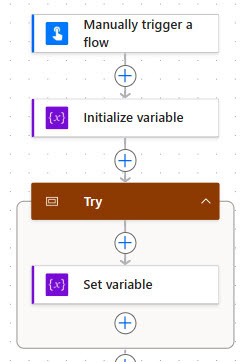
- Add another Scope action (name it Catch). This one will handle what happens if the first Scope fails. Click on the settings tab for the “Catch” Scope -> expand Run After. Check the has failed option.

- Inside the Catch Scope, add a Compose action in the Inputs field, enter the following expression:
concat(
  'https://make.powerautomate.com/environments/',
  workflow()['tags']['environmentName'],
  '/flows/',
  workflow()['name'],
  '/runs/',
  workflow()['run']['name']
)Note:
If you flow inside a solution then the above expression will not work you need to use this concat(‘https://make.powerautomate.com/environments/’,workflow()[‘tags’][‘environmentName’],’/solutions/~preferred/flows/’,workflow()[‘name’],’/runs/’,workflow()[‘run’][‘name’])
This expression automatically combines the Environment ID, Flow ID, and Run ID into one clickable URL.

- Add a Send an email (V2) action below the Compose action. In the To field, enter your email address. In the Subject, type like:
Flow Failed: @{workflow()?['tags']['flowDisplayName']}- In the Body, click the code view and add a simple message with the link:
<p class="editor-paragraph">Hello,</p><p class="editor-paragraph">The flow @{workflow()?['tags']['flowDisplayName']} has failed. You can review the details here:</p><p class="editor-paragraph"><a href="@{outputs('Compose')}" class="editor-link">Click to open failed run</a></p><p class="editor-paragraph">Regards,<br>Power Automate Monitor</p><br>
Save and run the flow manually. It will fail because of the invalid variable type (string(‘Test’) in an integer variable). Once it fails, check your inbox; you’ll receive an email with a direct link to that exact failed run in Power Automate.

When you click the link, it will open the detailed run history page, showing exactly where and why the flow failed.

I hope you will find this tutorial helpful.
Now you can automatically receive an email notification whenever your flow fails, with a link to the specific run that failed.
You may also like the following tutorials:
- Replace Text Or Characters in Power Automate
- Convert Invoice Details to Excel Using AI Builder in Power Automate
- Remove Characters From String In Power Automate
- Add a SharePoint List to Quick Launch Using Power Automate
- Update SharePoint Columns Without Version Change in Power Automate

Hey! I’m Bijay Kumar, founder of SPGuides.com and a Microsoft Business Applications MVP (Power Automate, Power Apps). I launched this site in 2020 because I truly enjoy working with SharePoint, Power Platform, and SharePoint Framework (SPFx), and wanted to share that passion through step-by-step tutorials, guides, and training videos. My mission is to help you learn these technologies so you can utilize SharePoint, enhance productivity, and potentially build business solutions along the way.

