
So you created an SPFx project, named it something like my-first-webpart in a rush, and now you’re staring at it thinking — this doesn’t look professional at all. Or maybe you downloaded a PnP sample from the community gallery, and now you need to rename it before deploying to production.
In this tutorial, I will show you how to change the SPFx solution name that every developer is looking for. I will explain in detail which files you need to modify.
I’ll walk you through two methods:
- The manual method — editing the files yourself (full control, always works)
- The CLI for Microsoft 365 method — a single command that does the heavy lifting for you
Let’s get into it.
Why the Solution Name Matters
Before we start changing things, let me quickly explain what the solution name actually affects.
When you build and deploy an SPFx package (.sppkg file) to the SharePoint App Catalog, SharePoint reads the name from your project config to display in the App Catalog’s Title column. That’s the name your site admins and end users will see when they browse available apps.
If you left it as helloworld-webpart-client-side-solution from the Yeoman generator, that’s exactly what shows up in the App Catalog. Not a great look.
The name also shows up in:
- The
.sppkgfilename itself (the deployed package) - The Teams app manifest (if you’re targeting Microsoft Teams)
- Internal references inside the solution package
So yes, it’s worth getting right before you deploy.
What Files Store the SPFx Solution Name?
Here’s a quick map of all the places where the name lives in a typical SPFx project:
| File | What it controls |
|---|---|
config/package-solution.json | The solution name shown in the App Catalog |
config/package-solution.json (paths) | The .sppkg filename |
package.json | The npm package name for your project |
.yo-rc.json | The Yeoman generator config (project name reference) |
src/webparts/[name]/[name]WebPart.manifest.json | The web part title in the toolbox |
README.md | Project docs (cosmetic, but worth updating) |
The most important one is package-solution.json. That’s the one that controls what you see in SharePoint’s App Catalog.
Also check out How to Install NVM in Windows
Method 1: Manual Rename (The Right Way to Understand It)
This is my preferred way when I want full control over which changes and which don’t. It takes about 5 minutes.
Step 1 — Open config/package-solution.json in SPFx Solution
This is the main config file for your solution package. It looks something like this by default:
{
  "$schema": "https://developer.microsoft.com/json-schemas/spfx-build/package-solution.schema.json",
  "solution": {
    "name": "helloworld-webpart-client-side-solution-client-side-solution",
    "id": "e1a41469-fed8-47ab-988f-d8236ad26d71",
    "version": "1.0.0.0",
    "includeClientSideAssets": true,
    "skipFeatureDeployment": true,
    "isDomainIsolated": false,
    "developer": {
      "name": "",
      "websiteUrl": "",
      "privacyUrl": "",
      "termsOfUseUrl": "",
      "mpnId": "Undefined-1.22.2"
    },
    "metadata": {
      "shortDescription": {
        "default": "helloworld-webpart-client-side-solution description"
      },
      "longDescription": {
        "default": "helloworld-webpart-client-side-solution description"
      },
      "screenshotPaths": [],
      "videoUrl": "",
      "categories": []
    },
    "features": [
      {
        "title": "helloworld-webpart-client-side-solution Feature",
        "description": "The feature that activates elements of the helloworld-webpart-client-side-solution solution.",
        "id": "6a150251-c8bc-478d-9baa-4bb221f1f157",
        "version": "1.0.0.0"
      }
    ]
  },
  "paths": {
    "zippedPackage": "solution/helloworld-webpart-client-side-solution.sppkg"
  }
}
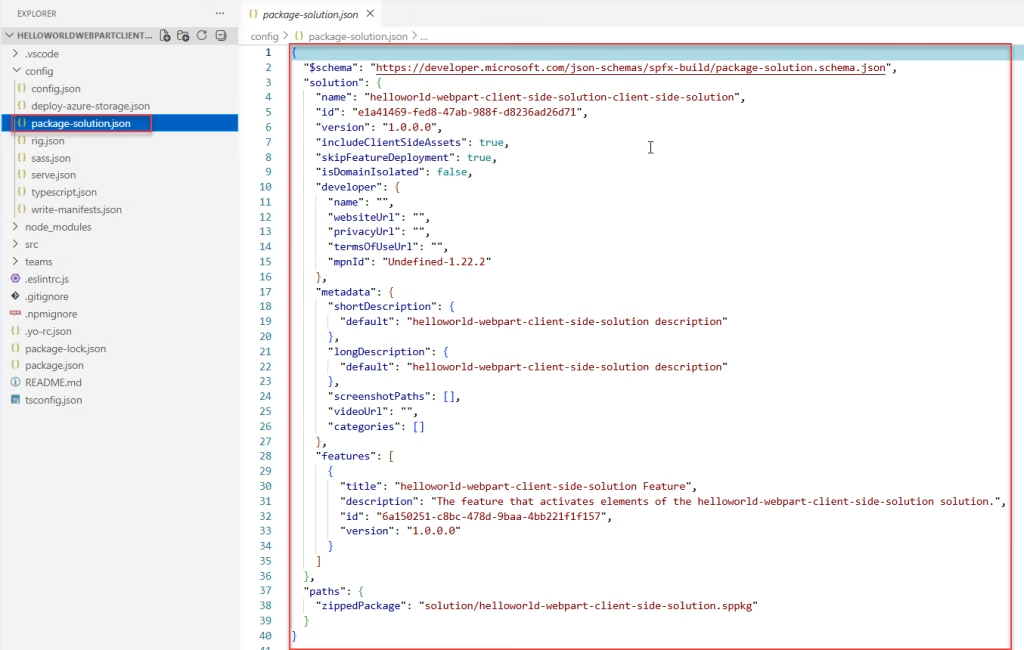
There are two things to change here:
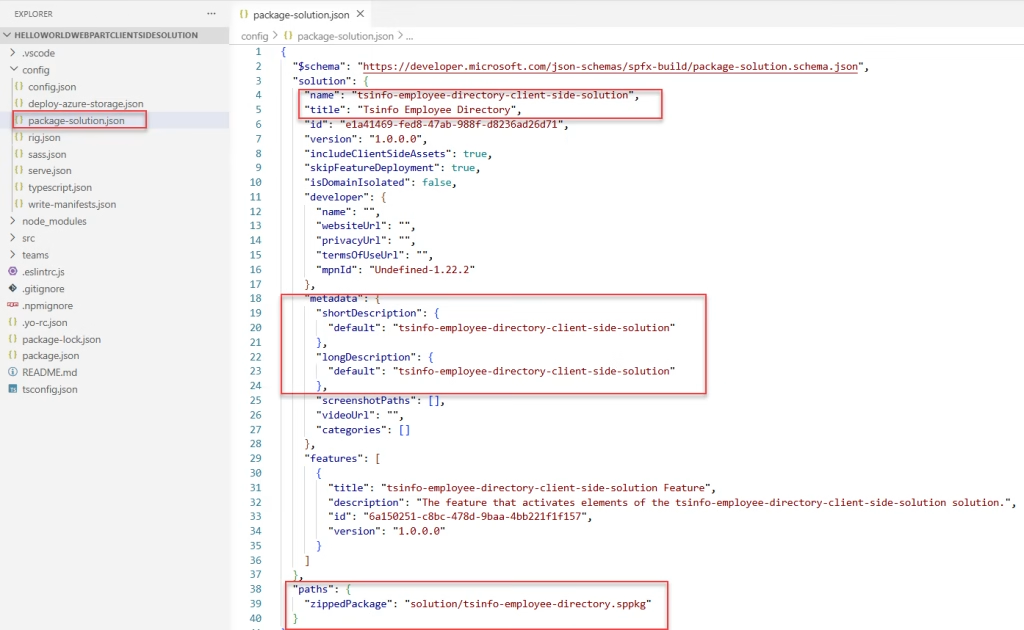
Change 1 — The solution name:
"name": "tsinfo-employee-directory-client-side-solution"
This is what shows up in the App Catalog’s Title column. Keep it descriptive. Avoid using SharePoint or Teams feature keywords like “Files”, “Chat”, “Calendar”, etc., since that can confuse users.
Change 2 — The .sppkg filename:
"paths": {
  "zippedPackage": "solution/tsinfo-employee-directory.sppkg"
}
Only update the part after the /. The solution/ folder path stays the same.
Pro tip: You can also add an optional
titlefield insidesolutionif you want a more human-friendly display name with spaces and special characters:"title": "Tsinfo Employee Directory"The
titlefield supports localized strings, whilenameis the non-localized internal identifier.
In metadata, you can also update the solution name.
Step 2 — Open package.json in SPFx Solution
This is your npm project file in the root of your SPFx project. Find the name field:
{
  "name": "helloworld-webpart-client-side-solution",
  ...
}
Change it to match your new name:
{
  "name": "tsinfo-employee-directory",
  ...
}
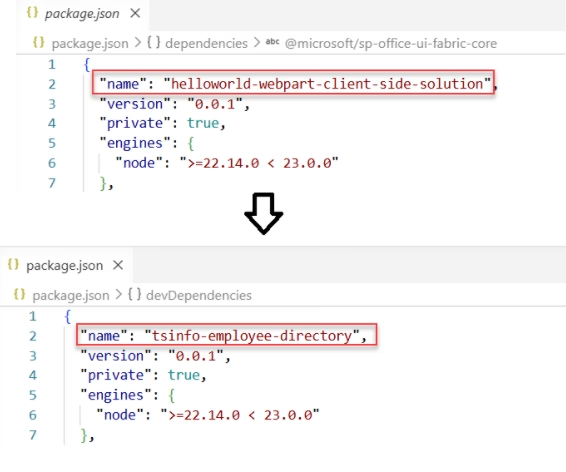
Note: npm package names must be lowercase, with no spaces — use hyphens instead.
Step 3 — Open .yo-rc.json in SPFx Solution
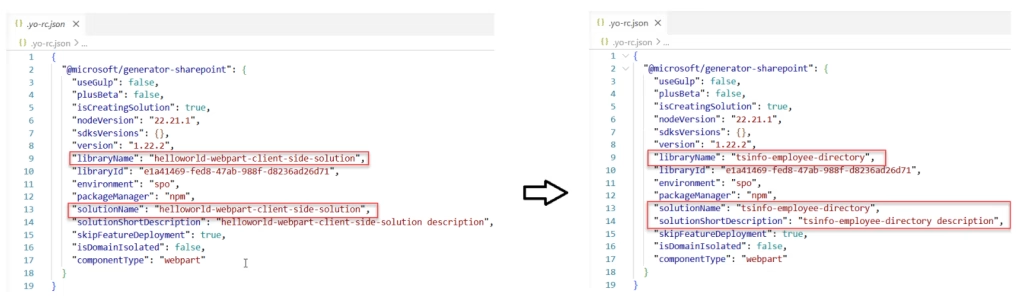
This file stores the Yeoman generator’s memory of your project. Open it and look for the solutionName property:
{
  "@microsoft/generator-sharepoint": {
    "solutionName": "helloworld-webpart-client-side-solution",
    ...
  }
}
Update it to your new name:
{
  "@microsoft/generator-sharepoint": {
    "solutionName": "tsinfo-employee-directory",
    ...
  }
}
Step 4 — Update the SPFx Web Part Manifest (Optional but Recommended)
If you also want to rename what appears in the SharePoint web part toolbox (the “add a web part” panel), open the web part manifest file. It’s usually at:
src/webparts/[yourWebPartName]/[YourWebPartName]WebPart.manifest.json
Look for this section:
 "preconfiguredEntries": [{
    "groupId": "5c03119e-3074-46fd-976b-c60198311f70",
    "group": { "default": "Advanced" },
    "title": { "default": "helloworld" },
    "description": { "default": "helloworld description" },
    "officeFabricIconFontName": "Page",
    "properties": {
      "description": "helloworld"
    }
  }]
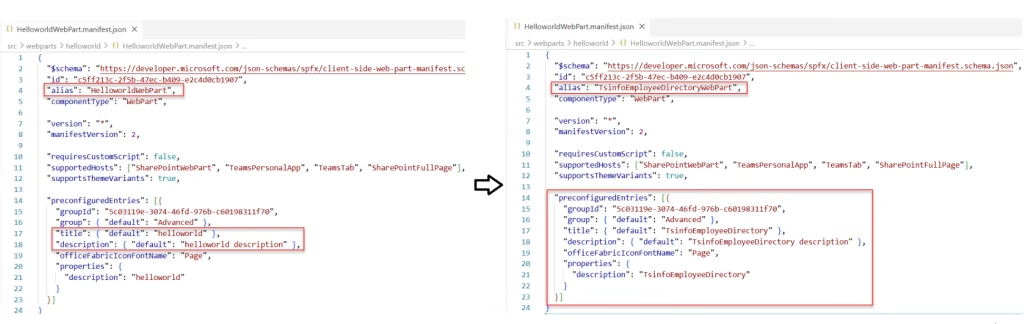
Update the title.default value to your new display name. This is what end users see when they search for your web part.
Step 5 — Rebuild and Repackage The SPFx Solution
After all changes are saved, run the standard build commands:
heft build --clean
heft package-solution --production
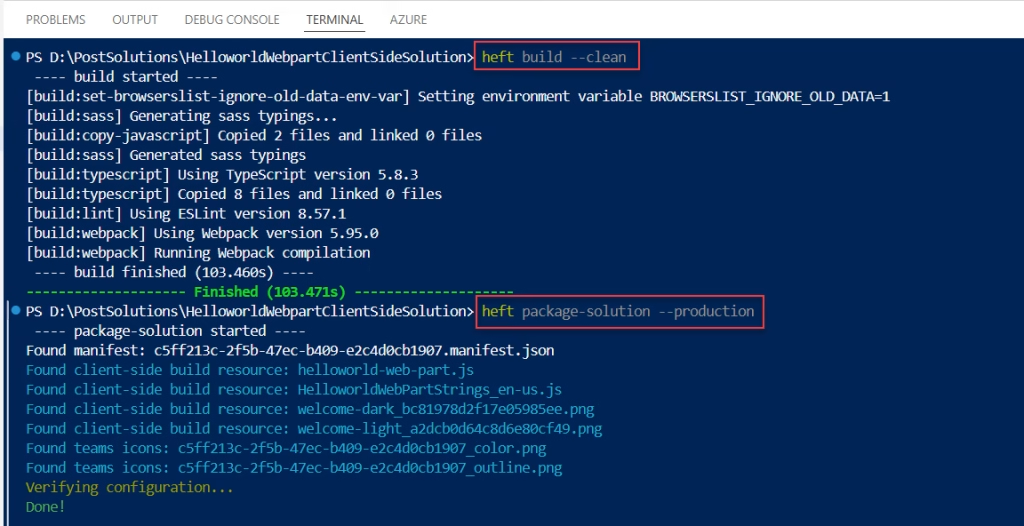
This regenerates the .sppkg file with the new name. Upload it to the App Catalog, and you’re done.
Check out Build a Custom Slides Manager in SPFx Web Part Property Pane
Method 2: CLI for Microsoft 365 (The Fast Way)
If you’d rather not touch multiple files manually, the CLI for Microsoft 365 has a dedicated command that handles renaming for you in one shot. This is especially useful when you’re working with a PnP sample and just need a quick rename.
Install (or use without installing)
You can run it without a global install using npx:
npx -p @pnp/cli-microsoft365 -- m365 spfx project rename --newName tsinfo-employees-directory

Or if you have it installed globally:
m365 spfx project rename --newName tsinfo-employees-directory
Make sure you run this command from inside your SPFx project folder.
What This Command Updates Automatically
When you run the rename command, it updates the project name in all of these files at once:
package.json.yo-rc.jsonconfig/package-solution.jsonconfig/deploy-azure-storage.jsonREADME.md
Generate a New SPFx Solution ID (Important for Cloned Projects)
If you’re renaming a project that was cloned or copied from another one (like a PnP sample), you should also generate a fresh solution ID. Two solutions with the same GUID will conflict in the App Catalog:
m365 spfx project rename --newName contoso-employee-directory --generateNewId
The --generateNewId flag creates a brand-new GUID for the id field in package-solution.json. Always use this when renaming a cloned or downloaded sample.
Common Mistakes to Avoid
Here are a few mistakes that you should look at as a SPFx developer while renaming the SharePoint Framework solution name.
- Only changing one file — Forgetting to update
package.jsonor.yo-rc.jsonwon’t break your build, but it creates confusing mismatches between your npm package name and what’s deployed. - Not repackaging after the rename — Your changes only take effect after you run
heft build --cleanandheft package-solution --productionagain. - Uploading without replacing — When you re-upload the
.sppkgto the App Catalog, make sure you check “Replace it” if the old file is still there. - Using the same GUID for cloned solutions — If you copied a solution from somewhere, always use
--generateNewIdor manually generate a new GUID. Duplicate IDs cause deployment errors. - Special characters in the
namefield — Thenameproperty inpackage-solution.jsondoesn’t support special characters. If you want spaces or symbols in what users see, use thetitlefield instead.
Which Method Should You Use?
Honestly, if you’re comfortable in VS Code and understand your project structure, the manual method gives you the most clarity and control. You see exactly what changed and why.
If you’re in a hurry or you’re doing this regularly across multiple projects (like spinning up new projects from PnP samples), the CLI for Microsoft 365 method saves real time. The --generateNewId flag especially is a lifesaver if you work with community samples.
Both methods get you to the same end result — a properly renamed, clean SPFx solution ready for deployment.
Conclusion
I hope you found this article helpful! In this tutorial, I explained two methods for renaming an existing SPFx solution, along with example images. Additionally, I also explained which method to use at which time. Follow these methods when you are also trying to rename your SPFx project.
Also, you may like:
- Bind SharePoint List Items to SPFx Fluent UI React Dropdown
- Create a Modal Popup in SPFx
- Customize SharePoint List Command Bar Download Button Using SPFx Extension
- Upload File to SharePoint Document Library With Metadata in SPFx

Hey! I’m Bijay Kumar, founder of SPGuides.com and a Microsoft Business Applications MVP (Power Automate, Power Apps). I launched this site in 2020 because I truly enjoy working with SharePoint, Power Platform, and SharePoint Framework (SPFx), and wanted to share that passion through step-by-step tutorials, guides, and training videos. My mission is to help you learn these technologies so you can utilize SharePoint, enhance productivity, and potentially build business solutions along the way.