
A Power Apps Modern Spinner Control is a graphical indicator notifying the user that content is loading or processing.
This article explains everything about the Modern Spinner Control in Power Apps, its key properties, and how to add it to the Power Apps Canvas app.
Also, we will see how to use a modern spinner control in Power Apps with a simple scenario.
Power Apps Modern Spinner Control
A Modern Spinner is an animated element in Power Apps that indicates that loading is underway. It will show up if the data loading process is slow.
This means that it assists in informing the user that the process is in busy mode and that there may be a delay before anything appears.
The image below represents how a modern spinner control looks like in Power Apps:

This is the overview of a Modern spinner in Power Apps.
Check out How to Use Power Apps Modern Form Control?
Power Apps Modern Spinner Properties
Next, let’s see some of the key properties of a Modern Power Apps Spinner control:
| Property | Description |
|---|---|
| Label | Specifies the label for the spinner. |
| Appearance | There are two types of appearance. Such as; Primary: 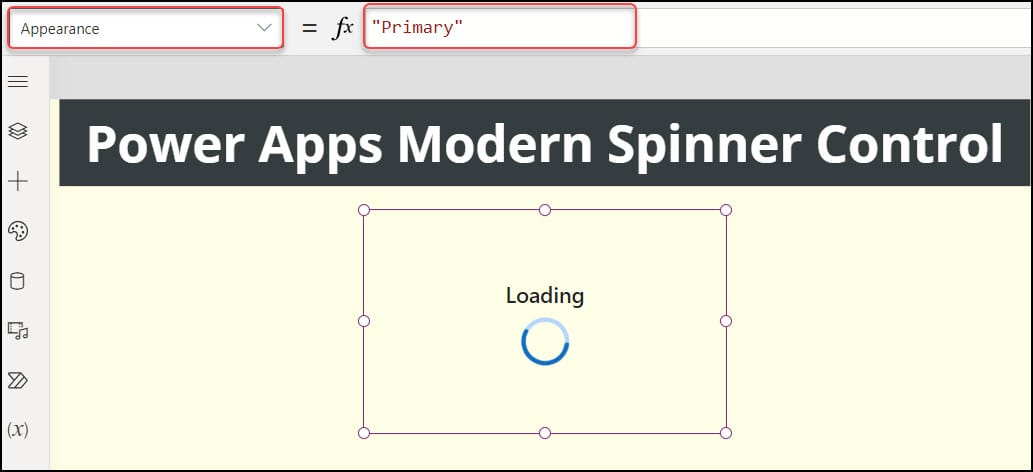 Inverted:  |
| Label Position | Defines the position of the label around the spinner. There are four types of label positions: Before:  After:  Above:  Below: 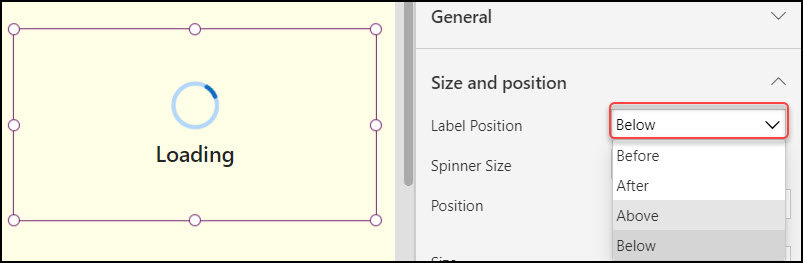 |
| Spinner Size | Defines the size of the spinner. There are seven different modern spinner sizes. Such as: Tiny ExtraSmall Small Medium Large ExtraLarge Huge |
| DisplayMode | It defines whether the control allows user input (Edit), Displays data (View), or is disabled (Disabled). |
| Visible | Specifies whether to display or hide the Modern Spinner control. |
| Position | X – Distance between the control’s left side and the screen’s left edge. Y – Distance between the top of the control and the top edge of the screen. |
| Size | Width – The distance between the control’s left and right sides. Height – Distance between the control’s top and bottom. |
These are the properties of a Modern Spinner in Power Apps.
Check out How to Create a PDF From SharePoint List Items Using Power Automate?
Add Power Apps Modern Spinner Control
Next, we’ll see how to add a Modern Spinner Control in the Power Apps Canvas app.
First, we must enable the “Modern controls and themes” option on the Power Apps Canvas app Settings page.
- Sign in to Power Apps with your valid Microsoft credentials.
- Create a New Blank Canvas app (Apps -> + New App -> Canvas).
- Provide a unique name for the app (Power Apps Modern Spinner), choose the Format as Tablet, and Click on Create.
- On the Power Apps Screen, Click on ellipses (…) from the top -> Settings.

5. From the Settings pane, Go to General -> Scroll down and Enable the Modern controls and themes as shown below. Click on Close.

6. Expand the + Insert tab (from the top) -> Modern -> Select Spinner under Preview section.

The modern spinner’s default name is Spinner1. You can change the spinner name later as needed.
This is how to add a Modern Spinner control in the Power Apps Canvas app.
Check out Show Hide Fields Based On Power Apps Dropdown Selection
How to Use Power Apps Modern Spinner Control
Let’s take a simple example of using a modern spinner control in Power Apps.
In Power Apps, there is an Edit form and a button [SUBMIT]. A user fills out the form and clicks on the submit button. Then, a modern spinner will appear while the form saves data. Once the data is saved in the SharePoint list, the spinner will disappear from the form.
Refer to the gif below:

To achieve this, follow the instructions below:
1. I have a SharePoint list named Product Details with four different columns:
| Column | Data type |
|---|---|
| Product Name | Single line of text |
| Price | Currency |
| Purchase Date | Date and time |
| Image | Image |

2. In Power Apps, insert an Edit form and connect it to the above SharePoint list [Product Details]. Add a Button [SUBMIT] and apply the code below on its OnSelect property as:
OnSelect = UpdateContext({varShowSpinner: true});
SubmitForm(Form1);
NewForm(Form1)
Where,
- varShowSpinner = Variable name
- Form1 = Edit form name

3. Then, select the edit form and set its OnSuccess property as:
OnSuccess = UpdateContext({varShowSpinner: false});
This code will hide the saving spinner once the form data is saved into the SharePoint list.

4. Add a modern Spinner control in the middle of the form. Set its Label property to “Loading….“. Also, set its Visible property to the variable:
Visible = varShowSpinner
5. Save, Publish, and Preview the app. Fill out the form and click the SUBMIT button. The modern spinner will show until and unless the data is stored in the SharePoint list. Once the data is saved, then the spinner will hide.
This is how to use the Modern Spinner Control in PowerApps.
You may also like:
- Power Apps Modern Toggle Control
- Power Apps Modern Slider Control
- Power Apps Modern Combobox Control
Conclusion
After reading this article, I hope you understand all about the Modern Spinner control and its key properties.
We also saw how to add a modern PowerApps spinner and how to use it in the Power Apps Canvas app with a simple scenario.

Hey! I’m Bijay Kumar, founder of SPGuides.com and a Microsoft Business Applications MVP (Power Automate, Power Apps). I launched this site in 2020 because I truly enjoy working with SharePoint, Power Platform, and SharePoint Framework (SPFx), and wanted to share that passion through step-by-step tutorials, guides, and training videos. My mission is to help you learn these technologies so you can utilize SharePoint, enhance productivity, and potentially build business solutions along the way.

