
One of my colleagues asked me how to join the First Name and Last Name columns in Power BI and add a space between them. He had tried creating a calculated column using the following DAX formula:
Column = CONCATENATE(names[First Name] & " " & names[Last Name])However, this caused an error because the CONCATENATE function in DAX only accepts two arguments in the format CONCATENATE(column1, column2). Since a space also needs to be added, the formula must be written differently.
To solve this, the space has to be concatenated separately, like this:
CONCATENATE(column1, CONCATENATE(" ", column2))Using this approach, we can successfully join two columns with a space between them.
In this Power BI tutorial, I will show you how to concatenate columns with spaces. Where I will cover the following topics:
- Concatenate with a space using a calculated column in Power BI
- Concatenate two columns with a space using Merge Columns in Power BI Power Query
- Concatenate two columns with a space using a Custom Column in Power BI Power Query
Concatenate with a Space using a Calculated Column in Power BI
In this example, I am using a Products Orders table. This table contains sales and shipping-related information. The columns used in this dataset are:
- Ship to Zip Code – Shipping zip code (Number)
- Product Ordered – Product name (Text)
- Sales – Sales amount (Number)
- Ordered Date – Date when the product was ordered (Date)
- Ship to City – Shipping city (Text)
- Ship to State – Shipping state code (Text)

Here, I want to join Product Ordered and Ship to City to create a single column with readable values.
To do this, follow the steps below:
- Open Power BI Desktop and load the Products Orders table. Go to the Table view from the left navigation pane.

- Select the Products Orders table. Click New column from the Table tools tab.

- Enter the following DAX formula to concatenate the columns with a space:
Product City =
CONCATENATE(
    'Products Orders'[Product Ordered],
    CONCATENATE(" ", 'Products Orders'[Ship to City])
)
Where:
- Product City: New Column Name
- CONCATENATE(): joins two text values.
- Products Orders'[Product Ordered]: This is the product name
- CONCATENATE(” “, ‘Products Orders'[Ship to City]): Adds a space between the product name and city.

After applying this formula, Power BI creates a new column that combines the Product Ordered and Ship to City values with a space between them.
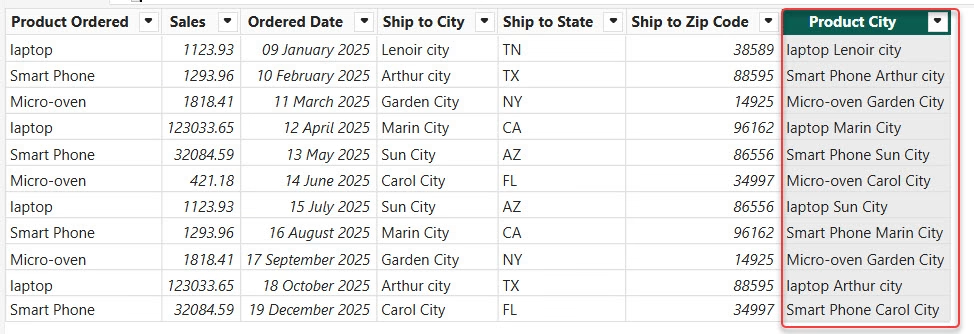
This is how to concatenate with a space using a Calculated Column in Power BI.
Concatenate Two Columns with a Space using Merge Columns in Power BI Power Query
In this example, I will show how to concatenate two columns with a space using the Merge Columns option in Power BI Power Query. This method is practical when you want to combine columns during data transformation, before loading the data into the report.
Here, I am using the same Products Orders table. I will merge the Product Ordered and Ship to City columns with a space between them.
Follow the steps below:
- Open Power BI Desktop and load the dataset. Go to the Home tab and click Transform data to open the Power Query Editor.

- In the Power Query Editor, select the Product Ordered column. Hold the Ctrl key and select the Ship to City column.

- Go to the Transform tab and click Merge Columns. In the Merge Columns window:
- Choose Space as the separator
- Enter a new column name (for example: Product City)

After this, Power Query creates a new column that combines the Product Ordered and Ship to City values with a space between them.

This is how to concatenate two columns with a space using Merge Columns in Power BI Power Query.
Concatenate Two Columns with a Space using a Custom Column in Power BI Power Query
In this example, I will show how to concatenate two columns with a space using a Custom Column in Power BI Power Query. This approach gives more control because you can write your own formula.
I am using the same Products Orders table and will concatenate the Product Ordered and Ship to City columns with a space between them.
To do this, follow the steps below:
- Open Power BI Desktop and load the dataset. Go to the Home tab and click Transform data to open the Power Query Editor.
- In the Power Query Editor, go to the Add Column tab. Click Custom Column.

- In the Custom Column window:
- Enter a new column name (for example: Product City)
- Add the following formula:
[Product Ordered] & " " & [Ship to City]- Click OK.

After clicking OK, a new column is created that combines the Product Ordered and Ship to City values with a space between them.

This is how to concatenate two columns with a space using a Custom Column in Power BI Power Query.
Conclusion
In this Power BI tutorial, I explained different ways to concatenate two columns with a space. First, I showed how to use a calculated column with DAX to join values by handling the CONCATENATE function correctly.
Then, I explained how to combine columns using Merge Columns in Power BI Power Query. Finally, I showed how to concatenate columns using a Custom Column in Power Query for more control.
You may also like:
- Select Multiple Values in Power BI Slicer
- Check If Text is Date in Power BI Power Query
- Add Column Using Power BI Power Query Editor
- Extract Text in Power BI Power Query Using Add Column

Hey! I’m Bijay Kumar, founder of SPGuides.com and a Microsoft Business Applications MVP (Power Automate, Power Apps). I launched this site in 2020 because I truly enjoy working with SharePoint, Power Platform, and SharePoint Framework (SPFx), and wanted to share that passion through step-by-step tutorials, guides, and training videos. My mission is to help you learn these technologies so you can utilize SharePoint, enhance productivity, and potentially build business solutions along the way.

