
I am working on a report for an organization, and I faced a requirement to identify and handle blank values in Power BI reports. Several columns contained empty data, which we did not want to consider in reports.
Power BI provides multiple DAX functions, such as ISBLANK, COALESCE, FIRSTNONBLANK, and LASTNONBLANK, to identify, remove, or replace blank values from the dataset.
Using these DAX functions, we can easily exclude blank values and work only with valid data in Power BI reports.
In this Power BI tutorial, I will explain how to filter blank and non-blank values using different DAX functions. You will learn how to use ISBLANK, COALESCE, FIRSTNONBLANK, and LASTNONBLANK to remove empty values and work only with valid data in your Power BI reports.
Filter Blank Values using ISBLANK in Power BI
The ISBLANK function in Power BI DAX is used to check whether a column value is blank or not. It returns TRUE if the value is blank and FALSE if the value contains data.
Syntax:
ISBLANK(<value>)In this example, I am using a Sales Data table that contains some blank values in the Sales Amount column.
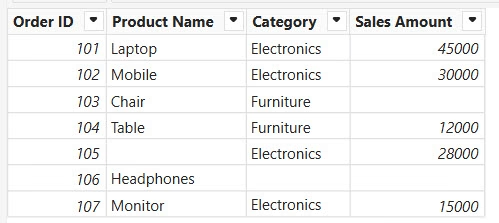
I want to filter out rows where the Sales Amount is blank and work only with valid data.
To do this, follow the steps below:
- Open Power BI Desktop and load your dataset. In my case, I loaded the dataset shown above.
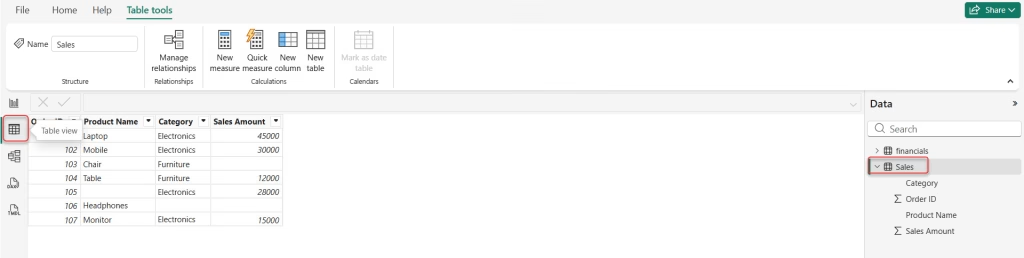
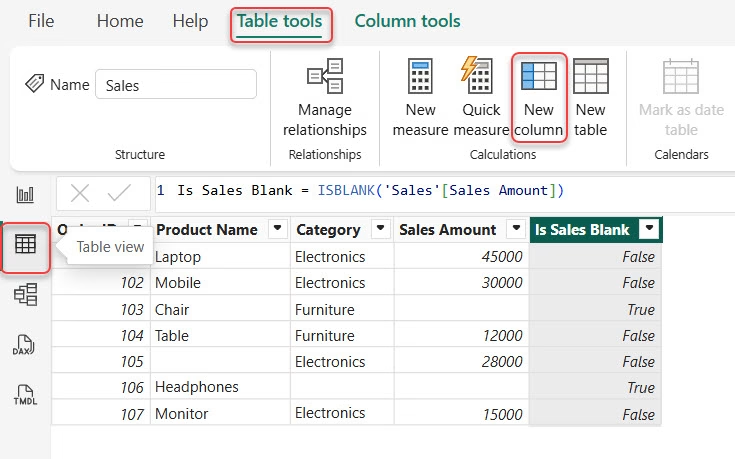
- Go to the Table view from the left navigation pane and select the required table.
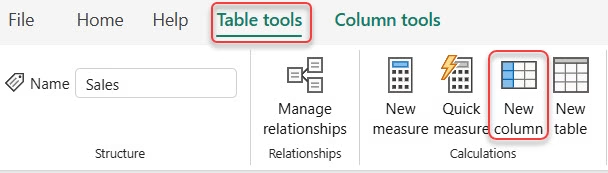
- Under Table tools, click New column.
- Now, enter the DAX expression below to filter blank values using the ISBLANK function:
Is Sales Blank = ISBLANK('Sales'[Sales Amount])Where:
- Sales: Table Name
- Sales Amount: Column Name

After creating the column, Power BI adds a new column that returns TRUE for blank Sales Amount values and FALSE for non-blank values.
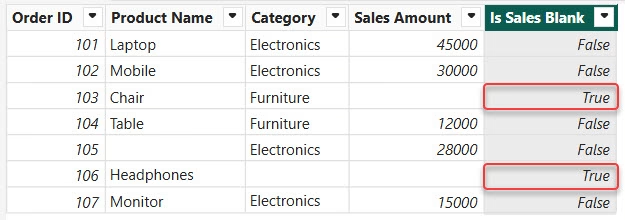
This way, you can use the ISBLANK function to Filter Blank Values in Power BI Desktop.
Filter Blank Values using COALESCE in Power BI
The COALESCE function in Power BI DAX is used to return the first non-blank value from a list of expressions. If a column contains blank values, COALESCE helps replace those blanks with a default value.
Syntax:
COALESCE(<expression1>, <expression2>, ...)In this example, I will use the same dataset and check the Sales Amount column. If the Sales Amount is blank, I will replace it with 0.
Follow the steps below:
- Open Power BI Desktop and load the dataset. Go to the Table view and select the table.
- Under Table tools, click New column.
- Now enter the DAX expression below and click Enter:
Sales Amount (No Blank) = COALESCE('Sales'[Sales Amount], 0)
After applying this formula, Power BI creates a new column where Blank values are replaced with zero, and Non-blank values remain unchanged.
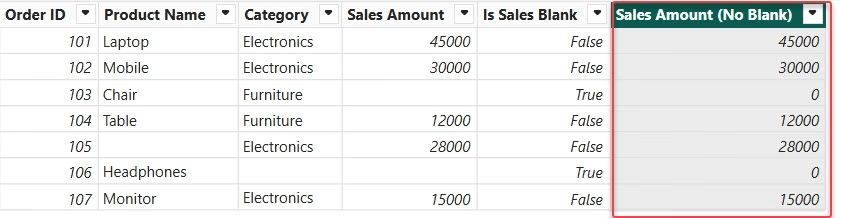
This way, you can work only with valid values and avoid blank-related issues in calculations and visuals.
Filter Blank Values using FIRSTNONBLANK in Power BI
The FIRSTNONBLANK function returns the first non-blank value in a column, based on the evaluation of another column or expression.
Syntax:
FIRSTNONBLANK(<column>, <expression>)- column – The column you want to evaluate.
- expression – Any expression that is evaluated for each row (commonly
1or another column).
In this example, I want to return the first non-blank Sales Amount.
- Open Power BI Desktop and load the dataset.
- Go to Table view, select the table, then, under Table tools, click New measure.
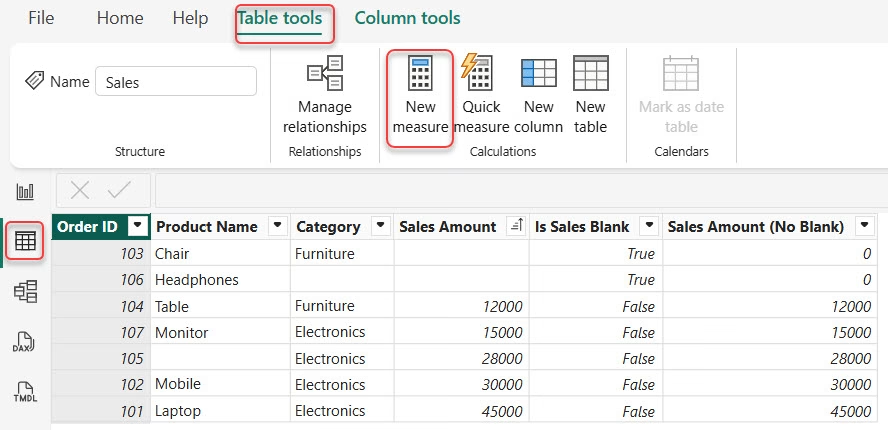
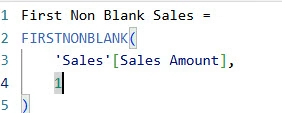
- Enter the following DAX formula:
First Non Blank Sales =
FIRSTNONBLANK(
    'Sales'[Sales Amount],
    1
)
- Now go to the report view and add a Card visual, then add the above measure to ot you can see it will 12k because it is the first non-blank sales amount.

This way, you can filter blank values using FIRSTNONBLANK in Power BI.
Filter Blank Values using LASTNONBLANK in Power BI
The LASTNONBLANK function in Power BI returns the last non-blank value in a column, based on the evaluation of another column or expression.
It is useful when your data contains blank values, and you want to retrieve the last available value while ignoring blanks.
Syntax:
LASTNONBLANK(<column>, <expression>)- column – The column you want to evaluate
- expression – Any expression evaluated for each row (commonly
1or another column)
In this example, we want to return the last non-blank Sales Amount from the dataset.
To do this, follow the steps below:
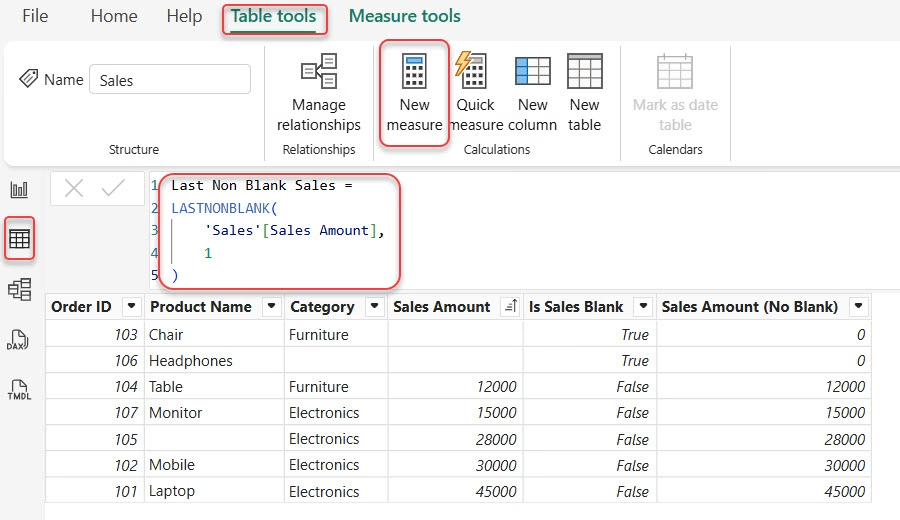
- Open Power BI Desktop and load the dataset. Go to Table view.
- Select the table. Under Table tools, click New measure.
- Enter the following DAX formula:
Last Non Blank Sales =
LASTNONBLANK(
    'Sales'[Sales Amount],
    1
)
- Go to Report view. Add a Card visual. Drag the Last Non Blank Sales measure into the card.

You will see the value 45000, because it is the last non-blank Sales Amount available in the dataset.
In this tutorial, I covered how to handle blank values in Power BI using different DAX functions. I explained how to identify blank values with ISBLANK, replace empty values with COALESCE, and retrieve the first and last non-blank values using FIRSTNONBLANK and LASTNONBLANK.
You may also like:
- Select Multiple Values in Power BI Slicer
- Check If Text is Date in Power BI Power Query
- Add Column Using Power BI Power Query Editor
- Extract Text in Power BI Power Query Using Add Column

Hey! I’m Bijay Kumar, founder of SPGuides.com and a Microsoft Business Applications MVP (Power Automate, Power Apps). I launched this site in 2020 because I truly enjoy working with SharePoint, Power Platform, and SharePoint Framework (SPFx), and wanted to share that passion through step-by-step tutorials, guides, and training videos. My mission is to help you learn these technologies so you can utilize SharePoint, enhance productivity, and potentially build business solutions along the way.