
Every January, a finance team I work with moves last year’s delivered orders out of their busy Orders list into an archive list. The list stays fast, the history stays searchable, and nobody wants to do it by hand or lose the original Created dates on the way.
PnP PowerShell doesn’t have a single “copy list items” cmdlet, but a short script does the job. Here’s how I copy the list structure, copy every item, and archive a filtered set with attachments. Each script ran against demo lists on my own Microsoft 365 tenant in PowerShell 7, and the screenshots are the real output.
Quick answer: Create the target list with Copy-PnPList -Identity "Orders" -Title "Orders Archive" (it copies columns and views, not items). Then read the items with Get-PnPListItem -List "Orders" -PageSize 500, build a hashtable of internal column names for each one, and write it with Add-PnPListItem -List "Orders Archive" -Values $values -Batch $batch, followed by Invoke-PnPBatch.
Step 1: Create the target list with the same columns
The copy only works when the target list has the same internal column names as the source. Copy-PnPList clones the columns, views and settings into a new list. You’ll need PnP PowerShell 3.x in PowerShell 7 and your own app registration; see how to install PnP PowerShell if that’s not set up yet.
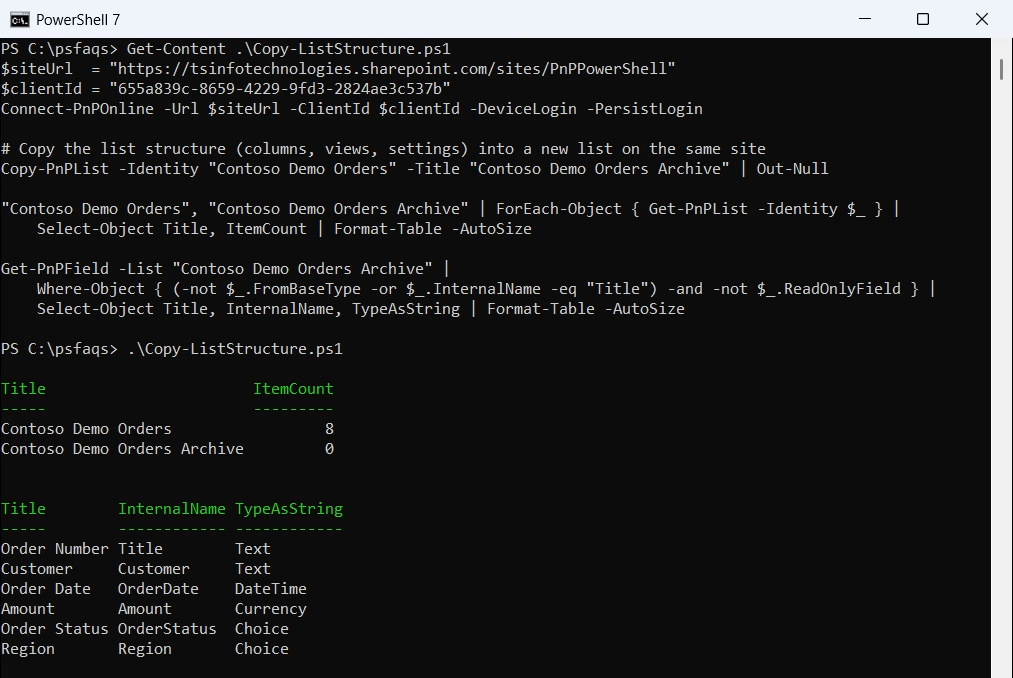
Notice the archive has the same six columns but zero items: Copy-PnPList never copies data. Add -DestinationWebUrl to create the copy on another site in the same tenant. If your target list already exists, compare its internal names with the list column details script before you copy anything.
Step 2: Copy all items from one list to another
This script reads the source columns from the list itself, so you don’t have to type them. It keeps Title plus every custom column that isn’t read-only or hidden, fetches the items 500 at a time, and queues one Add-PnPListItem per item in a batch:

All eight orders arrived with their dates, USD amounts and choice values intact. Text, number, currency, date, choice and yes/no values copy as they are. Batching sends the requests in chunks of 100, which matters once you’re past a few hundred items; adding 5,000 items to a SharePoint list shows the timing difference.
Handle person, lookup and managed metadata columns
Some column types come back from Get-PnPListItem as objects, not plain values, and Add-PnPListItem won’t accept those objects. Convert them inside the loop:
foreach ($item in $items) {
    $values = @{
        Title    = $item["Title"]
        Owner    = $item["Owner"].Email          # person: the user's email
        Project  = $item["Project"].LookupId     # lookup: the ID in the lookup list
        Category = $item["Category"].TermGuid    # managed metadata: the term GUID
        Tags     = $item["Tags"]                 # multi-choice: the array as is
    }
    Add-PnPListItem -List $target -Values $values -Batch $batch
}
A person column takes the user’s email (the user must be able to sign in to the target site). A lookup column takes the item ID, which only makes sense when both lists look up the same list. For a deeper look at value formats per column, see my SharePoint list items CRUD guide.
Archive filtered items with attachments and original dates
A plain copy has two side effects: attachments stay behind, and Created, Modified and Created By show the account that ran the script, at the time it ran. This version fixes both, copies only Delivered orders through a CAML query, and skips orders already in the archive, so you can run it again safely:

Get-PnPListItemAttachment downloads an item’s files to a local folder, and Add-PnPListItemAttachment -Path uploads them to the new item. The Created and Modified dates are only saved with -UpdateType UpdateOverwriteVersion; SystemUpdate can’t set them. The same update type also accepts an Editor (Modified By) email.
Want to move rather than copy? After the copy succeeds, delete the source item with Remove-PnPListItem -Recycle -Force, so it lands in the recycle bin. For clearing a whole list afterward, see removing all items from a SharePoint list.
Copy list items to a list on another site
For a list on another site, open two connections with -ReturnConnection and pass the right one to each cmdlet with -Connection:
$src = Connect-PnPOnline -Url "https://contoso.sharepoint.com/sites/Sales" -ClientId $clientId -Interactive -ReturnConnection
$dst = Connect-PnPOnline -Url "https://contoso.sharepoint.com/sites/Archive" -ClientId $clientId -Interactive -ReturnConnection

$items = Get-PnPListItem -List "Orders" -PageSize 500 -Connection $src
foreach ($item in $items) {
    $values = @{ Title = $item["Title"]; Customer = $item["Customer"]; Amount = $item["Amount"] }
    Add-PnPListItem -List "Orders" -Values $values -Connection $dst | Out-Null
}
Create the target list first with Copy-PnPList -DestinationWebUrl. Lookup IDs won’t match across sites, so map them by title. No code at all? A Power Automate flow that copies list items works too, but it’s slower for large lists.
Common errors and fixes
- “Column ‘Order Status’ does not exist”: you used a display name. Use the internal name (
OrderStatus), which Copy-PnPList keeps identical. - “Invalid data has been used to update the list item”: usually a person, lookup or managed metadata object passed as is. Convert it as shown above.
- Amounts or dates off inside a batch: batched values follow the target site’s regional settings, so a site with a comma decimal separator needs
"1875,50". - The attempted operation is prohibited because it exceeds the list view threshold: keep
-PageSizebelow 5,000 and filter CAML queries on indexed columns.
Large source lists need that last habit everywhere. My guide to the SharePoint list view threshold explains indexing, and the PnP PowerShell scripts for SharePoint collection has more ready-to-run examples.
If you’re managing SharePoint lists with PowerShell, these guides are a good next step:
Frequently Asked Questions
Does Copy-PnPList copy the list items?
No. Copy-PnPList copies the columns, views and settings only, so the new list starts empty. Copy the items with Get-PnPListItem and Add-PnPListItem. See the Copy-PnPList reference.
How do I copy SharePoint list items with attachments using PowerShell?
Copy the item with Add-PnPListItem, download the source attachments with Get-PnPListItemAttachment -Path, then upload each file to the new item with Add-PnPListItemAttachment -Path.
How do I keep the original Created and Modified dates when copying list items?
After adding the item, run Set-PnPListItem with -UpdateType UpdateOverwriteVersion and pass the source Created and Modified values. The Set-PnPListItem reference lists all update types.
Can I copy list items to a list on another SharePoint site?
Yes. Open two connections with Connect-PnPOnline -ReturnConnection and pass -Connection to Get-PnPListItem for the source and to Add-PnPListItem for the target.
Why does my copy script fail on person or lookup columns?
Get-PnPListItem returns them as objects. Pass the user’s email for a person column and the LookupId for a lookup column instead of the object itself.

Hey! I’m Bijay Kumar, founder of SPGuides.com and a Microsoft Business Applications MVP (Power Automate, Power Apps). I launched this site in 2020 because I truly enjoy working with SharePoint, Power Platform, and SharePoint Framework (SPFx), and wanted to share that passion through step-by-step tutorials, guides, and training videos. My mission is to help you learn these technologies so you can utilize SharePoint, enhance productivity, and potentially build business solutions along the way.