
We are working on a report for our client, and during the discussion, one of my colleagues asked me a question. They wanted to calculate how many customers placed an order in the last 30 days, for a specific product category, and whose total purchase amount is above 10,000.
I told them we can easily solve it using the COUNTROWS and FILTER functions. First, we use the FILTER function to pick only those customers who ordered in the last 30 days, ordered from the selected product category, and have a total purchase amount above 10,000.
After filtering them, we use COUNTROWS to count the number of such customers.
In this article, I will show you how to count data with multiple filter conditions in Power BI DAX. Here I will cover the example below:
- Count Customers in the Last 30 Days Using Power BI DAX
- Count Orders for a Specific Product Category in Power BI
- Count High-Value Customers Above 10,000 Using Power BI DAX
- Count Data with Multiple Filter Conditions in Power BI
Count Customers in the Last 30 Days Using Power BI DAX
In this tutorial, I will use two tables, one containing Customer data and the other containing Orders data.

Now I want to count how many customers have placed at least one order in the last 30 days.
To do this, follow the steps below:
- Open Power BI Desktop and load both the Customers and Orders tables.
- Go to Model View and create a relationship between the tables by using the Customer ID column.
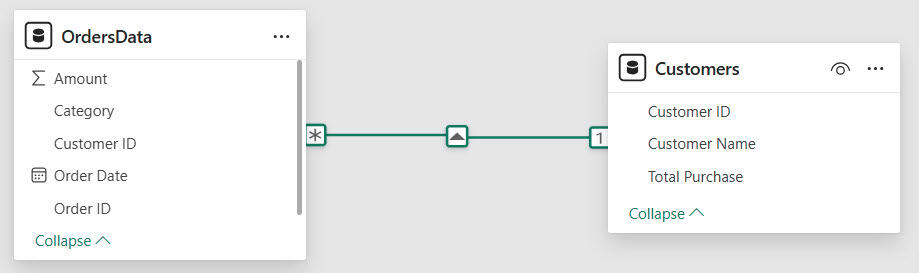
This relationship is required to create a DAX expression.
- Now go to the Data view and select the Customers table. Then, under the Table Tools menu, click on New Measure.
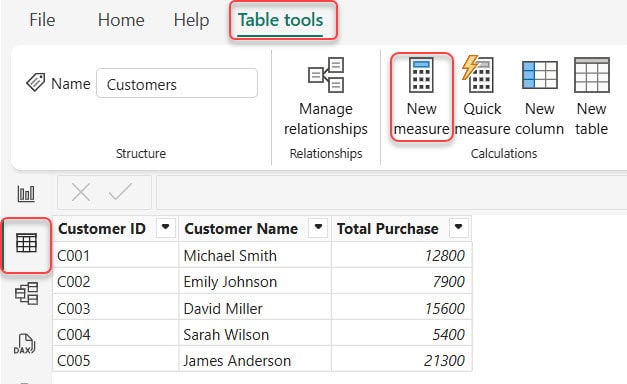
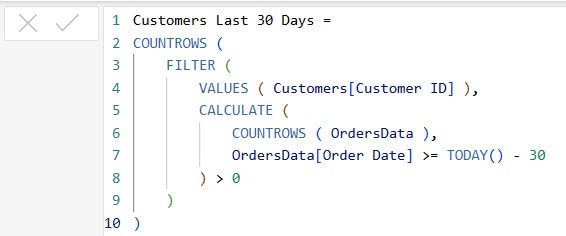
- In the formula bar, provide the following DAX expression:
Customers Last 30 Days =
COUNTROWS (
    FILTER (
        VALUES ( Customers[Customer ID] ),
        CALCULATE (
            COUNTROWS ( OrdersData ),
            OrdersData[Order Date] >= TODAY() - 30
        ) > 0
    )
)
Where:
- Customers Last 30 Days: This creates a new measure named Customers Last 30 Days.
- COUNTROWS(): This function counts the number of customers returned after filtering.
- FILTER(): FILTER is used to select only the customers that meet a specific condition.
- VALUES(Customers[Customer ID]): This gives a unique list of all Customer IDs so each customer is checked only once.
- CALCULATE(): CALCULATE changes the filter context so we can count only the orders placed by each customer in the last 30 days.
- COUNTROWS(OrdersData): This counts how many orders the customer placed.
- OrdersData[Order Date] >= TODAY() – 30: This condition checks if the customer has at least one order where the order date is within the last 30 days.
- > 0: This means the customer must have at least one order in the last 30 days to be included.
- Go to the Report view. Insert a Card visual from the Visualizations pane. Drag the measure Customers Last 30 Days into the Values field.

Now, you can see the card visual shows the total number of customers who placed at least one order in the last 30 days.
Count Orders for a Specific Product Category in Power BI
Now let’s count how many orders belong to a specific product category, such as Electronics, Fashion, or Furniture.
Follow the steps below:
- Go to the Table view. Select the OrdersData table, since the category information is stored there.
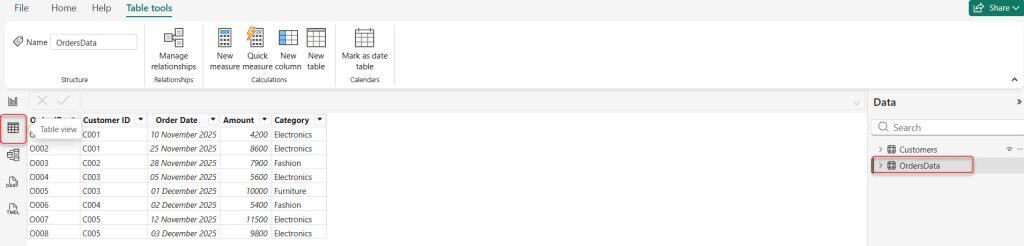
- Under the Table Tools menu, click on New Measure. Provide the following DAX formula to count orders from a specific category:
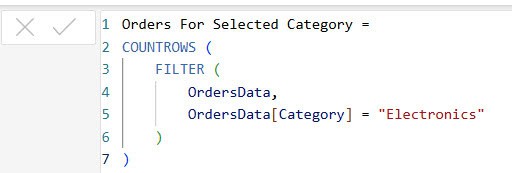
Orders For Selected Category =
COUNTROWS (
    FILTER (
        OrdersData,
        OrdersData[Category] = "Electronics"
    )
)
Where:
- Orders For Selected Category: This creates a new measure named Orders For Selected Category.
- COUNTROWS(): This function counts how many rows are returned after filtering.
- FILTER(): FILTER is used to pick only the rows that match a condition.
- OrdersData: This tells FILTER to look at all rows in the OrdersData table.
- OrdersData[Category] = “Electronics”: This is the condition. It keeps only the rows where the Category is Electronics.
- Go to Report view. Insert a Card visual. Drag the Orders For Selected Category measure into the visual.
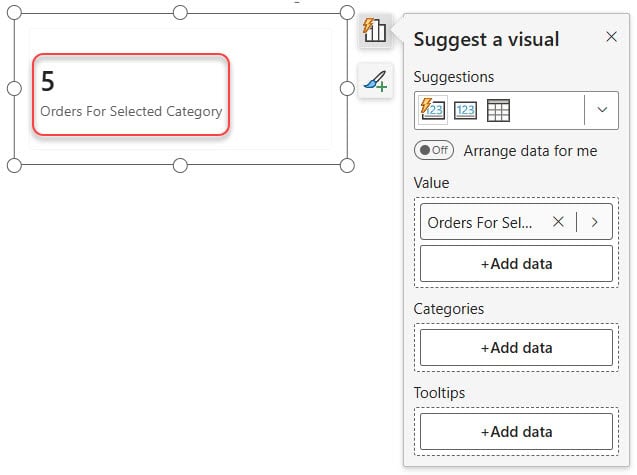
This way, you can count orders for a specific product category in Power BI. Here I show you only the electronics category. If you want another category, replace electronics with any category you want to filter.
Count High-Value Customers Above 10,000 Using Power BI DAX
In this example, we want to count how many customers have a Total Purchase value above 10,000.
To do this, follow the steps below:
- In the report view. Go to the Customers table, right-click, and choose New Measure.
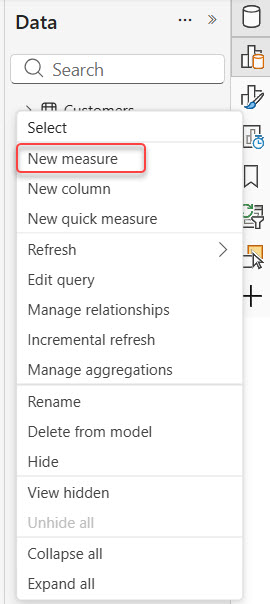
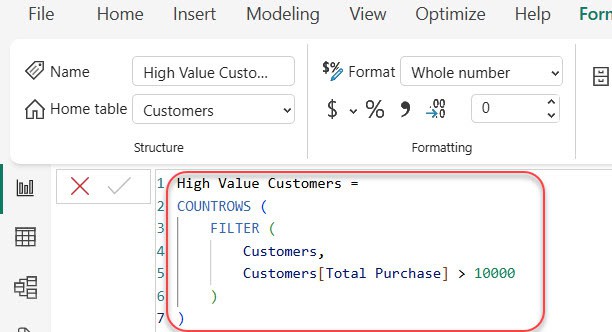
- In the formula section, provide the following DAX formula to count high-value customers:
High Value Customers =
COUNTROWS (
    FILTER (
        Customers,
        Customers[Total Purchase] > 10000
    )
)
Where:
- High Value Customers: This creates a new measure named High Value Customers.
- COUNTROWS(): This function counts how many rows are returned after filtering.
- FILTER(): FILTER is used to pick only the rows that match a specific condition.
- Customers: This tells the FILTER function to look at all rows in the Customers table.
- Customers[Total Purchase] > 10000: This condition keeps only those customers whose Total Purchase value is greater than 10,000.
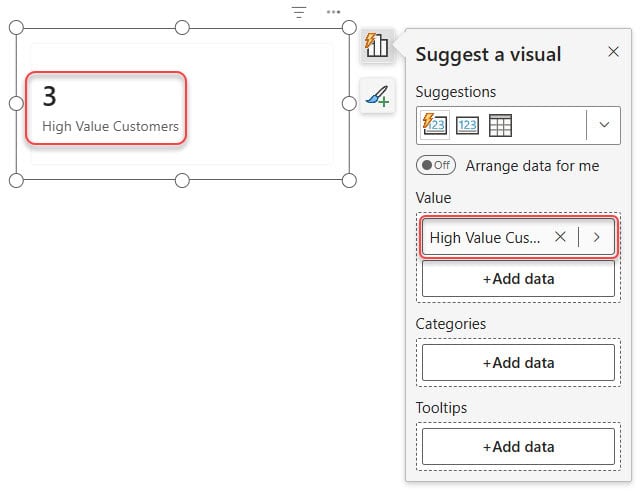
Then add a card visual, drag and drop the High Value Customers measure, and you can see the count.
Count Data with Multiple Filter Conditions in Power BI
In the above three examples, we applied one condition at a time, such as filtering by date, category, or total purchase amount. But in real projects, we need to apply multiple conditions together to get the exact result we want.
Now I want to combine three filters: Customers whose total purchase amount is above 10,000. Customers who placed an order in the last 30 days. Customers who ordered from a specific product category.
Let’s see how to do:
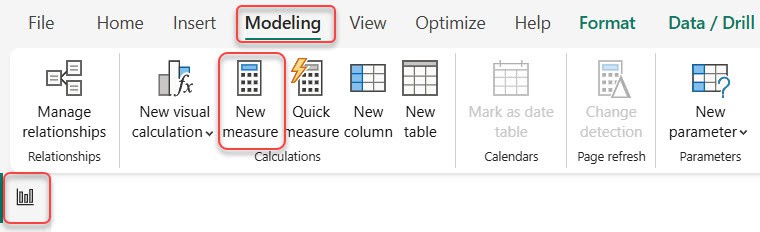
- Open the Power BI desktop and load the data. Then, under the Modeling tab, click “New measure”.
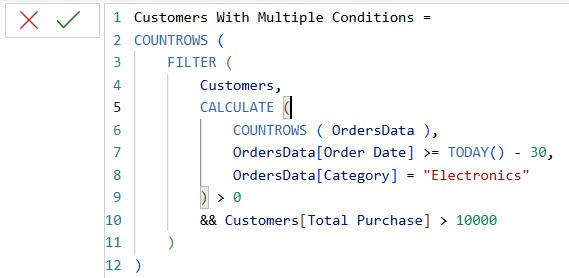
- In the formula section, provide the following DAX expression:
Customers With Multiple Conditions =
COUNTROWS (
    FILTER (
        Customers,
        CALCULATE (
            COUNTROWS ( OrdersData ),
            OrdersData[Order Date] >= TODAY() - 30,
            OrdersData[Category] = "Electronics"
        ) > 0
        && Customers[Total Purchase] > 10000
    )
)
Where:
- Customers With Multiple Conditions: This is the name of the measure we are creating.
- COUNTROWS(): This counts how many customers match the conditions.
- FILTER(): FILTER helps us choose only the customers that meet the rules we set.
- Customers: This means we are checking every customer in the Customers table.
- CALCULATE(): CALCULATE changes the filters so we can count only the orders that match our conditions.
- COUNTROWS(Orders): This counts how many orders the customer has.
- Orders[OrderDate] >= TODAY() – 30: This checks if the customer has placed at least one order in the last 30 days.
- Orders[Category] = “Electronics”: This checks if the customer bought something from the Electronics category.
- > 0: This means the customer must have at least one matching order.
- && Customers[TotalPurchase] > 10000: This adds one more rule: the customer’s total purchase amount must be more than 10,000
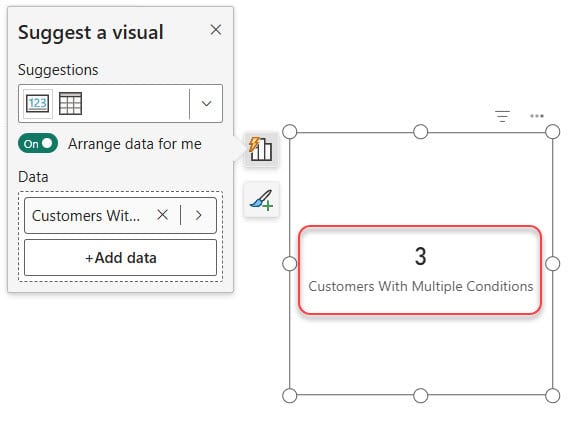
Add a card visual, drag the Customers With Multiple Conditions measure into it.
In this tutorial, I explained how to count data with multiple filter conditions in Power BI DAX. We also covered how to count customers who placed an order in the last 30 days and how to count orders for a specific product category.
Additionally, I included how to count high-value customers whose total purchase is above 10,000 using DAX.
Also, you may like:
- Add Column With a Fixed Value in Power BI
- Remove Filters in Power BI DAX
- Add Column If Contains in Power Query Power BI
- Add Columns Using IF Statements in Power BI Power Query
- Filter Data in Power BI Using Conditions from Another Column

Hey! I’m Bijay Kumar, founder of SPGuides.com and a Microsoft Business Applications MVP (Power Automate, Power Apps). I launched this site in 2020 because I truly enjoy working with SharePoint, Power Platform, and SharePoint Framework (SPFx), and wanted to share that passion through step-by-step tutorials, guides, and training videos. My mission is to help you learn these technologies so you can utilize SharePoint, enhance productivity, and potentially build business solutions along the way.

