
When working with the SharePoint Term Store, it’s common to encounter duplicate or similar terms created by different users or as your taxonomy grows. These duplicates make tagging inconsistent and your metadata hard to manage.
Thankfully, SharePoint provides an easy way to merge terms into one, helping you keep your metadata clean and organized.
In this article, I’ll show you how to merge terms in SharePoint Term Store and what happens after the merge is done.
Merge Terms in SharePoint Term Store
Suppose you have a document library tagged with a managed metadata column, and users are tagging files using two overlapping terms:
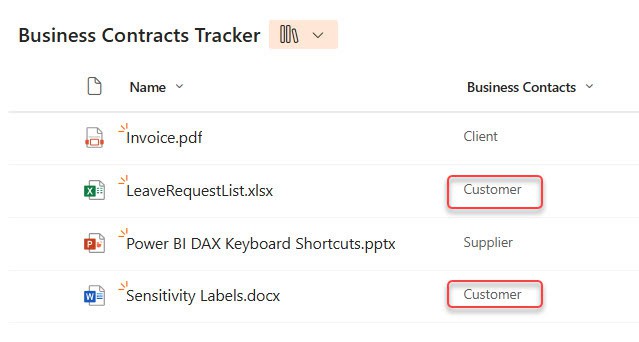
Client and Customer mean the same thing, but users are picking different tags. This can confuse and make it harder to find files.
Now, follow the steps below to merge terms:
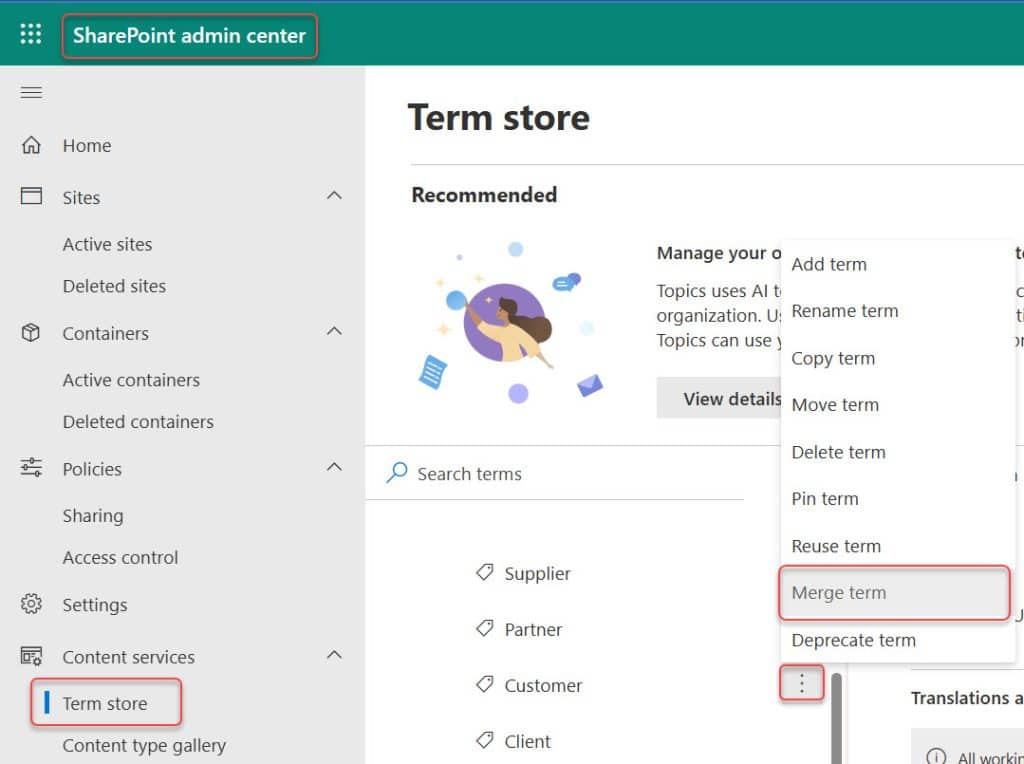
- Go to SharePoint Admin Center -> In the left menu, select Content services -> Term store.
- In the Term Store tree, find the term set where your terms are stored. Expand the group and locate the terms you want to merge.
- Click the three-dot menu (…) next to Customer, then select Merge term.
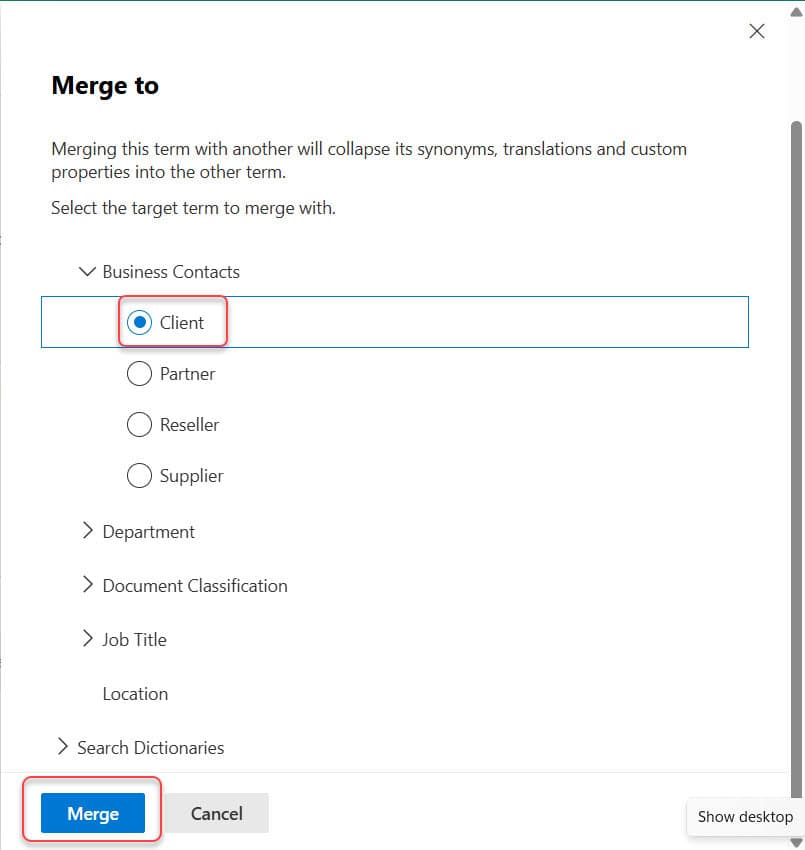
- Choose the target term you want to keep here, Client. Click the Merge button to confirm.
NOTE:
Any synonyms or translated labels provided by the Customer will be transferred to the Client.
- After a few seconds, the Customer disappears, and the Client remains in the term set.
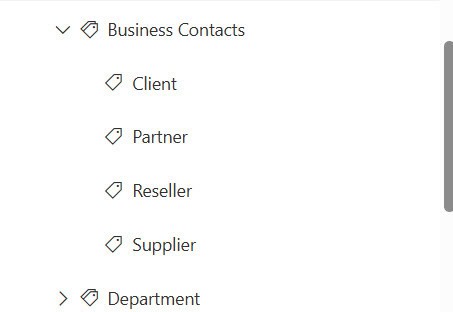
It might take up to 24 hours for the merged changes to appear everywhere. When you go back to your document library, you’ll see that the tag has been updated automatically to the new term.

NOTE:
You can merge terms across different Term Groups and Term Sets, but you cannot merge entire Term Sets, only individual terms.
I hope this SharePoint tutorial helped you.
Additionally, you may find the following interesting tutorials:
- Import Terms into the Term Store in SharePoint
- Enable Sensitivity Labels On PDF Using PowerShell
- Add Synonyms to SharePoint Term Store Metadata Terms
- Block Download Of Documents in SharePoint & OneDrive
- Create SPFx Dynamic Accordion Webpart Using PnP Controls React

Hey! I’m Bijay Kumar, founder of SPGuides.com and a Microsoft Business Applications MVP (Power Automate, Power Apps). I launched this site in 2020 because I truly enjoy working with SharePoint, Power Platform, and SharePoint Framework (SPFx), and wanted to share that passion through step-by-step tutorials, guides, and training videos. My mission is to help you learn these technologies so you can utilize SharePoint, enhance productivity, and potentially build business solutions along the way.

