
If your inbox is drowning in Microsoft Teams emails — missed activity alerts, chat summaries, channel updates — you’re not alone. A lot of people I’ve talked to didn’t even realize Teams was the one flooding their inbox. The good news? You can turn it all off in under 2 minutes. In this tutorial, I’ll walk you through every method, so you can take back control of your inbox.
What Are These Emails, Anyway?
Before we jump into the steps, let me quickly explain what’s happening. Microsoft Teams sends you “missed activity emails” whenever you haven’t opened the app for a while, and things have happened — someone messaged you, mentioned you in a channel, or replied to a post you were part of.
These emails are actually useful if you’re not logged into Teams much. But if you’re using Teams every day and still getting these emails, they become noise. They clutter your inbox and honestly, by the time you see the email, you’ve already read the message in Teams.
Turn Off Microsoft Teams Email Notifications
There are a few types of email notifications Teams can send:
- Missed activity emails – a digest of what happened when you weren’t in the app
- Channel activity emails – updates from specific channels
- Meeting and call summaries – after meetings end, Teams sometimes sends a recap
I’ll cover how to turn off each one.
Method 1: Turn Off Missed Activity Emails from Teams Settings
This is the most common one and the fix most people are looking for. Here’s how to do it.
Step 1 – Open Microsoft Teams
Launch Teams on your desktop or use the web version at teams.microsoft.com.
Step 2 – Go to Settings
Click the three dots (…) icon in the top-right corner of the Teams window. This is labeled “Settings and more.” From the dropdown, click Settings.
Alternatively, in newer versions of Teams, you might see your profile picture in the top-right corner — click it, and Settings will be right there in the menu.

Step 3 – Click on Notifications and Activity
In the Settings panel, look for Notifications and activity in the left sidebar and click on it. This is where all your notification preferences live.
Step 4 – Find the Missed Activity Emails Section
Scroll down a bit on the Notifications page. You’ll see a section called Missed activity emails. It has a dropdown menu next to it.
Step 5 – Set it to Off
Click the dropdown and select Off. That’s it. No save button needed — Teams applies the change automatically the moment you select it.

Once you do this, you won’t get those digest-style emails anymore, even if you haven’t opened Teams in a few hours.
Method 2: Change the Frequency Instead of Turning It Off Completely in Teams
Maybe you don’t want to turn it off entirely — you just want fewer emails. Fair enough. Instead of selecting “Off” in that same dropdown, you have a few other options:
- As soon as possible – You get an email almost instantly when you miss something
- Once every 10 minutes
- Once every hour
- Once every 8 hours
- Daily – One email per day summarizing everything you missed
- Off – No emails at all

I personally find Daily to be a sweet spot if you want a heads-up without your inbox going crazy. It gives you one clean summary rather than constant pings.
Method 3: Mute Specific Channels to Reduce Emails in Microsoft Teams
Sometimes the issue isn’t the missed activity emails — it’s that a specific channel is too noisy, pushing emails for every single post. You can fix this by muting that channel.
Here’s how:
- In Teams, go to the left sidebar and find the channel that’s bothering you.
- Hover over the channel name.
- Click the three dots (…) that appear to the right of the channel name.
- Click Channel notifications.
- From here, you can turn off all notifications for that channel — which also stops any related email activity tied to it.
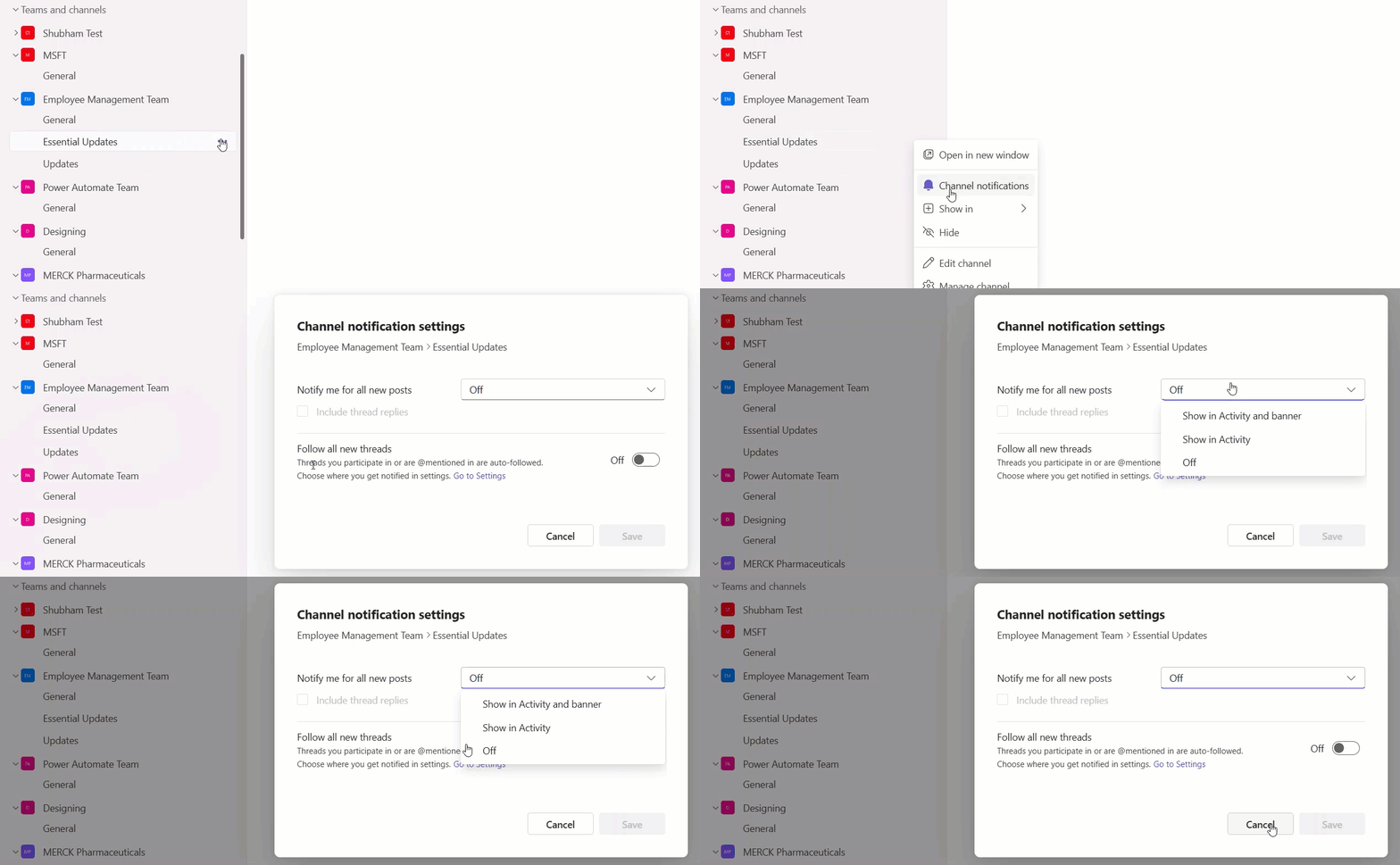
This is really handy when you’re part of a busy general channel that posts updates all day but you don’t need to be notified about every single one.
Method 4: Turn Off Notifications for Specific Chats in Teams
Individual chats can also trigger email notifications. If there’s a specific chat thread that keeps sending you emails, here’s how to quiet it:
- Open Teams and go to your Chats section.
- Right-click (or hover and click the three dots) on the chat you want to mute.
- Select Mute.

When you mute a chat, you won’t get banners or emails triggered from that conversation. You can always go back and unmute it later if needed.
Method 5: Manage Channel Notification Settings in Detail
If you want more granular control, Teams lets you customize what kind of notifications each channel sends you. Go to a channel, click the three dots, and then Channel notifications. You’ll see three options:
- All activity – You’re notified about every new message, reaction, and mention
- Mentions and replies – Only notified when someone specifically tags you or replies to your post
- Off – No notifications at all from this channel
For most channels where you’re just a lurker or a passive member, I’d recommend setting it to Mentions and replies. This way you only hear about it when something actually involves you.
Method 6: Use Quiet Hours / Do Not Disturb
This one doesn’t turn off email notifications specifically, but it does help with the bigger picture of managing Teams interruptions. If you set Teams to Do Not Disturb, it suppresses banners and sounds — and in some configurations, it also reduces the triggers that lead to email digests.
To set this up:
- Click your profile picture in the top-right corner of Teams.
- Click on your current status (it might say Available, Busy, etc.).
- Select Do not disturb from the list.

You can also set scheduled quiet hours. Go to Settings > Notifications and activity, scroll down to Do not disturb, and set start and end times for when you don’t want to be disturbed.
Why Are Emails Still Coming After You Turned Them Off?
A few people have asked me this. Even after turning off missed activity emails, they still get Teams-related emails. Here are a couple of reasons that can happen:
- Outlook rules aren’t the same as Teams settings. If Teams is connected to your Outlook, the missed activity email setting in Teams is what controls this — not Outlook settings. Make sure you updated it inside the Teams app.
- You might have multiple Teams accounts. If you’re logged into Teams with both a work account and a personal account, check the notification settings for both. Each account has its own separate settings.
- Admin policies. In some organizations, the IT admin may have set certain notification policies at the tenant level. If you’ve turned off everything from your side and emails are still coming, it’s worth checking with your IT team.
Quick Recap of All the Options
Here’s a quick cheat sheet of everything covered:
| What you want to do | Where to go |
|---|---|
| Turn off all missed activity emails | Settings > Notifications and activity > Missed activity emails > Off |
| Get fewer emails (not zero) | Same place — pick Daily or Every 8 hours |
| Stop emails from a noisy channel | Channel > Three dots > Channel notifications > Off |
| Mute a chat | Right-click chat > Mute |
| Set quiet hours | Settings > Notifications and activity > Do not disturb |
A Few Tips I’ve Found Helpful
- Don’t go straight to “Off” if you’re unsure. Try “Daily” first. You might find you actually like having one quick summary, especially during crunch periods.
- Revisit your settings every few months. Teams updates its interface fairly regularly, and new notification options sometimes get added without much fanfare.
- If you’re an admin managing this for an entire team, note that missed activity email settings can’t be turned off centrally for everyone in the admin console — each user must update their own settings individually. You can guide your team to do this, but you can’t push it as a policy just yet.
Also, you may like:
- Zoom In on Microsoft Teams
- Enable GIFs in Microsoft Teams
- 6 Easiest Ways to Take a Screenshot in Microsoft Teams
- Find Microsoft Teams ID
- 6 Best Ways to Disable Notifications During a Meeting in Microsoft Teams
That’s everything you need to know about turning off Microsoft Teams email notifications. Whether you want to kill them completely or just dial them down to something manageable, the settings are all there — it just takes knowing where to look.

Hey! I’m Bijay Kumar, founder of SPGuides.com and a Microsoft Business Applications MVP (Power Automate, Power Apps). I launched this site in 2020 because I truly enjoy working with SharePoint, Power Platform, and SharePoint Framework (SPFx), and wanted to share that passion through step-by-step tutorials, guides, and training videos. My mission is to help you learn these technologies so you can utilize SharePoint, enhance productivity, and potentially build business solutions along the way.

