
While working on a business application for a client, we were tasked with automating the process of creating SharePoint lists and columns. Unfortunately, Power Automate does not have a built-in flow action to create a SharePoint list or add columns to it.
For these scenarios, the REST API is the best option.
In this tutorial, I will explain how to use REST API Calls in Power Automate with several practical examples.
If you are a Power Platform developer, review all the examples, as I have explained how to use the GET, POST, PATCH, PUT, and DELETE methods in the REST API of Power Automate.
What is REST API?
A REST API (Representational State Transfer Application Programming Interface) is like a messenger that helps different software systems communicate with each other over the Internet.
It’s a simple way for one app (like Power Automate) to request data from another app (like a web service) or instruct it to perform an action using standard web commands.

Let me explain with a practical example.
Let’s say you are running a small business and want to automate some tasks to make your employees’ lives easier, like tracking orders or sending customer updates. You are using Power Automate, but it needs to communicate with your online order system to retrieve the latest data.
You have two systems:
- Group 1: Power Automate, your automation tool that needs info.
- Group 2: Your online order system has all the order details.
You want Power Automate to retrieve the latest order list and possibly update a customer’s status. But how do these two systems communicate with each other? This is where a REST API comes.
Think of a REST API as a delivery person between your systems. You (Power Automate) tell the delivery person (REST API) what you want, such as “Go get me the list of today’s orders” or “Tell the system to mark this order as shipped.”
The delivery person runs to the order system, retrieves the information (or fulfills your request), and returns a response, such as the order list or a confirmation.
Let me show you how to call the REST API in Power Automate. Suppose you want to read all the items from a SharePoint list and display them in an HTML table.
For example, I am using the SharePoint list Project Tracker below.
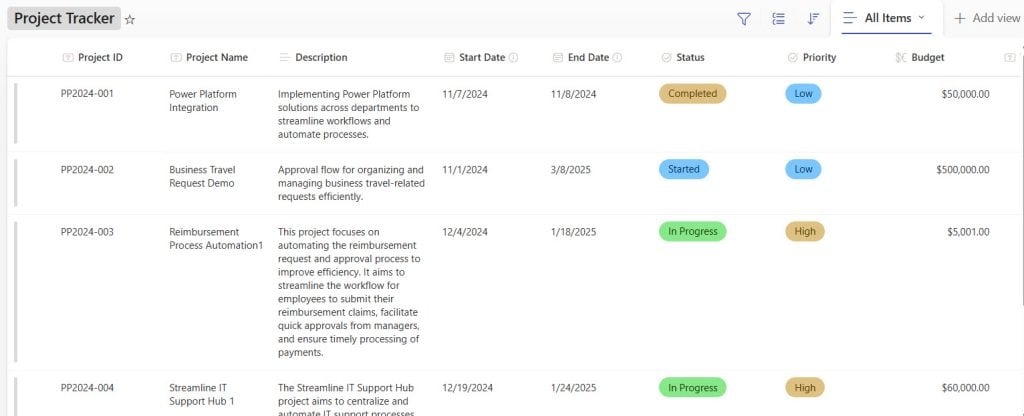
Now, we will create an instant cloud flow and call the Rest Api to get the SharePoint list items.
- Open Power Automate and create an Instant cloud flow that will trigger the flow manually.
- Add a Send an HTTP request to SharePoint action under the trigger and provide the below parameters:
- Site Address: Select the SharePoint site address from the dynamic content.
- Method: Select Get as the method.
- URI: Provide the below URI:
_api/web/lists/GetByTitle('Your List Name')/items- Click on the Show all button to display all the Advanced parameters.
- Headers: Click on the Switch to text mode button to the icon to input the json. Copy and paste the code below in the Headers section.
{
  "Accept": "application/json;odata=verbose"
}
- Then, add a Create an HTML action and provide the below parameters:
- From: Provide the belwo expression:
body('Send_an_HTTP_request_to_SharePoint')?['d']?['results']- Click the Advanced parameters and Select the Columns, then select the Custom and provide the below table values:
| Header | Value |
|---|---|
| Project ID | item?[‘ProjectID’] |
| Project Name | item?[‘ProjectName’] |
| Description | item?[‘Description’] |
| Start Date | item?[‘StartDate’] |
| End Date | item?[‘EndDate’] |
| Status | item?[‘Status’] |
| Priority | item?[‘Priority’] |
| Budget | item?[‘Budget’] |

- Then, add the send an email action, provide the email addresses and subject, click the code view, and provide the output of the Create HTML table.

- Then, save the flow and run it manually. After the flow runs successfully, the user will receive an email. Take a look at the screenshot below.

This is how you can call the REST API in SharePoint List to get the list item in Power Automate.
HTTP Action Parameters in Power Automate
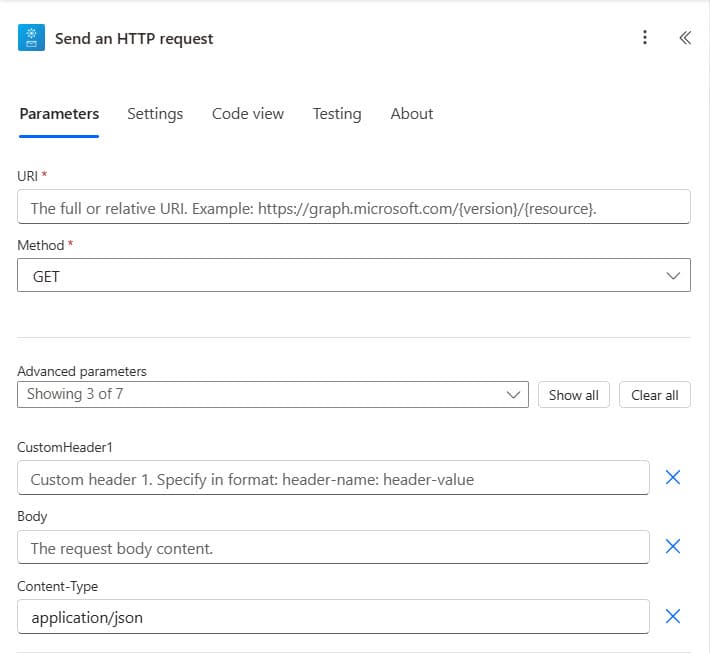
In Power Automate, the HTTP action accepts four main parts: Method, URI, Headers, and Body.
Method Parameter
This tells Power Automate what kind of operation you’re doing. Every HTTP request needs a method. It’s like choosing a tool: Do you want to read, create, update, or delete something?
Here are the common methods:
- GET: To read or fetch data
- POST: To create something new
- PUT: To replace the entire item with new data
- PATCH: To update only part of the item
- DELETE: To remove an item
URI Parameter
This is the web address or API endpoint. It tells Power Automate which service or resource to talk to. Usually starts with https://.
Example:
https://graph.microsoft.com/v1.0/users - gets users from Microsoft Graph.Headers Parameter
These are key-value pairs that provide extra details about the request. Common header:
- “Content-Type”: “application/json” – says you’re sending JSON data.
- “Authorization”: “Bearer token” – provides access (token-based).
Body Parameter
The body is only used in methods like POST, PUT, or PATCH. It contains the data you’re sending to the server. The format is usually JSON.
Example for creating a task:
{
  "title": "Send Report",
  "dueDate": "2025-04-15"
}
REST API Calls in Power Automate
I already showed you how to call the Rest API using the Get method in the above. Here, I will show how to use the POST, PATCH, PUT, and DELETE methods in the Rest API in Power Automate.
Create an Item in SharePoint List using REST API POST Method
I am using the same list we used in the above example to create an item in the SharePoint list.
- Create an Instant cloud flow with a trigger (Manually trigger a flow).
- Add a Send an HTTP request to SharePoint action under the trigger and provide the below parameters:
- Site Address: Select the SharePoint site address from the dynamic content.
- Method: Select Post as the method.
- URI: Provide the below URI:
_api/web/lists/tetbytitle('Your List Name')/items- Click on the Show all button to display all the Advanced parameters.
- Headers: Click on the Switch to text mode button to the icon to input the json. Copy and paste the code below in the Headers section.
{
  "Accept": "application/json;odata=verbose",
  "Content-Type": "application/json;odata=verbose"
}- Body:
{
  "__metadata": {
    "type": "SP.Data.ProjectTrackerListItem"
  },
  "ProjectID": "PP2024-005",
  "ProjectName": "Incident Reporting System",
  "Description": "A Power Apps-based incident reporting system for all departments to log, track, and resolve workplace incidents.",
  "StartDate": "2025-04-15T08:00:00Z",
  "EndDate": "2025-06-01T08:00:00Z",
  "Status": "Not Started",
  "Priority": "Medium",
  "Budget": 25000
}
- Save the flow and run it manually once it runs successfully.
- Go to the SharePoint list, and then you can check. You can see the item created in the list.
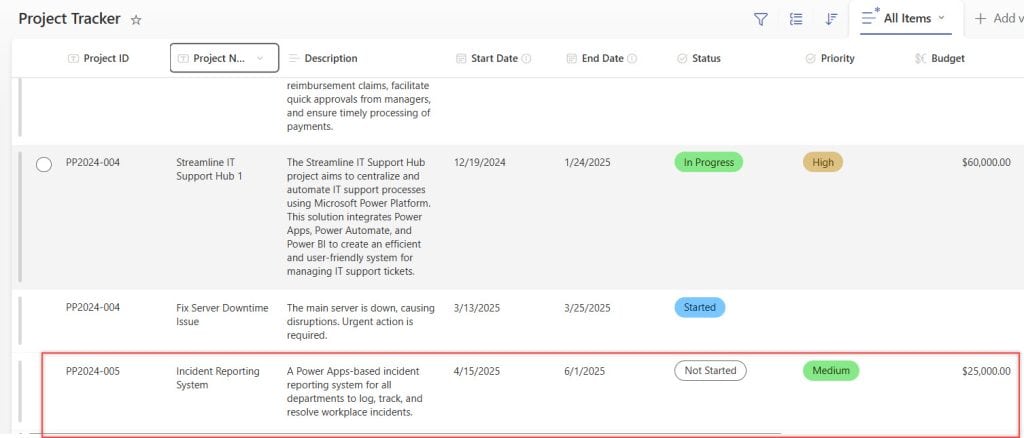
This way, you can create an item in the SharePoint list using the Post method in Power Automate.
Update an Item in SharePoint List using REST API PATCH Method
Let’s say we want to update an existing item in the Project Tracker list (same as before) where the Project ID is “PP2024-003” (you will need the item’s ID for this).
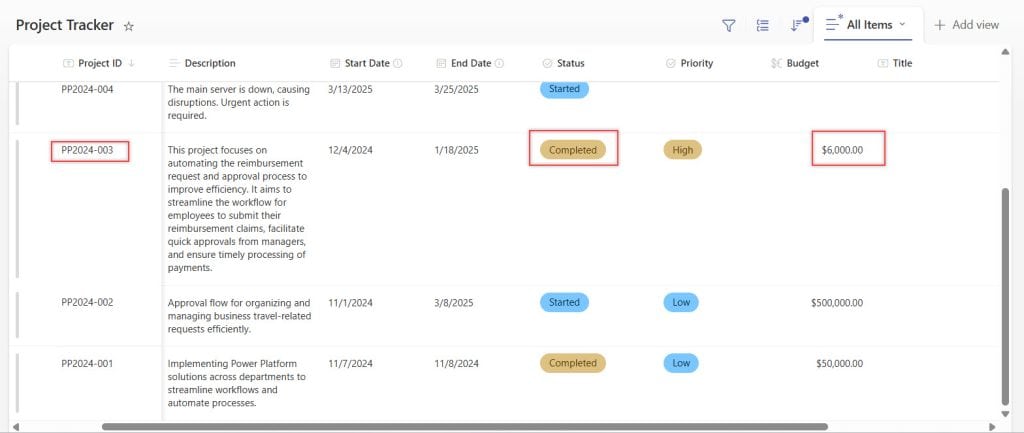
I want to mark PP2024-003 (Reimbursement Process Automation1) as Completed and update the Budget to 6000.
To do this, follow the steps below:
- Create an Instant cloud flow with a trigger (Manually trigger a flow).
- Add a ‘Get items‘ action, provide the Site Address and List Name, then expand the advanced parameters and enter the following Filter Query:
ProjectID eq 'PP2024-003'
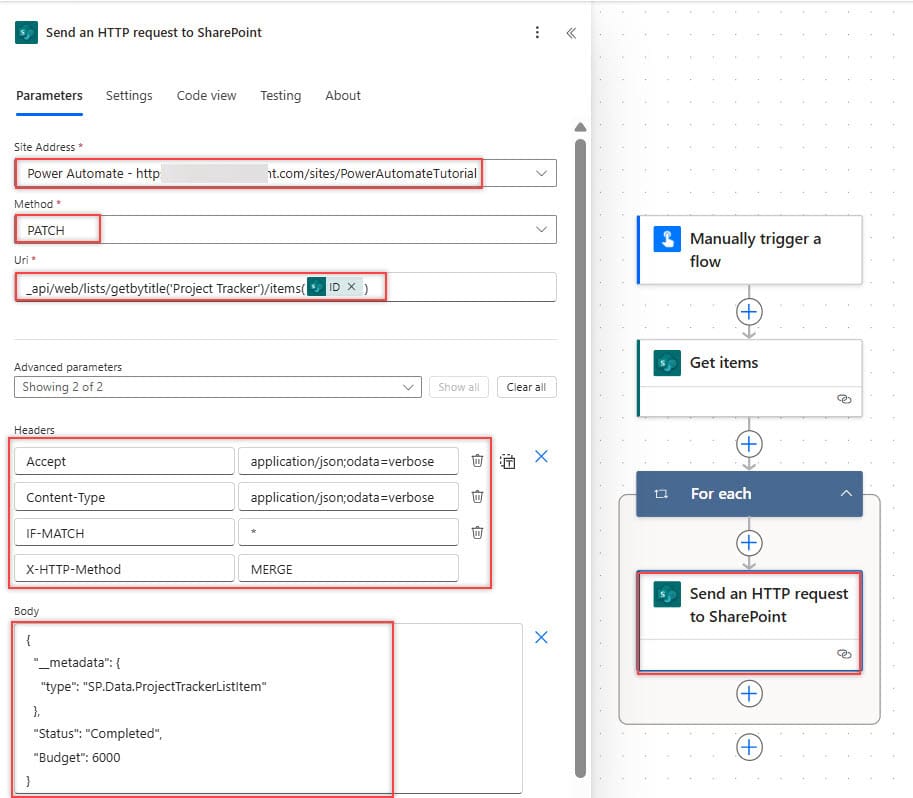
- Add a Send an HTTP request to SharePoint action under the trigger and provide the below parameters:
- Site Address: Select the SharePoint site address from the dynamic content.
- Method: Select PATCH as the method.
- URI: Provide the below URI:
_api/web/lists/getbytitle('Project Tracker')/items(ID)Where:
- ID: Replace the ID with the ‘ID’ from the ‘Get items’ action using dynamic content.
- Click on the Show all button to display all the Advanced parameters.
- Switch to text mode and enter Headers:
{
  "Accept": "application/json;odata=verbose",
  "Content-Type": "application/json;odata=verbose",
  "IF-MATCH": "*",
  "X-HTTP-Method": "MERGE"
}- Body (only include fields you want to update):
{
  "__metadata": {
    "type": "SP.Data.ProjectTrackerListItem"
  },
  "Status": "Completed",
  "Budget": 6000
}
- Now save the flow and run it manually. Next, click the Run Flow button. Once the flow runs successfully, go to the SharePoint list to check whether the item has been updated.
Update an Item in SharePoint List using REST API PUT Method
Note:
SharePoint’s REST API does not support the
PUTmethod for updating list items. Attempting to usePUTresults in the error:The type SP.ListItem does not support HTTP PUT method.
Delete an Item in SharePoint List using REST API DELETE Method
Here’s how you can delete an item from a SharePoint list using the REST API and the DELETE method in Power Automate.
We will use the same SharePoint list you’re working with (Project Tracker) as the example. We will delete the exact item (PP2024-003).
- Use Manually trigger a flow or any trigger you prefer.
- Send an HTTP request to SharePoint
- Site Address: Your SharePoint site
- Method: DELETE
- URI:
_api/web/lists/getbytitle('Project Tracker')/items(9)Here:
- Replace 9 with the actual ID of the item you want to delete.
- Click on the Show all button to display all the Advanced parameters.
- Switch to text mode and set Headers:
{
  "Accept": "application/json;odata=verbose",
  "IF-MATCH": "*"
}
- Save and run the flow. After the flow runs successfully, go to the SharePoint list to check whether the item has been deleted.

The DELETE method does not require a body. This way, you can delete an item from the SharePoint list using a Power Automate Rest API call.
Power Automate HTTP Connectors
In Power Automate, the HTTP action is available to call REST APIs. However, this action is part of a premium connector, which may not be accessible in all licensing plans. But don’t worry; Power Automate also provides several built-in connectors that allow you to connect to specific applications without needing a premium license.
Now, I will explain some of these connectors and what you can do with their actions in Power Automate.
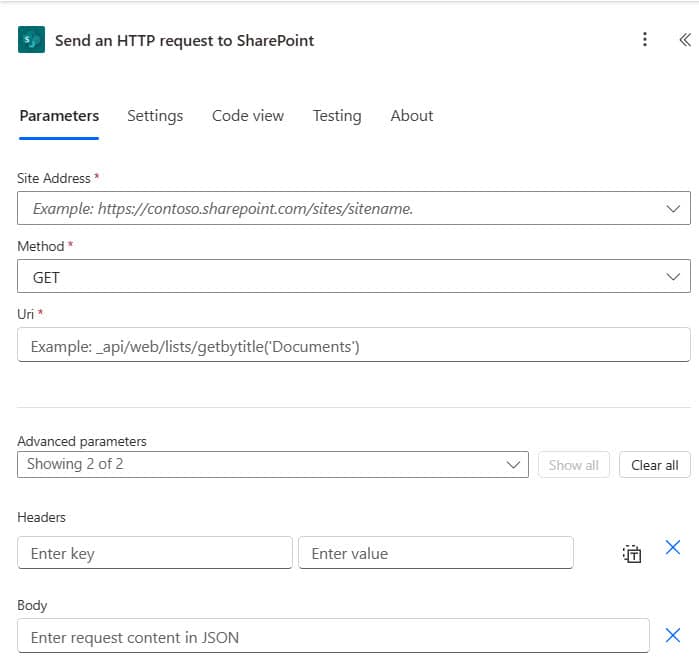
Send an HTTP request to SharePoint (SharePoint Connectors)
This action lets you connect to SharePoint and do more advanced tasks that the usual SharePoint connectors can’t handle. You can use it to manage files, update item details, and control access, all through the SharePoint API.
- Create folders: Add new folders in a document library or list.
- Delete items: Remove files or list items.
- Update metadata: Change information like titles, dates, or other properties of items.
- Manage permissions: Control who can view or edit items in SharePoint.
- Retrieve data: Get information about files, lists, or libraries.
- Custom SharePoint tasks: Do custom tasks that aren’t available with normal SharePoint actions.
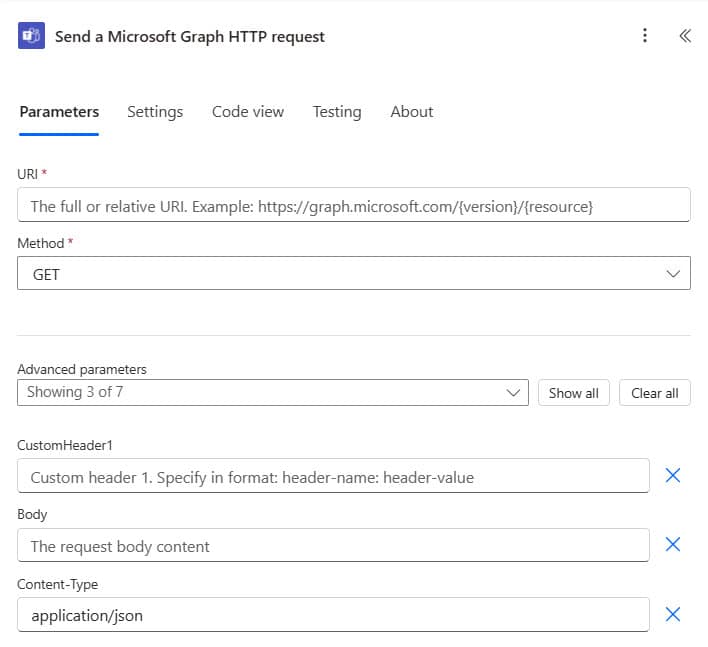
Send a Microsoft Graph HTTP request (Microsoft Teams Connectors)
This action lets you automate tasks in Microsoft Teams, like sending messages, managing channels, and handling meetings, all by using the Microsoft Graph API.
- Send messages: Post messages in Teams channels or chats.
- Create channels: Add new channels in an existing team.
- Add/remove users: Manage who is in your team or channel.
- Get channel details: Find out more about a channel or chat.
- Manage meetings: Schedule or manage meetings in Teams.
- Automate tasks: Use the Graph API to handle different Teams-related tasks.
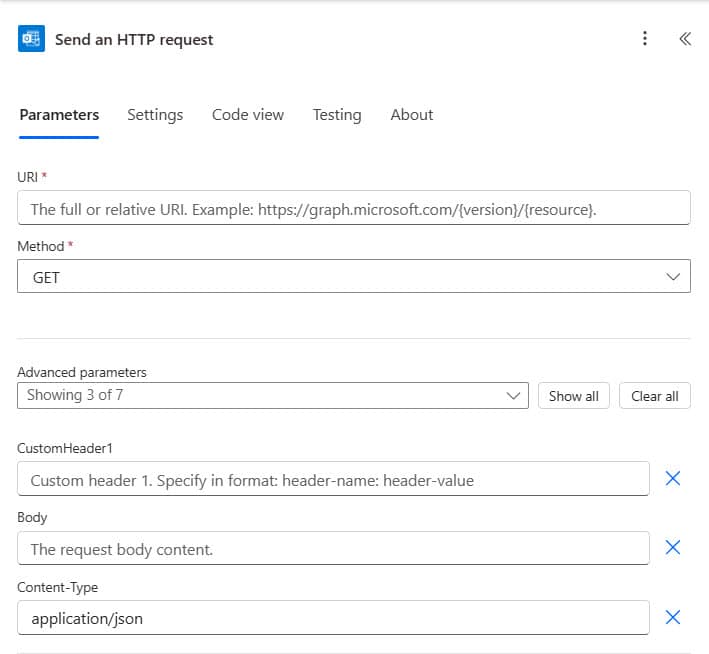
Send an HTTP request (Outlook Connectors)
This action allows you to manage your Outlook email, calendar, and contacts.
- Read emails: Access email content, including subject, sender, and attachments.
- Send emails: Automate the process of sending customized emails.
- Create calendar events: Add events or meetings directly to your calendar.
- Manage contacts: Retrieve or update information about your contacts.
- Advanced email features: Send emails with custom headers, reply to messages, and manage attachments.
- Use Graph API: Perform email, calendar, and contact-related tasks using Microsoft Graph.
Send an HTTP request (Office 365 Users Connector)
This action allows you to get information about users in your organization.
- Get user profile details: Retrieve information like name, job title, and department.
- Find user location: Identify the city or office where the user is located.
- Check user manager: Find out who the user’s manager is.
- Download user photo: Access the profile photo of a user.
- Retrieve other user information: Obtain additional details such as email address, office number, etc.

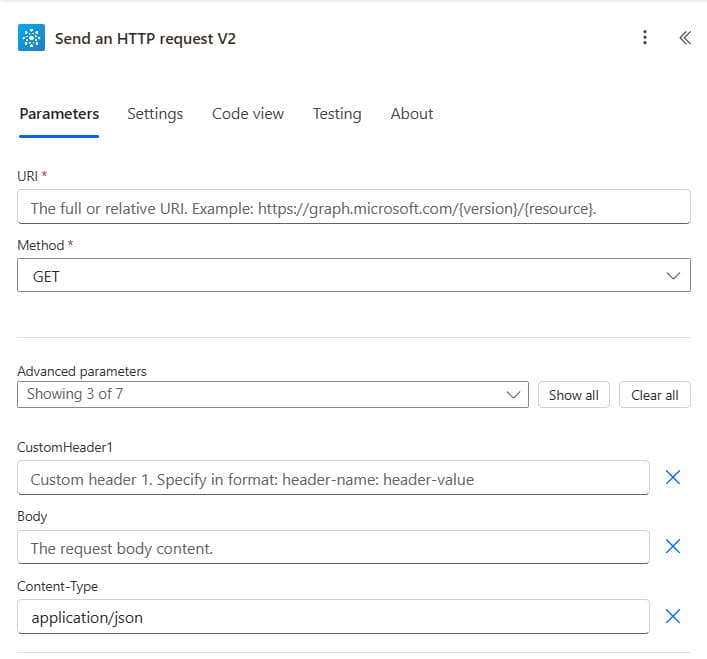
Send an HTTP request V2 (Office 365 Groups Connector)
This action helps you manage Microsoft 365 Groups.
- Add members to a group: Include new users in an existing Microsoft 365 Group.
- Remove members: Remove users from a group when necessary.
- Manage group settings: Change group privacy settings, owners, and more.
- Get group information: Retrieve details about a group, such as its name, members, and settings.
- Create and delete groups: Create new groups or delete existing ones.
- Use API: Manage groups effectively using the Graph API.
Send an HTTP request (Office 365 Groups Mail Connector)
This action lets you work with a group’s shared mailbox.
- Read group emails: Access the content of emails sent to a group mailbox.
- Reply to group emails: Respond to messages within a group mailbox.
- Forward group emails: Share group messages with people outside the group.
- Search group mailbox: Find specific emails or messages within the group’s inbox.
- Manage mailbox content: Perform advanced tasks like filtering, archiving, or deleting emails.
- Use Graph API: Automate email management within a group’s mailbox using Microsoft Graph.
In this article, I showed you how to use REST API in Power Automate to automate SharePoint tasks. I also show you how to use GET, POST, PATCH, and DELETE methods here.
I hope you found this tutorial helpful.
You may also like:
- Convert String to Date for SharePoint list using Power Automate
- Add a Multistep Form in Power Pages
- Convert True to Yes in Power Automate
- Send a Customized email when a new item is created in a SharePoint list using Power Automate

Hey! I’m Bijay Kumar, founder of SPGuides.com and a Microsoft Business Applications MVP (Power Automate, Power Apps). I launched this site in 2020 because I truly enjoy working with SharePoint, Power Platform, and SharePoint Framework (SPFx), and wanted to share that passion through step-by-step tutorials, guides, and training videos. My mission is to help you learn these technologies so you can utilize SharePoint, enhance productivity, and potentially build business solutions along the way.


how to get azure devops areapath and other values in power automate?
Where’s the apgination example?
Please, how can I use multiple filters in a GET metod?
Today I use it:
/_api/ProjectData/[en-us]/AssignmentBaselineTimephasedDataSet()?$Select=ProjectId,ProjectName,AssignmentBaselineModifiedDate,BaselineNumber,TaskName&$Filter=ProjectName eq ‘Project1’
but I also need to filter BaselineNumber. How can i do it?
I have a Power Automate that copies a Sharepoint list and creates a new Sharepoint list with a different name already.
Do you have a step by step process on how to connect or add this new sharepoint list into Power App?