
Are you eagerly waiting to learn how to get the first item in the Power Apps collection? No worries, You are in the right place!
Follow this Microsoft Power Apps tutorial to learn all about how to get the first item in the Power Apps collection, including:
- Get First ‘N’ Items in Power Apps Collection
- How to Get Last Item in Power Apps Collection
- Working with Getting Last ‘N’ Items in Power Apps Collection
Get First Item in Power Apps Collection
Here, we will discuss how to get the first item in the Power Apps collection with a simple scenario:
Scenario:
I have a Power Apps collection named “colProducts” containing the fields below.
| Column Name | Data Type |
| ProductName | Text |
| PurchaseDate | Date and time |
| Price | Number |
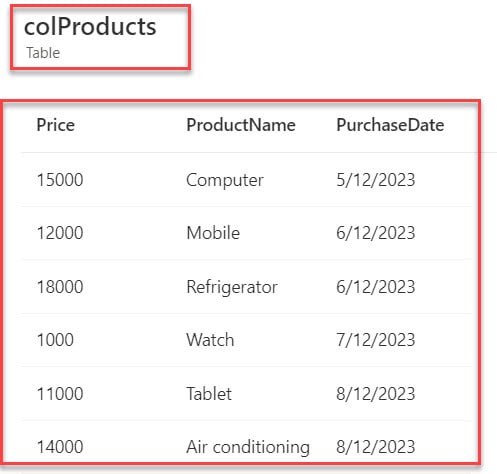
Now, I want to get the first item in the Power Apps collection and display it on the gallery control, as in the screenshot below.
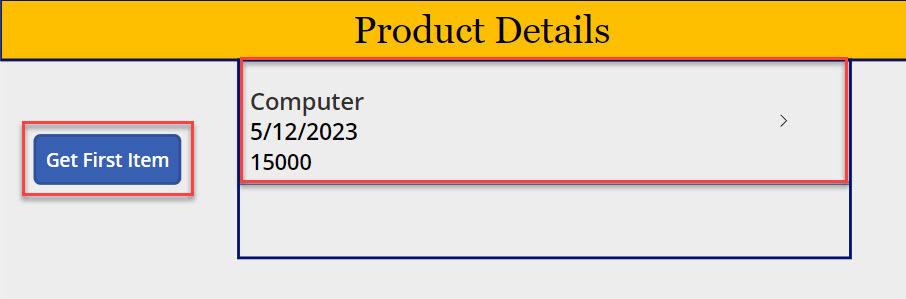
To work around this, follow the below-mentioned steps. Such as:
1. To create a Power Apps collection, select the App object [from left navigation] and set its OnStart property to the code below.
OnStart = ClearCollect(
    colProducts,
    {
        ProductName: "Computer",
        PurchaseDate: "5/12/2023",
        Price: 15000
    },
    {
        ProductName: "Mobile",
        PurchaseDate: "6/12/2023",
        Price: 12000
    },
    {
        ProductName: "Refrigerator",
        PurchaseDate: "6/12/2023",
        Price: 18000
    },
    {
        ProductName: "Watch",
        PurchaseDate: "7/12/2023",
        Price: 1000
    },
    {
        ProductName: "Tablet",
        PurchaseDate: "8/12/2023",
        Price: 11000
    },
    {
        ProductName: "Air conditioning",
        PurchaseDate: "8/12/2023",
        Price: 14000
    }
)
Where,
- colProducts = Power Apps Collection Name
- ProductName, PurchaseDate, Price = Collection Headers/Columns
- “Computer”, “5/12/2023”, 15000 = Collection Items/Records
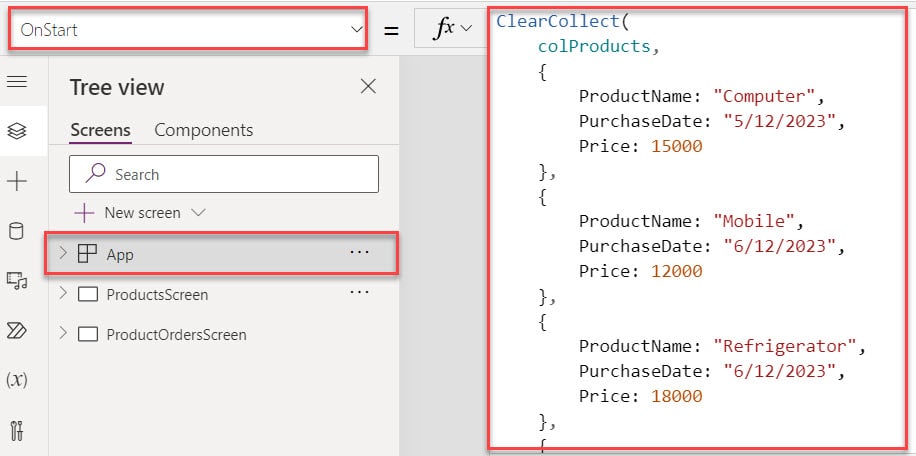
2. To get a created collection, click on the App’s Run OnStart property as shown below.

3. Then, insert a Button control and set its OnSelect property to the code below.
OnSelect = ClearCollect(
    colFirstItem,
    First(colProducts)
)
Where,
- colFirstItem = Power Apps Collection Name
- First() = This function returns the first record of a table
- colProducts = Power Apps Source Collection

4. Now, insert a Gallery control and set its Items property code as:
Items = colFirstItemWhere,
- colFirstItem = Power Apps Collection Name