
When working with the Power Apps application, we are often required to change its owner if the owner has left the company. We can achieve this in many ways, like using Power Automate and PowerShell.
In this article, I will explain how to change the owner of a Power Apps app in two ways. Such as:
- Change the Owner of a Power Apps app using PowerShell
- Change the Owner of a Power Apps app using Power Automate
Change the Owner of a Power Apps Application
The owner of the Power Apps application can share the app while leaving. This ownership change doesn’t affect the users with whom it is shared. If the owner didn’t add any co-owners, the admin could add an owner in many ways, like using PowerShell or Power Automate.
We require the details below to change the Power Apps application’s owner.
- Power Apps application App ID
- Power Apps Environment ID
Change the Owner of a Power Apps Application Using PowerShell
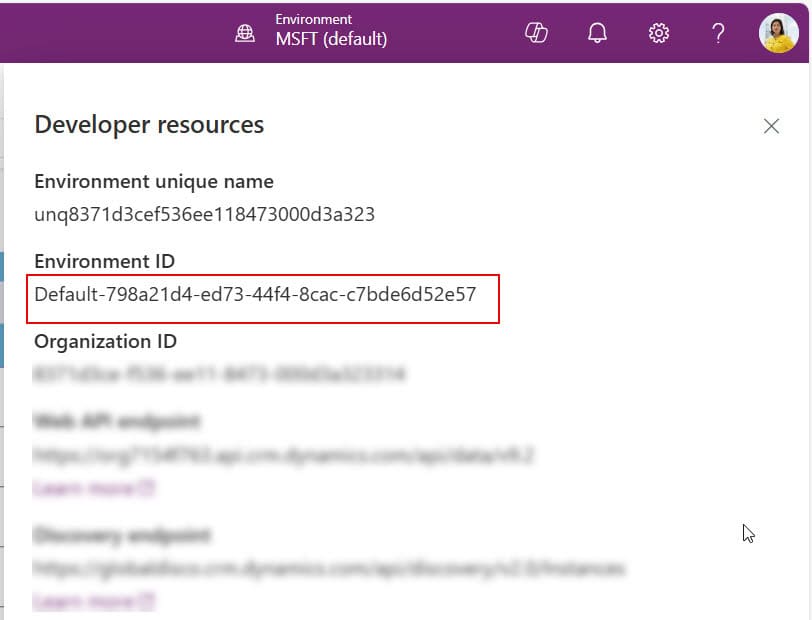
Follow the steps below to change the Power Apps application owner using PowerShell. Now, to get the Environment ID. Open the Power Apps application.
1. Click on the Settings on the Power Apps application. -> Click on Developer resources.

2. Copy the Environment ID and paste it somewhere.
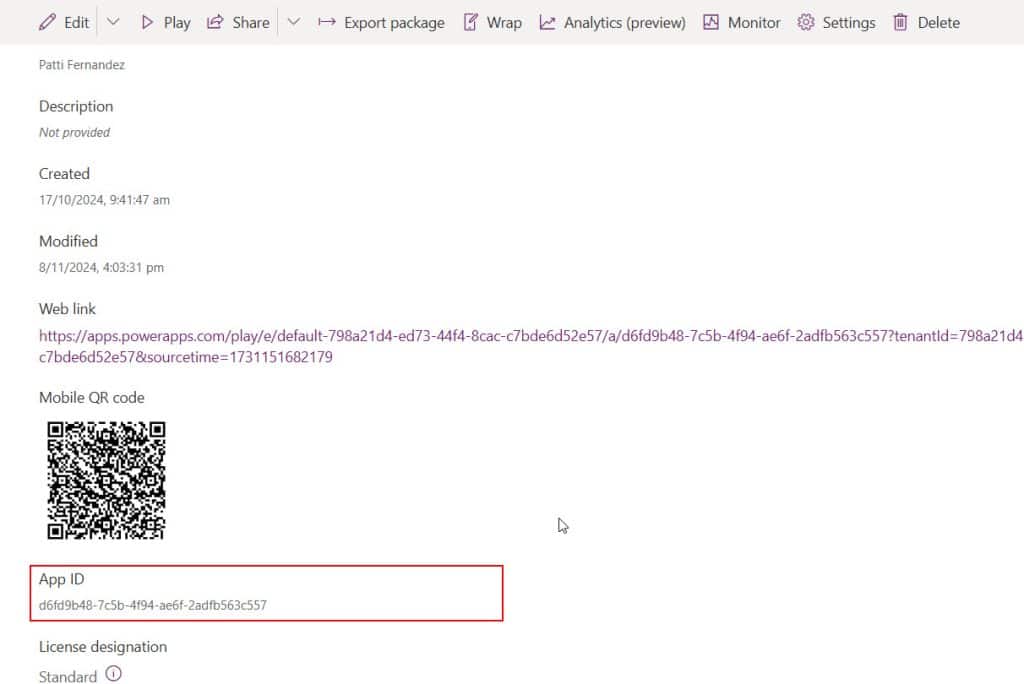
3. To copy the App ID, open the Power Apps environment, click on the app, and select the details option. You can see the App ID, copy it, and paste it somewhere.
4. To run the PowerShell code, you can use the editors like Visual Studio code and PowerShell. Run the code below
Install-Module -Name Microsoft.PowerApps.Administration.PowerShell -Force -AllowClobberNothing will occur if it is already installed; otherwise, you’ll see the cmdlets installed.

5. Next, run the code below. It will then ask you to authenticate the owner, as in the image below.
Add-PowerAppsAccount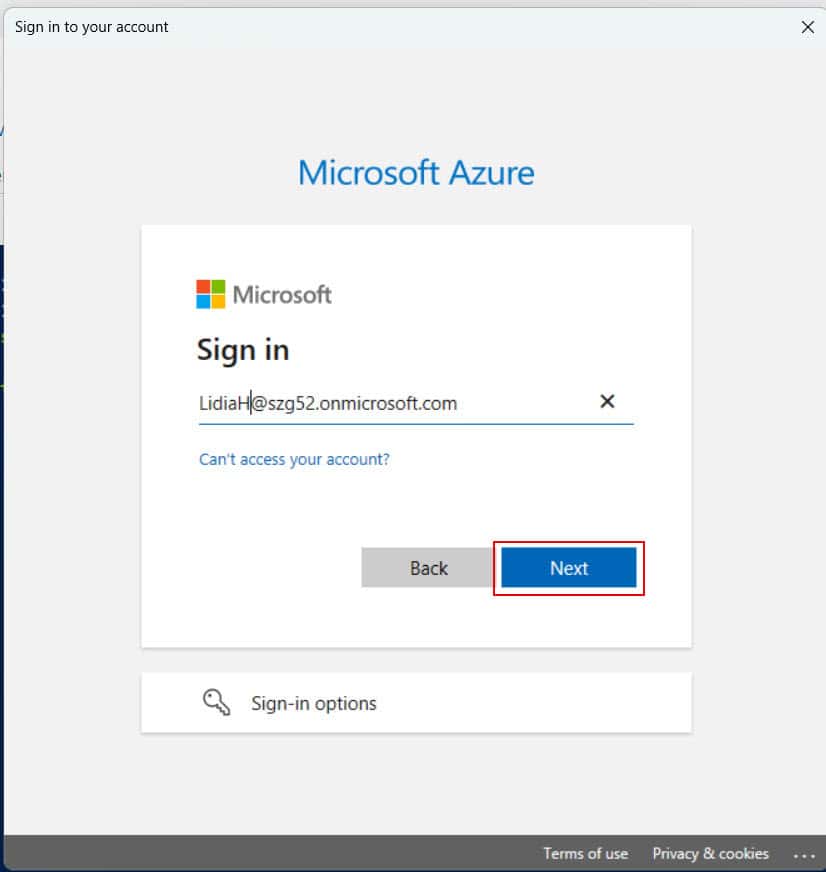
6. To change the owner of the Power Apps application. Run the code below.
Set-AdminPowerAppOwner -AppName "<appId>" -EnvironmentName "<envId>" -AppOwner $Global:currentSession.userIdNow copy the App ID and Environment ID in the above code.
- -AppName = App ID
- -EnvironmentName = Environment ID
Once the code runs successfully, then the app owner changes automatically. You can check the application owner now.

The above image shows the owner having changed. Thus, we can change the Power Apps application owner with a PowerShell script.
Change the Owner of a Power Apps Application Using Power Automate
Let’s see how to change the Power Apps application owner using Power Automate. Look at the image below. Before running the flow, the application owner is “Patti Fernandez.”