
While working in Power BI, one of my colleagues asked me, “Is there a way to set the data type when creating a new column in Power Query?” This happened because when we add a column, Power Query does not automatically assign the correct data type.
Usually, we first create the column and then change the data type, which adds two applied steps. But my colleague wanted to know if we can do this in just one step instead of two.
The answer is yes. We can define the data type in the same step using the Advanced Editor in Power BI Power Query.
In this tutorial, I will first show you how to change the data type of an existing column in Power Query. After that, I will explain how to set the data type while creating a new column in Power Query.
Change the Data Type of an Existing Column using Power Query in Power BI
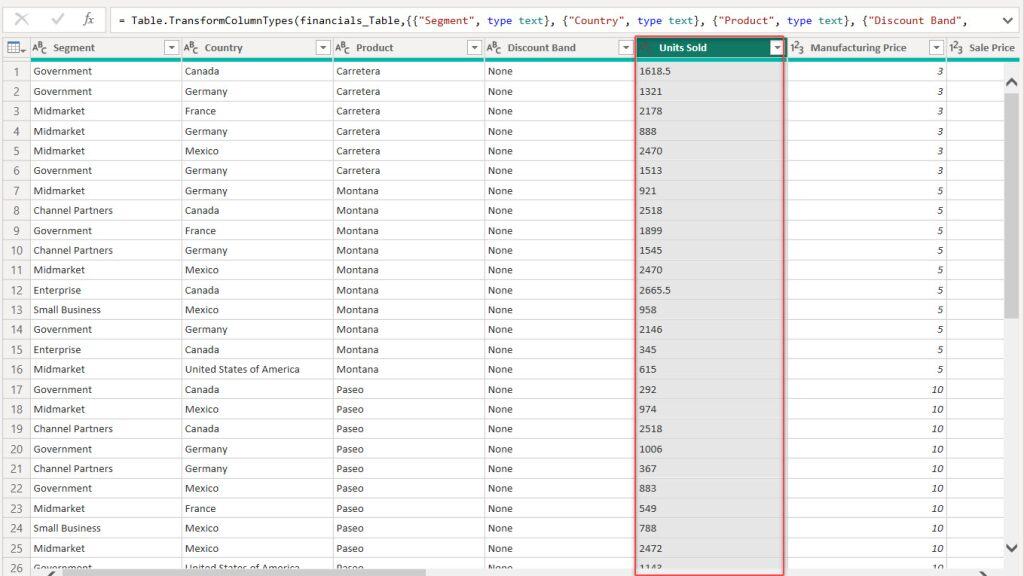
For this example, I have a table called financials. In this table, I have a column named Units Sold, which is a text data type, and I want to change it to Whole Number using the Power Query Editor.

To do this, follow the steps below:
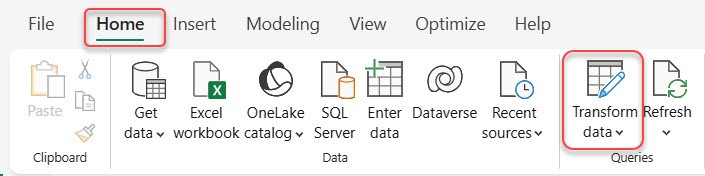
- In Power BI Desktop, go to the Home tab and click Transform Data.
- In the Power Query Editor, select the Units Sold column from the financials table.
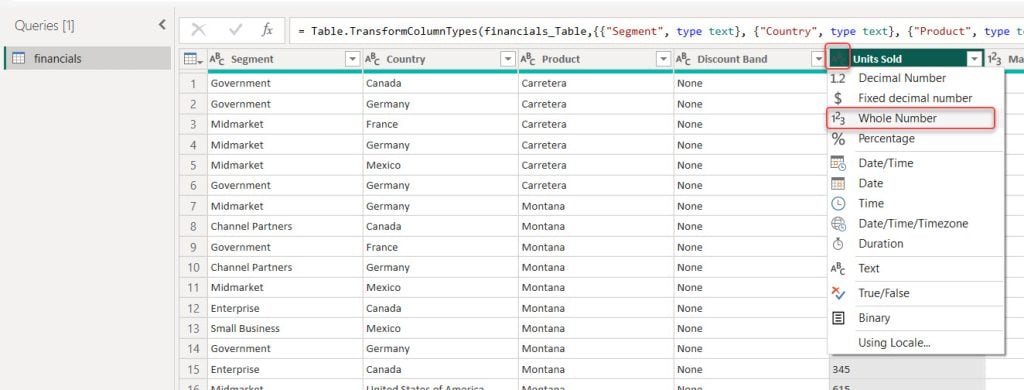
- Go to the Home tab, find the Data Type icon (it may show ABC or ABC123). Click the dropdown and choose Whole Number.
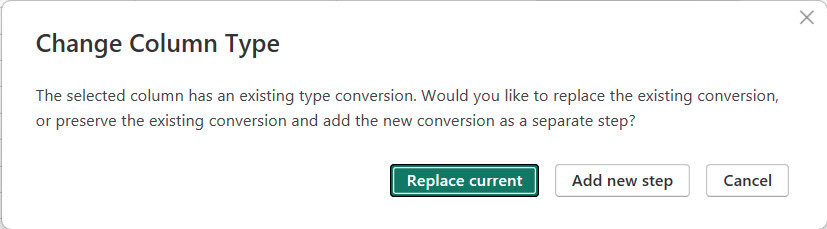
- A message appears asking whether you want to Replace the Current Step or Add a New Step. Click Replace Current to apply the change in the same step.
- After updating the data type, you can see the changes in the column.

Click Close & Apply in the top-left corner to load the changes into Power BI. Then you can use this updated column in your report.
Now, I will explain another method for changing data types in Power BI.
- In the Power Query Editor, please select the column in which you want to change the data type (In my case, Sale Price).

- Under the Home tab -> expand the Data Type drop-down. Then click Fixed Decimal Number.

- After that, the Sale Price column data types change to Fixed Decimal Number.

You can also use the above steps to change the data type in Power BI.
Set the Data Type While Creating a New Column in Power Query
When we create a new column in Power Query, Power BI first adds the column if the data type doesn’t match our requirements; then, we need to add another step to change its data type. This creates two steps, but many users prefer only one.
To directly add the data type, follow the steps below:
- In Power BI Desktop, go to Home and go to Transform Data.
- In the Power Query Editor, go to Home, click Advanced Editor.

Here, you will see the M code generated by Power Query.
- To create a new column and define its data type in the same step, write the code below like this:
#"Added Custom" = Table.AddColumn(
        #"Changed Type",
        "New Units",
        each Number.FromText([Units Sold]) * 2,
        Int64.Type
    )
in
    #"Added Custom"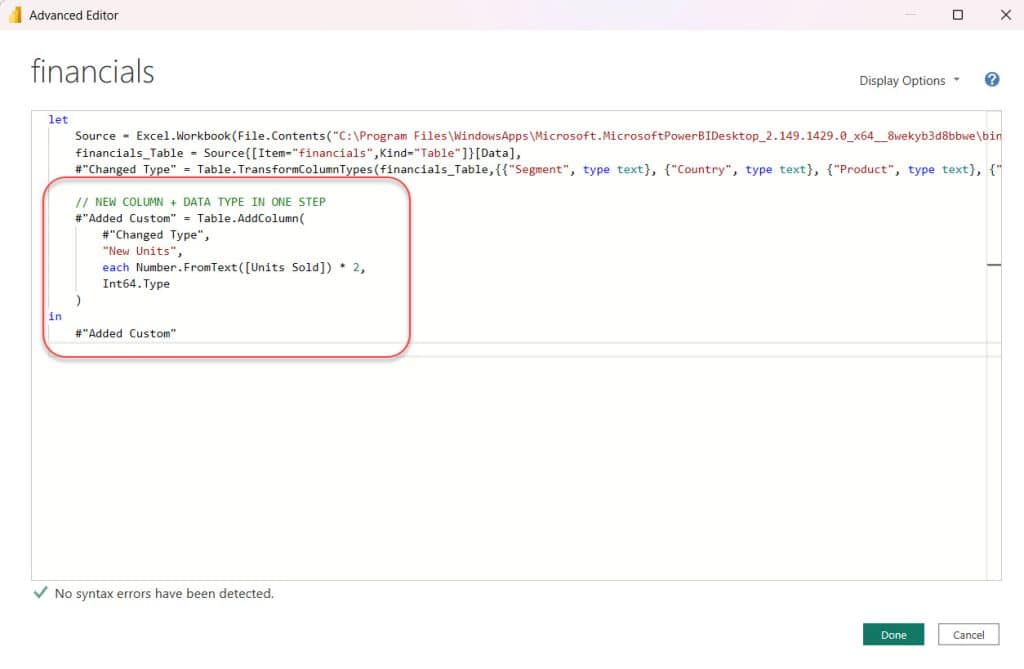
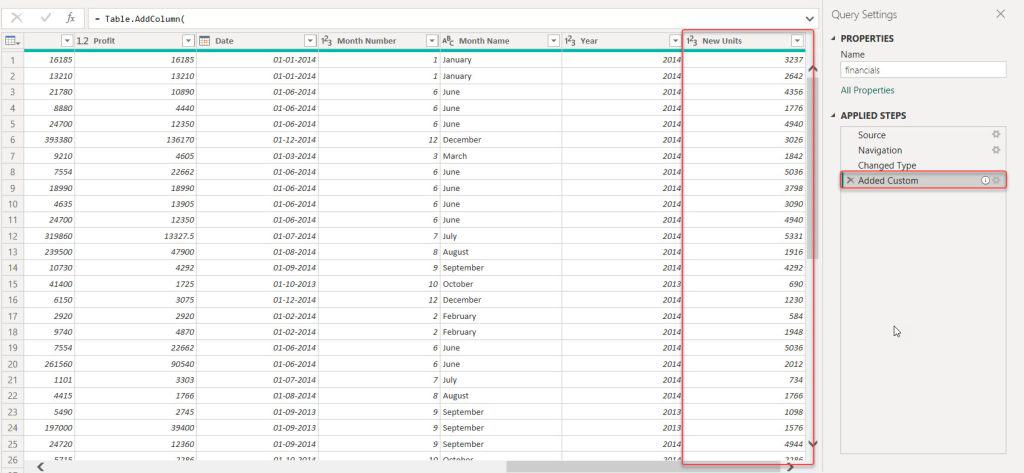
Click Done. You will now see that only one applied step is added for both creating the column and setting its data type.
After you finish, click Close & Apply to load your changes back into Power BI.
Change Multiple Columns Data Types at One Time in Power BI
Now, I will learn how to change multiple columns of data types at one time in Power BI.
- In Power Query Editor, you can select multiple columns where you want to change the data type by holding down ‘Ctrl’ and clicking on each column. In my case, Sales and Gross Sales.

- Next, right-click on any of the selected headers, then choose Change Type, and finally, select Fixed Decimal Number from the options.

- After that, the Sales and Gross Sales column data types change to Fixed Decimal Number.

Using this method, you can simultaneously change the data types of multiple columns in Power BI.
In this tutorial, I showed two ways to change the data type in Power Query. First, how to change the data type of an existing column, like converting the Units Sold column from text to a whole number.
Then, I explained how to create a new column and set its data type in the same step using the Advanced Editor, so it creates only one applied step.
You may like the following Power BI tutorials:
- Add an Empty Column in Power BI
- Filter Power BI Dax Based On Condition
- Count Data With Multiple Filter Conditions in Power BI DAX
- Remove Filters in Power BI DAX [Using ALL(), ALLEXCEPT(), and FILTER()]

Hey! I’m Bijay Kumar, founder of SPGuides.com and a Microsoft Business Applications MVP (Power Automate, Power Apps). I launched this site in 2020 because I truly enjoy working with SharePoint, Power Platform, and SharePoint Framework (SPFx), and wanted to share that passion through step-by-step tutorials, guides, and training videos. My mission is to help you learn these technologies so you can utilize SharePoint, enhance productivity, and potentially build business solutions along the way.

