
While creating a dashboard for an organization, I realized I needed a few empty columns. To do this, Power BI provides multiple ways to create empty columns, depending on whether you’re working with DAX or Power Query.
In this tutorial, I will show you all the practical methods to add an empty column in Power BI, including:
- Add an empty calculated column in Power BI
- Add an empty measure in Power BI
- Insert an empty column using Power Query
Add an Empty Calculated Column in Power BI
For this example, I am using an Excel file named Vehicle, which contains four fields: Car Names, Car Models, Price, and Color, as shown below.

- Open Power BI Desktop and load the table data. Then go to the Modeling tab and click on New Column to create a new field.

- In the formula bar, enter the following expression and click the check icon:
Empty Column = ""Where:
- Empty Column = The name of the new column
""= Creates a blank/empty value
- Once you apply the formula, go to the Table view, and you will see that the new empty column has been successfully added to the table.

This way, you can add an empty calculated column in Power BI.
Add an Empty Measure in Power BI
In Power BI, a measure cannot be completely blank by default, but we can create a measure that returns a blank value using the BLANK() function. This is useful when you want to create a placeholder measure that you will update later or use temporarily in visuals.
Follow the steps below to create an empty measure:
- Open your Power BI report where you want to add the empty measure. In the ribbon, select the Modeling tab. Click the New Measure option.

- In the formula bar, type the following DAX formula:
Empty Measure = BLANK()Where:
- Empty Measure = Name of the measure
- BLANK() = Returns an empty (null) value
Your measure will now appear in the Fields pane, under the selected table.

Since it returns a blank value, it won’t display anything in visuals until you update the formula.
Insert an Empty Column Using Power Query in Power BI
Power Query makes it easy to insert a new blank column that you can later fill with data, formulas, or transformations. This is useful when preparing your dataset for additional business logic.
Follow the steps below to add a blank column in Power Query:
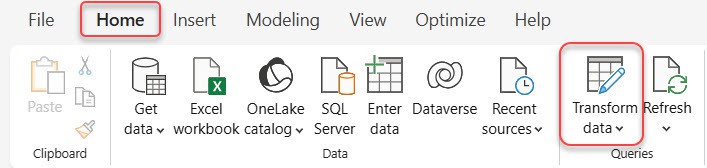
- Open your report and load the dataset you want to modify. In the Home tab, click Transform data. This will open the Power Query Editor.
- In the Queries pane on the left, select the table where you want to add a new empty column. In the ribbon, go to the Add Column tab and click Custom Column.

- Then A dialog box will appear. In the New column name field, enter the name of your column, for example: Empty Column
- In the Custom column formula box, type:
""
- Click OK. This formula returns a blank value for every row.

You will now see a new empty column added to your table, with each row containing a blank value. Click Close & Apply to load the updated table back into Power BI.
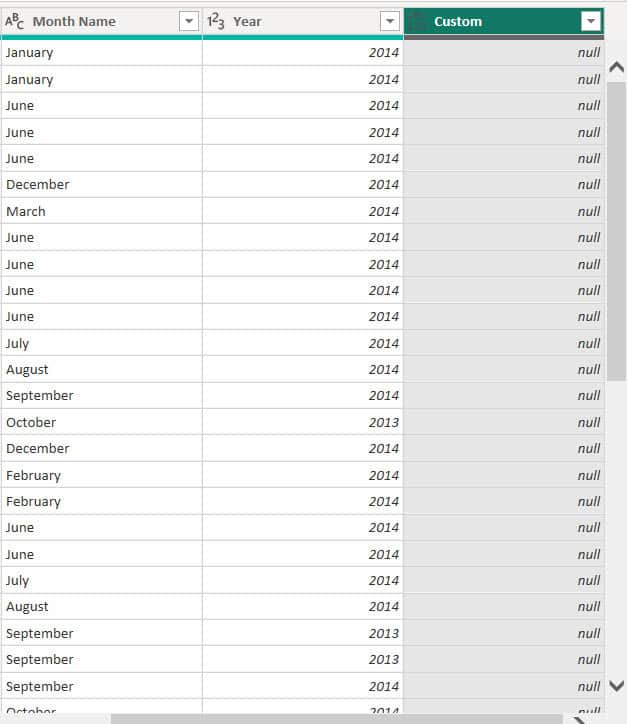
In the same way, if you want the column contents to be null, instead of a blank double quote, add null.

Then you can see that the column contains only null values.
Delete Empty Columns in Power Query in Power BI
Let us see how to delete or remove empty columns using the Power Query Editor in Power BI.
Sometimes your dataset may contain blank or unused columns that are no longer required. Removing them helps keep your data model clean and improves performance.
Follow the steps below to remove a column:
- Open your report and load the dataset. In the Home tab, click Transform data. In the Queries pane, choose the table from which you want to remove empty columns.

- Click on the empty column(s) you want to delete. In the ribbon, under the Home tab, click Remove Columns -> Remove Columns.
Note:
You can select multiple columns by holding Ctrl while clicking.

This will delete all the selected empty columns from the table.

Once the columns are removed, click Close & Apply to load the updated table back into Power BI.
This is how to delete or remove empty columns in Power Query in Power BI.
In this Power BI tutorial, I covered how to insert an empty column using Power Query, add an empty calculated column, and add an empty measure. Additionally, I explained how to delete empty columns in Power Query when they are no longer needed.
You may like the following Power BI tutorials:
- Add an Empty Column in Power BI
- Change Data Type in Power BI Using Power Query
- Add Conditional Column in Power BI
- Power BI Measure Subtract Two Columns
- Add Column with a Fixed Value in Power BI

Hey! I’m Bijay Kumar, founder of SPGuides.com and a Microsoft Business Applications MVP (Power Automate, Power Apps). I launched this site in 2020 because I truly enjoy working with SharePoint, Power Platform, and SharePoint Framework (SPFx), and wanted to share that passion through step-by-step tutorials, guides, and training videos. My mission is to help you learn these technologies so you can utilize SharePoint, enhance productivity, and potentially build business solutions along the way.

