
Recently, while working on a Power Automate solution for one of my clients, I had to create various types of SharePoint sites, including Communication Sites, Group-connected Team Sites, and Non-group-connected Team Sites, using the REST API. After creating the sites, the requirement was to assign Owners, Members, and Visitors automatically.
Everything was fine until I tried to get the Group ID of the newly created site. At that point, Power Automate threw an error:
Attempted to perform an unauthorized operation
In this tutorial, I will explain why this error happens and how you can fix it dynamically in Power Automate
[Error] Attempted to perform an unauthorized operation
This error appears because Power Automate is trying to perform an action on SharePoint without having the required permissions.
In my case, after creating the site using the REST API, the next step was to retrieve the Group ID of the site.
But here’s the problem:
You won’t see this error every time. It only happens in specific situations. When we create the site, we usually add an owner to that site. If the same owner’s credentials are used in the “Send an HTTP request to SharePoint” action, everything works fine.
However, if the site owner and the connection in Power Automate are different users, the flow does not get the required permission to read the site details. That’s when SharePoint throws the error:
Attempted to perform an unauthorized operationIn my case, the issue occurred due to a permission mismatch. When the site was created, I assigned Lidia as the Site Owner:
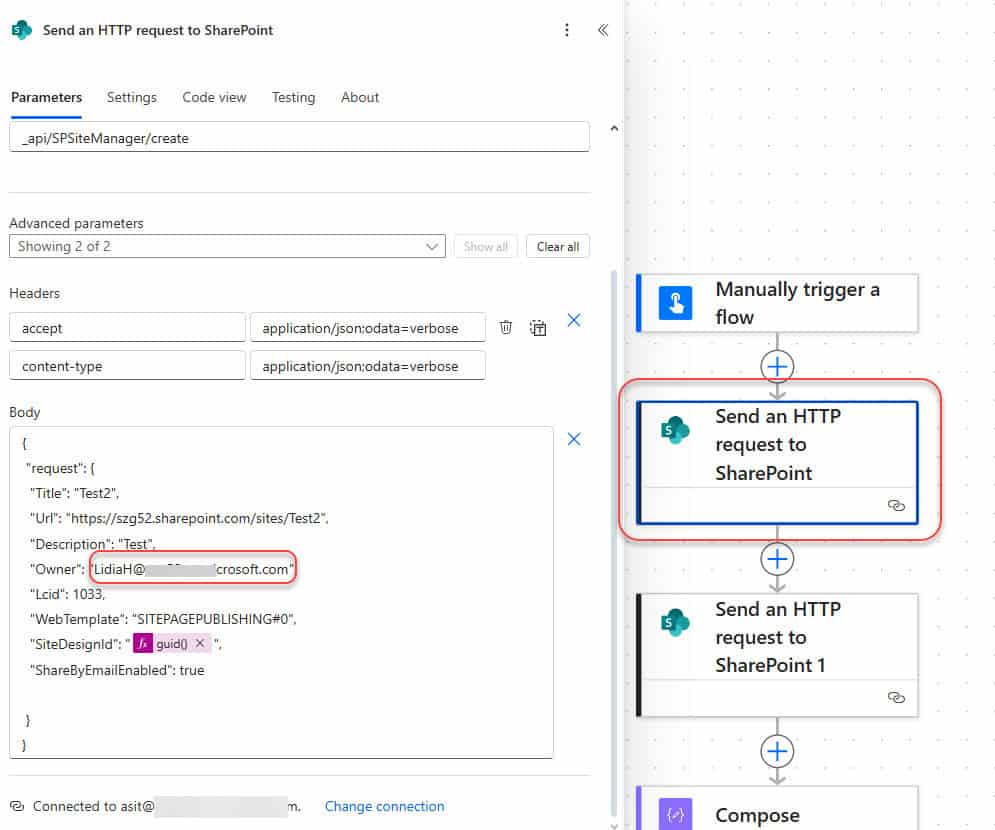
However, when I tried to retrieve the Group ID, the Power Automate connection was running under my account (Asit) instead of Lidia’s:
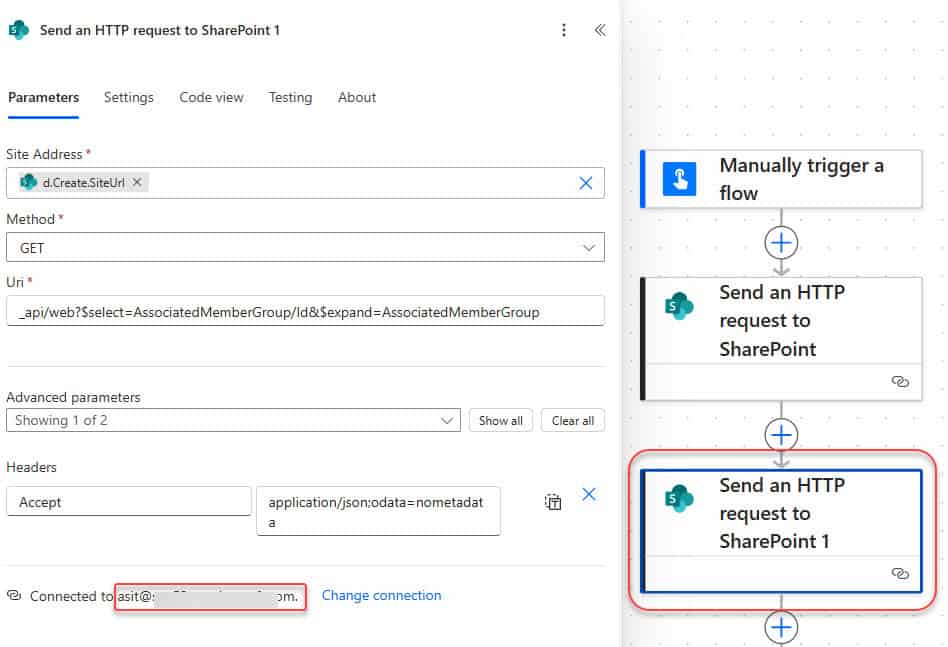
Since Asit was not the site owner, SharePoint blocked the request, which caused the error.
Fix: Attempted to perform an unauthorized operation
To fix this issue, you must ensure that the connection used in the ‘Send an HTTP request to SharePoint’ action has the required permissions on the newly created site.
There are two ways to solve this:
Option 1: Use the Same Account as the Site Owner
The simple way to fix this is to run the flow using the same user account that was added as the Site Owner during site creation.
For example:
- If Lidia is assigned as the site owner
- Then the SharePoint connection inside Power Automate must also run as Lidia
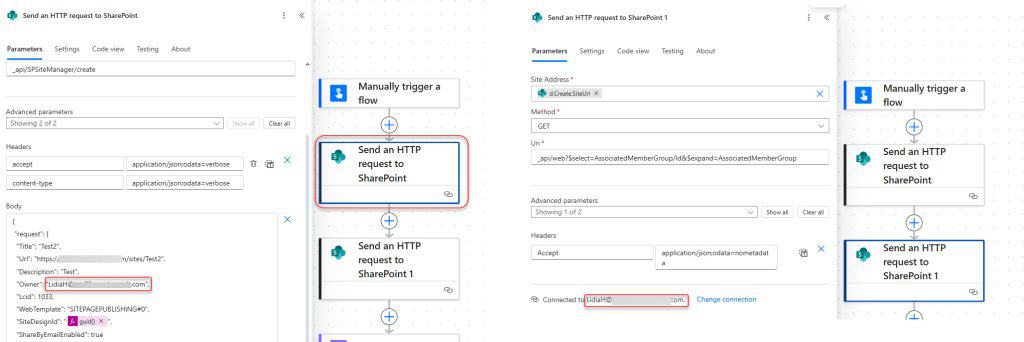
This ensures that the HTTP request has full permissions to access the site and retrieve the Group ID.
Option 2: Manually add the Group ID
Suppose your flow still fails because the connection user does not have permission to read the site’s Group ID. In that case, you can avoid the error by manually assigning the correct Group IDs rather than retrieving them via the REST API.
Every SharePoint site connected to a Microsoft 365 Group uses three standard roles:
- Owners Group – 3
- Members Group – 5
- Visitors Group – 4
So, instead of fetching the Group ID dynamically, you can build it manually using the site’s base URL.
To add a user to a specific SharePoint group, use the following URI format:
/_api/web/sitegroups/getById(GROUP_ID)/usersReplace GROUP_ID with the appropriate value:
- Owners Group -> 3
- Members Group -> 5
- Visitors Group -> 4
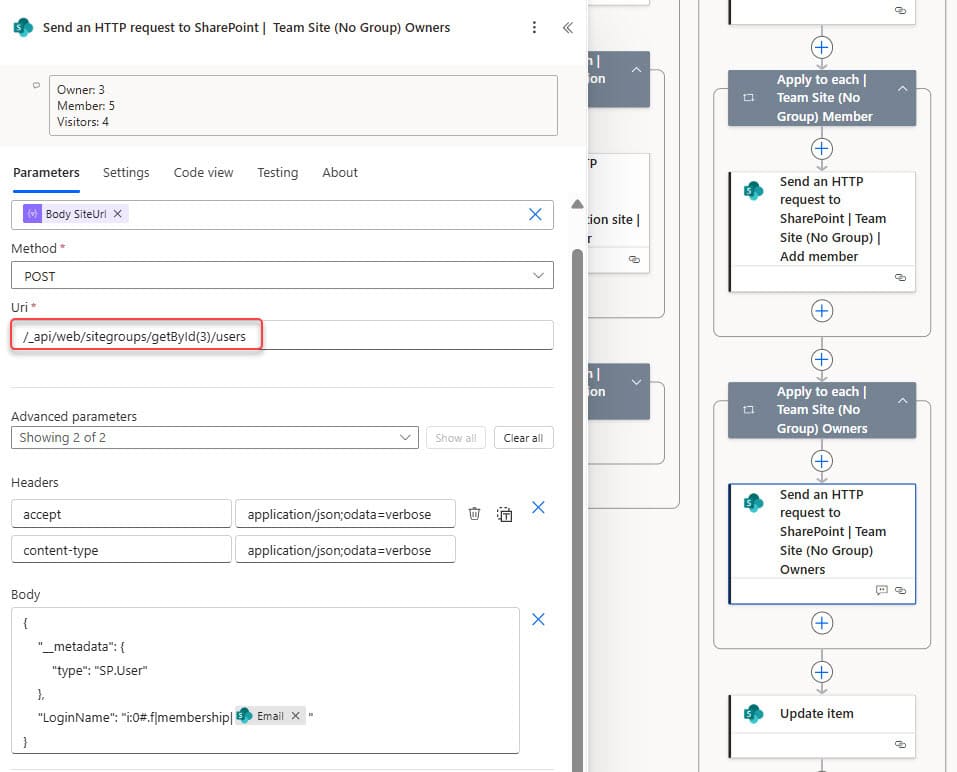
This completely bypasses the permission issue and works consistently, even if the connection user is different.
This error happens when the user running the flow does not have permission on the new SharePoint site. If the site owner and the Power Automate connection user are different, SharePoint blocks the request.
You can fix it by using the same account as the site owner or by manually using the group IDs (3, 5, 4) to add users without needing to fetch them from the API.
Also, you may like the following tutorials:
- Invalid Connection. Please Choose a Connection Power Automate
- [Solved] You do not have permission to view the membership of the group in SharePoint
- The execution of template action ‘Switch’ failed – Error in Power Automate
- The DateTime String must match ISO 8601 format error in Power Automate

Hey! I’m Bijay Kumar, founder of SPGuides.com and a Microsoft Business Applications MVP (Power Automate, Power Apps). I launched this site in 2020 because I truly enjoy working with SharePoint, Power Platform, and SharePoint Framework (SPFx), and wanted to share that passion through step-by-step tutorials, guides, and training videos. My mission is to help you learn these technologies so you can utilize SharePoint, enhance productivity, and potentially build business solutions along the way.

