
In this Power Bi tutorial, we will learn what Power BI IF contains and how to work with the Power BI Measure if the text contains different examples in Power Bi. We will also cover the below headings:
- Power BI Measure If Text equals then
- Power BI Measure If Text then Dax
- Power Query checks if a text contains
- Power BI checks If the Text blank
- Power BI checks If the Text is a number
- Power BI checks If Text exists in another table
Power BI IF contains
The power BI CONTAINS() function returns if values for all referred columns exist then it returns a true value else it returns a false value.
Below is the syntax for the Power Contains Function:
CONTAINS(<table>, <columnName>, <value>[, <columnName>, <value>]…)In the following, we will see how to use the Contains function in Power BI.
Power BI Measure If Text Contains
Let us see how to find that contains a specified value using the Power Bi Contains function in Power BI.
In this example, we will use the below Stocks table data as a data source and find the text values using the Power Bi Dax functions in Power BI.

Log in to the Power Bi desktop and load data using the get data option. Once the data has been loaded, select the new measure option and use the below formula:
Text Contains = CONTAINS(Stocks, Stocks[Symbol],"AAPL")Where,
- Text Contains = New Measure name
- CONTAINS = Function Name
- Stocks = Table Name
- Symbol = Column Name
Select the table visual from the visualization, drop the Stock name, Symbol, and the created measure value into the columns section as shown below:

In the below screenshot, you can see if the text value contains the mentioned value it returns the true value else false.

This is how to find that contains a specified value using the Power Bi Contains function in Power BI.
Power BI Measure If Text equals then
Here we will see how to create a measure to find the text value using the Power BI If function in Power BI.
In this example, we will use the measure if the text value equals then match else it displays the value mismatch.
Load data using the get data option into the Power Bi desktop. Click on the new measure option and apply the below-mentioned formula:
Text equals = If( SELECTEDVALUE(Stocks[Symbol])="ORCL","match","mismatch")Where,
- Text equals = New Measure name
- SELECTEDVALUE= Function Name
- Stocks = Table Name
- Symbol = Column Name
From the visualization select the table visual, then drag and drop the Stock name, Symbol, and the created measure Text equals value into the columns section as highlighted below:
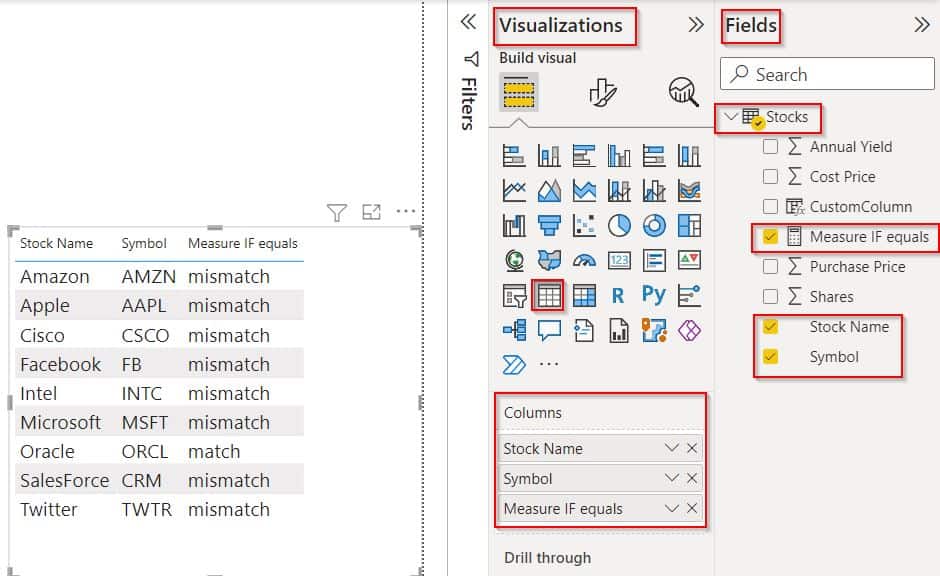
The Screenshot below displays the text value if the text equals the mentioned text then matches else it displays the value mismatch.

This is how to create a measure to find the text value using the Power BI if function in Power BI.
Power BI Measure If Text then Dax
Let us see how to create a calculated column of text value using the Power Bi Dax function in Power BI.
In this example, we will add a new calculated column to find if the text value matches with mentioned value else it displays a blank value in Power Bi.
Open and Load data using the get data option into the Power Bi desktop. Click on the new column option under the modeling tab and apply the below-mentioned formula:
Measure If Text = IF(
	ISERROR(
		SEARCH("A",Stocks[Symbol])
	),
	BLANK(),
	"True"
)- Measure If Text= New Calculated column
- SEARCH= Function Name
- Stocks = Table Name
- Symbol = Existing Column Name
In the below screenshot, you can see that the newly added column displays the result as true when the Symbol column starts with the text value A. Else, it displays the blank value.

This is how to create a calculated column of text value using the Power Bi Dax function in Power BI.
Power Query checks if a text contains
Here we will see how we can check if a text contains a specified value using the Power Query editor in Power BI.
In this example, we will use the Query editor to