
Today, I received an email from a user who wanted to create a DAX measure to count how many distinct companies sold 10 or more items in a week. They wrote a DAX formula like this:
Count above 10 =
CALCULATE(
    DISTINCTCOUNT(Table1[Company]),
    FILTER(Table1, SUM(Table1[Items sold]) >= 10)
)
But this did not work. The reason is that SUM(Table1[Items sold]) inside the FILTER function works row by row. Power BI does not calculate the total items sold per week automatically in this context. So the SUM only returns the value of the current row, not the total for the whole week. Because of this, the distinct count gives the wrong result.
To fix this, we must first calculate the weekly total for each company. We can do this by using SUMMARIZE or using ADDCOLUMNS with SUMX. These functions allow us to group the data by Company and Week, calculate the total items sold, and then apply the filter correctly.
Companies Above 10 =
CALCULATE(
    DISTINCTCOUNT(Table1[Company]),
    FILTER(
        SUMMARIZE(
            Table1,
            Table1[Company],
            Table1[Week],
            "WeeklyTotal", SUM(Table1[Items sold])
        ),
        [WeeklyTotal] >= 10
    )
)
In this tutorial, I will show you how to use Power BI Distinct Count with filters and how to count distinct values with multiple filters. I will also cover:
- Count Distinct Values with Nonblank Filter in Power BI
- Distinct Count Using ALLSELECTED Filter in Power BI
- Distinct Count Using ALL Filter in Power BI
- Distinct Count Without Any Filter in Power BI
- Distinct Count with Date Filter in Power BI
DISTINCTCOUNT() Function in Power BI
DISTINCTCOUNT() is a DAX function in Power BI that counts only the unique values in a column. If a value appears multiple times, it will be counted only once.
Syntax:
DISTINCTCOUNT(columnName)Where:
- columnName: The column where you want to count unique values.
Apply Filters with DISTINCTCOUNT in Power BI DAX
Let us see how we can use DISTINCTCOUNT with a filter to count distinct values in Power BI.
In this example, we use the Financials table to filter the values, then count only distinct values using the DISTINCTCOUNT function in Power BI.
To do this, follow the steps below:
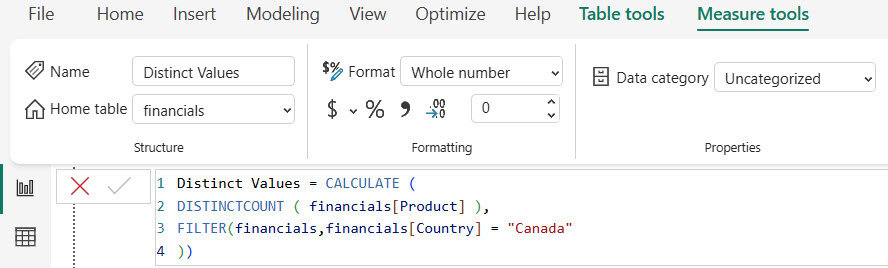
- Open Power BI Desktop and load your table data. Then, go to the ribbon, click on New Measure, and apply the formula shown below:
Distinct Values = CALCULATE (
DISTINCTCOUNT ( financials[Product] ),
FILTER(financials,financials[Country] = "Canada"
))
Where:
- Distinct Values: Measure name
- financials: Table name
- Country, Product: Column names
- Now go to the Report view and select the Table visual and the Card visual from the Visualizations pane.
- In the Table visual, drag and drop the Product and Sales Value fields from the Fields pane. In the Card visual, drag and drop the Measure you created. It will look like the example below.

- In the screenshot below, you can see that the Card visual shows the distinct count value after applying the filter condition.

This is an example of how to use the DISTINCTCOUNT function with a filter in Power BI.
Distinct Count with Multiple Filters in Power BI Reports
Here, we will see how to show distinct count values using multiple filters with the Power BI Filter function.
In this example, we will calculate the distinct count of the Sales field based on the Year. It will show the distinct count of sales values that are greater than or equal to 1,000,000 for the year 2025.
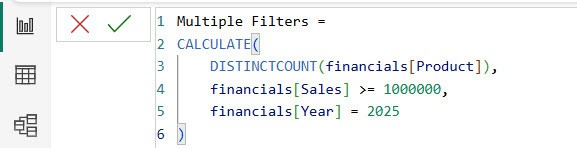
- Load the table data into Power BI Desktop using the Get Data option. Then, go to the ribbon, click on New Measure, and use the formula below:
Multiple Filters =
CALCULATE(
    DISTINCTCOUNT(financials[Product]),
    financials[Sales] >= 1000000,
    financials[Year] = 2025
)
Where:
- Multiple Filters: Measure name
- financials: Table name
- Year, Sales: Column names
- In the Power BI Report view, select the Table visual and the Card visual from the Visualizations pane.
- In the Table visual, drag and drop the Product, Sales Value, and Year fields from the Fields pane. Then, in the Card visual, drag and drop the Measure you created, as shown below.
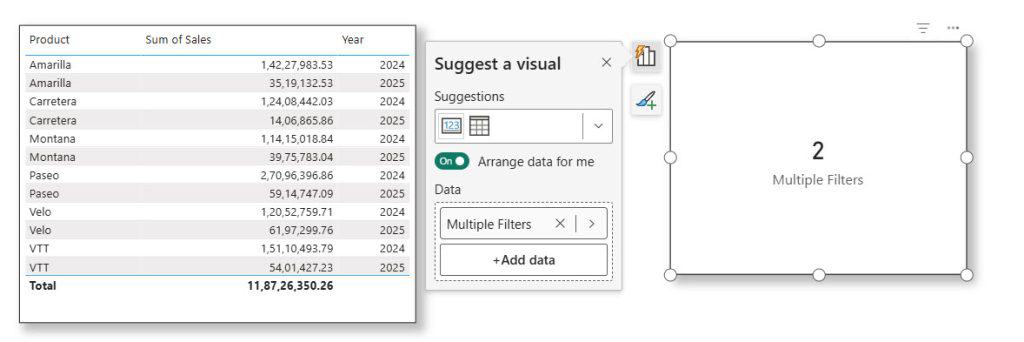
The above screenshot shows the distinct count value in the Card visual after applying the filter conditions.
How to Count Unique Values While Ignoring Blanks in Power BI
Here, we will see how to count non-blank values using the DISTINCTCOUNT function in Power BI.
In this example, we will count the non-blank values in the Discounts column from the Financials table.
- Open Power BI Desktop and load your data using the Get Data option. Then, under the Modeling tab, click on New Measure and apply the formula below:
Non Blank Values = CALCULATE (
    DISTINCTCOUNT ( financials[Discounts] ),
    KEEPFILTERS ( NOT ISBLANK ( financials[Discounts] ) )
)
Where:
- Non-Blank Values: Measure name
- financials: Table name
- Discounts: Column names
- In the Report view, select the Table visual and the Card visual from the Visualizations pane.
- In the Table visual, drag and drop the Product, Discounts, and Country fields from the Fields pane. Then, in the Card visual, drag and drop the Measure you created.

Then you can see the count of non-blank values in the Discounts column of the Financials table in the card visual.

How to Use DISTINCTCOUNT with ALLSELECTED in Power BI DAX
Here, I will show you how to count distinct values using the DISTINCTCOUNT function with the ALLSELECTED filter in Power BI.
ALLSELECTED Syntax:
ALLSELECTED([<tableName> | <columnName>[, <columnName>[, <columnName>[,…]]]] )In this example, I want to count the distinct values in the Country column from the table by using the FILTER function in Power BI.
- Load the data into Power BI Desktop using the Get Data option. Then, click on New Measure from the ribbon and use the formula below:
filter all selected = CALCULATE(DISTINCTCOUNT(financials[Country]),FILTER(ALLSELECTED('financials'),[Year]=MAX(financials[Year])))Where:
- filter all selected: Measure name
- financial: Table name
- Country: Column names

- In the Report view, select the table and card visual from the visualization.
- In the table visual, drag and drop the Product, sales, and country fields from the field pane. In the card visual, drag and drop the created Measure value.

In the screenshot below, you can see that the card visually displays the distinct count value for the filtered country column.

This is how you can count distinct values in Power BI by using the DISTINCTCOUNT function together with the ALLSELECTED filter.
Distinct Count Using the ALL Filter in Power BI
Here, I will show how to use the DISTINCTCOUNT function with the ALL filter in Power BI.
In this example, I will count the distinct values in the Sales column by using the FILTER function in Power BI.
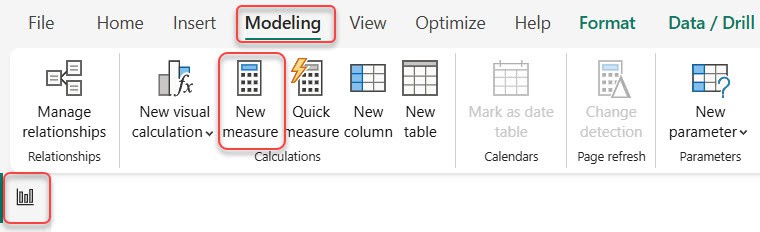
- Open the Power BI desktop and load the data. Then, under the Modeling tab, click “New measure”.
- In the formula section, provide the following DAX expression:
filter all = CALCULATE(DISTINCTCOUNT(financials[ Sales]),FILTER(ALL('financials'),[Year]=MAX(financials[Year])))Where:
- filter all: Measure name
- financials: Table name
- Sales, Year: Column names

- In the Power BI Report view, select the Table visual and the Card visual from the Visualizations pane.
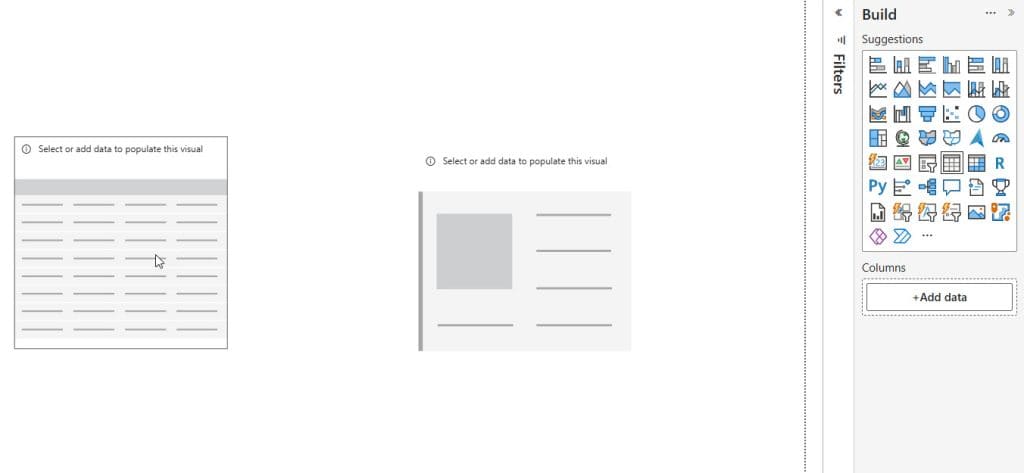
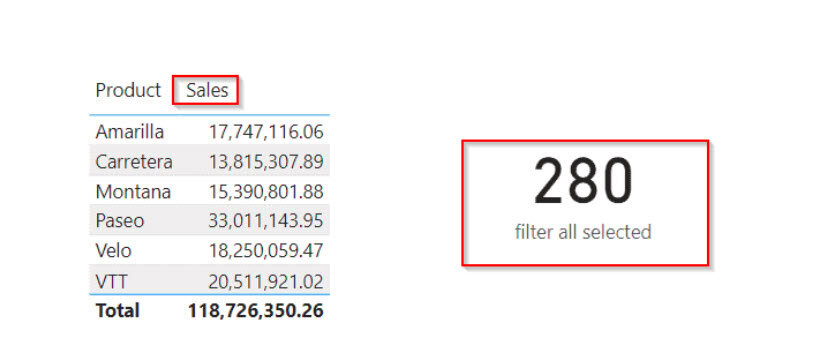
- In the table visual, drag and drop the Product and sales fields from the field pane, and drag and drop the created Measure value in the card visual.

The screenshot below displays the distinct count value in the card visual based on the condition applied for the sales column.
DISTINCTCOUNT() Without Filters Function in Power BI
Here, I will show how to count values without using any filters by using the DISTINCTCOUNT() function in Power BI.
In this example, I will use two slicers: one for Country and one for Year. When you select a country and a year, the Card visual shows the sales count based on your selection, as well as the sales count without applying any filters.
- Load the data using Get Data, then click the new measure to calculate sales value with the filter. Then use the below-mentioned measure.
Sales count = DISTINCTCOUNT ( financials[ Sales] )Where:
- Sales count: Measure name
- financials: Table name
- Sales: Column names
- Again, create a new measure to calculate the sales value without the selected value count. Then apply the below-mentioned measure.
Sales without Selected Value =
CALCULATE(
    DISTINCTCOUNT(financials[Product]),ALLEXCEPT('financials',financials[Country],financials[Year])) - [Sales count]
Where:
- Sales without Selected Value: Measure name
- financials: Table name
- Product, Country, and Year: Column names
- Sales count: Existing measure value
- Now, in the Power BI Report view, select two Slicer visuals from the Visualizations pane and drag the Country field into one slicer and the Year field into the other.
- Then, select two Card visuals and drag the measures you created into them, as shown below.

- Now select any Country from the Country slicer and any Year from the Year slicer. This will filter the Sales value based on your selections.
- In the screenshot below, you can see that one Card visual shows the filtered sales count, while the other Card visual shows the sales count without applying the selected filters.

This is how you can count values without any filters by using the DISTINCTCOUNT() function in Power BI.
Count Unique Values Based on a Date Filter in Power BI
Here, I will show how to use the DISTINCTCOUNT() function with a date filter in Power BI.
In this example, we will use a date slicer to display the distinct count value of the product based on the date selection.
- Open the Power BI desktop and load the data. Then, under the Modeling tab, click “New measure”.
- In the formula section, provide the following DAX expression:
By date =
CALCULATE (
    DISTINCTCOUNT (financials[ Sales] ),
    ALLSELECTED ( financials[Date].[Date] ),
    FILTER (
        financials,
        financials[Date]
    )
)
Where:
- By date: Measure name
- financials: Table name
- Sales,Date: Column name
- DISTINCT COUNT: Function name
- Now, in the Power BI report view, select the slicer visual from the visualization and drag and drop the date field.
- Select the Table visual and drag-drop the product name, sales field, and the created measure value
- Select the card visuals and drag and drop the created measured values in it as below:

In the screenshot below, you can see that the card visual displays the sales count based on the dates selected from the date slicer visual in Power BI.

In this article, I explained different ways to count distinct values in Power BI. I covered how to use the DISTINCTCOUNT() function with filters like single filter, multiple filters, non-blank filter, ALLSELECTED, ALL, and without any filter. I also showed how to use DISTINCTCOUNT with a date filter.
Also, you may like:
- Add Column With a Fixed Value in Power BI
- Add Column If Contains in Power Query Power BI
- Add Columns Using IF Statements in Power BI Power Query
- Filter Data in Power BI Using Conditions from Another Column

Hey! I’m Bijay Kumar, founder of SPGuides.com and a Microsoft Business Applications MVP (Power Automate, Power Apps). I launched this site in 2020 because I truly enjoy working with SharePoint, Power Platform, and SharePoint Framework (SPFx), and wanted to share that passion through step-by-step tutorials, guides, and training videos. My mission is to help you learn these technologies so you can utilize SharePoint, enhance productivity, and potentially build business solutions along the way.

