
Searching a SharePoint list in Power Apps sounds simple — until you hit a delegation warning, a Choice field that breaks your formula, or a Person column that returns absolutely nothing. I’ve built dozens of Power Apps for clients and internal teams, and these exact problems come up every single time.
In this tutorial, I’ll walk you through every realistic search scenario — from basic text search to date ranges, Choice fields, Person fields, and large lists — with the exact formulas you need and the reasoning behind each one.
Power Apps Search() vs Filter() — Which One Do You Actually Need?
This is the question I get most often, and the answer is almost always the same: it depends on your column type. Here’s the quick rule I follow:
Use Search() when:
- You’re searching only Single Line of Text columns
- Your list has fewer than 2,000 items
- You want a simple, minimal formula
Use Filter() when:
- You’re working with Choice, Date, Number, or Person columns
- Your list is large (and you’re using indexed columns)
- You need complex AND/OR logic
Here’s a side-by-side comparison to make the decision easier:
| Criteria | Search() | Filter() |
|---|---|---|
| Supported column types | Text only | All types |
| Works with Choice columns | No | Yes (use .Value) |
| Works with Person columns | No | Yes (use .DisplayName) |
| Works with Date columns | No | Yes |
| Delegation-safe | No (2,000 row limit) | Yes (with indexed columns) |
| Multi-column search | Yes via comma params | Yes via ` |
| Formula complexity | Simple | Moderate |
If you pick the wrong one for your column type, Power Apps either throws a delegation warning or silently returns no results, and that silent failure is the worst kind.
Decision Tree: Which Formula Should I Use in Power Apps?
Use this to quickly decide your approach before writing a single line:
What column type are you searching?
│
├─ Single Line of Text only?
│   └─ Use Search()
│
├─ Choice column?
│   └─ Use Filter() + AddColumns() + .Value
│
├─ Date column?
│   └─ Use Filter() + DateAdd()
│
├─ Person / People Picker column?
│   └─ Use Filter() + .DisplayName
│
└─ Mix of Text + Choice / Person?
    └─ Use Filter() + AddColumns() + OR operator
Bookmark this. It saves a lot of trial and error.
Power Apps Setting Up: Connect Your SharePoint List
Before any of the formulas below work, make sure your SharePoint list is connected. In Power Apps Studio:
- Go to Data (left panel) → click + Add data
- Search for SharePoint → select your site → pick your list
- Add a Text input control (rename it to something like
txtSearch) - Add a Gallery control and connect it to your SharePoint list
That’s your base setup. Now let’s get into the actual scenarios.
Search a SharePoint List in Power Apps
Now let’s work with some real examples on how to search a SharePoint list in Power Apps.
Scenario 1: Search Multiple Text Columns at Once in Power Apps
Real-world use case: An HR team wants a single search box to find employees by name, department, or location in an Employee Onboarding list.
I have a SharePoint list called Employee Onboarding with these columns:
- Title (Employee Name) — Single line of text
- EmployeeLastName — Single line of text
- Department — Choice field
- Location — Choice field
Approach 1: Using Power Apps Filter() with a Collection (Best for Mixed Column Types)
First, load the list into a Power Apps Collection on the screen’s OnVisible property:
Collect(colEmployeeList, 'Employee Onboarding')
Then set the Gallery’s Items property to:
Items = Filter(
    colEmployeeList,
    txtSearch.Text in Title ||
    txtSearch.Text in Department.Value ||
    txtSearch.Text in Location.Value
)

Why Department.Value and Location.Value? Because Choice fields in SharePoint are objects, not plain text strings. You need .Value to extract the actual text. Forget this, and your formula either errors out or returns nothing.
Approach 2: Using Power Apps Search() for Text-Only Columns
If you’re only searching text columns and your list is under 2,000 rows, this is simpler:
Items = Search(colEmployeeList, txtSearch.Text, Title, EmployeeLastName)
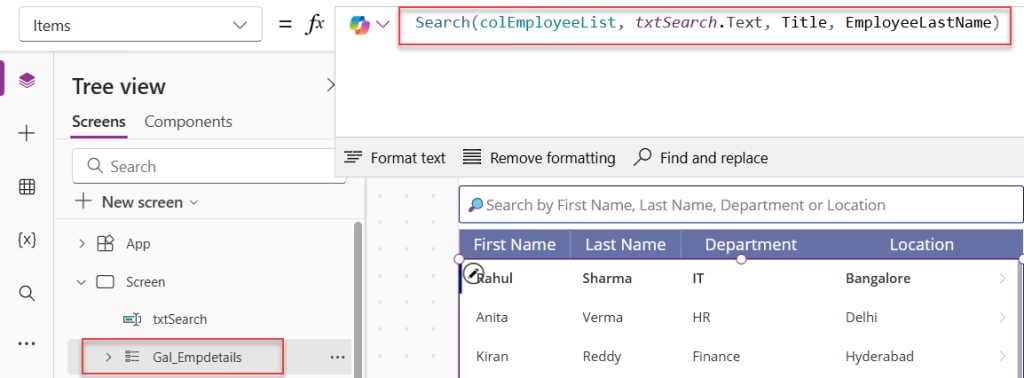
Column names in Power Apps Search() must be in quotes. It won’t accept Choice, Number, or Person columns here; those need the Filter() approach above.
Scenario 2: Search by Date Field in Power Apps
Real-world use case: A procurement team wants to filter purchase orders by sale date.
I have a SharePoint list called Book Purchase Info with a “Sale Date” column and a date picker control named dtSelectDate.
Filter by a Specific Selected Date in Power Apps
Items = Filter(
    'Book Purchase Info',
    'Sales Date' >= dtSelectDate.SelectedDate,
    'Sales Date' < DateAdd(dtSelectDate.SelectedDate, 1, TimeUnit.Days)
)
The DateAdd(..., 1, Days) part is important — it makes the filter inclusive of the entire selected day, not just midnight.

Filter by Today’s Date in Power Apps
Items = Filter(
    'Book Purchase Info',
    'Sales Date' >= Today(),
    'Sales Date' < DateAdd(Today(), 1, TimeUnit.Days)
)
It shows all records with a Sales Date from today’s start of day (start of the day) until before tomorrow, so you will see only today’s sales records.

Filter by a Date Range (Start and End Date) in Power Apps
Use two date pickers: dtStartDate and dtEndDate.
Items = Filter(
    'Book Purchase Info',
    ('Sales Date' >= dtStartDate.SelectedDate Or IsBlank(dtStartDate.SelectedDate))
    And
    ('Sales Date' < DateAdd(dtEndDate.SelectedDate, 1, TimeUnit.Days) Or IsBlank(dtEndDate.SelectedDate))
)
The IsBlank() wrappers make both date pickers optional — if a user only sets a start date, the Power Apps gallery still works. I always add these in production apps.
Show All Records in Power Apps When No Date Is Selected
Items = Filter(
    'Book Purchase Info',
    (
        'Sales Date' >= dtDate.SelectedDate
        And 'Sales Date' < DateAdd(dtDate.SelectedDate, 1, TimeUnit.Days)
    )
    Or IsBlank(dtDate.SelectedDate)
)
Set the date picker’s IsEditable property to true. So users can clear the date and see all records again.

Scenario 3: Search a Choice Column in Power Apps
Real-world use case: A manager wants to filter a Products list by Status (Submitted, Approved, Rejected, Pending).
My Products list has a Status Choice column. Here’s the formula for the gallery:
Items = Filter(
    AddColumns(Products, ChoiceValue, Status.Value),
    txtSearch.Text in ChoiceValue
)

Power Apps AddColumns() creates a temporary text version of the Choice field called ChoiceValue. Without this, you can’t use in or Search() on a Choice column at all.
Also, update the gallery label’s Text property:
Text = ThisItem.ChoiceValue
Search Text Columns AND a Choice Column Together
Items = Sort(
    Search(
        AddColumns(Products, "ChoiceValue", Status.Value),
        txtSearch.Text,
        "Title", "CustomerName", "ChoiceValue"
    ),
    'Sales Date',
    Ascending
)
This lets users type a product name, a customer name, or a status value — all in one search box. This is one of my most-used patterns in client apps.
Scenario 4: Search by Person / People Picker Column in Power Apps
This is the single most common cause of the “Wrong column type” error I see. Search() cannot read Person fields because they’re objects, not text strings. Always use Filter() with .DisplayName.
Real-world use case: A library app needs to filter books by the author or uploader.
Search a Person Field with a Text Input in Power Apps
Items = Filter(
    'TSInfo Attachments',
    txtSearch.Text in 'Book Author'.DisplayName
)
Search the “Created By” Field in Power Apps
Items = Search(
    AddColumns(Products, CreatedByUser, 'Created By'.DisplayName),
    txtSearch.Text,
    CreatedByUser, Title, CustomerName
)
And in the gallery label: Text = ThisItem.CreatedByUser

Let Users Pick a Person From a Dropdown in Power Apps
Set the Power Apps Combo Box’s Items property to:
Items = Choices(Products.'Created By')
Set both DisplayFields and SearchFields on the Combo Box to ["DisplayName"].
Then filter the gallery:
Items = Filter(
    Products,
    'Created By'.DisplayName in ComboBox1.Selected.DisplayName
)
Scenario 5: Search Distinct / Unique Values in Power Apps
Real-world use case: You want a dropdown that shows only unique departments — no duplicates.
Power Apps: Distinct Values from Text Columns
Items = Distinct(Products, Title)

Power Apps: Distinct Values From a Choice Column
Items = Distinct(Products, Status.Value)
Filter Power Apps Gallery: Show Unique Employee Names by Department
Items = Distinct(
    Filter('Employee Onboarding', Department.Value = Dropdown1.Selected.Value),
    Title
).Result
Note the .Result at the end — that’s required when using Distinct() as a gallery source.
Scenario 6: Searching Large SharePoint Lists
If your list has more than 2,000 items, Search() will silently stop returning all results. This catches many people off guard.
Here’s what actually works for large lists:
- Use Power Apps Filter() with indexed columns. In SharePoint, go to your list → List Settings → Indexed Columns → add the column you’re filtering on.
- Use
ClearCollectat app start for lists under ~5,000 rows, then filter against the collection. This avoids repeated server calls. - Avoid
AddColumns()on large datasets directly from SharePoint — it forces a full load and breaks delegation. - Set Data Row Limit to 2,000 in Power Apps Settings → App Settings → General → Data row limit. This is the maximum Power Apps allows for non-delegable operations.
ClearCollect(colMyList, 'Your SharePoint List')
Then filter colMyList rather than the SharePoint data source directly. Yes, this means a slightly longer load time at app start — but it’s far more reliable for search.
Troubleshooting: Power Apps Search Not Working
Run through this checklist before anything else:
- Using
Search()on a Choice column? → Switch toFilter()+AddColumns()+.Value - Using
Search()on a Person column? → Switch toFilter()+.DisplayName - Getting a delegation warning? → Your list likely has more than 2,000 rows. Add column indexing or use a
ClearCollectpattern - Search returns nothing when text box is empty? → Wrap your formula with
If(IsBlank(txtSearch.Text), YourList, Filter(...)) - “Column does not exist” error? → Your column has special characters in its internal SharePoint name. Use
ClearCollect(colTest, YourList)then inspect column names in View → Collections - Search works in preview, but not after publishing? → Check if the app has the correct SharePoint site permissions for all users, not just the owner
The most common issue by far is the column type mismatch — someone using Search() on a Person or Choice field. That single mistake is behind 80% of the “my search isn’t working” questions I see in community forums.
Quick Reference: Delegation & Limits
| Scenario | Delegable? | Max Rows | Best Approach |
|---|---|---|---|
Search() on text columns | No | 2,000 | Small lists only |
Filter() with a non-indexed column | Yes | 500,000+ | Large lists |
Filter() with non-indexed column | No | 2,000 | Index the column in SharePoint |
AddColumns() + Filter() | No | 2,000 | Use ClearCollect first |
Distinct() + Filter() | Filter() with an indexed column | 2,000 | Cache with ClearCollect |
Summary Table: Formula Patterns by Column Type
| Column Type | Recommended Function | Example Pattern |
|---|---|---|
| Single Line of Text | Search() or Filter() | Search(List, txt.Text, "Title") |
| Choice | Filter() + AddColumns() | Filter(AddColumns(List, "CV", Col.Value), txt.Text in CV) |
| Person / People Picker | Filter() + .DisplayName | Filter(List, txt.Text in Person.DisplayName) |
| Date | Filter() + DateAdd() | Filter(List, Date >= dp.SelectedDate, Date < DateAdd(...)) |
| Number | Filter() with = operator | Filter(List, NumberCol = Value(txt.Text)) |
| Large List (2k+) | Filter() + indexed column | Index column in SP → use Filter() directly |
Also, you may like:
- Display Power Apps Gallery Distinct Values
- Parse JSON in Power Apps
- Power Apps Sort Distinct Filter
- Power Apps Dropdown Show Only Unique Values
- Power Apps First Function
- Set Combo Box Value On Button Click in Power Apps
Frequently Asked Questions
Can the Power Apps Search() function work with Choice columns?
No, it can’t. Search() Only accepts single-line text columns. For Choice columns, use Filter() combined with AddColumns() and reference the choice field with .Value.
What is the delegation limit for Search() in Power Apps with SharePoint?
The maximum is 2,000 rows. Even if your list has 10,000 items, Search() will only look through the first 2,000. You can’t increase this limit — it’s hardcoded for non-delegable functions. Switch to Filter() with indexed columns for anything larger.
What’s the difference between Search() and Filter() in Power Apps?
Search() is simpler and works only on text columns. Filter() is more flexible and handles all column types — Choice, Date, Number, Person. For most real-world SharePoint scenarios, Filter() is the safer choice.
Why does my Power Apps search return no results when searching a Person field?
Because Person fields are objects in SharePoint, not plain text. Search() expects a string and throws a “Wrong column type” error. Use Filter('YourList', txtSearch.Text in 'PersonColumn'.DisplayName) instead.
How do I search a SharePoint list with more than 2,000 items?
Two options: (1) Use Filter() with a column that’s been indexed in SharePoint — this is fully delegable up to 30 million rows. (2) Load the list into a collection with ClearCollect at app start and filter the collection locally. Option 1 is better for very large lists; Option 2 works well for lists under ~5,000 rows.
Why does my search show no results when the text box is empty?
By default, if your formula uses in or Filter() with a blank text value, it may return nothing instead of all records. Fix it by adding an IsBlank() check:Items = If(
IsBlank(txtSearch.Text),
'Your SharePoint List',
Filter('Your SharePoint List', txtSearch.Text in Title)
)

Hey! I’m Bijay Kumar, founder of SPGuides.com and a Microsoft Business Applications MVP (Power Automate, Power Apps). I launched this site in 2020 because I truly enjoy working with SharePoint, Power Platform, and SharePoint Framework (SPFx), and wanted to share that passion through step-by-step tutorials, guides, and training videos. My mission is to help you learn these technologies so you can utilize SharePoint, enhance productivity, and potentially build business solutions along the way.


Really nice and very useful this Search function