
If you’ve ever scrambled to set up a last-minute video call or accidentally missed a meeting because no one sent a proper invite, this tutorial is for you.
Scheduling a video call in Microsoft Teams isn’t complicated, but there are a few ways to do it. Some people know only one method and miss out on faster options. In this guide, I’ll walk you through how to schedule a video call in Microsoft Teams — from using the Teams calendar to scheduling straight from a chat or a channel. I’ll also cover how to use the Scheduling Assistant, set recurring meetings, and even schedule on your phone.
By the end, you’ll have no reason to ever send a “Can we hop on a quick call?” message without a proper invite attached.
Why Bother Scheduling Instead of Just Calling?
I know it feels easier to just click the video icon and call someone directly. And yes, sometimes that works. But here’s why scheduled meetings are worth the extra 60 seconds:
- People can prepare in advance
- Everyone gets a calendar block, so nothing overlaps
- You get a shareable link that works for external guests, too
- The meeting appears in both Teams and Outlook automatically
- You can attach an agenda, files, or meeting notes right in the invite
Scheduled calls feel more professional and reduce the “are we still meeting?” confusion that wastes everyone’s time.
What You Need Before You Start
Before scheduling, make sure:
- You have Microsoft Teams installed (desktop or web app)
- You’re signed in with a Microsoft 365 account (work or school account)
- The people you want to invite are reachable by name or email
Teams works great for internal invites, where you can search by name. For external guests, you’ll need their email address.
Schedule a Video Call in Microsoft Teams
Now I will show you how to schedule a video call in Microsoft Teams, with different options you can choose based on your availability.
Method 1: Schedule from the Teams Calendar (Most Common Way)
This is the method most people use, and it’s the one I recommend starting with. It gives you the most control over the meeting details.
Here’s how to do it:
- Open Microsoft Teams on your desktop or browser
- Click on Calendar in the left sidebar (it looks like a calendar icon)
- Click the + New button in the top-right corner
- A scheduling form will open — this is where you fill in all your meeting details

In the scheduling form, here’s what to fill in:
- Title: Give your meeting a clear name. “Quick Sync” is fine, but “Q3 Budget Review – Marketing Team” is better. People can tell at a glance what it’s about.
- Required Attendees: Start typing a name and Teams will auto-suggest people from your org. For external guests, type their full email address (e.g., john@clientdomain.com).
- Optional Attendees: If someone just needs to be looped in but isn’t required to attend, add them as optional. In the new calendar view, click Response Options > Add Optional Attendees.
- Date and Time: Set your start and end time. Teams will warn you if the slot clashes with someone’s calendar.
- Teams Meeting Toggle: Make sure this is turned on — this is what generates the video call link.
- Add a description: Drop in an agenda or any context people need. This saves time during the actual call.
- Once you’ve filled everything in, click Send
Everyone on the invite list will receive an email with the meeting link immediately. The meeting will also appear in their Teams and Outlook calendars.
Pro tip: You can also create a meeting by clicking directly on a time slot in the calendar grid. Just click the empty time you want, and a quick-add form pops up. Fill in the basics, then hit “More options” to access the full form.
Method 2: Schedule a Teams Meeting from a Chat
This one’s really handy when you’re already in a conversation with someone and want to move it to a video call.
Here’s how:
- Open Chat in Teams
- Go to the conversation with the person (or group) you want to meet with
- Click the “…” (More Options) icon at the top of the chat window
- Select Schedule a Meeting
- Fill in the meeting title, date, and time
- Click Send

This method automatically adds everyone in that chat as attendees. You don’t need to manually add them — Teams handles it. I use this one a lot when a text conversation is getting too long, and we just need to talk it out.
Method 3: Schedule a Channel Meeting in Microsoft Teams
If your team is working out of a Teams channel (say, a project channel or a department channel), you can schedule the meeting right inside that channel. This way, everyone in the team gets notified and can join.
Here’s how:
- Click on Teams in the left sidebar
- Open the team and channel where you want to schedule the meeting
- Look for the Meet button near the top-right of the channel — click the dropdown arrow next to it
- Select Schedule a Meeting
- Add a title, set your date and time, and if needed, add extra attendees from outside the team
- Click Send

The meeting will appear in the channel’s Posts tab, and everyone in the team will get a personal invite. One thing to keep in mind: this doesn’t work for private channels.
When to use this: Use channel meetings for recurring team syncs, stand-ups, or any meeting where the whole team is the audience.
Method 4: Schedule Teams from Outlook
If you spend most of your workday in Outlook and rarely open Teams directly, this method is for you.
- Open Outlook (desktop app or web)
- Go to your Calendar
- Click New Event or double-click a time slot
- In the event form, click Teams Meeting in the ribbon (desktop app) or look for the “Add online meeting” option in Outlook on the web
- Fill in the title, attendees, date, and time
- Click Send

Teams automatically generates a meeting link and inserts it into the Outlook invite. The meeting will also appear in your Teams calendar — they stay in sync automatically.
This is my favorite method for people who already live in Outlook. No need to switch apps at all.
Method 5: Schedule Teams Meetings on Mobile (iOS & Android)
When you’re away from your desk and need to set up a call on the go, the Teams mobile app makes it easy.
- Open the Microsoft Teams app on your phone
- Tap Calendar at the bottom of the screen
- Tap the + (Expand meetings menu) button
- Add a meeting title
- Tap Add Participants and search for attendees
- Set the date and start/end time
- Tap Done

The invite goes out right away. It’s a stripped-down version of the desktop, but for quick meetings it does the job perfectly.
Schedule Teams Video Call Using Scheduling Assistant
One of the most underused features in Teams is the Scheduling Assistant (also called Scheduler). If you’ve ever had to go back and forth over email asking, “Does 2 PM work for you?”, this feature saves all that hassle.
When you’re in the meeting scheduling form:
- Click on the Scheduler tab at the top of the form
- You’ll see a grid showing all your attendees’ calendars side by side
- Shaded blocks mean the person is busy or has a tentative meeting
- White blocks mean they’re free
You can slide the meeting window around to find a time that works for everyone at once. It’s like a visual puzzle — find the gap where everyone is free, and that’s your meeting time. No more email chains.
Set Up Recurring Meetings in Microsoft Teams
For things like weekly team stand-ups or monthly reviews, you don’t need to create a new invite every single time. Teams lets you set a meeting to repeat automatically.
In the scheduling form, look for the Does not repeat dropdown (just below the date and time). Click it, and you’ll see options like:
- Daily
- Weekly
- Monthly
- Every weekday (Monday through Friday)
- Custom (set your own pattern)
Pick the one that fits, and Teams will create all the future occurrences automatically. Each attendee gets one invite for the entire series.
If you ever need to change just one meeting in the series (say, next week’s call is moving to Thursday), you can edit just that one occurrence without changing the whole series.
Meeting Options Worth Knowing
After you save your meeting, you can fine-tune some settings by clicking Meeting Options in the invite. Here’s what I find most useful:
- Who can bypass the lobby? — Decide whether external guests wait in a virtual lobby before you let them in, or if they can join directly.
- Who can present? — You can limit screen sharing to just yourself or specific people, which is useful for webinars or client demos.
- Allow mic/camera for attendees — For large calls, you might want to start with everyone muted.
- Record automatically — Turn this on if you want the call recorded from the moment it starts, without having to remember mid-call.
These options are especially important when you’re meeting with people outside your organization.
How to Reschedule a Meeting in Teams
Life happens — meetings move. Rescheduling in Teams is easy:
- Go to your Calendar in Teams
- Find the meeting and simply drag and drop it to a new time slot. Teams will check attendee availability before confirming.
- Or open the meeting, change the date/time, and click Send Update. Everyone gets an automated notification with the new time.
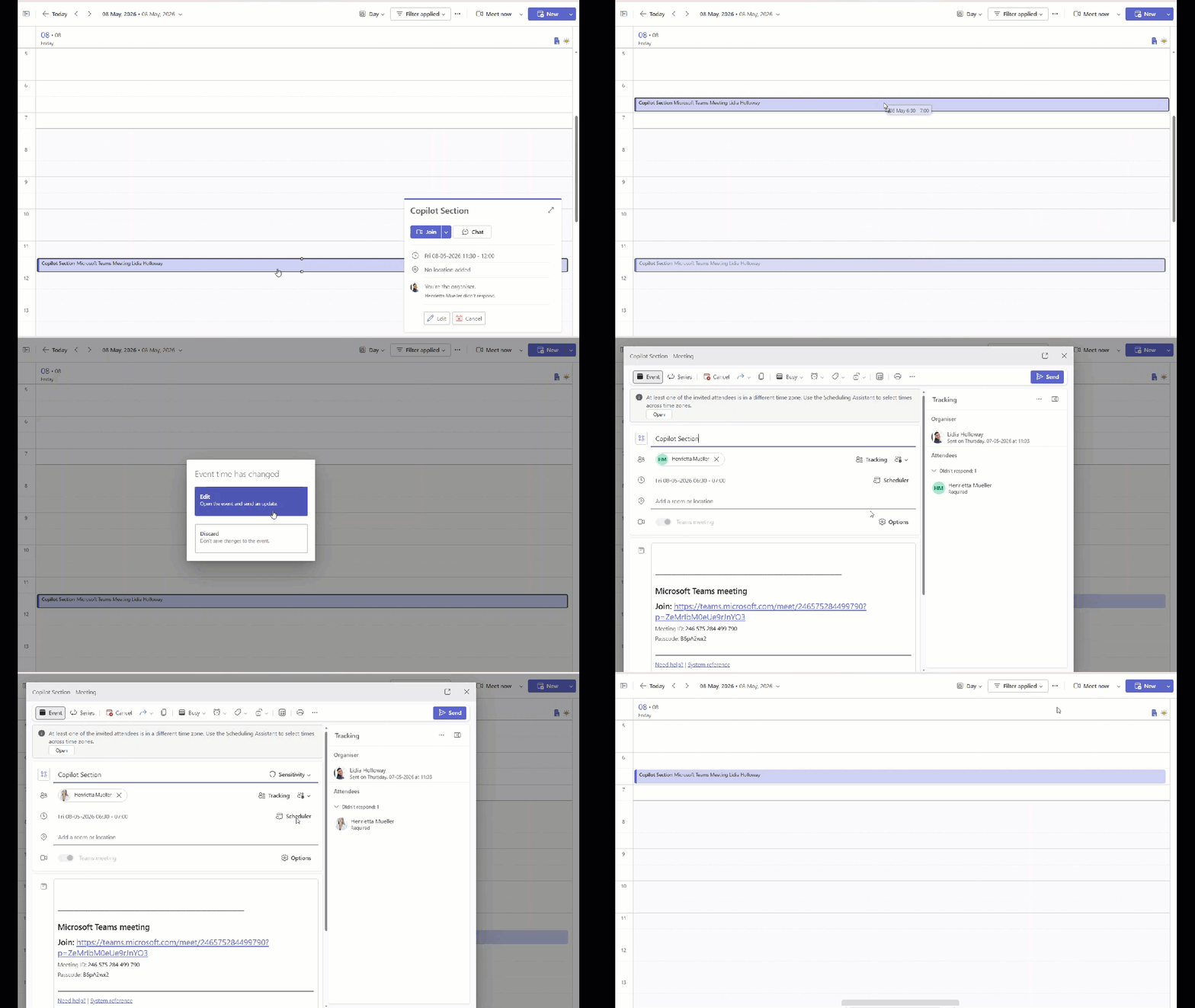
You don’t need to cancel and recreate — just update and send.
How Attendees Join the Call
Once your meeting is scheduled, here’s what your attendees experience:
- They receive an email with a Join Microsoft Teams Meeting link
- On the day of the call, the meeting appears in their Teams and Outlook calendars
- They click Join from the calendar or from the email link
- A preview screen lets them check their camera and mic before entering
- They click Join Now and they’re in
External guests (people without Teams accounts) can still join via their browser — no Teams app or account needed. That’s one of my favorite things about Teams meetings.
Quick Tips to Make Your Meetings Better
A few habits that make a real difference:
- Add an agenda in the description field. Even two or three bullet points help people come prepared.
- Use categories to color-code your calendar (right-click a meeting > Categorize). Makes it easy to spot client calls vs. internal syncs at a glance.
- Send a reminder message in Teams chat 10 minutes before the call. People appreciate the nudge.
- Check time zones if your attendees are in different countries. Teams shows a Scheduler grid, but double-check the time before sending.
- Test your audio and video before joining. Click the microphone and camera icons in the preview screen to make sure they’re working.
Wrapping Up
I hope this guide helped you understand the different ways to schedule a video call in Microsoft Teams. I covered everything from creating meetings using the Teams calendar to scheduling directly from chats, channels, Outlook, and even the mobile app.
You also learned how to use useful features like the Scheduling Assistant, recurring meetings, meeting options, and rescheduling existing calls. These small features can save a lot of time and make your meetings more organized and professional.
Also, you may like:
- Mute Microsoft Teams
- Make Microsoft Teams Dark Mode
- Microsoft Teams Auto Mute When Joining a Meeting
- 3 Different Methods to Set Microsoft Teams Work Hours
- Reschedule or Cancel a Teams Meeting in Microsoft Teams

Hey! I’m Bijay Kumar, founder of SPGuides.com and a Microsoft Business Applications MVP (Power Automate, Power Apps). I launched this site in 2020 because I truly enjoy working with SharePoint, Power Platform, and SharePoint Framework (SPFx), and wanted to share that passion through step-by-step tutorials, guides, and training videos. My mission is to help you learn these technologies so you can utilize SharePoint, enhance productivity, and potentially build business solutions along the way.