
If you’ve ever been in the middle of an important Teams meeting and suddenly a bunch of notification banners start popping up across your screen, you know how distracting that is. Someone sends you a message. A channel post comes in. A reminder fires off. And now your entire team can see those pop-ups on your shared screen. Embarrassing, right?
The good news is that Microsoft Teams offers several ways to prevent this from happening. In this tutorial, I’ll walk you through all the methods — from a quick one-click fix to more advanced options like Do Not Disturb mode and Windows Focus Assist. Pick what works best for your situation.
Why Notifications Pop Up During Microsoft Teams Meetings
By default, Teams is designed to keep you informed at all times. So even when you’re in a meeting, it continues to deliver toast notifications — those little banners that slide in from the corner of your screen. These include:
- New chat messages
- Channel posts and replies
- Mentions and reactions
- Reminders and calendar alerts
This works fine when you’re at your desk working normally. But during a meeting — especially when you’re presenting — it becomes a real problem. Nobody wants a personal message showing up on a shared screen.
Disable Notifications During a Meeting in Microsoft Teams
Let’s check how to disable notifications during a meeting in Microsoft Teams with 6 best methods.
Method 1: Turn Off Notifications During Meetings in Microsoft Teams from Settings (The Easiest Way)
This is the most straightforward method and the one I’d recommend starting with. It’s a global setting, which means once you turn it on, it applies to every meeting you attend going forward — you don’t have to do it every time.
Here’s how to do it:
- Open Microsoft Teams on your desktop.
- Click the three-dot icon (Settings and more) in the top-right corner.
- Click Settings from the dropdown.
- Select Notifications and activity from the left sidebar.
- Scroll down to the Display section.
- Uncheck the box that says “Show notifications during calls and meetings.”
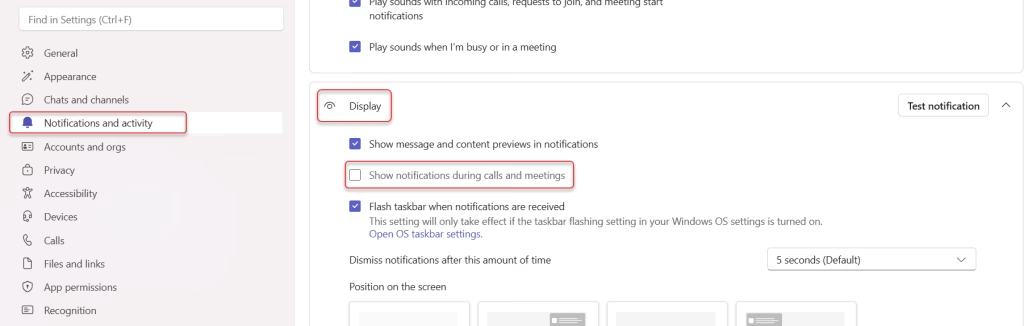
That’s it. From now on, Teams will automatically suppress all non-meeting notifications while you’re in a call or meeting. You won’t see those pop-up banners at all.
Important note: Even after doing this, you’ll still receive:
- Notifications directly related to your active meeting (like someone joining or sending a message in the meeting chat)
- Urgent or priority notifications from specific people
- Incoming calls
This is intentional — Teams makes sure you don’t miss anything critical, while still cutting out the noise.
To turn notifications back on, just go back to the same setting and check the box again. Simple.
Method 2: Mute Notifications During Teams Meetings and Calls (Another In-Settings Option)
There’s a slightly different setting in Teams that works similarly but is tucked away in a different place. Here’s where to find it:
- Go to Settings and more (three-dot icon) > Settings.
- Click on Notifications and activity.
- Scroll down to the Meetings and Calls section.
- Click Edit next to Meetings and Calls.
- Toggle on “Mute notifications during meetings and calls.”
This setting mutes incoming notifications specifically for the duration of a meeting or call. Think of it as an automatic “quiet mode” that kicks in the moment you join a meeting and turns off when you leave.
The difference between Method 1 and Method 2 is subtle:
- Method 1 controls whether notification banners (the visual pop-ups) show up on screen.
- Method 2 controls the notification sound and alerts at the Meetings & Calls category level.
If you want complete silence — no banners, no sounds — I’d recommend enabling both.
Method 3: Use Do Not Disturb (DND) Mode in Microsoft Teams
Do Not Disturb is Teams’ built-in focus mode. When you switch to DND, Teams blocks all incoming notification banners completely — not just during meetings, but anytime you have it turned on.
This is especially useful when you’re about to present your screen and want zero chance of anything popping up.
How to enable Do Not Disturb:
- Click your profile picture in the top-right corner of Teams.
- Click on your current status (it probably says “Available”).
- Select Do not disturb from the list.
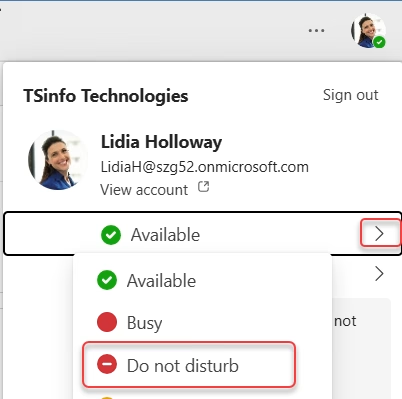
Your status will update immediately. All toast notifications are now suppressed.
What if you still need messages from important people to come through?
No problem. Teams has a Priority Access feature that lets specific people bypass DND. Here’s how to set it up:
- Go to Settings > Privacy.
- Click Manage priority access.
- Add the names of people whose messages should still reach you even when you’re in DND mode.
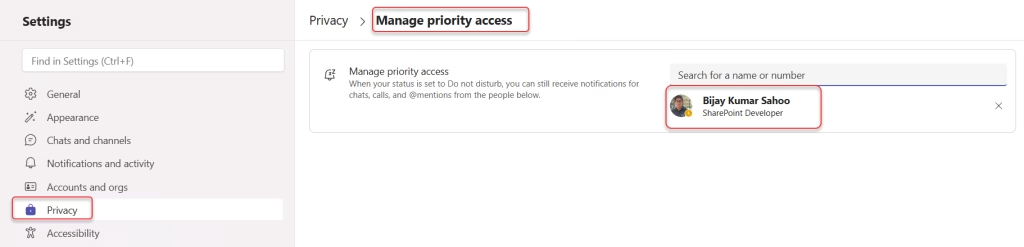
This is perfect if you want to stay unreachable to most people but still need your manager or a key teammate to be able to get your attention.
One thing to keep in mind: Do Not Disturb is a manual toggle — you have to remember to turn it on before a meeting and turn it off afterward. It won’t switch back automatically unless you’ve set a duration.
Method 4: Teams Auto Do Not Disturb When Sharing Your Screen
Here’s a feature that many people don’t know about. Teams can automatically switch you to Do Not Disturb whenever you start sharing your screen. So even if you forget to set it manually, Teams has your back.
To turn this on:
- Go to Settings and more > Settings.
- Click on Privacy.
- Look for the option: “Set my status to Do not disturb when I’m sharing my screen.”
- Make sure the checkbox is selected.
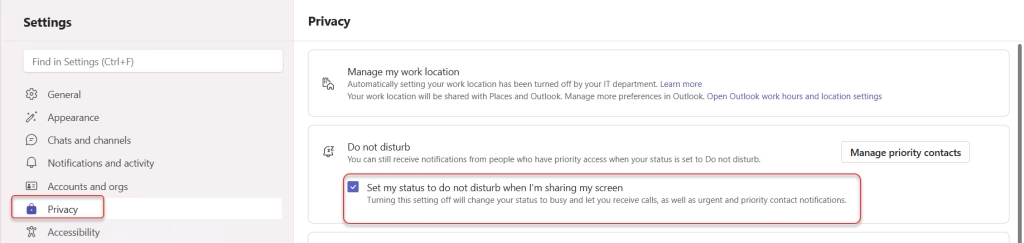
This setting is enabled by default in most Teams installations, so you may already have this protection. But it’s worth double-checking — especially if you’ve had embarrassing notification moments during presentations in the past.
Once this is enabled, the moment you hit “Share screen” in a meeting, Teams quietly flips you into DND mode. When you stop sharing, it switches back. No manual steps needed.
Method 5: Use Windows Focus Assist (for Full System-Wide Silence)
Sometimes the problem isn’t just Teams — it’s every app on your computer. Windows notifications from email clients, browsers, other apps — they can all pop up during a meeting.
For complete system-level silence, use Windows Focus Assist (called “Do Not Disturb” in Windows 11):
On Windows 11:
- Click the Start menu and go to Settings.
- Navigate to System > Notifications.
- Turn on Do not disturb.
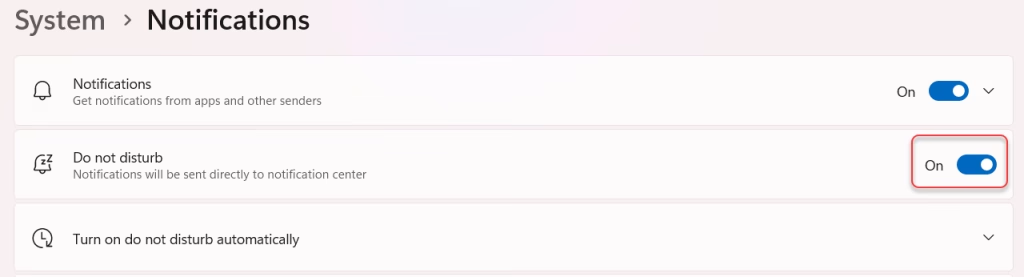
Alternatively, you can click the notification bell icon in the bottom-right corner of your taskbar to toggle “Do not disturb”.
On Windows 10:
- Open Action Center (the speech bubble icon in the taskbar).
- Click Focus Assist.
- Choose Alarms only or Priority only, depending on how strict you want to be.
Windows Focus Assist works independently of Teams, so it will silence notifications from every single app — not just Teams. This is the nuclear option, and it works great when you’re presenting to an important client or recording a video.
Method 6: Mute Notifications for a Specific Meeting (One-Time Only)
Let’s say you don’t want to change any permanent settings. You just want to silence notifications for a single meeting and then return to normal afterward.
Here’s how to do that directly inside a meeting:
- While you’re in the meeting, look at the meeting controls at the top or bottom of the screen.
- Click the three-dot (More options) icon in the meeting toolbar.
- Look for notification settings within the meeting options and mute them for this session.
This approach is a bit more limited depending on which version of Teams you’re on, but it works if you just need a quick, temporary fix without touching your global settings.
Which Method Should You Use to Disable Teams Notifications?
| Situation | Best Method |
|---|---|
| Want it silenced for all meetings, always | Method 1 or 2 (Settings toggle) |
| About to present — need zero pop-ups | Method 3 (Manual DND) |
| Presenting often and forget to set DND | Method 4 (Auto DND on screen share) |
| Need silence from all apps, not just Teams | Method 5 (Windows Focus Assist) |
| Just this one meeting, no permanent changes | Method 6 (In-meeting settings) |
What About Urgent and Priority Notifications in Teams?
One thing worth knowing — even if you’ve turned off notifications during meetings, Teams will still let through urgent and priority messages by default. These are messages that someone has flagged as high-priority, and they’re designed to cut through any silence.
If you also want those silenced, go to Settings > Notifications and activity and adjust the urgent message settings manually.
Final Tips
A few things I’ve learned from using Teams daily:
- If you present to clients regularly, turn on auto-DND during screen share (Method 4) and leave it on permanently. It’s a one-time setup and saves you every time.
- If you use Teams on mobile too, remember to set DND on the mobile app separately — mobile and desktop notifications are managed independently.
- If your notifications keep turning back on after meetings, check whether you have an Outlook “Focus Time” block on your calendar — that can sometimes conflict with Teams status settings.
- For the cleanest presentation experience, combine Method 1 (global setting), Method 4 (auto DND on screen share), and Windows Focus Assist. That covers everything.
None of these methods is complicated — it really just comes down to knowing where the settings are. Once you’ve set them up, you’ll wonder why you didn’t do it sooner.
You may also like the following tutorials:
- Create a Group in Teams
- Take a Screenshot in Microsoft Teams
- Add External User to Teams
- Connect to Microsoft Teams using PowerShell
- Your Organization Has Disabled This Device Teams

Hey! I’m Bijay Kumar, founder of SPGuides.com and a Microsoft Business Applications MVP (Power Automate, Power Apps). I launched this site in 2020 because I truly enjoy working with SharePoint, Power Platform, and SharePoint Framework (SPFx), and wanted to share that passion through step-by-step tutorials, guides, and training videos. My mission is to help you learn these technologies so you can utilize SharePoint, enhance productivity, and potentially build business solutions along the way.

