
If you’ve ever opened a chat in Microsoft Teams and noticed someone shows “Last seen 3 hours ago” while someone else appears completely Offline, you’ve probably wondered — what’s actually going on there? Are they ignoring me? Did they close the app? Are they just lurking?
I’ve been using Teams for a while now, and I’ll be honest — these status indicators confused me for the first few months. Once I understood how they actually work, it changed the way I read my team’s availability. Let me break it all down for you in plain English.
Why This Even Matters
Before diving in, here’s why you should care: Teams’ presence status directly affects how you communicate. If you ping someone who’s “Offline,” you’ll know not to expect an instant reply. If you see “Last seen 5 minutes ago,” you know they were active very recently but stepped away. Getting this right saves you from over-pinging people or waiting forever for a reply when someone is actually available.
The Full List of Microsoft Teams Status Options
Let me give you a quick overview of all the statuses Teams uses, because “Last Seen” and “Offline” don’t exist in isolation:
- Available (green circle) — The person is active in Teams and has no meetings blocking them
- Busy (red circle) — They’re in a call or meeting
- In a meeting — Calendar shows an active meeting block
- Do Not Disturb — They’ve manually silenced notifications
- Be Right Back — A manual status, never set automatically
- Away — Teams detected inactivity; more on this below
- Appear Offline — They’ve manually chosen to look offline
- Offline — They’re not logged in on any device
- Out of Office — Automatic reply is set, or calendar shows OOO

Each of these has a specific trigger. Let’s focus on the two that people mix up the most: Last Seen and Offline.
What Does “Last Seen” Mean in Microsoft Teams?
“Last seen” is not actually a standalone status. It’s a timestamp that appears alongside the Away or Offline status. You’ll see something like:
Away · Last seen 3 h ago

This means Teams last detected activity from that person 3 hours back. After that, the system stopped seeing any interaction — no mouse movement, no keystrokes inside Teams, no app focus.
Here’s the exact sequence of how it happens on a desktop:
- User is working on Teams — status shows Available
- User switches to another app and stops touching the computer
- After roughly 5 minutes of inactivity, Teams flips the status to Away
- The “last seen” timestamp starts counting from that moment
- If the computer goes to sleep or locks, it can eventually show Offline
On mobile, the flow is slightly different:
- User has Teams open in the foreground — status shows Available
- User switches to another app (Teams goes to the background)
- Status immediately switches to Away
- After 24 hours of inactivity on mobile, it flips to Offline
So “Last Seen” is Teams telling you: “Hey, this person was here at this specific time, then went quiet.”
What Does “Offline” Mean in Microsoft Teams?
Offline means the person is not logged in to Teams on any device at that moment. Not on desktop. Not on mobile. Not on the web browser.
When someone is Offline, you won’t see a last seen timestamp in most cases — Teams just shows the grey Offline indicator.
Here’s how someone ends up Offline:
- Their computer went to sleep or powered off
- They signed out of Teams completely
- They haven’t used Teams on their phone in over 24 hours
- There’s a network issue, and Teams lost connection

One thing to keep in mind: if a user is logged into Teams on both a desktop and a phone, the most recently active device wins. So if they close the laptop but still have Teams on their phone, they won’t show Offline — they’ll show whatever the phone’s status is.
Last Seen vs Offline: A Side-by-Side Look
| Content | Last Seen | Offline |
|---|---|---|
| What it means | Was active at a specific time, now inactive | Not logged in on any device |
| Trigger | 5+ mins of inactivity on desktop | Computer sleep, sign-out, or 24h mobile inactivity |
| Shows timestamp? | Yes — “Last seen X minutes ago” | Usually no timestamp |
| Will they get notifications? | Yes, if Teams is still running | Yes, via email or mobile push |
| Can they see your message? | Yes, when they return | Yes, when they log back in |
Real-World Example: Reading the Room
Let me walk you through a scenario I’ve seen play out in actual workplaces.
It’s 3:00 PM and you open a chat with a colleague. You see:
Away · Last seen 2 hours ago
What this tells you:
- They were on Teams at around 1:00 PM
- At some point after that, they stopped interacting with Teams
- Maybe they stepped out for lunch, jumped into a meeting without updating their status, or got pulled into something else
- Teams is still running on their machine (otherwise they’d show Offline)
- They’ll likely see your message soon
Now compare that to seeing:
Offline
This tells you:
- They’re fully disconnected — computer off, or completely signed out
- Your message will be waiting for them when they come back
- Don’t expect a reply in the next few minutes
The difference is subtle but useful. “Last Seen” gives you a rough idea of recency. “Offline” tells you there’s nothing running.
Why Does Microsoft Teams Sometimes Show the Wrong Status
This is one of the most frequently complained about issues in the Teams community forums. You might have seen this yourself — someone shows “Available” but hasn’t replied in an hour, or you see “Away” even though you were actively typing in another app.
Here’s what causes it:
- Inactivity is app-specific: Teams only detects activity within Teams itself (and general mouse/keyboard movement on desktop). If you’re using Excel for 2 hours without touching Teams, it will eventually mark you Away even though you’re clearly working.
- Multi-device conflicts: Being logged in on a phone keeps you from ever going fully Offline, which can sometimes show “Away” indefinitely.
- Outlook calendar integration: If your calendar shows you’re in a meeting, Teams will still show “In a meeting” even if you’re not.
- VPN and network issues: Slow or intermittent connections can cause delays in the presence status of up to an hour, especially for users with on-premises mailboxes.
How to Manually Control Your Status in Microsoft Teams
You don’t have to let Teams decide for you. Here’s how to take control:
To set your status manually:
- Click your profile picture in the top-right corner of Teams
- Click the current status shown below your name
- Select from the dropdown: Available, Busy, Do Not Disturb, Be Right Back, Appear Away, or Appear Offline

To set a duration for your status:
- Go to your profile picture → set status
- Below the status options, click “Duration”
- Choose how long you want that status to stay, e.g., 1 hour, 4 hours, Today, This week, or Custom
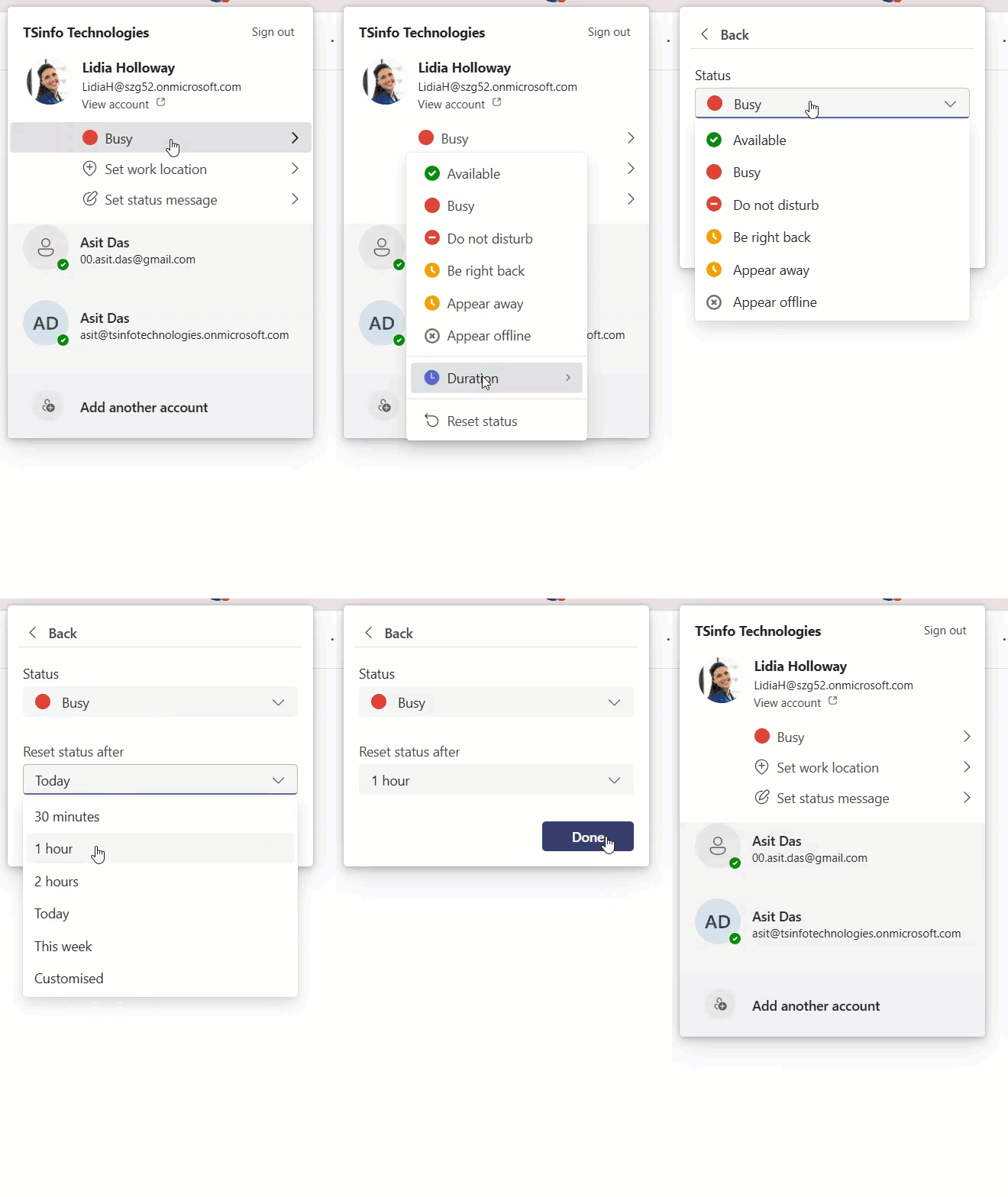
This is incredibly useful if you’re stepping out but don’t want to manually reset your status when you’re back.
To hide your Last Seen / Appear Offline:
- Set your status to Appear Offline — this makes you look fully offline to everyone while you can still read messages and work normally
- You’ll still receive all notifications, but no one will see your activity or last seen timestamp
How “Last Seen” Interacts with Out of Office in Microsoft Teams
One question I see a lot: Does Last Seen still update when I’m Out of Office?
The short answer: it depends on whether you actually open Teams.
If you’ve set an Out of Office reply in Outlook and your calendar shows an OOO block, Teams will show the Out of Office indicator. But if you quietly open Teams on your phone to check a message, your Last Seen timestamp will update — and your colleagues can see that.
If you want to truly go dark during time off, set your status to Appear Offline before you leave. That way, even if you sneak a peek, no one will know.
Tips for Managers and Team Leads
If you’re managing a team, here’s how to use these statuses practically:
- Don’t rely on “Available” to mean someone is at their desk — they could be in a meeting, focused on a document, or just have Teams sitting open in the background
- “Last Seen X minutes ago” is a better indicator of recent activity than the presence dot alone
- Avoid judging productivity based on presence — someone can be fully productive without ever opening Teams
- Use @mentions with messages if urgency matters, rather than relying on someone being green
A Note on Privacy
Some people feel uncomfortable knowing their colleagues can see exactly when they were last on Teams. Microsoft does give you a way out with Appear Offline, but there’s no built-in Teams setting to permanently hide last seen timestamps for everyone (unlike WhatsApp, for example). If this is a concern for your organization, your IT admin might be able to configure it at the tenant level.
Quick Recap
- Last Seen = a timestamp showing when the person was last active in Teams — appears alongside the Away status
- Offline = the person has no active Teams session on any device
- Teams flips you to Away after ~5 minutes of desktop inactivity, and to Offline when your computer sleeps, or you sign out
- On mobile, Away kicks in when Teams goes to the background; Offline kicks in after 24 hours
- You can manually set Appear Offline to hide your activity while still using Teams
- Out of Office does NOT prevent Last Seen from updating if you actually open Teams
Also, you may like:
- Zoom In on Microsoft Teams
- Enable GIFs in Microsoft Teams
- 6 Easiest Ways to Take a Screenshot in Microsoft Teams
- 6 Best Ways to Disable Notifications During a Meeting in Microsoft Teams

Hey! I’m Bijay Kumar, founder of SPGuides.com and a Microsoft Business Applications MVP (Power Automate, Power Apps). I launched this site in 2020 because I truly enjoy working with SharePoint, Power Platform, and SharePoint Framework (SPFx), and wanted to share that passion through step-by-step tutorials, guides, and training videos. My mission is to help you learn these technologies so you can utilize SharePoint, enhance productivity, and potentially build business solutions along the way.

