
If you’ve ever tried to send a GIF in Microsoft Teams and the option just wasn’t there — or worse, it showed up once and then disappeared — you’re not alone. This is one of the most common questions Teams users ask, and the answer isn’t always obvious because there are several places that control GIF access.
In this guide, I’ll walk you through everything: how GIFs work in Teams, how to send them, how an admin can turn them on or off, and what to do if GIFs still aren’t showing up even after you’ve done everything right.
Why GIFs Sometimes Don’t Work in Teams
Before jumping into the steps, it helps to understand how GIFs work in Teams. Microsoft Teams uses Giphy to power its GIF feature. Giphy is an online GIF search engine, and Teams integrates with it to let you search for and share animated GIFs in your chats.
Because Giphy is an external service, Microsoft treats it as an Optional Connected Experience. That means your IT admin can turn it on or off for your entire organization. If GIFs are disabled, you won’t even see the GIF button in your message box.
So if GIFs aren’t showing up for you, it could be one of two things:
- Your admin has disabled GIFs via a messaging policy
- Optional Connected Experiences is turned off in your privacy settings
Let’s cover both scenarios.
Enable GIFs in Microsoft Teams
Let’s discuss how to enable GIFs in Microsoft Teams using 4 various methods.
Method 1: Send a GIF as a Regular User in Microsoft Teams
If GIFs are already enabled in your organization, sending one is straightforward. Here’s how to do it on the desktop app:
- Open any chat or channel in Microsoft Teams
- Look at the bottom of the message compose box — you’ll see a small icon row
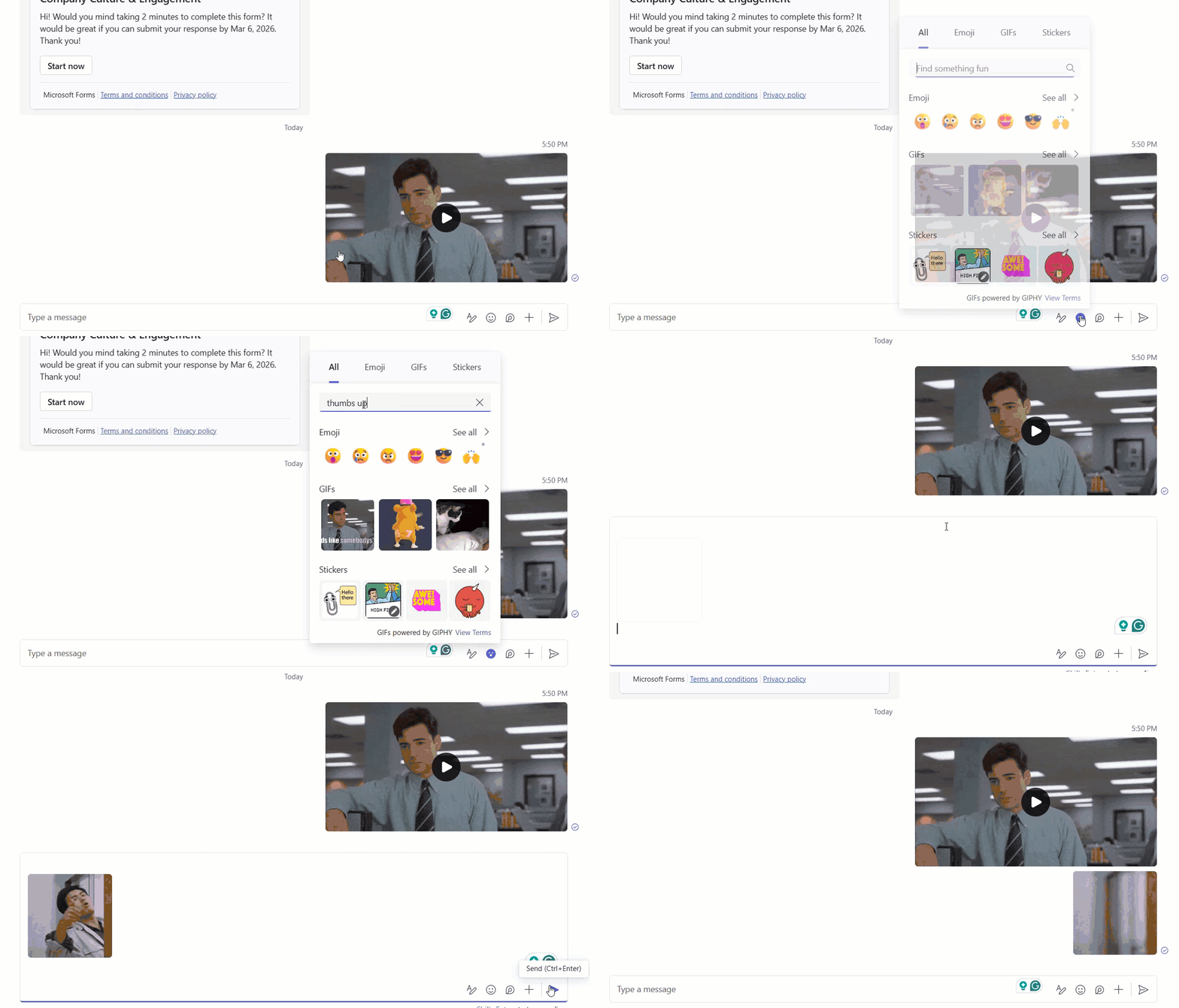
- Click the Emoji, GIFs and Stickers icon (it looks like a smiley face)
- Switch to the GIF tab at the top of the pop-up
- Use the search bar to type something like “thumbs up” or “celebration.”
- Click the GIF you want — it’ll drop right into your message
- Hit Send
On mobile (iOS or Android), the steps are nearly identical. Tap the GIF button that appears beneath the message box, search or browse, tap the one you want, and send.
That’s it — three seconds and your colleague gets a perfectly timed “good job” GIF.
Method 2: Enable GIFs via the Teams Admin Center (For Admins)
If you’re an IT admin and your users are telling you they can’t see the GIF option, this is where you need to go. The setting lives inside Messaging Policies in the Teams Admin Center.
Here’s how to turn it on:
- Go to admin.microsoft.com and sign in with your admin account
- In the left navigation, click Show all, then select Teams under Admin centers

- Inside the Teams Admin Center, click the hamburger menu (☰) on the top left
- Scroll down and click Messaging policies under the Messaging section
- Click on Global (Org-wide default) — this is the default policy applied to everyone

- Scroll through the settings until you find “Giphy in conversations”
- Toggle it On
- Scroll down and click Save, then Confirm

Policy changes can take up to 1 hour to propagate across Teams, so give it a bit of time before testing.
What About the Content Rating?
Right below the Giphy toggle, you’ll also see a Giphy content rating option. This controls what kind of GIFs your users can search for and send. You have three choices:
- No restriction — Users can find and send any GIF, regardless of content
- Moderate — Some adult content is filtered out (this is the default for most organizations)
- Strict — Only safe, workplace-appropriate GIFs are allowed
For most company environments, I’d recommend setting this to Moderate or Strict. It keeps things professional without completely blocking the fun.
Creating a Custom Messaging Policy in Microsoft Teams admin center
If you don’t want to change the global policy (because it affects everyone), you can create a custom policy for specific users or teams. Here’s how:
- In Messaging policies, click + Add to create a new policy

- Give it a name — something like “GIFs Enabled for Marketing Team”
- Turn on Giphy in conversations and set your preferred content rating
- Click Save
- Now go to Users in the left nav, find the users you want to apply this to, and assign them this new policy

This way, you can have GIFs enabled for some teams but not others — useful if you work in a mixed environment where some departments need stricter settings.
Method 3: Microsoft Teams Enable Optional Connected Experiences (User Privacy Settings)
Here’s a lesser-known reason GIFs stop working: Optional Connected Experiences might be turned off. This privacy setting controls whether Teams connects to external services — including Giphy.
If this is off, GIFs won’t load even if your admin has enabled them in the messaging policy.
To check and enable this as a regular user:
- Open Microsoft Teams
- Click three dots(…) in the top right corner
- Go to Settings
- Click Privacy in the left menu
- Look for “Optional connected experiences”
- Make sure the toggle is turned On

If you’re an admin and want to manage this setting for the entire organization, you can do so through the Microsoft 365 Apps admin center under Privacy settings.
Method 4: Enable GIFs for a Specific Team (Team-Level Settings)
Did you know that team owners can also control GIF access at the team level — separately from the organization-wide policy? This is handy if you manage a specific team and want to allow or block GIFs just for that space.
Here’s how to do it as a team owner:
- Go to the team you want to manage
- Click the three dots (…) next to the team name
- Select Manage team

- Click the Settings tab
- Expand the Fun stuff section
- Check (or uncheck) the Allow Giphy box
- Click Save

Note: This only works if GIFs are already enabled at the admin/policy level. A team owner can turn GIFs off at the team level, but they can’t turn them on if the admin has blocked them organization-wide.
GIFs Not Showing Up in Teams? Here’s How to Troubleshoot
Even after enabling everything correctly, GIFs sometimes still don’t appear. Here are the most common fixes:
1. Clear the Teams cache
Teams stores a lot of cached data to load faster. If that cache gets corrupted, things like GIFs can stop loading. Here’s how to clear it:
- Fully quit Teams (right-click the icon in the system tray → Quit)
- Press Win + R, type %appdata%\Microsoft\Teams and hit Enter
- Delete the following folders: Cache, blob_storage, databases, GPUCache, IndexedDB, Local Storage, tmp
- Restart Teams
2. Wait for policy changes to propagate
Admin policy changes in Teams can take up to 1 hour to apply. If you just made a change in the Admin Center, wait a bit and then relaunch Teams.
3. Check if giphy.com is blocked on your network
Some corporate networks block access to giphy.com at the firewall level. If that’s the case, GIFs won’t load even if everything is configured correctly inside Teams. You’ll need to work with your network admin to whitelist the domain.
4. Try the Teams web app
Go to teams.microsoft.com in your browser and check if GIFs work there. If they do but not in the desktop app, the issue is likely with your local installation. Try uninstalling and reinstalling Teams.
5. Disable hardware acceleration
If GIFs load but appear broken or don’t animate, try turning off hardware acceleration:
- Go to Teams Settings → General
- Scroll down and uncheck Disable GPU hardware acceleration
- Restart Teams
A Quick Summary of All the Controls
Just to make it easy to reference, here’s a quick overview of where each GIF setting lives:
| Setting | Where to Find It | Who Controls It |
|---|---|---|
| Use Giphy in conversations | Teams Admin Center → Messaging Policies | IT Admin |
| Giphy content rating (Strict/Moderate) | Teams Admin Center → Messaging Policies | IT Admin |
| Optional connected experiences | Teams → Settings → Privacy | User (or Admin via M365) |
| Allow Giphy in a specific team | Team → Manage Team → Settings → Fun stuff | Team Owner |
Final Thoughts
GIFs in Teams are a small thing, but they make a real difference in keeping conversations lively — especially in remote or hybrid teams where tone can be hard to read in text. The good news is that once everything is set up correctly, it just works.
If you’re a regular user and GIFs are missing, start with the Optional Connected Experiences setting. If you’re an admin and your team is reporting missing GIFs, head straight to Messaging Policies in the Teams Admin Center and check the Giphy toggle.
And if none of that works, clear the cache. That fixes more Teams issues than it probably should.
You may also like the following tutorials:
- Create a Private Channel in Teams
- Microsoft Teams Language Settings
- Add External User to Teams
- Create Group in Teams

Hey! I’m Bijay Kumar, founder of SPGuides.com and a Microsoft Business Applications MVP (Power Automate, Power Apps). I launched this site in 2020 because I truly enjoy working with SharePoint, Power Platform, and SharePoint Framework (SPFx), and wanted to share that passion through step-by-step tutorials, guides, and training videos. My mission is to help you learn these technologies so you can utilize SharePoint, enhance productivity, and potentially build business solutions along the way.

