
If you’ve ever tried to record a quick video clip in Microsoft Teams and hit that frustrating 1-minute wall, you’re not alone. It’s one of the most searched Teams questions out there, and honestly, it makes sense. One minute is barely enough time to explain anything useful.
The good news? There are actually a few different ways to record video in Teams, and once you understand which method does what, the whole thing becomes much simpler. Let me walk you through everything.
First, Let’s Understand the Two Types of Recordings in Teams
Before jumping into the how-to, it helps to know that Teams has two completely different recording features. People often mix them up, and that’s where the confusion starts.
- Video Clips (for chats and channels)
This is the quick camera-based recording you can send directly in a chat or channel conversation. You hit record, speak your message, and send it — almost like a voice note but with video. - Meeting Recordings
This is the full-blown recording of a Teams meeting or call. It captures your audio, video, and screen sharing.
Record a Video on Microsoft Teams Longer Than 1 Minute
The 1-minute limit only applies to Video Clips. Meeting recordings don’t have that restriction — they can run for hours if needed.
So if you’re bumping into a 1-minute limit, you’re probably using Video Clips. Let’s look at both options.
Option 1: Use the Updated Video Clips Feature in Microsoft Teams (Now Up to 5 Minutes)
Here’s a recent update that many people don’t yet know about.
Microsoft has increased the Video Clips recording limit from 1 minute to 5 minutes. This rollout started in late May 2025 and was completed worldwide by early September 2025. So if your Teams app is up to date, you should now be able to record up to 5 minutes directly in any chat or channel — no meetings required.
No special settings, no admin action needed. It just works.
Record a video clip in a chat or channel:
- Open any one-on-one chat, group chat, or channel in Teams.
- Look at the row of icons beneath the message compose box and select Actions and apps.
- Select Record a video clip.
- Choose Camera to record yourself, or choose Screen if you want to capture your screen.
- Hit Start recording. You can pause and resume as many times as you need.
- When you’re done, select Continue in the lower-right corner.
- Review the clip, trim it if needed, and hit Send.
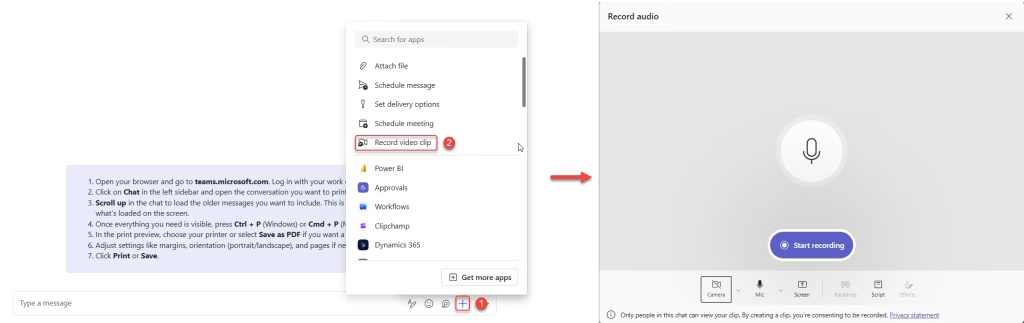
That’s it. Quick, simple, and no meeting required.
A few things to keep in mind:
- Screen recording via Video Clips still mentions a 1-minute cap in some places, so test it on your version to see what you get.
- Camera-based video clips now support up to 5 minutes for most users on updated tenants.
- If your organization has disabled Video Clips, the feature won’t appear in your compose bar at all. You’ll need to check with your IT admin.
Option 2: Record a Full Teams Meeting (No Time Limit)
If 5 minutes still isn’t enough — say you need to record a 20-minute walkthrough or a training session — then the right move is to use Teams meeting recording.
This is a full recording of a scheduled (or ad hoc) meeting, and there’s no hard time limit on how long it can run. Recordings are automatically saved to OneDrive or SharePoint once the meeting ends.
Step 1: Start a Meeting
You can either:
- Schedule a meeting from the Teams calendar and join it at the right time, or
- Start an instant meeting by going to Calendar > Meet now in Teams.
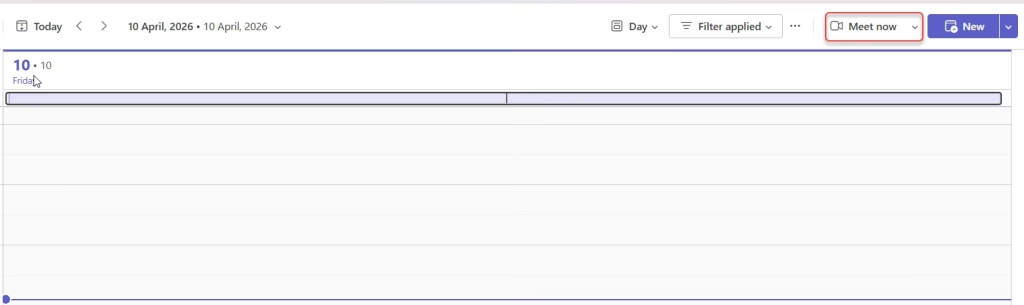
You don’t need anyone else in the meeting. You can record a solo session too — great for walkthroughs, demos, or training videos.
Step 2: Start Recording
Once you’re in the meeting:
- In the meeting controls at the top, click More actions (the three dots “…”).
- Select Record and transcribe.
- Click Start recording.
- Click Confirm when prompted.
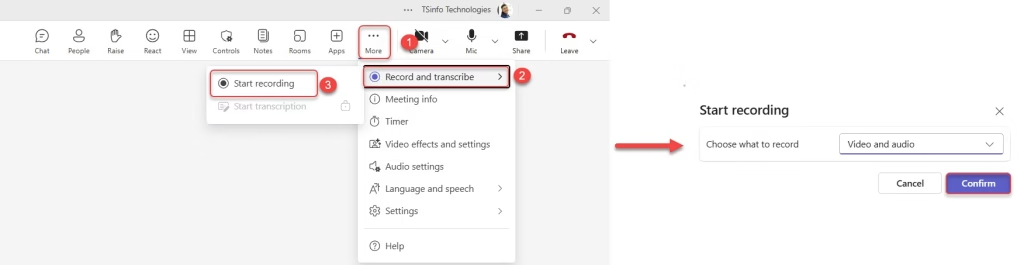
Everyone in the meeting will get a notification that the recording has started. If it’s just you in the meeting, that’s fine — you’ll see a small recording indicator at the top of the screen.
Step 3: Record What You Need
Now just do your thing. You can:
- Talk to the camera
- Share your screen for a walkthrough
- Present a PowerPoint
- Demonstrate an app or process
The recording will capture your audio, your video, and whatever’s on screen.
What won’t be captured:
- Whiteboards and annotations
- Shared notes
- Videos or animations inside PowerPoint Live presentations
- More than four video streams at once
Step 4: Stop the Recording
When you’re done:
- Click More actions in the meeting controls.
- Select Record and transcribe > Stop recording.
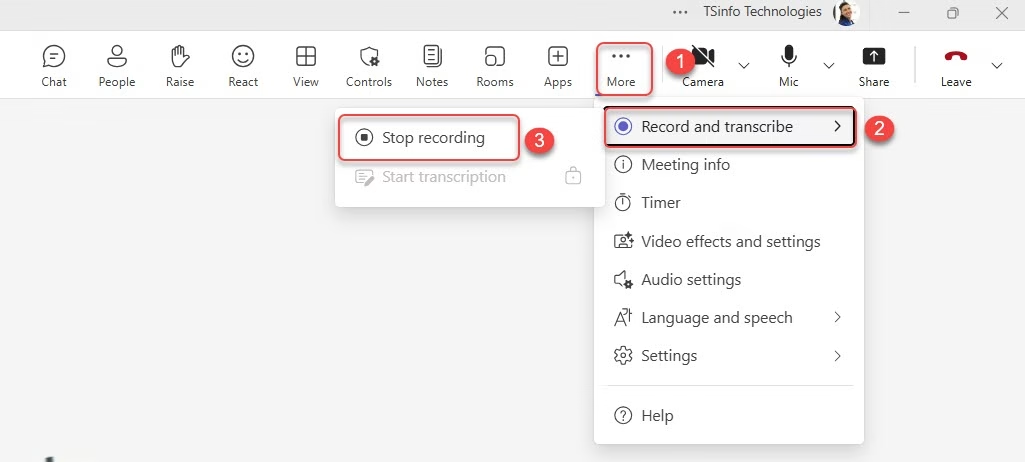
Teams will automatically process and save the recording.
Step 5: Find Your Recording
Your recording is saved to the meeting organizer’s OneDrive for Business. Here’s where to find it:
- Check the meeting chat — a link to the recording will appear there.
- Open your OneDrive and look in the Recordings folder.
- If the meeting happened in a Teams channel, the recording will also appear in the channel conversation.
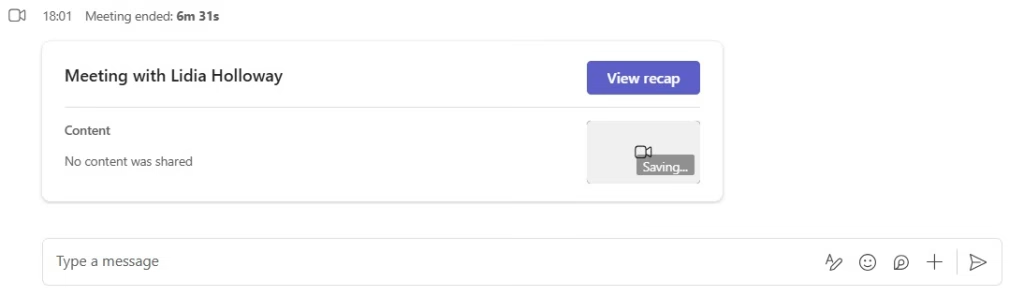
You can then download it, share it, or embed it wherever you need.
What If the Record Option Is Grayed Out or Missing in Teams?
This happens more than you’d think. If you can’t find the recording option in a meeting, here are the most common reasons:
- Your IT admin hasn’t enabled recording for your account. This is a licensing and policy setting. You’ll need to ask your admin to enable cloud recording in Teams Meeting Policies.
- You’re a guest or external attendee. Guests can’t record meetings — only people from the same organization can (as long as they have the right license).
- Your license doesn’t include recording. You need at least an Office 365 E1, E3, E5, M365 Business, or similar license. Free Teams accounts don’t get meeting recording.
- The organizer has restricted who can record. If the meeting organizer has a Teams Premium license, they can limit recording to organizers and co-organizers only.
If you’re a regular user and the option is missing, a quick email to your IT helpdesk is usually the fastest fix.
Option 3: Use Screen Recording Tools as a Backup
Let’s say you’re in a situation where a meeting recording is locked down by your org, or you just want a quick workaround. In that case, you can use a screen recorder on your PC to capture whatever’s on screen — including a Teams video call.
A few options:
- Windows built-in Xbox Game Bar (Win + G) — free, records your screen up to a few hours.
- OBS Studio — free, powerful, and works well for longer recordings.
- Loom — great for async video messages, similar to Teams Video Clips but with more flexibility.
This isn’t an “official” Teams recording and won’t show up in your OneDrive or meeting chat, but it works if you’re in a pinch.
Quick Comparison: Which Method to Use?
| Situation | Best Option |
|---|---|
| Quick update in a chat (up to 5 min) | Video Clip in chat/channel |
| Training session, demo, walkthrough | Meeting Recording |
| Long presentation with no meeting required | Meet Now + Record |
| Org has recording disabled | Screen recorder (Xbox Game Bar, OBS) |
Tips to Get the Best Recording Quality
A few practical things I’ve found make a real difference:
- Use a headset or good external mic. Built-in laptop mics pick up a lot of background noise.
- Close unnecessary tabs and apps before recording a screen walkthrough — keeps the recording clean.
- Check your lighting if you’re showing your face. Natural light from a window in front of you (not behind) works great.
- Do a 10-second test recording before the real one to check your audio and video levels.
- Name your recording files clearly once they’re in OneDrive — the default name is usually just the date and time, which gets confusing fast.
Wrap-Up
The 1-minute limit in Teams applies only to the Video Clips feature in chats and channels — and even that has been bumped to 5 minutes now if your org is on the latest version. For anything longer, recording a meeting (even solo) is the way to go. It’s simple, automatically saved, and works for recordings of any length.
Also, you may like:
- Microsoft Teams Last Seen vs Offline
- Turn On Translate in Microsoft Teams Meeting
- Turn Off Read Receipts in Microsoft Teams
- Turn Off Microsoft Teams Email Notifications
- Microsoft Teams vs. Google Meet: Which One Should You Actually Use

Hey! I’m Bijay Kumar, founder of SPGuides.com and a Microsoft Business Applications MVP (Power Automate, Power Apps). I launched this site in 2020 because I truly enjoy working with SharePoint, Power Platform, and SharePoint Framework (SPFx), and wanted to share that passion through step-by-step tutorials, guides, and training videos. My mission is to help you learn these technologies so you can utilize SharePoint, enhance productivity, and potentially build business solutions along the way.