
If you’ve ever looked at your Teams recordings list and thought, “I don’t need half of these,” you’re not alone. Whether it’s a test call, a meeting that went completely off-track, or just old recordings taking up storage space — knowing how to delete them is something every Teams user should know.
In this guide, I’ll walk you through every way to delete a meeting recording in Microsoft Teams, step by step. No jargon, no fluff — just exactly what you need to do.
Where Does Teams Save Your Recording?
Before we get into deleting, it helps to understand where Teams actually saves recordings — because the delete method depends on where the file lives.
Here’s how it works:
- Regular (non-channel) meetings — The recording is saved to the meeting organizer’s OneDrive under a folder called
Recordings. - Channel meetings — The recording is saved to the SharePoint document library of that specific channel.
Since mid-2021, Microsoft moved all new recordings to OneDrive and SharePoint. So unless you’re dealing with a really old file, you’re most likely looking at one of those two locations.
Who Can Delete a Teams Recording?
This is important to get out of the way early. Not everyone in a meeting can delete the recording. Here’s who has permission:
- The meeting organizer
- Any co-organizers assigned to the meeting
- The recording owner (in some cases, this is the person who started the recording, not the organizer — Teams shows this info in the meeting chat)
If you’re a regular attendee and not one of the above, you won’t see a delete option. You’d need to reach out to the organizer to have it removed.
Delete a Meeting Recording in Microsoft Teams
Here I will tell you how to delete a meeting recording in microsoft Teams.
Method 1: Delete a Recording from the Meeting Chat in Teams
This is the quickest way to delete a recording if you still have access to the meeting chat.
Here’s how to do it:
- Open Microsoft Teams and go to the Chat section (left sidebar).
- Find the chat for the meeting where the recording was made.
- You’ll see the recording appear as a card or link in the conversation.
- Right-click on the recording (or click the three-dot menu
...next to it). - Select Delete.
- Confirm when prompted.
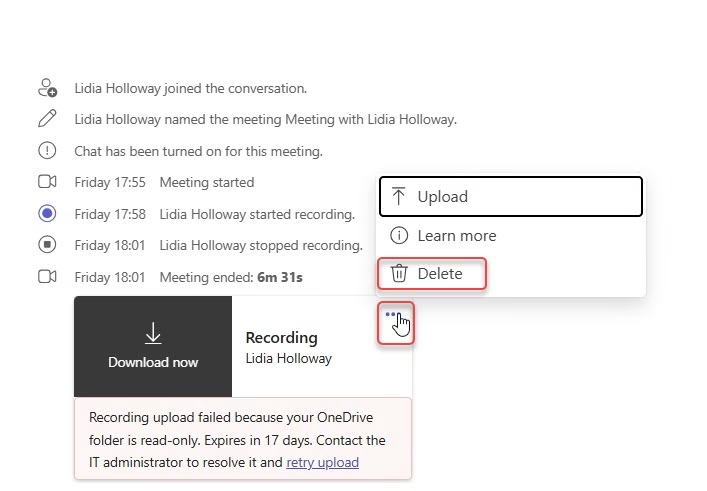
Note: This only works if you’re the recording owner or organizer. If the option doesn’t show up, move to Method 2.
This method is handy for quick cleanup right after a meeting — before you even need to go digging through OneDrive.
Method 2: Delete a Teams Recording from OneDrive (Non-Channel Meetings)
This is the most common method for regular meetings that weren’t held in a Teams channel.
Step 1 — Open OneDrive inside Teams:
- In Teams, click on OneDrive from the left sidebar (it may appear as an app icon or under the
...More apps menu). - Click My files.
- Open the Recordings folder — this is where all your non-channel meeting recordings land automatically.
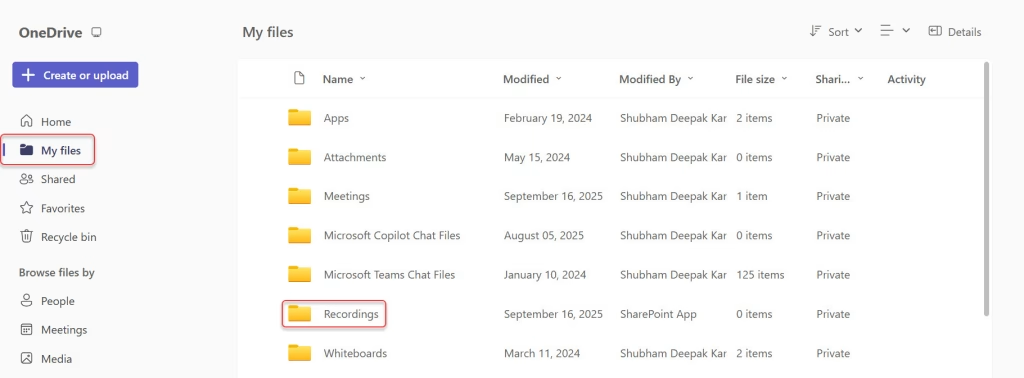
Step 2 — Delete the recording:
- Find the recording you want to remove.
- Hover over it. You’ll see a More Actions button (three dots
...). - Click it, then select Delete.
- Confirm the deletion.
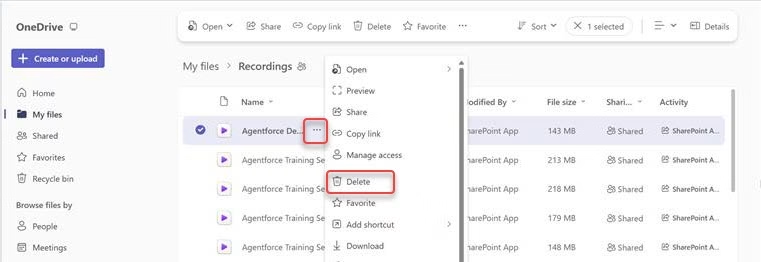
The file moves to the Recycle Bin in OneDrive — it won’t disappear permanently right away. If you accidentally delete something, you have a window to recover it from there.
Alternatively, go directly to OneDrive on the web:
- Visit onedrive.live.com or go to office.com and open OneDrive.
- Navigate to My files > Recordings.
- Select the recording, click Delete from the top toolbar or right-click menu.
This works great if you’re doing a bulk cleanup. You can select multiple recordings at once and delete them all in one go.
Method 3: Delete a Recording from SharePoint (Channel Meetings)
If the meeting was held in a Teams channel, the recording doesn’t go to OneDrive—it goes to the channel’s SharePoint library instead.
Here’s how to find and delete it:
- Go to the Teams channel where the meeting was held.
- Find the meeting post or recording link in the channel conversation.
- Click the recording link — this will open it in SharePoint in your browser.
- Once it’s open, look for the file options (either at the top toolbar or by right-clicking the file in the library).
- Select Delete and confirm.
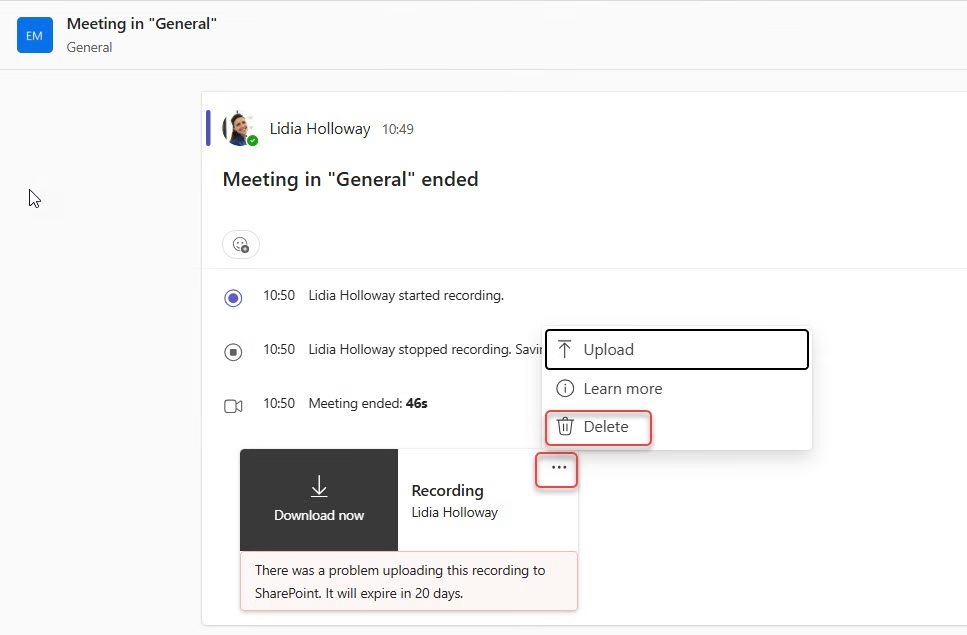
Or, if you want to go directly through SharePoint:
- Open the Teams channel and click Files at the top tab.
- Look for a Recordings subfolder.
- Select the recording, and choose Delete from the toolbar.
Channel meeting recordings are accessible to all channel members, but only organizers and co-organizers can delete them.
What Happens When You Delete a Recording?
A few things to keep in mind after you hit delete:
- The recording moves to the Recycle Bin (OneDrive or SharePoint) — it’s not gone immediately.
- From the Recycle Bin, it gets permanently deleted after 93 days (OneDrive default) unless you empty the bin manually or an admin clears it sooner.
- If your organization has a Microsoft Purview retention policy set up, you may not be able to delete the recording at all — the policy overrides individual actions.
- Deleting the recording does not automatically delete the transcript. If you want to remove the transcript too, you’ll need to do that separately.
Do Teams Recordings Delete Themselves Automatically?
Yes — but only if the recording owner doesn’t change the expiry date.
By default:
- Meeting recordings expire after 60 days (the setting can vary based on your organization’s admin policy).
- After expiry, the file is moved to the Recycle Bin, then permanently deleted.
If you want to keep a recording longer, open the recording in OneDrive, go to its details, and extend the expiration date manually.
If you want it gone sooner, just delete it using one of the methods above. No need to wait.
Can’t Delete a Teams Recording? Try These Fixes
Sometimes the delete option just doesn’t show up. Here’s why that might happen and what to do:
- You’re not the organizer or co-organizer — Only they can delete recordings. Contact the meeting organizer directly.
- A retention policy is blocking deletion — Your IT admin may have a Purview policy that prevents deletion for compliance reasons. You’ll need to raise a ticket with your admin.
- The recording is owned by someone else — Teams shows the recording owner’s name in the meeting chat. Reach out to that person.
- The recording is in SharePoint, but you don’t have edit permissions — Ask the SharePoint site owner or Teams channel owner to grant you edit access.
Quick Reference: Which Method to Use
| Scenario | Where to Delete |
|---|---|
| Regular (non-channel) meeting recording | OneDrive > My files > Recordings |
| Channel meeting recording | SharePoint > Channel Files > Recordings |
| Recording link visible in meeting chat | Right-click the card in Teams Chat |
| Admin needs to remove a recording | Teams Admin Center or Purview |
Final Tips Before You Delete
- Always double-check the recording name and date before deleting — especially if multiple meetings have similar names.
- If you think you might need the recording later, download a copy before deleting.
- If you’re an admin managing recordings org-wide, use the Teams Admin Center and Microsoft Purview to set up proper retention and deletion policies instead of doing it file by file.
- Deleting a recording does not affect the meeting chat, notes, or any other content — only the video file (and transcript, if you delete that separately).
That’s everything you need to know about deleting meeting recordings in Microsoft Teams. I hope you now have some idea or methods to do step by step.
Also, you may like:
- Find Microsoft Teams ID [Team ID, Channel ID, User ID & Meeting ID]
- Record a Video on Microsoft Teams Longer Than 1 Minute
- Turn Off Microsoft Teams Email Notifications
- Archive Files in Microsoft Teams
- Turn On Translate in Microsoft Teams Meeting

Hey! I’m Bijay Kumar, founder of SPGuides.com and a Microsoft Business Applications MVP (Power Automate, Power Apps). I launched this site in 2020 because I truly enjoy working with SharePoint, Power Platform, and SharePoint Framework (SPFx), and wanted to share that passion through step-by-step tutorials, guides, and training videos. My mission is to help you learn these technologies so you can utilize SharePoint, enhance productivity, and potentially build business solutions along the way.