
If you’ve ever finished a Teams meeting and wished you had recorded it, maybe because someone important missed it, or you just couldn’t keep up with the notes, this guide is for you.
Recording a Teams meeting is easier than most people think. In this tutorial, I’ll walk you through every method: recording on desktop, mobile, setting up auto-recording, finding your recordings after the meeting, and a few things that often trip people up.
Let’s get into it.
Before You Start: What You Actually Need
Before you hit that record button, there are a few things worth checking. Recording in Teams isn’t available to everyone by default — it depends on your license and admin settings.
License requirements:
- You need one of these Microsoft 365 licenses: Office 365 Enterprise E1, E3, E5, F3, A1, A3, A5, Microsoft 365 Business Basic, Business Standard, Business Premium, or Essentials.
- As of December 2025, Microsoft 365 Personal and Family subscribers can also record calls and meetings — this is a relatively new change.
- The free version of Teams (without a paid subscription) does not support recording in most cases.
A few other things to keep in mind:
- Your IT admin must have cloud recording enabled for your account.
- You cannot record if you’re a guest in someone else’s organization.
- External (federated) users can record calls but not meetings.
- The meeting organizer doesn’t need to be in the meeting for the recording to happen — anyone from the same org with the right license can start it.
If you’re unsure whether recording is enabled for your account, check with your IT admin first. It’ll save you the frustration of clicking “Record” and seeing nothing happen.
Record Microsoft Teams Meeting
Let’s discuss 3 different methods.
Method 1: Record a Teams Meeting on Desktop
This is the most common scenario: you’re on a laptop or PC, in a meeting, and you want to start recording. Here’s how it works.
Steps:
- Start or join your Teams meeting.
- In the meeting controls at the top (or bottom, depending on your Teams version), click the three-dot menu — that’s the “More actions” button.
- Hover over Record and transcribe.
- Click Start recording.
- A confirmation dialog will pop up. Click Confirm.
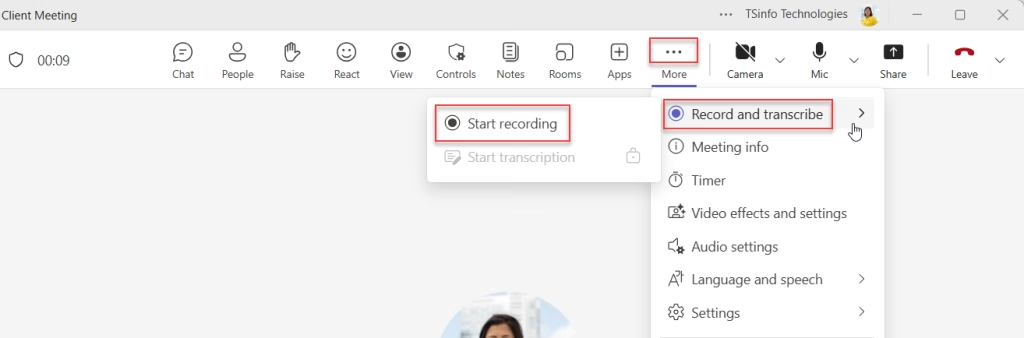
That’s it. Everyone in the meeting will immediately see a notification that the recording has started. There’s no sneaky recording in Teams — it’s always transparent.
To stop recording:
- Click the three-dot menu again.
- Go to Record and transcribe → Stop recording.
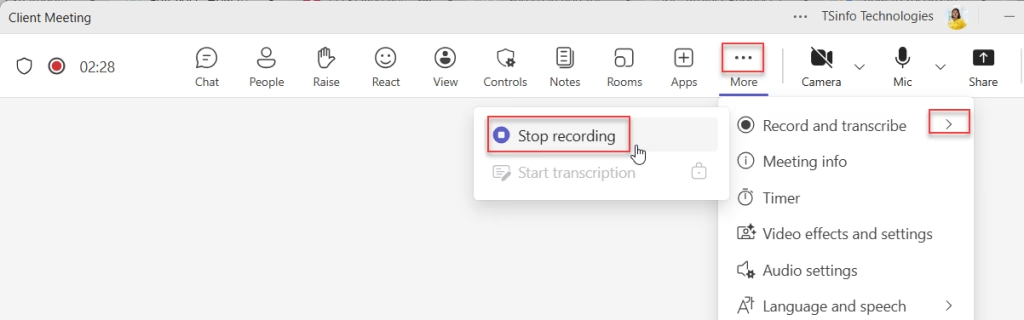
The recording will then be automatically processed and saved. You don’t need to do anything else.
Method 2: Record Audio Only (New Feature) in Teams
This is a newer option that not everyone knows about. If you don’t need the video feed — maybe it’s a large meeting with many participants, and you just want the audio — Teams now lets you record audio-only.
Steps:
- In your meeting controls, click More actions (three dots).
- Go to Record and transcribe → Start recording.
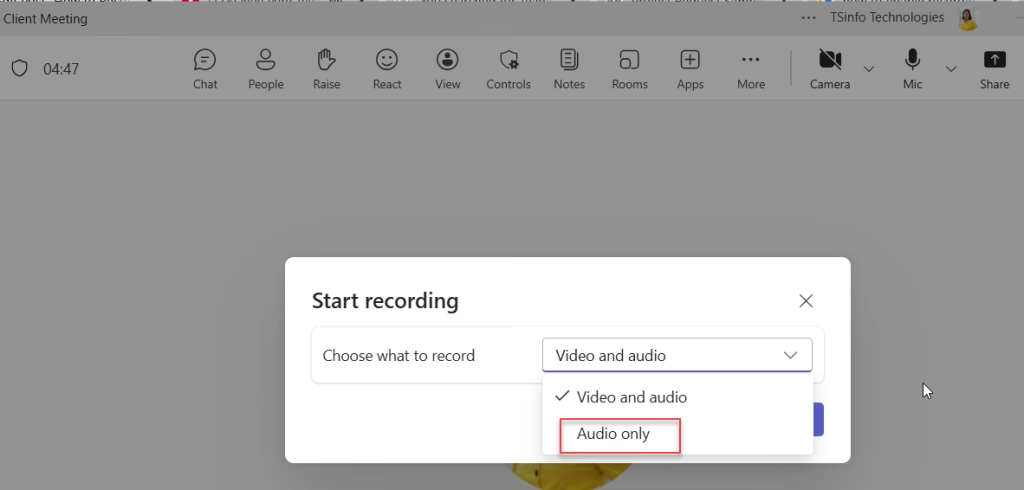
- Before confirming, click More options.
- In the Choose what to record dropdown, select Audio only.
- Click Confirm, then Start recording.
This creates a smaller MP4 file that only captures the audio track, not the video feeds. It’s handy for long meetings where you just need a playback reference without a huge file size.
Method 3: Record a Teams Meeting on Mobile
Recording from the Teams mobile app works similarly, just with a slightly different interface.
Steps:
- Open the Teams app on your phone and join or start a meeting.
- Tap the three-dot menu (More actions) in the meeting controls.
- Tap Start recording.
You’ll see a notification that recording has begun, just like on desktop.
To stop recording:
- Tap the three-dot menu again → Stop recording.
The recording is automatically saved to the cloud after the meeting ends. You can access it from the meeting chat.
Note: Make sure your Teams mobile app is up to date. Recording behavior can differ slightly on older versions of the app.
Where Do Recordings Go After the Meeting?
This is one of the most common questions I hear. The short answer: recordings save to OneDrive or SharePoint, depending on the type of meeting.
Here’s the breakdown:
| Meeting Type | Where Recording Saves |
|---|---|
| Regular (non-channel) meeting | Organizer’s OneDrive for Business, inside a “Recordings” folder |
| Channel meeting | SharePoint site for that Team, inside Documents → Recordings folder |
| 1:1 or group call | OneDrive of the person who clicked “Record” |
| Webinar / Town Hall | Organizer’s OneDrive (then SharePoint Embedded if published via VOD) |
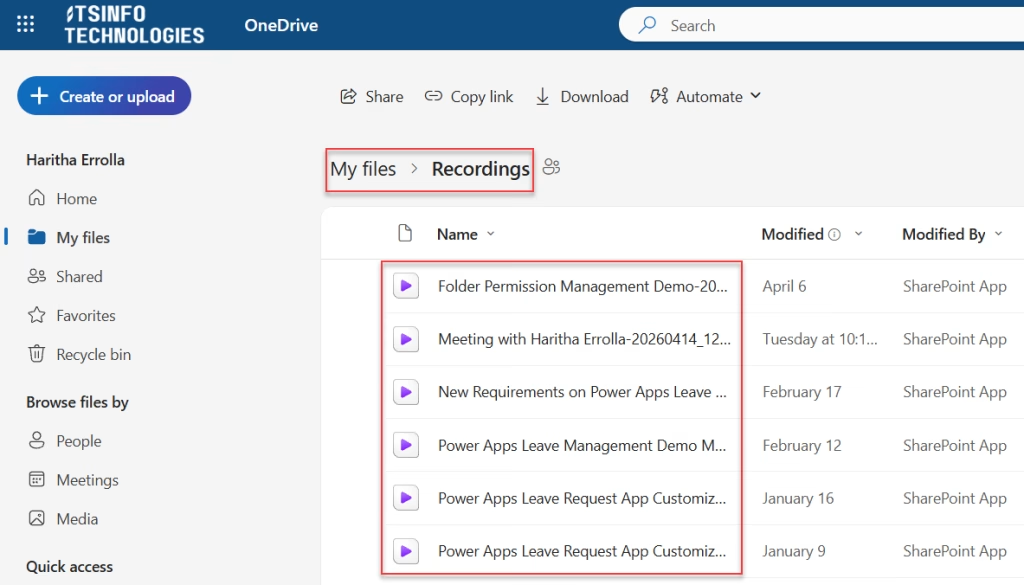
After the meeting, the recording will also appear in the meeting chat — so every participant can access it directly from Teams without hunting through OneDrive.
You can also find recordings by:
- Opening your Teams Calendar, clicking on the past meeting, and checking the recap.
- Navigate directly to your OneDrive → Recordings folder.
- Going to the Files tab inside a Teams channel (for channel meetings).
Recording Expiration: Don’t Lose Your Recording
Here’s something that catches people off guard. By default, Teams meeting recordings have an expiration date set by your admin. Once it expires, the file gets deleted.
You can change or remove the expiration yourself — here’s how:
- Find the recording in the meeting chat.
- Click the link to open it in the video player.
- Below the video, you’ll see an expiration countdown. Click it.
- Choose a new timeframe from the dropdown, or select Remove expiration to keep it indefinitely.
You need edit permissions on the recording to change the expiration. Typically, the meeting organizer and co-organizers have this by default.
If the recording does expire, don’t panic immediately — the owner gets an email notification, and you have up to 90 days to recover it from the recycle bin.
Who Can Start and Stop a Recording?
This trips up a lot of people, so here’s a quick reference:
| User Type | Can Start Recording? | Can Stop Recording? |
|---|---|---|
| Meeting organizer | ✅ Yes | ✅ Yes |
| Person from the same organization | ✅ Yes (with license) | ✅ Yes |
| Person from another organization | ❌ No | ❌ No |
| Guest | ❌ No | ❌ No |
| Anonymous user | ❌ No | ❌ No |
One important note: if the person who started the recording leaves the meeting, the recording continues. It doesn’t stop just because they left. The recording auto-stops when everyone leaves — and if the meeting somehow runs very long, it will automatically end and restart every four hours until the last participant leaves.
What Gets Captured (and What Doesn’t)
Teams recording captures:
- Audio from all participants
- Video feeds (up to four people’s streams at once)
- Screen sharing activity
Teams recording does not capture:
- More than four video streams at a time
- Whiteboards and annotations
- Shared meeting notes
- Content shared via apps
- Videos or animations inside PowerPoint Live presentations
If you’re using Teams in a meeting with a lot of visual content like whiteboards or embedded videos, just be aware those won’t show up in the recording. Let participants know in advance if they need to save those separately.
Sharing the Recording With Others
Once the recording is saved to OneDrive or SharePoint, you can share it like any other file.
- For internal sharing, the recording is already visible in the meeting chat to invited participants.
- For guests and external users, you need to explicitly share the OneDrive or SharePoint link with them — they won’t see it in chat automatically.
- Only the meeting organizer and co-organizers can download or delete the recording by default.
If you’re sharing with someone outside your org, go to the recording in OneDrive, click Share, and either send them a direct link or add their email. You can control whether they can view, download, or edit.
Common Issues and Quick Fixes
“I don’t see the Record option in my meeting controls.”
This usually means recording isn’t enabled for your account. Contact your IT admin to check your Teams recording policy.
“I started recording but the file never appeared.”
Give it a few minutes after the meeting ends — recordings take a bit of time to process. Check OneDrive and the meeting chat.
“The recording is in someone else’s OneDrive and I can’t access it.”
Ask the person who clicked “Record” (or the meeting organizer) to share the file with you directly.
“I’m a guest and I need to record.”
Unfortunately, guests can’t record Teams meetings. Your best option is to ask the meeting organizer to record it on your behalf.
“I can’t find the recording in the channel.”
For channel meetings, go to the channel’s Files tab → Documents → Recordings folder. It should be there.
Quick Recap: Which Method Should You Use?
- Manual recording on desktop — best for most meetings when you’re the organizer or presenter.
- Audio-only recording — great for long meetings where you just need a voice reference.
- Mobile recording — useful when you’re on the go and need to capture an impromptu meeting.
- Auto-recording — ideal for recurring meetings like team standups or training sessions where you always want a record.
Recording Teams meetings is actually very simple—it just takes a few seconds to start, but it can save you a lot of time later. You won’t have to think, “What did we decide in that meeting?” because everything is recorded. Once you start using it regularly, it becomes really helpful and hard to go without.
Also, you may like:
- 4 Tricky Ways to Change Password in Microsoft Teams
- Send a Microsoft Teams Invite
- Create an Announcement in Microsoft Teams
- Microsoft Teams Default Profile Picture: How to Change It

Hey! I’m Bijay Kumar, founder of SPGuides.com and a Microsoft Business Applications MVP (Power Automate, Power Apps). I launched this site in 2020 because I truly enjoy working with SharePoint, Power Platform, and SharePoint Framework (SPFx), and wanted to share that passion through step-by-step tutorials, guides, and training videos. My mission is to help you learn these technologies so you can utilize SharePoint, enhance productivity, and potentially build business solutions along the way.