
If you’ve built even one Power Apps canvas app, you already know that adding and editing records is straightforward. But deleting them? That’s where most people get stuck, or worse, they write a formula that silently does nothing.
In this tutorial, I’m going to walk you through everything you need to know about the Remove function in Power Apps. I’ll cover how it works, when to use it, how it differs from RemoveIf, and I’ll show you real, copy-paste-ready examples you can drop straight into your app.
Let’s get into it.
Power Apps Remove Function
The Remove function in Power Apps is used to delete one or more specific records from a data source. That data source can be a SharePoint list, a Dataverse table, an Excel table, or even an in-memory collection.
Think of it like clicking the delete button in Excel, except you’re doing it programmatically through a formula.
Here’s the basic syntax:
Remove(DataSource, Record)
- DataSource – the table or list you’re deleting from
- Record – the exact record you want to remove
The key thing to understand here is that Remove() needs to know the exact record you want to delete. It doesn’t work with conditions. If you want to delete based on a condition (like “delete all tasks marked as complete”), you’ll need RemoveIf() — which I’ll cover later.
Method 1: Remove a Selected Record from a Power Apps Gallery
This is the most common use case: you have a Power Apps gallery showing records from a SharePoint list, and you want a delete button or trash icon next to each row.
Here’s how you set it up:
Step 1: Connect your SharePoint list as a data source. Let’s say your list is called ProjectDetails.
Step 2: Add a Gallery control and set its Items property to:
Items = ProjectDetails
Step 3: Inside the gallery, insert a Trash icon (or a button labeled “Delete”). Set its OnSelect property to:
Remove(ProjectDetails, ThisItem)
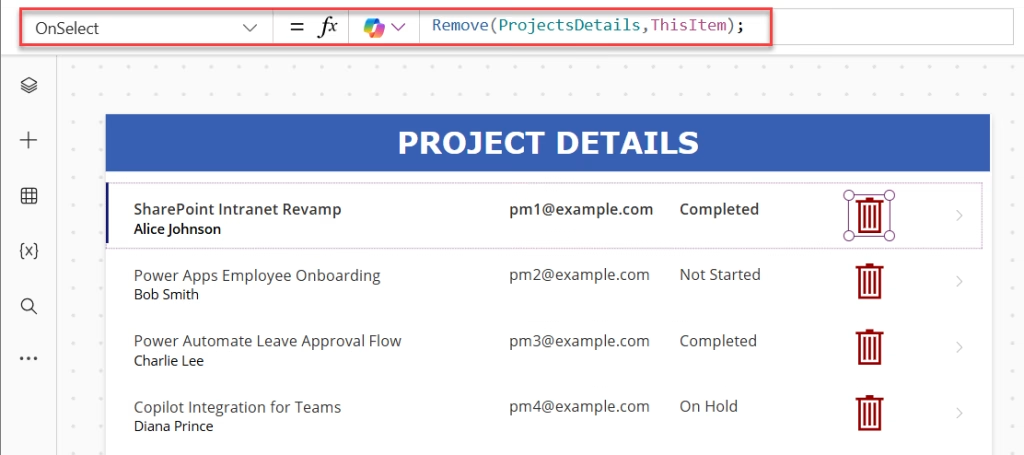
That’s it. ThisItem refers to the current row in the gallery, the one the user clicked. When someone taps the trash icon next to a task, that exact record gets deleted from the SharePoint list.
Why does this work?
Because Power Apps galleries keep track of each row’s full record context through ThisItem. So when you pass ThisItem into Remove(). It passes the entire record, including the ID, which Power Apps uses behind the scenes to find and delete the right row.
Method 2: Remove a Record from a Power Apps Detail or Edit Screen
Sometimes you’re not in a gallery. You’re on an edit screen and want a “Delete Record” button that removes the record the user is currently viewing.
Set the Power Apps button’s OnSelect property to:
Remove(ProjectsDetails, EditForm1.LastSubmit);
Navigate(BrowseScreen1)
Or if you’re using Gallery1.Selected to track which record is open:
Remove(ProjectsDetails, Gallery1.Selected);
Navigate(ProjectDetailsScreen)
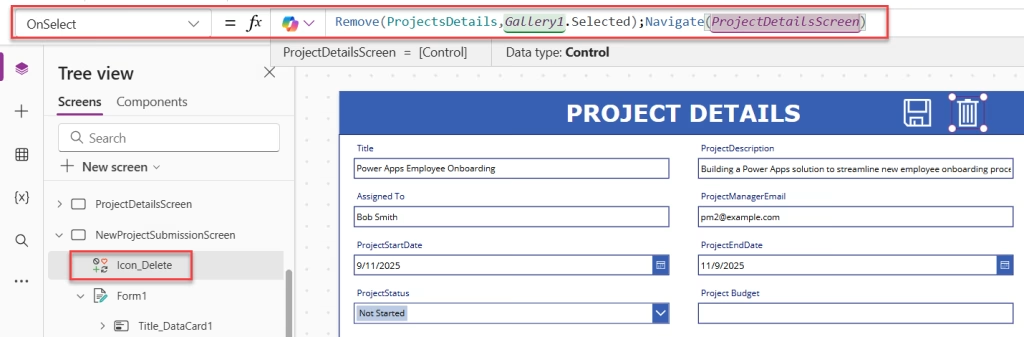
After the deletion, the Navigate() call takes the user back to the browse/list screen. Always good UX practice to navigate away after a delete, otherwise the user is staring at a blank edit form.
Method 3: Add a Confirmation Popup Before Deleting in Power Apps
One thing I always recommend: never let users delete records without confirming first. Accidental deletes are a real problem, especially in shared apps.
Here’s a simple way to add a confirmation step using a variable:
Step 1: Add a container or a group of controls that acts as your “Are you sure?” pop-up. Set its Visible Property to a variable:
Visible = varShowDeleteConfirm
Step 2: Add a trash icon. Instead of directly calling Remove(), set it to show the pop-up:
OnSelect = UpdateContext({varShowDeleteConfirm: true})
Step 3: On the Confirm button inside the pop-up:
OnSelect = Remove(TaskTracker, Gallery1.Selected);
UpdateContext({varShowDeleteConfirm: false});
Navigate(BrowseScreen1)
Step 4: On the Cancel button:
OnSelect = UpdateContext({varShowDeleteConfirm: false})

This approach is clean, simple, and saves users from themselves. It takes maybe 10 extra minutes to set up, and it’s 100% worth it.
Method 4: Power Apps RemoveIf Delete Records Based on a Condition
Now let’s talk about RemoveIf(). This function is your go-to when you want to delete multiple records at once based on a condition — rather than a single record.
Syntax:
RemoveIf(DataSource, Condition)
Example 1: Delete all completed tasks
Let’s say your ProjectDetails list has a ProjectStatus column. You want a “Clear Completed” button that removes all rows where ProjectStatus is “Complete”:
RemoveIf(colProjectDetails,ProjectStatus.Value = "Completed")
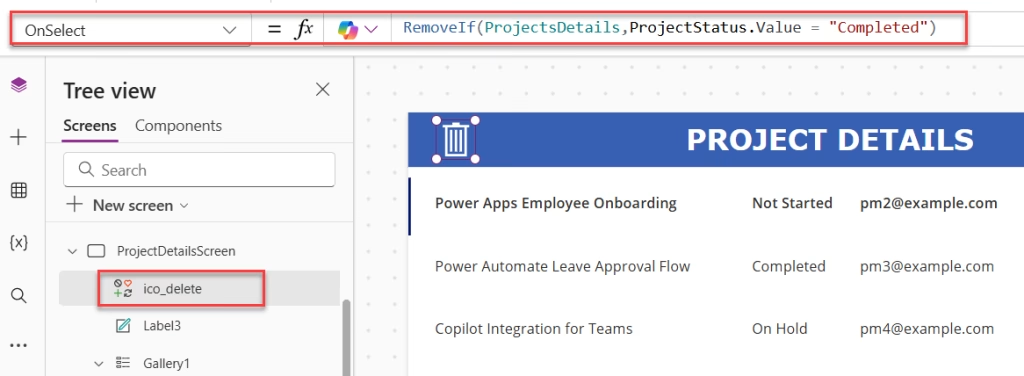
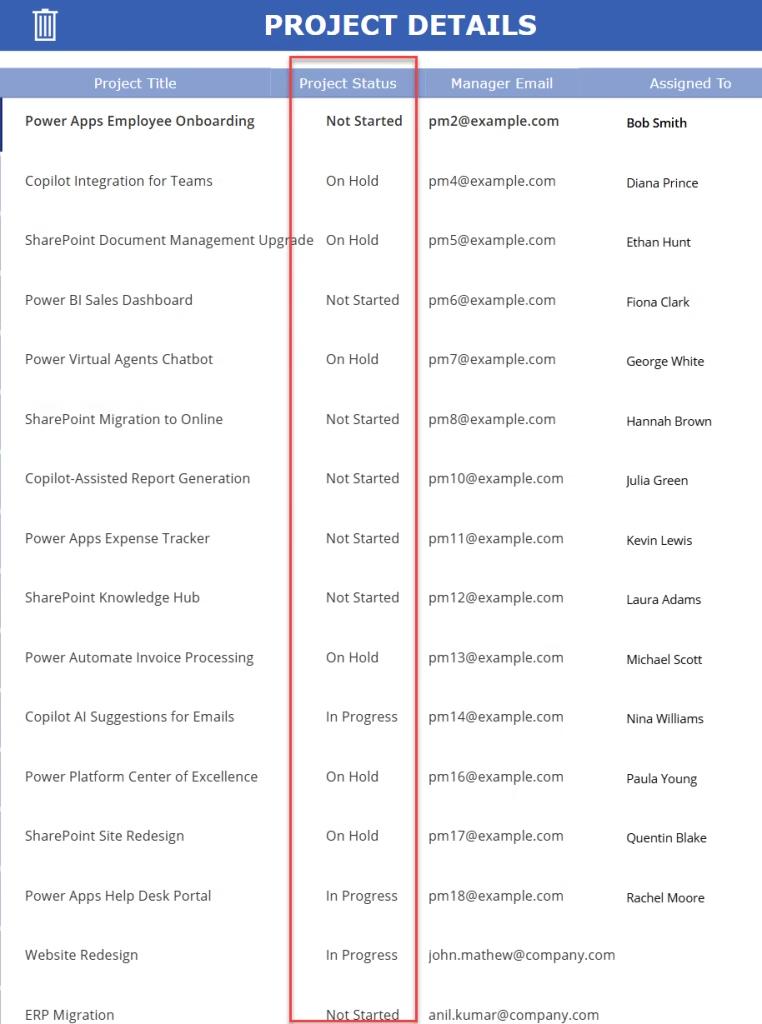
Done. Power Apps will loop through every row in ProjectDetails, evaluate the condition, and delete any row where the Status value equals “Complete.” Look at the image below; there is no record where the ProjectStatus matches “Complete.”
Example 2: Delete records with multiple conditions
You can stack conditions. Both must be true for a record to be deleted:
RemoveIf(ProjectDetails, Status = "Complete", AssignedTo = "John")
This deletes only tasks that are both complete AND assigned to John. It’s essentially an AND condition; all conditions must be true.
Example 3: Delete records where a number meets a threshold
RemoveIf(EmployeeList, Age < 18)
Simple and practical, removes all employees under 18 from the list.
Method 5: Remove Records from a Power Apps Collection
Power Apps Collections are temporary, in-memory tables that live only while your app is running. They don’t connect to a live data source unless you explicitly push changes to one.
You can use Remove() with collections just like with SharePoint lists.
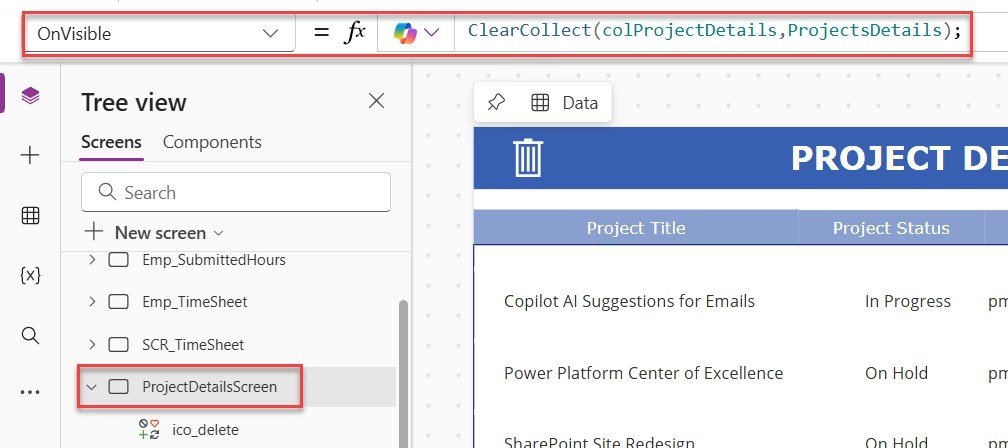
Set up a collection first:
ClearCollect(colProjectDetails,ProjectsDetails);
Remove a selected item from the collection:
Remove(colProjectDetails, Gallery1.Selected)
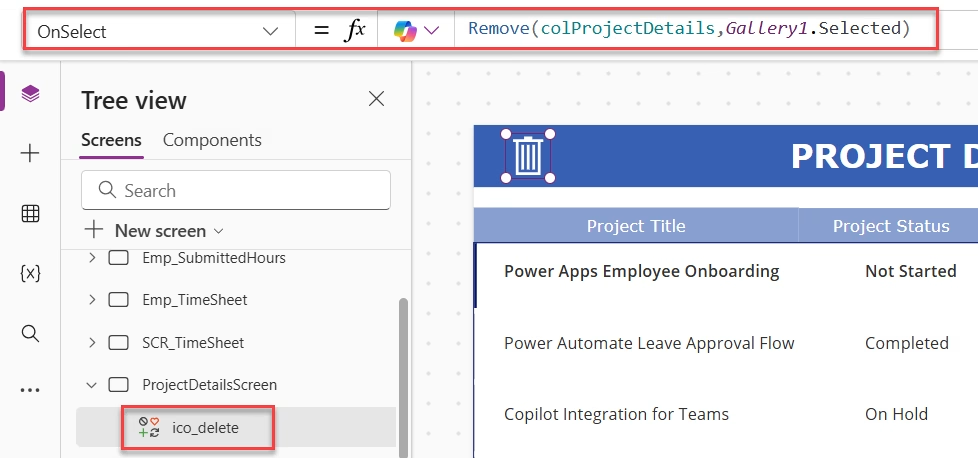
Important: Removing from a collection does NOT automatically delete from the underlying SharePoint list. You’re only modifying the in-memory copy. If you want changes to reflect back in SharePoint, you need a separate Patch() or Remove() Call on the actual data source.
Method 6: Power Apps Remove Multiple Specific Records Using ForAll
What if you want to remove a bunch of records, but not based on a simple condition, maybe you have a checkbox system where users select multiple rows to delete?
Here’s how to handle batch deletion using Power Apps ForAll Function:
Step 1: When a user checks a checkbox in your gallery, add that row to a collection:
OnCheck = Collect(colSelectedProjects, ThisItem)
OnUnCheck = RemoveIf(colSelectedProjects, ID = ThisItem.ID)
Default = ThisItem.ID in colSelectedProjects.ID
Step 2: On a “Delete Selected” button:
ForAll(
    colSelectedProjects,
    With(
        {varID: ThisRecord.ID},
        Remove(
            ProjectsDetails,
            LookUp(ProjectsDetails, ID = varID)
        )
    )
)
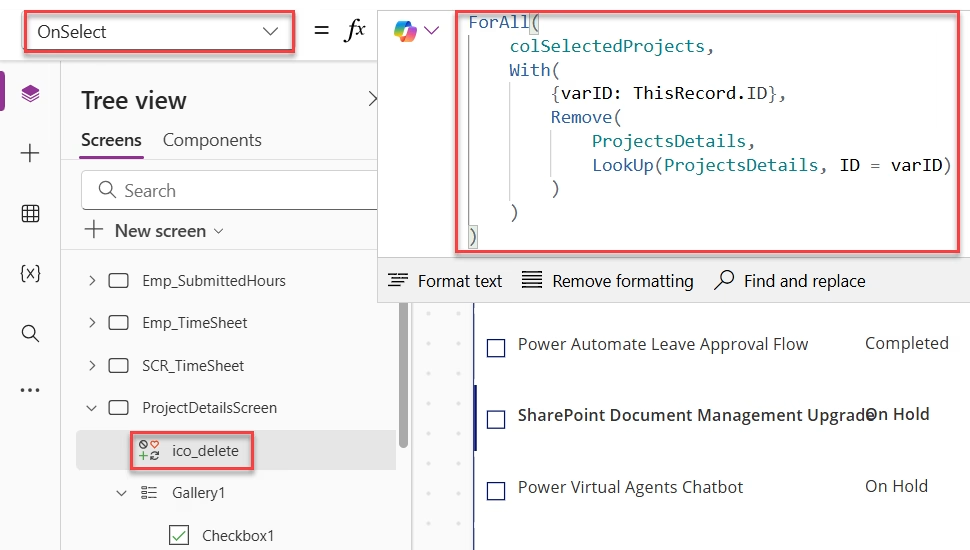
This loops through every record in colSelectedProjects and removes the matching row from ProjectsDetails.
Power Apps Remove vs RemoveIf
Here’s a simple way to decide which one to use:
| Scenario | Use This |
|---|---|
| Delete the row the user clicked | Remove(DataSource, ThisItem) |
| Delete the record open on an edit screen | Remove(DataSource, Gallery1.Selected) |
| Delete all rows matching a condition | RemoveIf(DataSource, Condition) |
| Delete rows matching multiple conditions | RemoveIf(DataSource, Condition1, Condition2) |
| Delete a row from a collection | Remove(CollectionName, Record) |
| Delete all rows from a collection | Clear(CollectionName) |
Common Errors and How to Fix Them
1. “The function ‘Remove’ has some invalid arguments.”
This usually happens when you’re passing a value (like a text string or ID number) instead of an actual record. Remove() needs the full record — not just the ID. Use LookUp() to fetch the record first:
Remove(TaskTracker, LookUp(TaskTracker, ID = selectedID))
2. Nothing happens when you click delete
Check two things:
- Make sure your data source is connected and not in an offline/delegated error state
- Make sure you’re calling
Remove()on the correct data source name (it’s case-sensitive)
3. Deleting from a collection removes SharePoint records, too
This happens when your gallery items are set directly to the SharePoint list, not a collection. If you Remove() delete from the list, it deletes from SharePoint. If you want local-only deletion, first ClearCollect() the list into a collection and work with that.
4. “Delegation warning” on RemoveIf
Power Apps can delegate some filter operations to the data source, but not always. If you see a delegation warning on RemoveIf, it means Power Apps might only process the first 500 (or 2000) records locally. To avoid this, try to filter your data first with a delegable query and then apply RemoveIf on the filtered set.
Wrapping Up
The Remove Function is one of those Power Apps basics that seems simple on the surface, but has a few quirks that trip people up. Once you understand that Remove() wants the full record (not just an ID) and that RemoveIf() is your batch-delete tool, the whole thing clicks into place.
Start with the simple gallery delete pattern, add a confirmation pop-up, and you’ve already covered 90% of real-world use cases. From there, RemoveIf and ForAll handle the rest.
Also, you may like:
- Patch Gallery Items in Power Apps
- Power Apps First Function
- 8 Various Ways to Use The Patch Function in Power Apps
- String Interpolation in Power Apps
- Get Collection Column Names in Power Apps
- Connect Default User Information List in Power Apps

Hey! I’m Bijay Kumar, founder of SPGuides.com and a Microsoft Business Applications MVP (Power Automate, Power Apps). I launched this site in 2020 because I truly enjoy working with SharePoint, Power Platform, and SharePoint Framework (SPFx), and wanted to share that passion through step-by-step tutorials, guides, and training videos. My mission is to help you learn these technologies so you can utilize SharePoint, enhance productivity, and potentially build business solutions along the way.

