
While working on a SharePoint Framework project for one of our clients, we were required to build a carousel web part to display company updates, internal communications, and related content.
Here, the main requirement is that, for this web part, we need to allow users to choose which slides to display in the carousel. For the best practices, I took reference from the SharePoint Hero web part.
As you can see in the property pane, after selecting the SharePoint list and fields, the information was displayed under the slides. I can now easily drag and drop to reorder which slide needs to be visible first. Also, through menu items, I can move up or down. Additionally, I can remove the slides I don’t want displayed in the web part and even restore them.

In this tutorial, we’ll build a custom slide manager inside the SPFx property pane, similar to the SharePoint Hero web part.
By the end of this article, you’ll learn how to:
- Show dynamic items (slides) inside the property pane
- Reorder slides using drag and drop
- Move slides up or down
- Temporarily remove slides without deleting list items
- Restore hidden slides later
- Keep everything in sync with the web part UI
You can reuse this in carousels, banners, hero sections, and announcement web parts.
Want to learn SharePoint Framework development? Check out the SPFx training course.
Build a Slide Manager in SPFx Property Pane Using React
Before starting the implementation, let’s have a look at the SharePoint list I took for this SPFx web part. We’ll mainly focus on how to manage the slides on the SPFx web part property pane.
Below is the SharePoint list named “Company Announcements” having the following fields:
- Title = Default title field.
- Announcement Image = Image field.
- Announcement Link = Hyperlink field.

This way, im storing the announcement information for the SPFx web part.
Now, look at the SPFx web part property pane example below. I gave some configurations.
- Select List or Library = This dropdown lets you choose a SharePoint list or library available on the SharePoint site.
- Number of Items to Display = Allows selection of the number of items to display in the carousel web part.
- Title Field = Allows selection of the Image Title field.
- Image Field = Allows selection of an image field.
- Link Field = Allows selection of the Hyperlink field.
- Autoplay = Control the carousel’s moving slides.
- Slides = To display the items from the SharePoint list that are going to be visible in the web part. Here, we can drag and drop, move slides up and down, and either remove or restore slides.
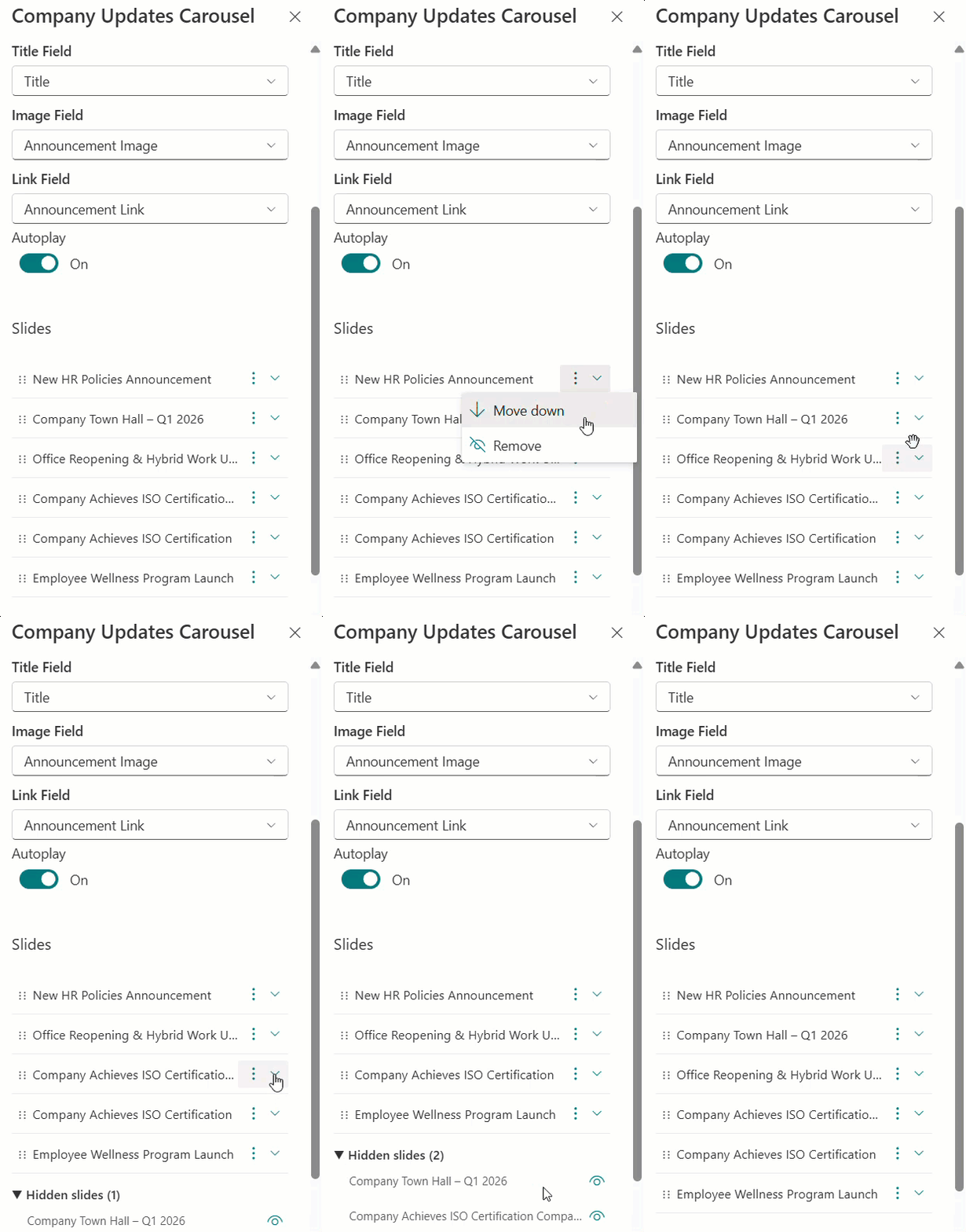
Now let’s see the implementation.
I hope by this time, you know how to create an SPFx web part with the React framework; if not, follow this article.
- Once the web part is created, run the following npm command to install the PnPJS.
npm install @pnp/sp --saveWe are using this to interact with the SharePoint list for fetching items.
- Run the command below to install PnP Property pane controls; this will auto-populate SharePoint lists, fields, etc.
npm install @pnp/spfx-property-controls --save- After that, open the Props.ts file and add the following code.
export interface ISpFxCarouselProps {
  description: string;
  isDarkTheme: boolean;
  environmentMessage: string;
  hasTeamsContext: boolean;
  userDisplayName: string;
  autoplayEnabled: boolean;
}- Then, we need to create some folders and files for the slides management in the property pane. So, as shown in the image below, add the folders and files.
- models [Folder] = Under this path “src/webparts/spFxCarousel/”
- ISlidesConfig.ts [File] = In this path “src/webparts/spFxCarousel/models/”
- propertyPane [Folder] = Under this path “src/webparts/spFxCarousel/”
- ISlidesConfig.ts [File] = In this path “src/webparts/spFxCarousel/propertyPane/”
- PropertyPaneSlidesManager.ts [File] = In this path “src/webparts/spFxCarousel/propertyPane/”
- SlidesManager.tsx [File] = In this path “src/webparts/spFxCarousel/propertyPane/”
- models [Folder] = Under this path “src/webparts/spFxCarousel/”

- Open the ISlideConfig.ts file located in the models folder.
export interface ISlideConfig {
  id: number;
  visible: boolean;
}- id: The SharePoint list item ID (matches the “Id” column)
- visible: true = slide is shown in the carousel, false = slide is hidden
- Then, open the ISlidesManagerProps.ts file located in the propertyPane folder.
import { ISlideConfig } from '../models/ISlidesConfig';

export interface ISlidesManagerProps {
  slidesConfig: ISlideConfig[];
  allItems: { id: number; title: string }[];
  onConfigChanged: (config: ISlideConfig[]) => void;
}
Here:
- This file stores the Props interface for the SlidesManager React component.
- These props are passed from PropertyPaneSlidesManager.ts when the component is created.
- slidesConfig = Current slide order and visibility (from web part properties)
- allItems = All items fetched from the SharePoint list (used to display titles)
- onConfigChanged = Callback to save changes back to the web part property bag
- Add the code below to the PropertyPaneSlidesManager.ts file located in the propertyPane folder.
import * as React from 'react';
import * as ReactDom from 'react-dom';
import {
  IPropertyPaneField,
  IPropertyPaneCustomFieldProps,
  PropertyPaneFieldType
} from '@microsoft/sp-property-pane';
import { SlidesManager } from './SlidesManager';
import { ISlidesManagerProps } from './ISlidesManagerProps';
import { ISlideConfig } from '../models/ISlidesConfig';


export interface IPropertyPaneSlidesManagerConfig {
  key: string;
  slidesConfig: ISlideConfig[];
  allItems: { id: number; title: string }[];
  onConfigChanged: (config: ISlideConfig[]) => void;
}

export function PropertyPaneSlidesManager(
  config: IPropertyPaneSlidesManagerConfig
): IPropertyPaneField<IPropertyPaneCustomFieldProps> {

  return {

    type: PropertyPaneFieldType.Custom,
    targetProperty: 'slidesConfig',

    properties: {
      key: config.key,
      onRender: (elem: HTMLElement) => {
        const el = React.createElement(SlidesManager, {
          slidesConfig: config.slidesConfig,
          allItems: config.allItems,
          onConfigChanged: config.onConfigChanged
        } as ISlidesManagerProps);

        ReactDom.render(el, elem);
      },

      onDispose: (elem: HTMLElement) => {
        ReactDom.unmountComponentAtNode(elem);
      }
    }
  };
}
Here:
- This file defines the config interface for creating this custom property pane field.
- IPropertyPaneSlidesManagerConfig:
- key = Unique key for the property pane field (required by SPFx)
- slidesConfig = Current slide order and visibility
- allItems = All SharePoint list items (id + title)
- onConfigChanged = Callback when user changes slide order or visibility
- PropertyPaneSlidesManager() = Creates a custom SPFx property pane field.
- Because SPFx only supports built-in fields (dropdowns, toggles, etc.) by default.
- To render our own React component (SlidesManager) inside the property pane,
- we use PropertyPaneFieldType.Custom and manually mount the React component.
- type: PropertyPaneFieldType.Custom = Tell SPFx that this is a custom field, not a built-in one.
- targetProperty: ‘slidesConfig’ = The web part property this field is associated with.
- onRender() under properties{} = Called by SPFx when the property pane needs to display this field.
- We create the SlidesManager React component and mount it into the provided DOM element.
- Then add the code below to the SlidesManager.tsx file present in the propertyPane folder.
import * as React from 'react';
import { ISlidesManagerProps } from './ISlidesManagerProps';
import { ISlideConfig } from '../models/ISlidesConfig';
import { IconButton } from '@fluentui/react/lib/Button';


interface IState {
  config: ISlideConfig[];
}

export class SlidesManager extends React.Component<ISlidesManagerProps, IState> {


  private dragIndex: number | null = null;
  private dragOverIndex: number | null = null;

  constructor(props: ISlidesManagerProps) {
    super(props);
    this.state = { config: props.slidesConfig.slice() };
  }


  public componentDidUpdate(prev: ISlidesManagerProps): void {
    if (JSON.stringify(prev.slidesConfig) !== JSON.stringify(this.props.slidesConfig)) {
      this.setState({ config: this.props.slidesConfig.slice() });
    }
  }


  public render(): JSX.Element {

    const visible: ISlideConfig[] = [];
    const hidden: ISlideConfig[] = [];

    for (const c of this.state.config) {
      c.visible ? visible.push(c) : hidden.push(c);
    }

    return (
      <div style={{ marginTop: 8 }}>


        {visible.map((c, index) => {

          let item = null;
          for (let i = 0; i < this.props.allItems.length; i++) {
            if (this.props.allItems[i].id === c.id) {
              item = this.props.allItems[i];
              break;
            }
          }
          if (!item) return null;

          return (
            <div
              key={c.id}
              draggable
              onDragStart={(e) => { this.dragIndex = index; e.dataTransfer.effectAllowed = 'move'; }}
              onDragEnter={() => this.dragOverIndex = index}
              onDragOver={(e) => { e.preventDefault(); e.dataTransfer.dropEffect = 'move'; }}
              onDrop={(e) => { e.preventDefault(); this.onDrop(); }}
              onDragEnd={() => { this.dragIndex = this.dragOverIndex = null; }}
              style={{
                display: 'flex',
                alignItems: 'center',
                padding: '6px 0',
                borderBottom: '1px solid #edebe9',
                cursor: 'grab'
              }}
            >

              <span style={{ padding: '0 6px', color: '#605e5c' }}>⋮⋮</span>

              {/* Slide title */}
              <span style={{
                flex: 1,
                fontSize: 13,
                overflow: 'hidden',
                whiteSpace: 'nowrap',
                textOverflow: 'ellipsis'
              }}>
                {item.title}
              </span>


              <IconButton
                iconProps={{ iconName: 'Hide3' }}
                title="Remove"
                onClick={() => this.hide(c.id)}
              />
            </div>
          );
        })}


        {hidden.length > 0 && (
          <div style={{ marginTop: 10 }}>
            <strong style={{ fontSize: 12 }}>Hidden slides</strong>

            {hidden.map(h => {

              let item = null;
              for (let i = 0; i < this.props.allItems.length; i++) {
                if (this.props.allItems[i].id === h.id) {
                  item = this.props.allItems[i];
                  break;
                }
              }
              if (!item) return null;

              return (
                <div key={h.id} style={{ fontSize: 13, marginTop: 4 }}>
                  {item.title}
                  <IconButton
                    iconProps={{ iconName: 'RedEye' }}
                    title="Show"
                    onClick={() => this.restore(h.id)}
                  />
                </div>
              );
            })}
          </div>
        )}
      </div>
    );
  }


  private onDrop = (): void => {
    if (this.dragIndex === null || this.dragOverIndex === null) return;
    if (this.dragIndex === this.dragOverIndex) {
      this.dragIndex = this.dragOverIndex = null;
      return;
    }

    const visible: ISlideConfig[] = [];
    const hidden: ISlideConfig[] = [];

    for (const c of this.state.config) {
      if (c.visible) visible.push(c);
      else hidden.push(c);
    }

    const dragged = visible.splice(this.dragIndex, 1)[0];
    visible.splice(this.dragOverIndex, 0, dragged);

    const newConfig = [...visible, ...hidden];

    this.update(newConfig);
    this.dragIndex = this.dragOverIndex = null;
  };


  private hide(id: number): void {
    const updated: ISlideConfig[] = [];

    for (const c of this.state.config) {
      updated.push(
        c.id === id ? { id: c.id, visible: false } : c
      );
    }

    this.update(updated);
  }


  private restore(id: number): void {
    const updated: ISlideConfig[] = [];

    for (const c of this.state.config) {
      updated.push(
        c.id === id ? { id: c.id, visible: true } : c
      );
    }

    this.update(updated);
  }

  private update(config: ISlideConfig[]): void {
    this.setState({ config });
    this.props.onConfigChanged(config);
  }
}
Here:
- This file is a SlidesManager React component rendered inside the SPFx property pane.
- It lets the user:
- See all visible slides in their current order
- Drag-and-drop to reorder visible slides
- Hide a visible slide (click the hide icon)
- Restore a hidden slide (click the eye icon)
- dragIndex, dragOverIndex =These store the index of the item being dragged and the index it’s hovering over.
- constructor() = Initialize state with a copy of the slidesConfig from props
- componentDidUpdate() = Sync state when props change from outside.
- render() = Splits config into visible and hidden slides, then renders both sections.
- onDrop() = Handles the drag-and-drop reorder when a slide is dropped.
- Takes the dragged item out of its old position and inserts it at the new position.
- The final config is: reordered visible slides first, then hidden slides.
- restore() = Sets a hidden slide’s visible flag back to true
- The slide moves from the “hidden” section back to the “visible” section.
- update() = Saves the new config to local state and notifies the parent
- The parent callback (onConfigChanged) saves the config as a JSON string
- back into the web part’s property bag.
- Then open the .ts file located in “src/webparts/spFxCarousel/”, which is the main entry point, and replace it with the following code.
import * as React from "react";
import * as ReactDom from "react-dom";
import { Version } from "@microsoft/sp-core-library";
import {
  IPropertyPaneConfiguration,
  PropertyPaneDropdown,
  PropertyPaneToggle,
  IPropertyPaneDropdownOption,
} from "@microsoft/sp-property-pane";
import { BaseClientSideWebPart } from "@microsoft/sp-webpart-base";
import { IReadonlyTheme } from "@microsoft/sp-component-base";
import {
  PropertyFieldListPicker,
  PropertyFieldListPickerOrderBy,
} from "@pnp/spfx-property-controls/lib/PropertyFieldListPicker";
import { PropertyFieldNumber } from "@pnp/spfx-property-controls/lib/PropertyFieldNumber";
import SpFxCarousel from "./components/SpFxCarousel";
import { ISpFxCarouselProps } from "./components/ISpFxCarouselProps";
import { PropertyPaneSlidesManager } from "./propertyPane/PropertyPaneSlidesManager";
import { spfi, SPFx } from "@pnp/sp";
import "@pnp/sp/webs";
import "@pnp/sp/lists";
import "@pnp/sp/items";

export interface ISpFxCarouselWebPartProps {
  selectedListId: string;
  titleFieldName: string;
  imageFieldName: string;
  hyperlinkFieldName: string;
  numberOfItems: number;
  autoplayEnabled: boolean;
  slidesConfig: string;
}

export default class SpFxCarouselWebPart extends BaseClientSideWebPart<ISpFxCarouselWebPartProps> {


  private _isDarkTheme: boolean = false;
  private _sp = spfi();
  private _titleFields: IPropertyPaneDropdownOption[] = [];
  private _imageFields: IPropertyPaneDropdownOption[] = [];
  private _linkFields: IPropertyPaneDropdownOption[] = [];
  private _announcementItems: { id: number; title: string }[] = [];

  public render(): void {
    const element: React.ReactElement<ISpFxCarouselProps> = React.createElement(
      SpFxCarousel,
      {
        description: "",
        isDarkTheme: this._isDarkTheme,
        environmentMessage: "",
        hasTeamsContext: !!this.context.sdks.microsoftTeams,
        userDisplayName: this.context.pageContext.user.displayName,
        autoplayEnabled: this.properties.autoplayEnabled,
      },
    );

    ReactDom.render(element, this.domElement);
  }

  protected async onInit(): Promise<void> {
    await super.onInit();
    this._sp = spfi().using(SPFx(this.context));
    await this._loadFieldOptions();
  }


  protected onThemeChanged(theme: IReadonlyTheme | undefined): void {
    if (!theme) return;
    this._isDarkTheme = !!theme.isInverted;
  }

  protected async onPropertyPaneConfigurationStart(): Promise<void> {
    await this._loadFieldOptions();
    await this._loadAnnouncementItems();
  }


  private async _loadAnnouncementItems(): Promise<void> {
    if (!this.properties.selectedListId) {
      this._announcementItems = [];
      return;
    }


    const items = await this._sp.web.lists
      .getById(this.properties.selectedListId)
      .items.select("Id", this.properties.titleFieldName)
      .top(this.properties.numberOfItems || 5)();


    this._announcementItems = items.map((i: any) => ({
      id: i.Id,
      title: i[this.properties.titleFieldName],
    }));


    let slidesConfig: { id: number; visible: boolean }[] = [];
    try {
      slidesConfig = JSON.parse(this.properties.slidesConfig || "[]");
    } catch {
      slidesConfig = [];
    }

    const existingIds = new Set(slidesConfig.map((c) => c.id));
    let changed = false;

    for (const item of this._announcementItems) {
      if (!existingIds.has(item.id)) {
        slidesConfig.push({ id: item.id, visible: true });
        changed = true;
      }
    }

    if (changed) {
      this.properties.slidesConfig = JSON.stringify(slidesConfig);
    }
  }


  protected async onPropertyPaneFieldChanged(
    propertyPath: string,
    oldValue: any,
    newValue: any,
  ): Promise<void> {
    super.onPropertyPaneFieldChanged(propertyPath, oldValue, newValue);


    if (propertyPath === "selectedListId" && oldValue !== newValue) {
      this.properties.titleFieldName = "";
      this.properties.imageFieldName = "";
      this.properties.hyperlinkFieldName = "";
      this.properties.slidesConfig = "[]";
      this._announcementItems = [];

      await this._loadFieldOptions();
      this.context.propertyPane.refresh();
      return;
    }


    const isConfigured =
      this.properties.selectedListId &&
      this.properties.titleFieldName &&
      this.properties.imageFieldName &&
      this.properties.hyperlinkFieldName;

    if (isConfigured) {
      await this._loadAnnouncementItems();
      this.context.propertyPane.refresh();
    }
  }


  private async _loadFieldOptions(): Promise<void> {
    if (!this.properties.selectedListId) {
      this._titleFields = [];
      this._imageFields = [];
      this._linkFields = [];
      return;
    }

    this._titleFields = [{ key: "Title", text: "Title" }];
    this._imageFields = [{ key: "Image", text: "Image" }];
    this._linkFields = [{ key: "Link", text: "Link" }];
  }


  protected getPropertyPaneConfiguration(): IPropertyPaneConfiguration {
    const groups: any[] = [];


    const configFields: any[] = [

      PropertyFieldListPicker("selectedListId", {
        label: "Select List or Library",
        selectedList: this.properties.selectedListId,
        includeHidden: false,
        orderBy: PropertyFieldListPickerOrderBy.Title,
        onPropertyChange: this.onPropertyPaneFieldChanged.bind(this),
        properties: this.properties,
        context: this.context as any,
        key: "listPicker",
      }),

      PropertyFieldNumber("numberOfItems", {
        key: "numberOfItems",
        label: "Number of items to display",
        value: this.properties.numberOfItems || 5,
        minValue: 1,
        maxValue: 50,
      }),
    ];

    if (this.properties.selectedListId) {
      configFields.push(
        PropertyPaneDropdown("titleFieldName", {
          label: "Title Field",
          options: this._titleFields,
          selectedKey: this.properties.titleFieldName,
        }),
        PropertyPaneDropdown("imageFieldName", {
          label: "Image Field",
          options: this._imageFields,
          selectedKey: this.properties.imageFieldName,
        }),
        PropertyPaneDropdown("hyperlinkFieldName", {
          label: "Link Field",
          options: this._linkFields,
          selectedKey: this.properties.hyperlinkFieldName,
        }),
        PropertyPaneToggle("autoplayEnabled", {
          label: "Enable Autoplay",
          onText: "On",
          offText: "Off",
        }),
      );
    }

    groups.push({
      groupName: "Configuration",
      groupFields: configFields,
    });


    const isConfigured =
      this.properties.selectedListId &&
      this.properties.titleFieldName &&
      this.properties.imageFieldName &&
      this.properties.hyperlinkFieldName;

    if (isConfigured && this._announcementItems.length > 0) {
      let slidesConfig: any[] = [];
      try {
        slidesConfig = JSON.parse(this.properties.slidesConfig || "[]");
      } catch {
        slidesConfig = [];
      }


      groups.push({
        groupName: "Slides",
        groupFields: [
          PropertyPaneSlidesManager({
            key: "slidesManager",
            slidesConfig,
            allItems: this._announcementItems,
            onConfigChanged: (cfg: any[]) => {
              this.properties.slidesConfig = JSON.stringify(cfg);
              this.render();
              this.context.propertyPane.refresh();
            },
          }) as any,
        ],
      });
    }


    return {
      pages: [
        {
          header: { description: "SPFx Carousel Property Pane" },
          groups,
        },
      ],
    };
  }

  protected get dataVersion(): Version {
    return Version.parse("1.0");
  }
}
Here:
- To retrieve SharePoint list items, we used the PnPJS library. So, at the start, we added the PnPJS import statements.
- ISpFxCarouselWebPartProps = Define the web part property interface.
- selectedListId = GUID of the selected SharePoint list
- titleFieldName = Internal name of the column used for slide titles
- imageFieldName = Internal name of the column used for slide images
- hyperlinkFieldName = Internal name of the column used for slide links
- numberOfItems = Max number of items to fetch from the list
- autoplayEnabled = Whether the carousel auto-advances
- slidesConfig = JSON string of ISlideConfig[] — stores slide order and visibility.
- _titleFields = Dropdown options for the Title field picker
- _imageFields = Dropdown options for the Image field picker
- _linkFields = Dropdown options for the Link field picker
- _announcementItems = List items fetched from SharePoint
- render() = Called automatically whenever a web part property changes.
- onInit() = Initializes the PnP SP instance with the current SPFx context so we can call SharePoint APIs.
- onPropertyPaneConfigurationStart() = Fires when the user opens the property pane. Loads field options and list items so the pane shows up-to-date data.
- _loadAnnouncementItems() = Fetches items from the selected SharePoint list. Uses PnP SP to query items, then syncs them into slidesConfig so new items appear automatically.
- items = Query SharePoint, select only the Id and Title columns, limited by numberOfItems.
- this._announcementItems = Map raw SharePoint response into a simple { id, title } array.
- slidesConfig = Sync slidesConfig; any new list item not already in slidesConfig gets added as visible.
- onPropertyPaneFieldChanged() = Fires whenever the user changes any property pane field.
- Handles two scenarios: list change (reset everything) or field mapping change (reload items).
- If the user picked a different list, reset all field mappings and slides.
- If all four required fields are configured, fetch items and refresh the pane
- _loadFieldOptions() = Populates the dropdown options for Title, Image, and Link fields.
- When no list is selected, the dropdowns are empty. Otherwise, they show the available columns.
- getPropertyPaneConfiguration() = Builds the entire property pane UI.
- Returns the configuration object that SPFx uses to render the property pane panel.
- configFields = “Configuration” group, always visible
- PropertyFieldListPicker = List picker dropdown, shows all lists/libraries in the current site.
- PropertyFieldNumber = Number field, how many items to fetch from the list.
- this.properties.selectedListId = Field mapping dropdowns, only shown after a list is selected
- isConfigured = “Slides” group, only shown when all fields are configured, AND items exist.
- PropertyPaneSlidesManager = Renders the custom SlidesManager component inside the property pane. When the user reorders or hides/shows slides, onConfigChanged saves the new config.
This way, you can easily build a drag & drop slide on the SPFx web part property pane.
Conclusion
In this post, we learned how to build a custom slide manager inside the SPFx property pane that lets editors reorder slides, move them up or down, remove them, and restore them later, all without touching the original SharePoint list items.
This approach works well when you’re building carousel or banner web parts and want to give users control similar to the SharePoint Hero web part. It keeps the editing experience simple, safe, and easy to manage.
If you’re working on advanced SPFx web parts and need better content control in the property pane, this pattern is worth using.
Also, you may like:
- SPFx Property Pane Controls
- Create Folders and Subfolders in SharePoint document library using SPFx
- SPFx Upload File to SharePoint Document Library With Metadata [Complete Example]
- Create SPFx Dynamic Accordion Webpart Using PnP Controls React

Hey! I’m Bijay Kumar, founder of SPGuides.com and a Microsoft Business Applications MVP (Power Automate, Power Apps). I launched this site in 2020 because I truly enjoy working with SharePoint, Power Platform, and SharePoint Framework (SPFx), and wanted to share that passion through step-by-step tutorials, guides, and training videos. My mission is to help you learn these technologies so you can utilize SharePoint, enhance productivity, and potentially build business solutions along the way.

