
Last week, while working on a flow, I encountered a situation where I needed to check if a filename contained a specific keyword before proceeding with further actions. This is a common requirement when managing documents in SharePoint, OneDrive, or email attachments.
In this tutorial, I will show you how to use Power Automate to check if a filename contains a specific word and take action based on it. You will learn how to move files to a particular folder if their names include specific keywords and how to send email notifications to the right team. I will also cover using trigger conditions to make your flow more efficient.
Check If the Filename Contains in Power Automate
Suppose you have a SharePoint document library where invoices are uploaded. You want to automate a process where Power Automate checks if the uploaded file contains the word “Invoice” in its filename. If it does, the file is moved to an “Invoices” folder; otherwise, it remains in the root library.
For this example, I created a SharePoint Document library called Finance Records and an Invoices folder inside it.

Now follow the below steps:
1. Go to Power Automate, create an Automated Cloud Flow, and set the trigger for when a file is created (properties only) from the SharePoint connector.
- Site Address: Select your SharePoint site containing the Finance Records library.
- Library Name: Choose Finance Records.

2. Add the condition action and set the values such as:
@{triggerBody()?['{Name}']} Is equal to Invoice

3. In this true section add a Move file action and provide the below parameters:
- Current Site Address: Select or enter the SharePoint Site URL where the file is located.
- File to Move: Use the “Identifier” from the trigger (dynamic content) to specify the file to be moved.
- Destination Site Address: Select the same SharePoint site or another site where you want to move the file.
- Destination Folder: Enter or browse the folder path where the file should be moved.
- If Another File is Already There: Choose an option:
- Fail this action: Stops the flow if a file with the same name exists.
- Move with a new name: Renames the file to avoid repetition.
- Replace: Overwrites the existing file with the new one.

Now, click Save and run the flow manually. Then go to the SharePoint Document library, add one file whose name contains Invoice.
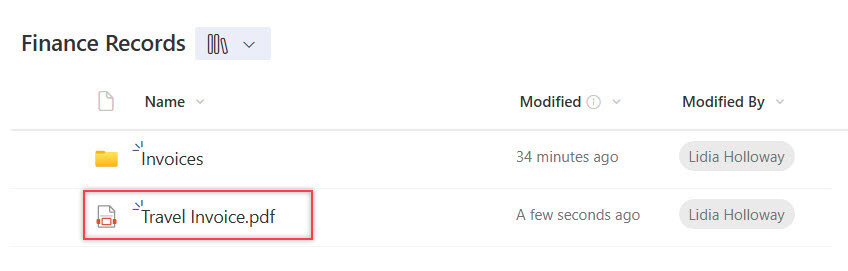
After the flow runs successfully, go to the SharePoint document library. You will see that the file has been moved to the ‘Invoices’ folder.

Trigger Power Automate Flow if the Filename Contains Specific Name
Here, I will consider the same example as above. Currently, our flow runs every time a file is uploaded, checking if the filename contains a specific word. However, this causes the flow to run unnecessarily, even when the filename does not match.
Now, I want the flow to only trigger when the filename contains the specified word rather than running and checking inside the flow.
To do this, follow the below steps:
1. Go to Power Automate, create an Automated Cloud Flow, and set the trigger for when a file is created (properties only) from the SharePoint connector.
- Site Address: Select your SharePoint site containing the Finance Records library.
- Library Name: Choose Finance Records.

2. Then select the when a file is created (properties only) action. Click the settings. You will see a section called ‘Trigger Conditions’. The trigger conditions setting allows you to add a condition directly to the trigger.
For my requirement I added the below trigger condition:
@contains(triggerOutputs()?['body/{FilenameWithExtension}'], 'Invoice')

3. Add a Move file action and provide the below parameters:
- Current Site Address: Select or enter the SharePoint Site URL where the file is located.
- File to Move: Use the “Identifier” from the trigger (dynamic content) to specify the file to be moved.
- Destination Site Address: Select the same SharePoint site or another site where you want to move the file.
- Destination Folder: Enter or browse the folder path where the file should be moved.
- If Another File is Already There: Choose an option:
- Move with a new name: Renames the file to avoid repetition.

Now, click Save and run the flow manually. Then go to the SharePoint Document library, add one file whose name contains Invoice.

After the flow runs successfully, go to the SharePoint document library. You will see that the file has been moved to the ‘Invoices’ folder.

Check If the Filename Contains Specific Name in Power Automate
When a new file is added to a SharePoint document library, check if the filename contains specific keywords (IT, Finance). If the filename includes IT, email the IT Team. If it contains finance, email the Finance Team.
For this example, I created a SharePoint Document library called Client Communications.

To do this, follow the below steps:
1. Create an automated cloud flow with a trigger when a file is created (properties only), and select the SharePoint site and the document library where you want to monitor files.

2. Add a Condition action, select Name from the trigger, then use the ‘contains‘ operator and enter IT:
@{triggerBody()?['{Name}']} contains IT

3. In the True branch, Add Send an email (V2) (Outlook) and provide the below parameters:
- To: Enter your IT Team email address.
- Subject: Enter a subject line for Mail.
- Body: Enter the body of the email.
Hello IT Team,
A new file related to your department has been uploaded to the SharePoint library.
File Name: @{triggerBody()?['{Name}']}
Location: [File Link]
Uploaded On: [@{formatDateTime(utcNow(),'dd/MM/yyyy')}]
Please review the file at your earliest convenience.
Best regards,
Power Automate Bot

4. Click Add a parallel branch below the condition. Add another Condition action:
@{triggerBody()?['{Name}']} contains Finance

5. In the True branch, Add Send an email (V2) (Outlook) and provide the below parameters:
- To: Enter your IT Team email address.
- Subject: Enter a subject line for Mail.
- Body: Enter the body of the email.
Hello Finance Team,
A new file related to your department has been uploaded to the SharePoint library.
File Name: @{triggerBody()?['{Name}']}
Location: [File Link]
Uploaded On: [@{formatDateTime(utcNow(),'dd/MM/yyyy')}]
Please review the file at your earliest convenience.
Best regards,
Power Automate Bot

Now, click Save and run the flow manually. Then go to the SharePoint Document library, add one file whose name contains IT or Finance.

After the flow runs successfully, check if the respective teams receive emails.

Conclusion
In this tutorial, I explained how to check if a filename contains a specific keyword in Power Automate and take appropriate actions. First, I showed how to move files to a designated folder if their names contain a specific word. Then, I explained how to optimize the flow by using trigger conditions to prevent unnecessary executions. Finally, I covered how to send automated email notifications to specific teams (IT or Finance) based on the filename.
You may also like:
- Check IF SharePoint List is Empty in Power Automate
- Check If the Column is Changed in Power Automate
- Check if SharePoint List Already Exists in Power Automate
- Send Email Reminders From a SharePoint List Using Power Automate
- Check if a file exists in the SharePoint document library in Power Automate
- 3 Best Ways to Get SharePoint Online Site ID

Hey! I’m Bijay Kumar, founder of SPGuides.com and a Microsoft Business Applications MVP (Power Automate, Power Apps). I launched this site in 2020 because I truly enjoy working with SharePoint, Power Platform, and SharePoint Framework (SPFx), and wanted to share that passion through step-by-step tutorials, guides, and training videos. My mission is to help you learn these technologies so you can utilize SharePoint, enhance productivity, and potentially build business solutions along the way.