
Recently, I was working with a client to setup their SharePoint Online portal home page. As a part of this, we wanted to display news in the home page. But we wanted to also implement audience targeting in the SharePoint news web part.
While trying to provide the audience group for each news in the Site Pages library, I received the error: “the file is locked for shared use by…”.
I will show you here how to fix the SharePoint Online error that says: the file is locked for shared use by user.
What Happened in My Case (And Probably Yours Too)
Here’s the scenario that led me to this error:
I created several news posts in SharePoint Online team site. Nothing fancy – just standard news articles for our SharePoint intranet site. Then I wanted to set up audience targeting so different groups would see different news items.
When I tried to edit the news page (Site Pages library) and add a Microsoft 365 group name in the audience targeting box, boom – error message: “The file is locked for shared use.”
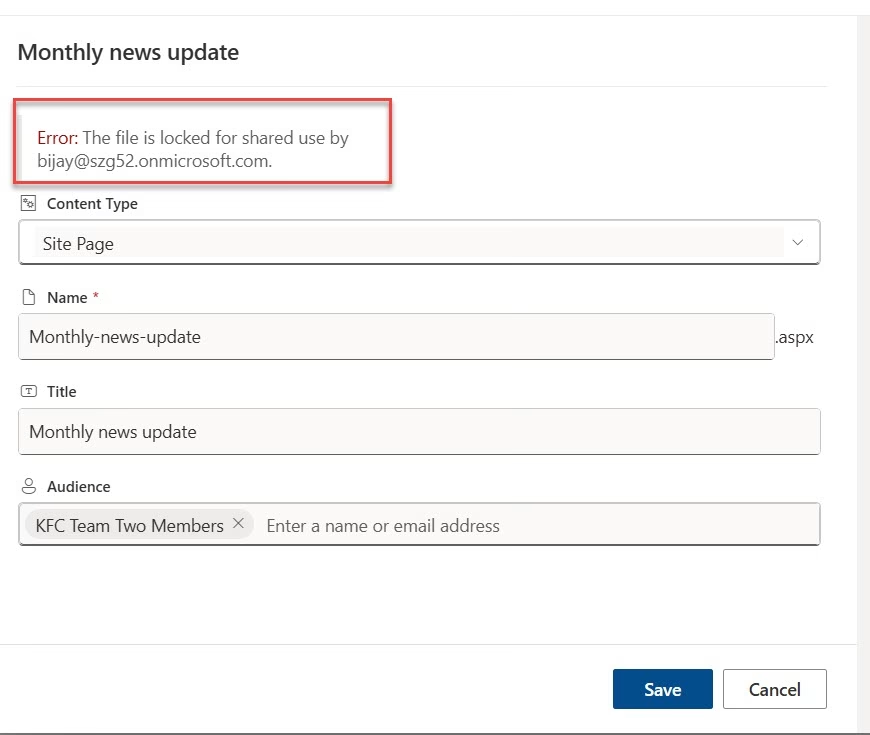
After some head-scratching, I realized the problem: I had created the news articles but never actually published them. They were sitting in draft mode.
Once I published those pages properly, the error disappeared completely.
Why This Error Happens
SharePoint treats news pages as special files. When a page is in draft mode, it’s in a weird in-between state. It exists, but it’s not fully available for all operations.
Think of it like this: when you’re editing a Word document and someone else tries to open it, they get a “locked” message. Draft news pages in SharePoint behave similarly – they’re locked for certain operations until you publish them.
The audience targeting feature needs to work with a fully published page. It can’t properly apply targeting rules to something that’s still in draft mode.
Most of the time, even you just edit the news page and close it without doing anything, that might also cause the issue.
Fix: the file is locked for shared use by SharePoint Online
Here is a quick solution to fix the error: the file is locked for shared use by user:
- Go to your SharePoint site
- Navigate to Site Pages library
- Find your news articles
- Check their status – are they “Draft” or “Published”?
- For any drafts, open them and click “Publish”
- Now try adding audience targeting again
That’s it. Seriously.
But let’s go through this step-by-step with more details so you understand exactly what’s happening.
The File is Locked for Shared Use by User: Step-by-Step Solution
Follow the step by step solution to fix the issue.
Step 1: Navigate to Your Site Pages Library
First, you need to get to where SharePoint stores all your pages. The news are stored in Site Pages library in SharePoint Online.
- Go to your SharePoint site (the one where you created the news)
- Click on the gear icon (Settings) in the top right
- Select “Site contents”
- Click on “Site Pages”
Alternatively, you can just add “/SitePages” to the end of your site URL. For example: https://yourcompany.sharepoint.com/sites/YourSite/SitePages
Step 2: Check the Status of Your News Articles
- Once you’re in the Site Pages library, look at the list of pages. You can see a “Needs Publishing” icon and when you select the page it will display the Republish button in the command bar like in the screenshot below:

Step 3: Publish Those Pages
- Click on the Republish button to publish the page.
Step 4: Verify the Publication
- Once you click on the Republish button, it will display a successful message and also the “Need Publishing” icon will not appear. Even when you select the news and look at the command bar, you will not see the Republish button.
Here is a screenshot below for your reference.