
Recently, I worked on a Power Apps project where I created an app that connects to an RSS feed. This app lets users easily see the latest news or updates directly within Power Apps without having to visit different websites.
For example, if there’s a news feed for your company or industry, you can use the app to check the latest headlines and stay informed quickly, all in one place.
In this Power Apps Tutorial, I will explain about Power Apps RSS Feed and its various properties.
Additionally, we will explore how to connect the RSS Feed connector in Power Apps and show the RSS Feed using a Power Apps Gallery and Data table control.
Power Apps RSS Feed Connector
RSS, which stands for Really Simple Syndication, lets users and apps get updates from websites in a simple, easy-to-read format.
An RSS Feed is like a news feed that brings all the latest information to you, so you don’t have to spend time searching the web.
When you use RSS Feeds in Power Apps, it’s called a Power Apps RSS Feed. To show updates from any website in your app, you need to connect an RSS Feed connector.
How to Connect RSS Feed in Power Apps
To connect the RSS in the app, go to the Data tab (from the left navigation pane) -> +Add data -> Search RSS in the search box as shown below.
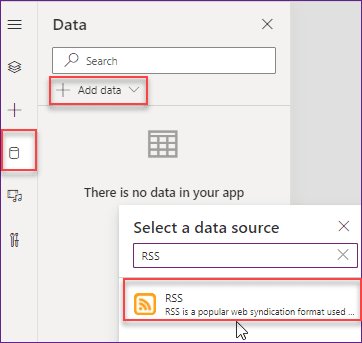
Click on the RSS connector and click Connect. Without an RSS Feed connector, it is not possible to display any website details in the app. The connector is now ready for use.

Add a Power Apps Control & Fetch Feed URL
Next, we’ll learn how to use an RSS Feed URL to display results in a Power Apps gallery control. You can also use a Power Apps data table control. I’ll show you how to do both.
Display RSS Feed in a Power Apps Gallery
In this example, I’ll show how to display news from the Times of India using its RSS Feed link. The news will appear in a Power Apps Gallery control, as shown in the screenshot below.

- To do this, first find the RSS feed link from the news website. Copy the link and save it in a notepad for later use.
Then, select the gallery and apply the below code on its Items property as:
Items = RSS.ListFeedItems("https://timesofindia.indiatimes.com/rssfeedstopstories.cms")Where,
“https://timesofindia.indiatimes.com/rssfeedstopstories.cms” = This is the RSS Feed link of that specific news site. Just paste this link that you have copied from that website, and it should be present within the inverted comma (” “)

- As you can see, the gallery control is using a title and subtitle layout, which is why I have displayed only the Title and Summary properties of the RSS.
- If you want to display more RSS properties in the gallery, you can change the layout property and then add the properties to the respective layout.

Show RSS Feed in a Power Apps Data Table Control
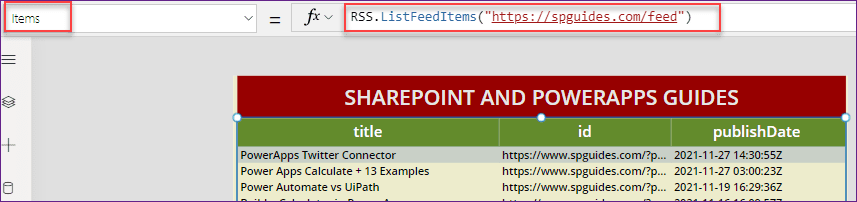
The screenshot below shows a Power Apps Data Table displaying details from my SharePoint guide site using its RSS Feed link.

- To workaround this, select the data table and set the below code on its Items property as:
Items = RSS.ListFeedItems("https://spguides.com/feed")Where,
“https://spguides.com/feed” = This is my website link Feed
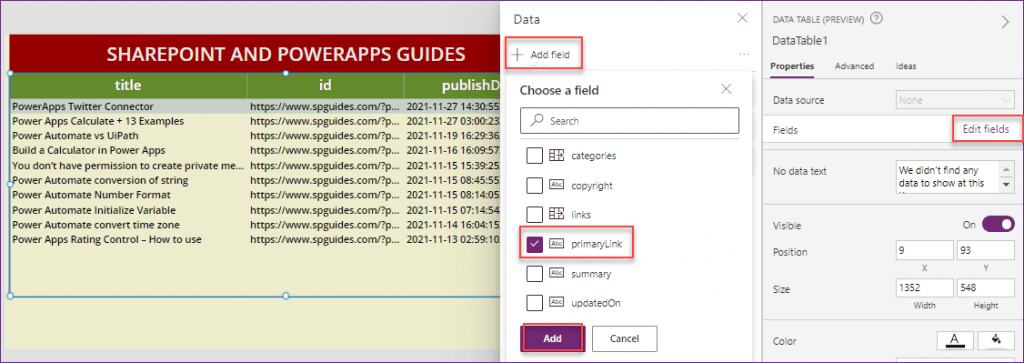
- If you want to add more RSS properties to the data table, you can do this through the Edit fields option.
- Here’s how: Select the Data table → go to the Properties pane → click Edit fields in the Fields section → click + Add field → choose the properties or fields you want → then click Add, as shown in the screenshot below.
- Once added, these fields will show up in the data table control.
Power Apps RSS Feed Properties
The below table represents all important properties that are available in the PowerApps RSS Feed. Such as:
| Name | Path | Type | Description |
| Feed ID | id | string | Specifies the Feed ID |
| Feed title | title | string | Specifies the Feed title |
| Primary feed link | primaryLink | string | Helps to get the Primary feed link |
| Feed links | links | array of string | Helps to get the Feed links |
| Feed updated on | updatedOn | string | Defines the date that the Feed has been updated on |
| Feed published on | publishDate | string | Specifies the Feed published date |
| Feed summary | summary | string | Represents the Feed item summary |
| Feed copyright information | copyright | string | Defines the copyright information |
| Feed categories | categories | array of string | Defines the Feed item categories |
Also, you may like the following Power Apps Tutorials:
- Power Apps Data Table Conditional Formatting
- Create Dataverse View
- Pagination in Power Apps Gallery
- Reset Check Boxes in a Power Apps Gallery
- Apply Multiple Filters On Power Apps Gallery
- Increment Number in Power Apps Gallery
In this Power Apps tutorial, we covered what an RSS Feed is and how it works within Power Apps. We also explored the different RSS Feed properties you can use. Additionally, I showed how to connect the RSS Feed connector and display feed data within your app using controls such as Gallery and Data Table.
I hope this guide helps you work efficiently on the Power Apps RSS feed!

Hey! I’m Bijay Kumar, founder of SPGuides.com and a Microsoft Business Applications MVP (Power Automate, Power Apps). I launched this site in 2020 because I truly enjoy working with SharePoint, Power Platform, and SharePoint Framework (SPFx), and wanted to share that passion through step-by-step tutorials, guides, and training videos. My mission is to help you learn these technologies so you can utilize SharePoint, enhance productivity, and potentially build business solutions along the way.


how can i let me show only one categorie of Rss feeds ? I mean to filter one Category and show me only this news ?