
If you’ve ever stared at Microsoft Teams trying to figure out how to locate a colleague — especially someone you’ve never chatted with before — you’re not alone. Teams has a few different ways to find people, and not all of them are obvious at first glance.
In this tutorial, I’ll walk you through every method to find someone on Microsoft Teams, whether they’re in your organization, an external contact, or someone you’ve never spoken to before. By the end, you’ll know exactly where to look and what to do.
Why Finding People in Teams Can Feel Confusing
Teams is packed with features, and the contact/search experience has changed quite a bit over the years — especially after Microsoft rolled out the Improved People Search feature in late 2024. The good news is that once you know the right spots, finding anyone takes only a few seconds.
Let me break it down method by method.
Find Someone on Microsoft Teams
Here, I will show 7 different ways to find someone on Microsoft Teams
Method 1: Use the Search Bar on Microsoft Teams (The Fastest Way)
This is the quickest and most straightforward method. The search bar sits at the top of Teams and is visible no matter which section you’re in — whether you’re in Chat, Calendar, or Calls.
Here’s how to do it:
- Click on the Search bar at the top of Microsoft Teams.
- You can also press Ctrl + E on your keyboard to jump directly to it.
- Start typing the person’s name.
- As you type, Teams will show suggestions in real time.
- Click on the person’s name from the list.
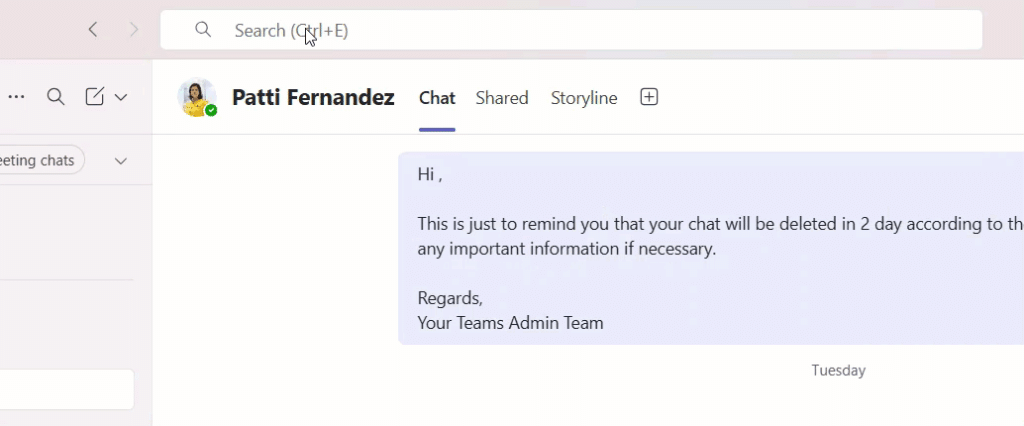
That’s it. You’ll land on their profile and can start a chat, call, or see their contact details right from there.
Pro tip: You don’t need to type the full name. Even typing the first two or three letters will bring up suggestions. So if you’re looking for “Jennifer Adams,” just type “Jen” and she’ll likely appear.
Method 2: Start a New Chat to Find Someone in Teams
If the search bar feels too broad and you just want to message someone directly, starting a new chat is another clean way to find a person.
Steps to follow:
- Click the Chat icon on the left-hand sidebar.
- Click the New Chat button (it looks like a pencil icon).
- In the To: field at the top, type the person’s name, email address, or phone number.
- Teams will suggest matching contacts as you type.
- Select the correct person and start your conversation.
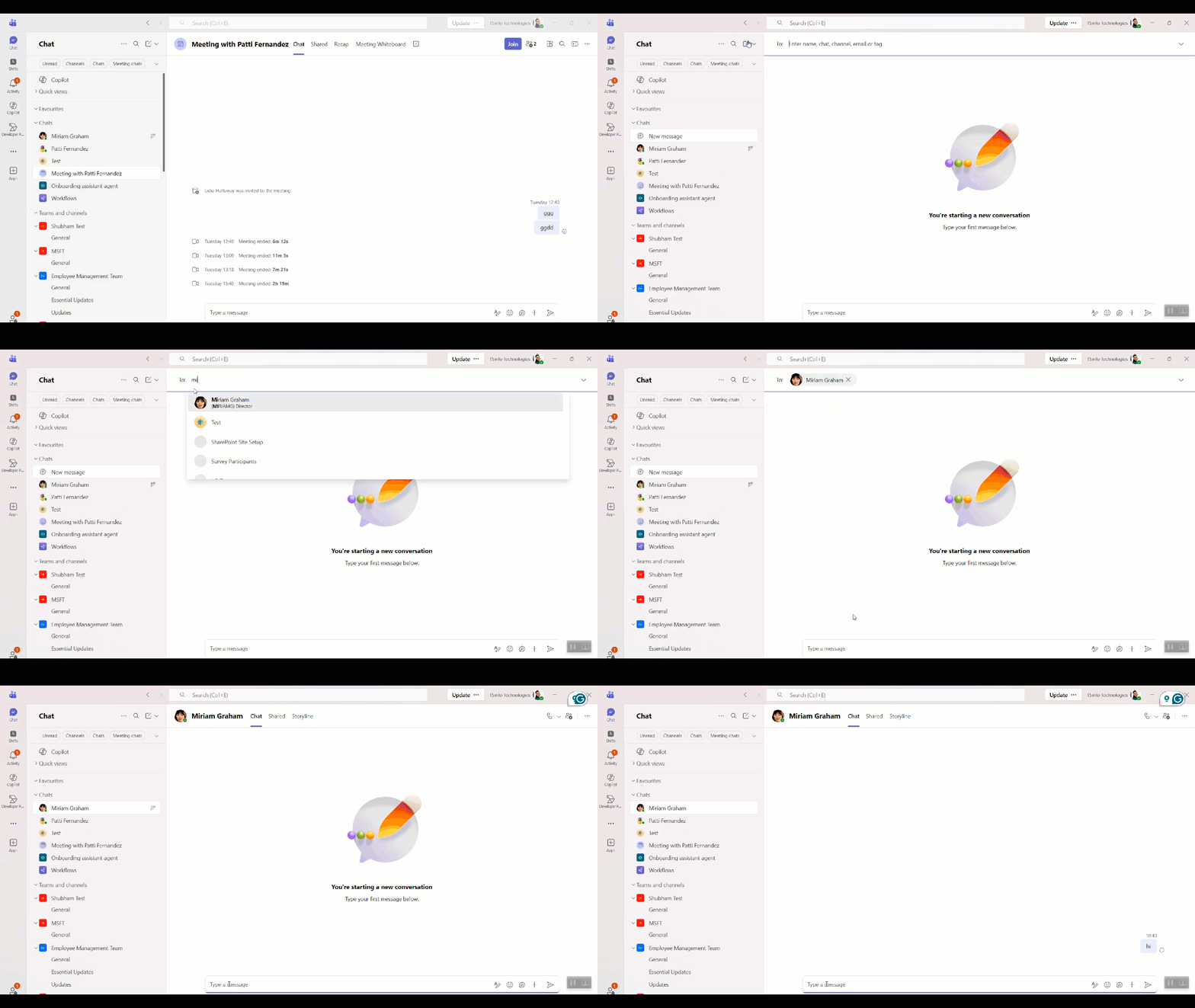
This method works especially well when you know the person’s email but aren’t sure what name they go by in Teams. For example, if your new vendor’s name is “Michael” but their Teams display name is “Mike T.,” typing their email address will still pull them up.
Method 3: Find People Through the Calls Section on Teams
The Calls section in Teams is often overlooked as a way to find contacts, but it’s actually really handy — especially if you’re trying to reach someone quickly via phone or video call.
Here’s how:
- Click Calls on the left sidebar. (If you don’t see it, click the three dots (… More apps) and search for Calls.)
- At the top of the Calls page, use the search box to type the person’s name.
- You may see recent or suggested contacts displayed in the Calls section.
- Click on the person’s name from the search results or suggestions.
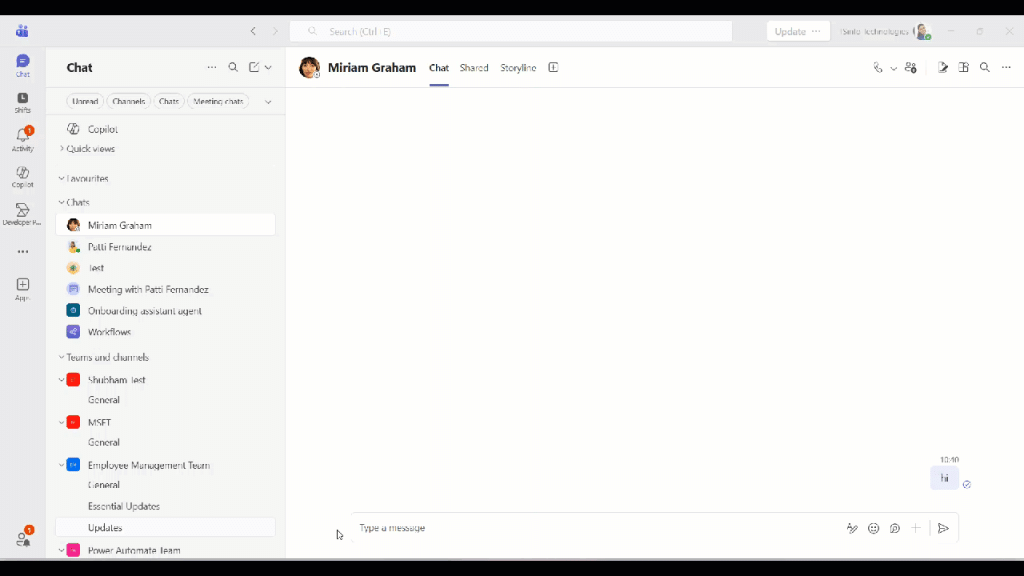
The Contacts list under Calls is essentially your personal phonebook in Teams. You can search it not just by name, but also by job title or phone number — so if you remember that someone works in “Finance” but can’t remember their exact name, you have a shot at finding them.
Keep in mind: This Contacts list only shows people you’ve manually added or synced. It won’t show your entire organization directory.
Method 4: Browse the People App in Microsoft Teams
Teams has a dedicated People section in the left sidebar (you might need to scroll down or check your app bar to find it). This is where your full contact list lives.
To use it:
- Look for People in the left navigation bar. If you don’t see it, click the three dots (…) at the bottom of the sidebar and look for it there.
- Once inside, you’ll see all your saved contacts listed alphabetically.
- Use the search field here to filter through contacts quickly.
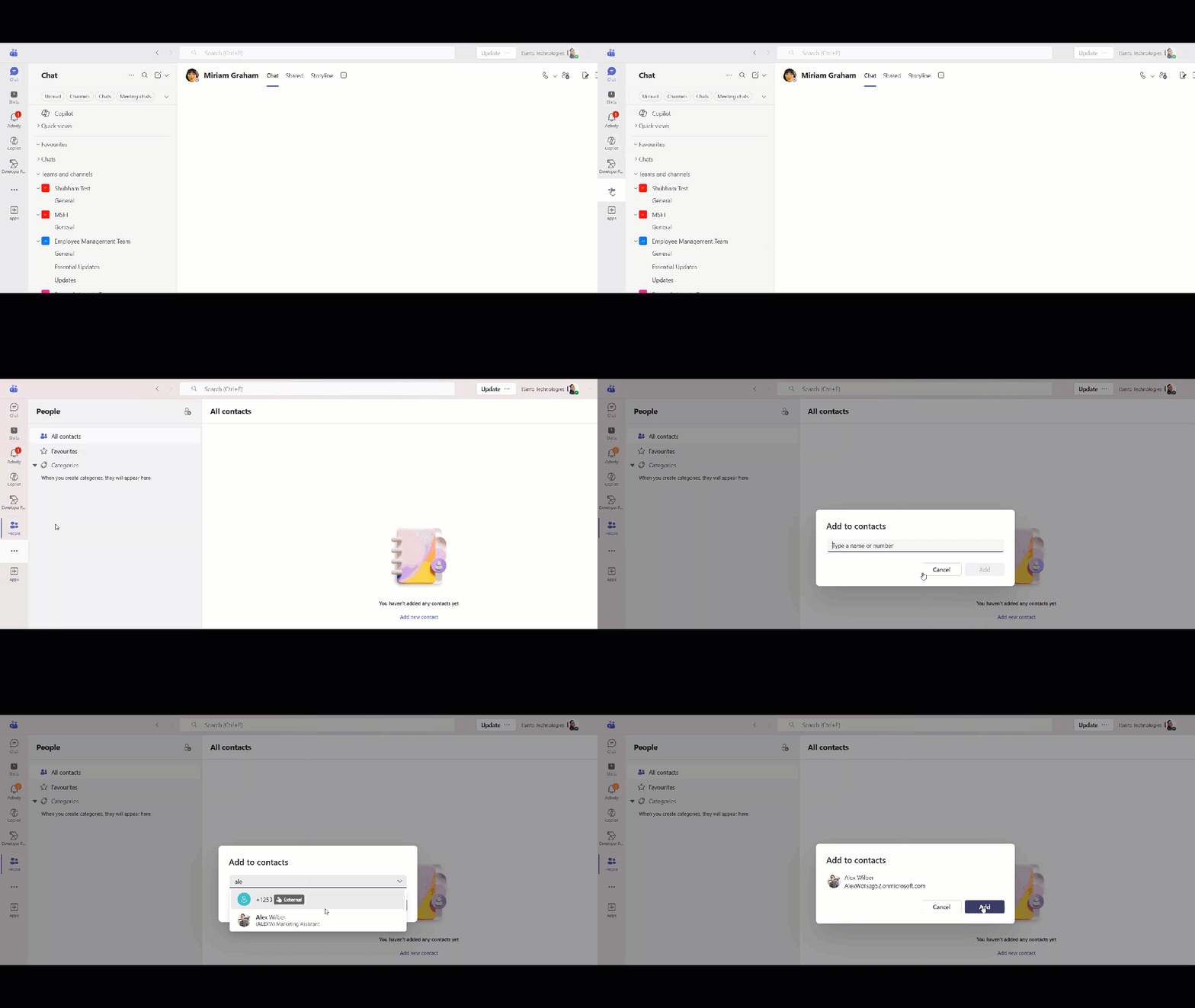
If your company has set up an organizational directory, you can also search for anyone in your organization from here — even people you’ve never spoken to — and view their profile card showing their job title, department, phone number, and email.
Method 5: Microsoft Teams Search Within a Team or Channel
Sometimes you’re not trying to reach someone directly — you just want to find out if a specific person is part of a team or channel you’re in. Here’s how to check:
- Open the Team you want to search in.
- Click on the team name at the top to open the Team settings.
- Click on Members.
- You’ll see the full list of all team members, including owners, members, and guests.
- Use the search box on this screen to filter by name.
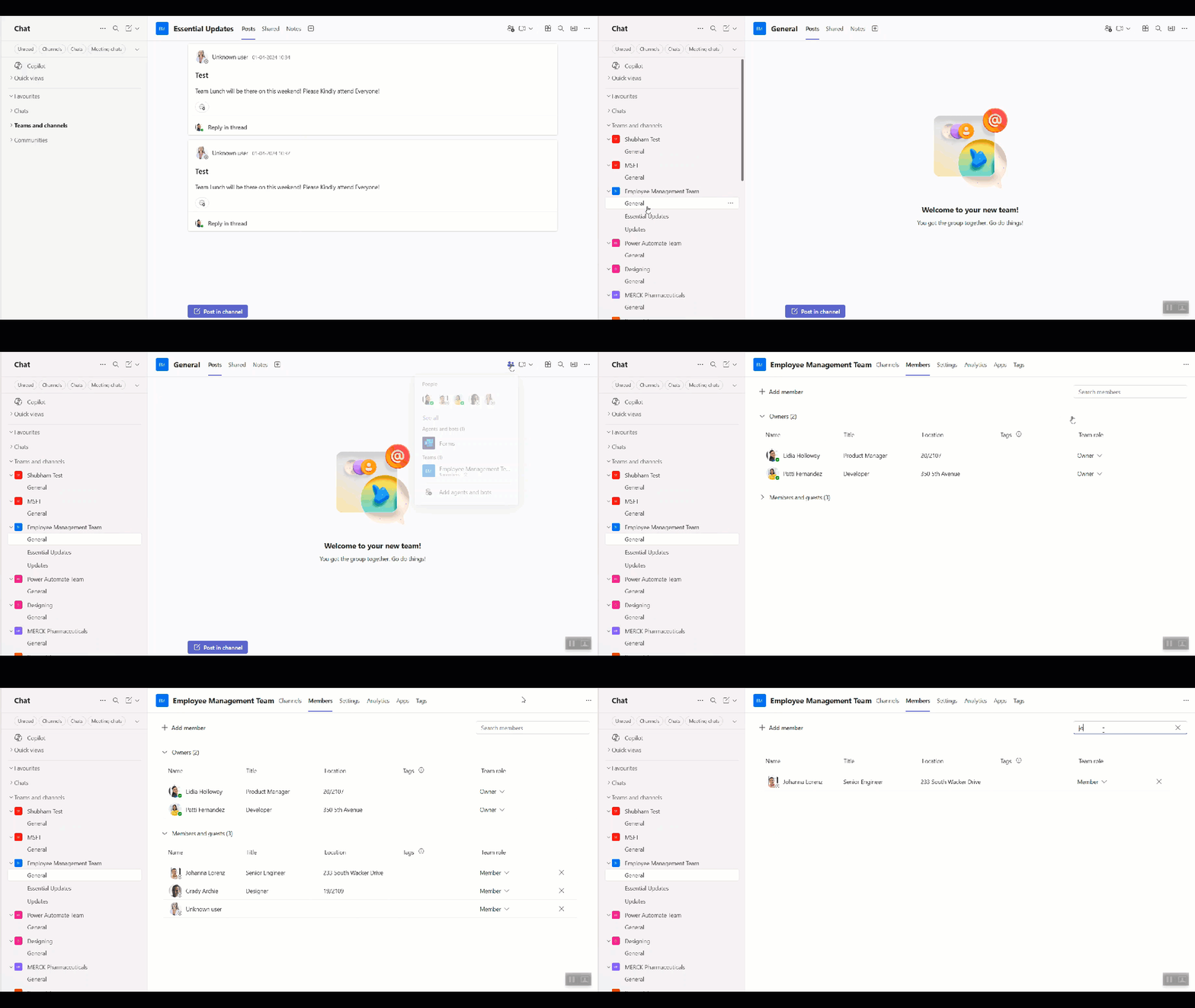
This is useful when you’re onboarding a new project and want to confirm whether your stakeholders are already part of the channel.
Method 6: Use Advanced Search with Filters
Since the November 2024 update, Microsoft Teams has a much more powerful people search that goes beyond just finding a name. Once you find a person using the search bar, you can dig deeper.
Here’s how the advanced search works:
- Press Ctrl + E and type the person’s name.
- Select their name from the results.
- Once selected, you’ll see a series of filter tabs at the top of the results page:
- Messages — shows all messages from that person
- Files — shows files they’ve shared with you
- Group chats — shows group conversations you’re both part of
- Teams and Channels — shows shared channels
Bonus trick: You can combine a name with a keyword. For example, type “Sarah budget” in the search bar — Teams will search for messages or files from Sarah that contain the word “budget.” This is a serious time-saver when you’re trying to dig up an old conversation.
Method 7: Find External Contacts (Outside Your Organization)
Finding someone outside your organization works a little differently. Teams does allow external communication, but there are a few things to be aware of.
For external users:
- Type their email address in the search bar or the New Chat “To:” field.
- If that person is also on Microsoft Teams and your admin has allowed external access, they’ll appear in the search results.
- If they don’t appear, it could mean your organization has restricted external communication, or they’re not on Teams.
For Teams Free users:
- You can search by phone number or email address directly in the search bar.
- If the person is already using Teams Free, they’ll show up and you can start chatting immediately.
- If they’re not on Teams yet, Teams will give you an option to invite them.
Quick Tips to Find People Faster in Microsoft Teams
Here are a few things I personally find useful when searching in Teams:
- Use Ctrl + E as your go-to shortcut — it instantly jumps your cursor to the search bar from anywhere in Teams.
- Search by email when you’re not sure about someone’s display name. It’s more reliable.
- Check your recent chats — if you’ve spoken to someone before, they’ll show up in the Chat section sorted by most recent.
- Use partial names — you don’t need the full name for Teams to find someone. Even “Raj” will pull up “Rajesh Kumar” or “Rajiv Menon.”
- Profile cards are your friend — clicking on anyone’s name in any chat, channel, or message shows their profile card with contact info, shared files, and organization details.
What If You Can’t Find Someone in Teams?
If your search comes up empty, here are a few things to check:
- The person may not have a Teams account yet.
- Your organization’s IT admin may have restricted external search.
- You might be searching for a nickname that doesn’t match their display name — try their email instead.
- If you’re on Teams Free, only people already in your contacts will appear in name-based searches.
In these cases, reach out to your IT admin or ask the person to share their Teams display name directly.
Wrapping Up
Finding someone on Microsoft Teams really comes down to knowing which tool to use for which situation. For most day-to-day needs, the search bar (Ctrl + E) and the New Chat feature will cover everything. If you’re managing contacts more formally, the Calls > Contacts section and the People app are worth exploring.
The improved people search that Microsoft rolled out in late 2024 also makes it much easier not just to find a person, but also to find everything you’ve shared or discussed with them — without manually digging through hundreds of messages.
You may also like the following tutorials:
- Create a Private Channel in Teams
- Microsoft Teams Last Seen vs Offline
- Microsoft Teams Language Settings
- Add External User to Teams
- Create a Group in Teams

Hey! I’m Bijay Kumar, founder of SPGuides.com and a Microsoft Business Applications MVP (Power Automate, Power Apps). I launched this site in 2020 because I truly enjoy working with SharePoint, Power Platform, and SharePoint Framework (SPFx), and wanted to share that passion through step-by-step tutorials, guides, and training videos. My mission is to help you learn these technologies so you can utilize SharePoint, enhance productivity, and potentially build business solutions along the way.