
Recently, I was working with a client who was facing an issue in their invoice processing workflow. They were receiving a large number of invoices every day in PDF format, and their team had to manually open each file, read the details, and enter the data into SharePoint.
It was taking a long time, and even with careful work, small errors still occurred, such as incorrect amounts, missed dates, or incomplete entries. As volume increased, it became clear that this manual process was unsustainable.
That’s when I suggested building a simple automation using Power Automate and AI. Instead of handling invoices manually, we created a solution that lets users upload invoices as PDFs to a SharePoint library.
From there, the flow runs automatically, reads the invoice using AI, extracts all the important details, and stores them in a structured SharePoint list.
Extract Data from PDF Invoices Automatically Using Power Automate
What We Are Building
Here’s the full flow in simple terms:
- User uploads an invoice PDF to the SharePoint Document Library
- Power Automate triggers automatically
- The file content is sent to AI
- AI extracts structured invoice data
- Data is stored in a SharePoint list
We are not using the default invoice model. Instead, we are using a custom AI prompt, which gives you more flexibility and control.
Create a SharePoint Document Library
Create a SharePoint document library where users will upload invoices.

Create a SharePoint List for Extracted Data
Create a SharePoint list to store all extracted data.
Note:
When I was building this solution, I didn’t just randomly add columns. I looked at the invoice format the client was using and then designed the SharePoint list based on that structure. The idea was simple whatever information exists in the invoice should have a proper place in SharePoint so that we don’t lose any important data.
You can follow the same approach. Your columns should always be based on your invoice format. If your invoices have different fields, you can adjust accordingly.
| Title (Invoice Number) | Single line |
| Invoice Date | Date |
| Due Date | Date |
| Vendor Name | Single line |
| Vendor Address | Multiple lines |
| Customer Name | Single line |
| Customer Address | Multiple lines |
| Subtotal | Single line |
| Tax Amount | Single line |
| Tax Percentage | Single line |
| Total Amount | Single line |
| Currency | Single line |
| Line Items | Multiple lines |
| Item Count | Single line |
| Bank Name | Single line |
| Account Number | Single line |
| IFSC Code | Single line |
| UPI ID | Single line |
| File Name | Single line |
| File Link | Hyperlink |
| Processed Date | Date |
| Status | Choice ( Processed, Failed) |

Create Extract Data from PDF Invoices Flow
Now that our SharePoint library and list are ready, let’s build the actual flow. This is where everything comes together.
The idea is simple: as soon as a file is uploaded, the flow should pick it up, read it using AI, extract the data, and store it in your SharePoint list.
Step 1: Create a New Flow
- Go to Power Automate and create a new automated cloud flow.
- Choose the trigger: When a file is created (properties only)
- Then configure:
- Site Address → Your SharePoint site
- Library Name → Your Invoice Document Library

This ensures the flow runs automatically whenever a new invoice is uploaded.
Step 2: Get File Content
- Add action: Get file content
- Then configure:
- Site Address → Your SharePoint site
- File Identifier → Select Identifier from the trigger

This step is very important. The trigger only returns file metadata (like name and path), but the AI needs the actual file to read the invoice.
Step 3: Run a Custom AI Prompt
Now we move to the core logic.
- Add action: Run a prompt

- Expand the prompt and select + New custom prompt.

- Then, under the instructions, add the following instruction:
- Also, add an input parameter like: Document Content
You are an AI that extracts structured data from invoice documents.

Extract the following fields from the invoice:

- Invoice Number
- Invoice Date
- Due Date
- Vendor Name
- Vendor Address
- Customer Name
- Customer Address
- Subtotal
- Tax Amount
- Tax Percentage
- Total Amount
- Currency
- Bank Name
- Account Number
- IFSC Code
- UPI ID
- Line Items (Description, Quantity, Rate, Amount)
- Item Count (total number of line items)

Rules:
- Return ONLY valid JSON (no explanation).
- If any value is missing, return an empty string "".
- Dates should be in YYYY-MM-DD format.
- Numbers should not contain commas.

Output format:

{
  "InvoiceNumber": "",
  "InvoiceDate": "",
  "DueDate": "",
  "VendorName": "",
  "VendorAddress": "",
  "CustomerName": "",
  "CustomerAddress": "",
  "Subtotal": "",
  "TaxAmount": "",
  "TaxPercentage": "",
  "TotalAmount": "",
  "Currency": "",
  "BankName": "",
  "AccountNumber": "",
  "IFSCCode": "",
  "UPIID": "",
  "ItemCount": "",
  "LineItems": [
    {
      "Description": "",
      "Quantity": "",
      "Rate": "",
      "Amount": ""
    }
  ]
}
- On the right side (Model response settings): Set Output type → JSON
- Also, rename the prompt to something meaningful, like: Extract Invoice

Now that your prompt is configured, it’s time to test. Upload one of your sample invoice PDFs to the Document input. Check the Model response side, it is giving the correct json.

- Then, in the Run a prompt action, select the prompt you created (for example, Extract Invoice).
After that, you need to pass the input file to the AI so it can read the invoice.
- In the Document input, select:
- File Content from the previous Get file content action
base64(body('Get_file_content'))
This step is very important. Without passing the file content, the prompt won’t have anything to process, and you won’t get any output.
Once this is set, the AI will take the PDF file, read the invoice details, and return the structured JSON based on your prompt.
Step 4: Create an Item in SharePoint
Now that our AI prompt is working and returning clean JSON, the next step is to store that data in our SharePoint list.
- Add a new action: Create item
- Then configure:
- Site Address → Your SharePoint site
- List Name → Extracted Invoice Data
Map the Fields
Now you need to map the output from the Run a prompt action to our SharePoint columns. Since your prompt is already returning structured JSON, you can directly use those values.
Map like this:
- Title → InvoiceNumber
- Invoice Date → InvoiceDate
- Due Date → DueDate
- Vendor Name → VendorName
- Vendor Address → VendorAddress
- Customer Name → CustomerName
- Customer Address → CustomerAddress
- Subtotal → Subtotal
- Tax Amount → TaxAmount
- Tax Percentage → TaxPercentage
- Total Amount → TotalAmount
- Currency → Currency
- Bank Name → BankName
- Account Number → AccountNumber
- IFSC Code → IFSCCode
- UPI ID → UPIID
- Item Count → ItemCount
- Line Items → LineItems
Handle Line Items
For the Line Items column (multiple lines), you need to convert the array into a string.
Use this expression:
string(body('Run_a_prompt')?['LineItems'])
This will store all the extracted line items in JSON format inside SharePoint.
Now map the additional tracking columns:
- File Name → File Name (from trigger)
- File Link → Link to item or file path
- Processed Date → use utcNow()
- Status → Processed

Testing the Complete Flow
Now that everything is set up, it’s time to test your flow end-to-end.
Upload one of your sample invoice PDF files to the SharePoint document library.

As soon as the file is uploaded, our flow should trigger automatically.
Verify the Flow Run
Go to Power Automate → Flow Runs and open the latest run.
Check each step one by one:
- Trigger → Confirm the file is picked correctly
- Get file content → Ensure file content is retrieved
- Run a prompt → This is the most important step
Open the output of Run a prompt and verify:
- JSON is valid
- All fields are present
- Values are correctly extracted

Check SharePoint List
Now go to your Extracted Invoice Data list.
You should see a new item created with:
- Invoice Number
- Vendor Name
- Dates
- Amounts
- Line Items
- File details
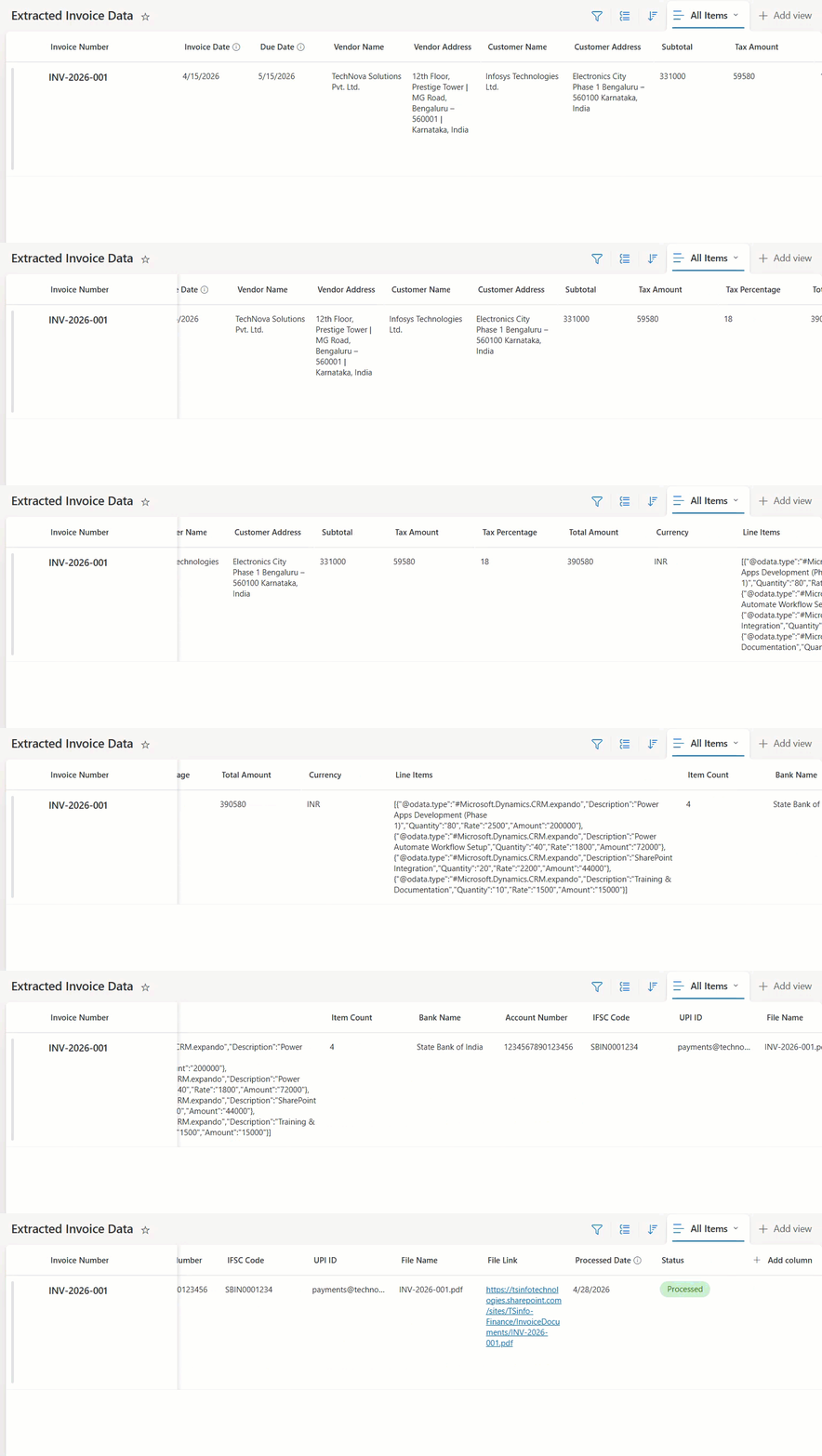
Everything should be populated automatically.
What If Something Is Not Working?
If data is incorrect or missing:
- Go back to the Run a prompt step
- Improve your prompt instructions
- Test again
Do not rush to change the flow logic. Most of the time, the issue is with how the prompt is written.
Conclusion
In this tutorial, I covered a complete end-to-end solution to automate invoice processing.
We started with a real problem where invoices were handled manually. Then we built a solution using Power Automate and AI.
I created a SharePoint document library to upload invoices and a SharePoint list to store extracted data. After that, we built the flow step by step, triggering when a file is uploaded, getting the file content, using a custom AI prompt to extract data, and finally storing that data in SharePoint.
We also tested the flow to make sure everything is working correctly.
That’s it. You now have a working solution that can automatically read invoice PDFs and store the data without any manual effort.
You may also like:
- Power Automate saves email attachment to SharePoint
- Delete all files in a SharePoint folder using Power Automate
- Send an Approval to a Microsoft 365 Group in Power Automate
- Send Approval to SharePoint Group Members Using Power Automate
- Copy List Items To Another List In SharePoint Using Power Automate

Hey! I’m Bijay Kumar, founder of SPGuides.com and a Microsoft Business Applications MVP (Power Automate, Power Apps). I launched this site in 2020 because I truly enjoy working with SharePoint, Power Platform, and SharePoint Framework (SPFx), and wanted to share that passion through step-by-step tutorials, guides, and training videos. My mission is to help you learn these technologies so you can utilize SharePoint, enhance productivity, and potentially build business solutions along the way.


