
This Power Apps tutorial explains everything related to Power Apps Gallery Control with, most important, 20 real scenarios.
Power Apps Gallery Control
The Microsoft Power Apps platform includes a “Power Apps Gallery Control” functionality that enables users to visually display a group (or list) of items, such as a set of records from a data source.
It can display data from sources like SharePoint, SQL, or other data connectors, similar to a dynamic list or grid.
The following are a few benefits of Power Apps Gallery Control:
- What it Displays: The Gallery Control can display several items from a data source, including lists of individuals or items, images, and other objects.
- Layouts: The control offers some layout options (including Vertical, Horizontal, and Flexible height), allowing you to customize how your items appear and are arranged.
- Customizable: You may modify the look of each gallery item, alter its size, alter how text or images are displayed, and more.
- Interactive: Gallery items may be made clickable so visitors may pick, edit, or do other actions.
- Bind to Data: You can show data directly from databases, cloud platforms, or other services by connecting Gallery Control to different data sources.
Set up SharePoint Lists
To work with this Power Apps Gallery Control, I have used two Custom SharePoint Lists i.e.
- Car Rental Services
- Car Gears
Car Rental Services
This SharePoint List contains the many below columns with various data types. Such as:
| Columns | Data types |
|---|---|
| Car Name | Single line of text (By default, its Title Column) |
| Car Type | Choice (Automatic Transmission, Manual Transmission, Semi-Automatic Transmission, Continuously Variable Transmission) |
| Seats | Number |
| Color | Choice (White, Black, Grey, Silver, Blue, Maroon) |
| Daily Price | Single line of text |
| Rent Date | Date and time |
| Location | Choice (Maui Hawaii, Nashville, Yosemite National Park, Bend Oregon, Las Vegas Nevada, Austin Texas, Orlando Florida) |
| Person Name | Single line of text |
| Person Email | Single line of text |
| Mobile Number | Number |
| Car Image | Image |
| Confirmation Status | Choice (Confirmed, Not Confirmed, Pending, Cancelled) |
Refer to the image below:

Car Gears
This SharePoint List contains only three columns i.e.
| Columns | Data types |
|---|---|
| Car ID | Single line of text (By default, it’s a Title Column) |
| Car Name | Lookup Column |
| Car Gear Type | Choice (Automatic Transmission, Manual Transmission, Semi-Automatic Transmission, Continuously Variable Transmission) |
Refer to the image below:

The above SharePoint List is only used for the 6th example, i.e., Power Apps Gallery Filter By another gallery, and for the 9th example, i.e., Power Apps Gallery Group By Lookup column. [Refer to the table below]
Power Apps Gallery Control Examples
In this Power Apps article and the solution package, a user will learn about 20 actual use cases of Power Apps Gallery Control, such as:
| Power Apps Gallery Examples | Descriptions | Images |
|---|---|---|
| Power Apps Gallery Display Items from the Collection | This example will show how to use a Gallery control to display every record from the Power Apps Collection. |  |
| Power Apps Gallery Display Items from SharePoint List | This example will show how to use Power Apps Gallery control to display all the records from a SharePoint List. |  |
| Delete Power Apps Item(s) from Power Apps Gallery | This example defines how to delete or remove an item(s) from the Power Apps Gallery Control. | 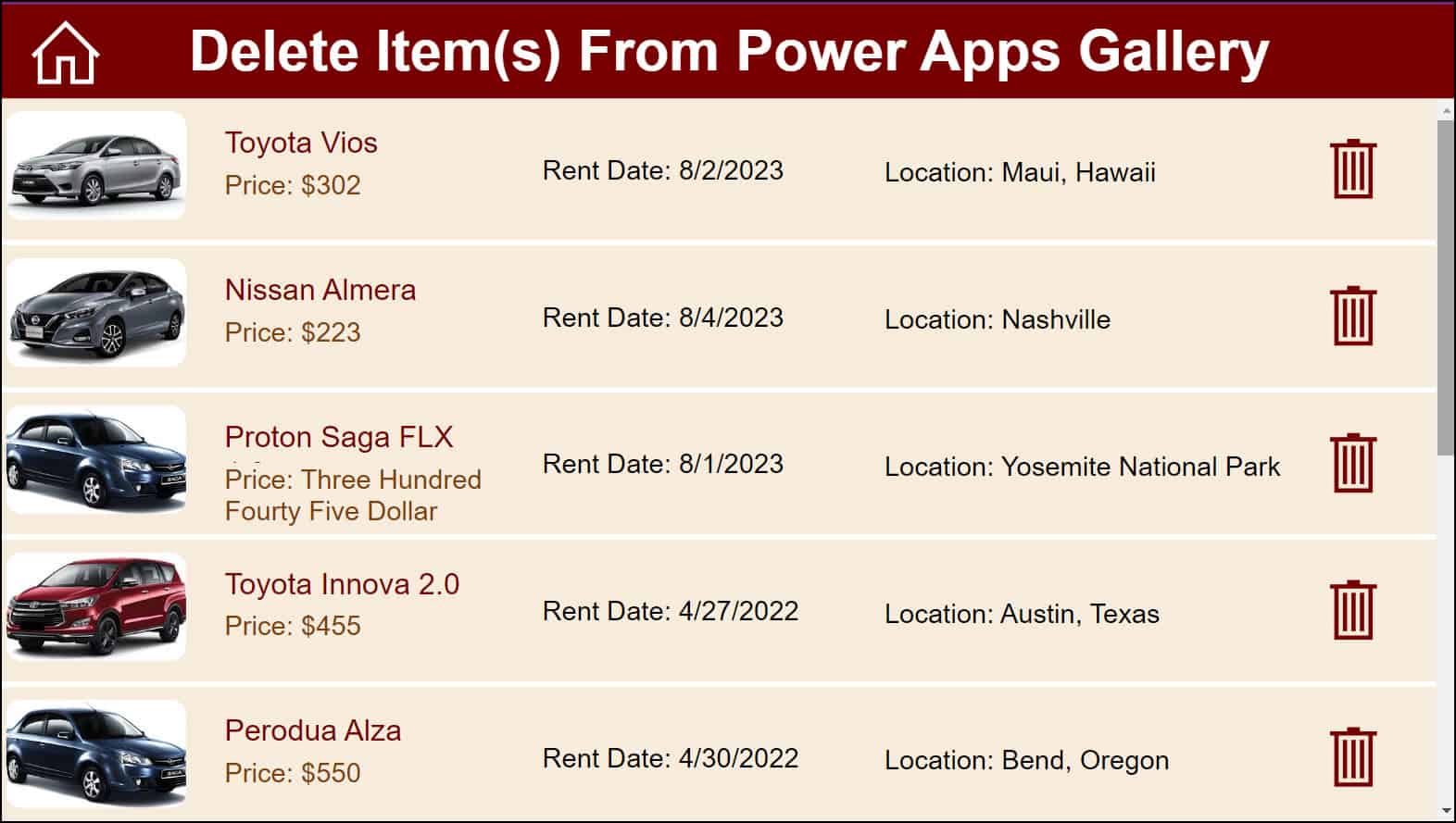 |
| Power Apps Gallery Count Rows | This example will help you to know how to count all the records from a Power Apps gallery control and display the result in a label control. |