
In this Power Automate tutorial, we will see how to format a number as currency in Power Automate or Microsoft Flow.
Here, we will see two ways to format a number as currency using Power Automate:
- Using format number action
- Using formatNumber()
Format a number as currency in Power Automate (using format Number action)
Here, we will see how to format a number as currency in Power Automate using the format number action.
For example, we will take a user input and then cover the number into currency using the Power Automate flow action i.e. Format number action.
Step 1: Log in to Power Automate, click on +Create, and select Instant Cloud Flow.

Then, provide the flow name and select Manually trigger a flow. Then click on Create.

Now, you can see “Manually trigger a flow” is added to the flow page. Next, expand the action and click +Add an input button -> select the Number icon.

Step 2: Now we will format the number to currency, so click on the +New step -> select Format number action. Then provide the below information:
- Number: Select the number from dynamic content.
- Format: Select the format ‘$1,234.00’ from the dropdown.
- Locale: Select the Locale. Based on Locale, the number will format to that currency.

Step 3: Now run the flow manually, click on Test, and provide the number in the input field, click on Run Flow. Then click on Done.
You can see your flow run successfully. As you can see, the number is converted to defined locale currency.

This way, we can format the number as currency using the Format number action in Power Automate flow action.
Format a number as currency in Power Automate (using formatNumber())
Here, we will see how to format a number as currency using Power Automate using the formatNumber() function.
For example, we will take a user input and then convert the number into currency using formatNumber() in Power Automate.
Syntax of formatNumber() function:
formatNumber(number : number, format: string, locale?: string)- number: Number that you want to format
- Format: The format that will apply to numbers. In this case, it is currency ‘C.’
- Locale: Locale that is used to format the number.
To format the number as currency, there are different formats, but the default format is ‘C2’.
| Number | Expression | Result |
|---|---|---|
| 50 | formatNumber(50,’C’) | $50.00 |
| 50 | formatNumber(50,’C0′) | $50 |
| 50 | formatNumber(50,’C1′) | $50.0 |
| 50 | formatNumber(12345,’C2′) | $50.00 |
| 50 | formatNumber(12345,’C3′) | $50.000 |
| 50 | formatNumber(12345,’C’,’de-de’) | 50,00 € |
Now, let’s create a flow that will format the number to currency using formatNumber().
In this below flow, we will format the number as currency ‘C’ with german locale.
Step 1: Log in to Power Automate, click on +Create, and select Instant cloud flow.

Then provide the flow name and select Manually trigger a flow. Then click on Create.
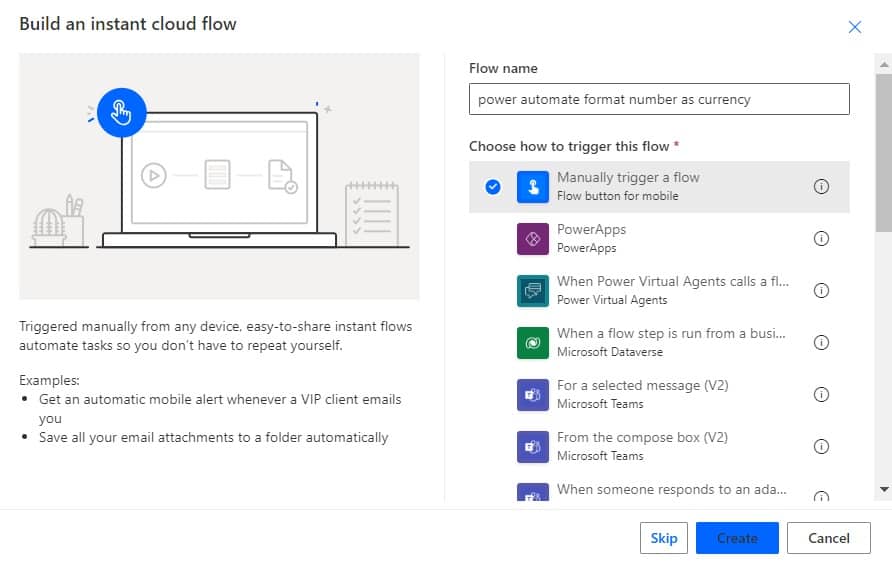
Now, you can see the “Manually trigger a flow” action is added to the flow page. Next, expand the action and click on +Add an input button -> select the Number icon.

Step 2: Now we wi