
This tutorial explains how to bind SharePoint list items to a Fluent UI React dropdown in an SPFx React web part using PnP JS, so that any new items added to the list automatically appear in the dropdown.
By the end, you will have an SPFx client-side web part where the dropdown is dynamically populated from a SharePoint list and always stays in sync with the items in that list.
Prerequisites and Scenario
In this example, a SharePoint list named Product is used, with the columns: Title (Single line of text) and ProductName (Single line of text). Here is the SharePoint list in the screenshot below:
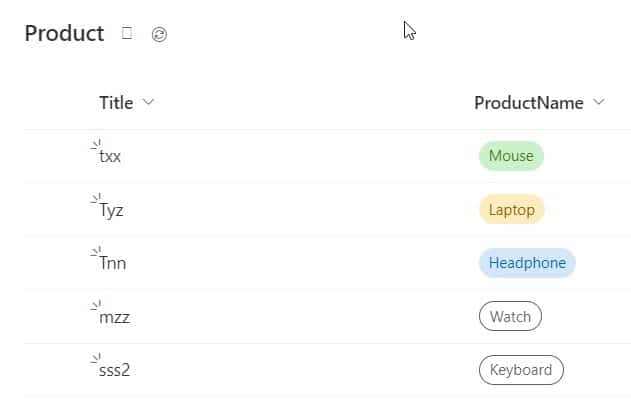
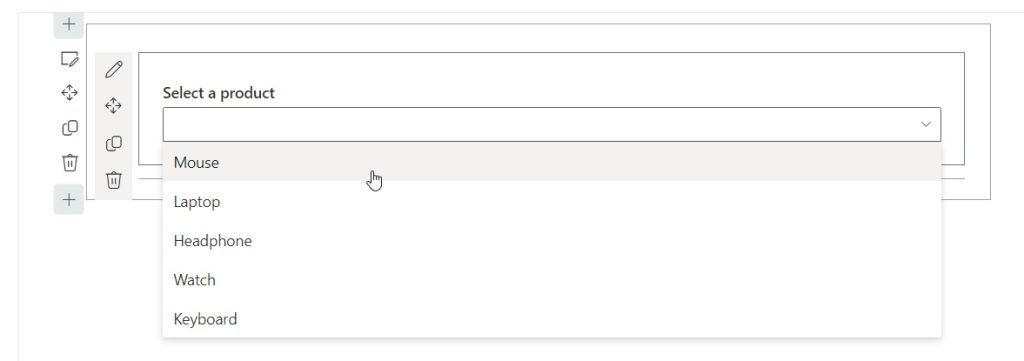
The goal is to fetch items from this Product list using PnP JS and bind them to a Fluent UI React dropdown in an SPFx web part. The output will come like the screenshot below:
Check out Display SharePoint List Items in SPFx Web Part
Create the SPFx React Web Part
- Open Node.js command prompt and create a folder, then go inside it:
mkdir ProductDropdown
cd ProductDropdown
- Run the SharePoint Framework Yeoman generator:
yo @microsoft/sharepoint
- Answer the prompts (example values):
- Solution name:
product-dropdown - Which type of client-side component to create?:
WebPart - Web part name:
ProductDropdown - Which template would you like to use?:
React
- Solution name:
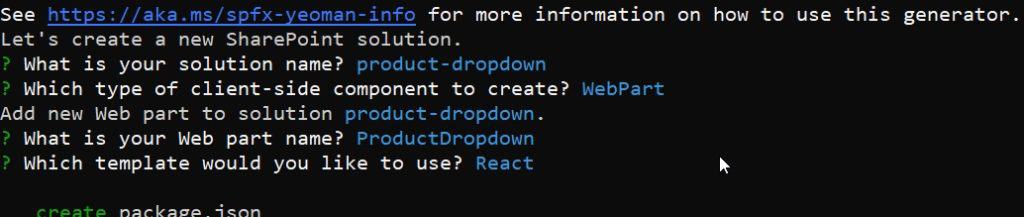
The generator will install all dependencies and scaffold the SPFx project.

Install Fluent UI and PnP JS
After project creation, install the required libraries.
- Fluent UI React:
npm install @fluentui/react
- PnP JS (sp-pnp-js):
npm install sp-pnp-js
Then open the project in VS Code:
Code .
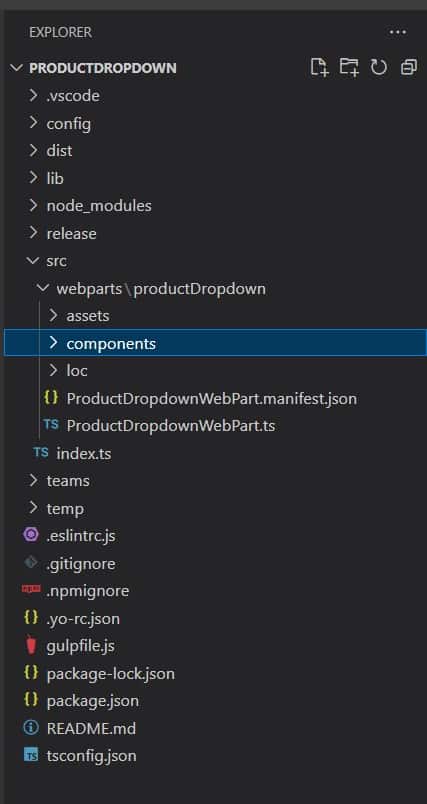
You can see the project structure on the left side of the code editor(VS Code editor).
Check out Build a SharePoint Folder Tree View Using SharePoint Framework (SPFx)
Create Interfaces and Classes for List Items
Navigate to src\webparts\productDropdown\components.
1. Create the interface file IProducts.ts
First, create an interface like below. This interface defines the shape of each SharePoint list item returned by PnP JS, mapping the Id, Title, and ProductName fields.
export interface ISPListProductItem{
Id:any;
Title:string;
ProductName:string;
}
2. Create the class file ClassProduct.ts
This class takes a raw SharePoint list item and exposes only the properties we need — Id and ProductName — to keep the dropdown logic clean and simple.
import { ISPListProductItem } from "./IProducts";
export class ClassProduct{
public ProductName:string;
public Id:any
constructor(item: ISPListProductItem) {
this.ProductName = item.ProductName;
this.Id=item.Id
}
}
This class wraps each SharePoint list item and exposes ProductName and Id that will be used in the dropdown options.
Implement the Fluent UI Dropdown in ProductDropdown.tsx
Open src\webparts\productDropdown\components\ProductDropdown.tsx.
1. Import required modules
Import PnP JS to fetch SharePoint list data, the ClassProduct class we created, and the Fluent UI Dropdown component along with its types.
import * as React from 'react';
import styles from './ProductDropdown.module.scss';
import { IProductDropdownProps } from './IProductDropdownProps';
import pnp from 'sp-pnp-js'
import { ClassProduct } from './ClassProduct';
// import { ISPListProductItem } from './IProducts';
import {Dropdown, IDropdownOption} from '@fluentui/react';
2. Define the component state
The state holds the list of dropdown options fetched from SharePoint and tracks the currently selected item.
export interface IProductDropdownState {
selectedProduct?: IDropdownOption;
items: IDropdownOption[];
}
3. Create the React component with constructor
The constructor initializes the component state with an empty items array and no selected product, which will be populated once the component mounts.
export default class ProductDropdown extends React.Component<IProductDropdownProps, IProductDropdownState> {
constructor(props: IProductDropdownProps) {
super(props);
this.state = {
selectedProduct: undefined,
items: []
};
}
4. Render the Fluent UI dropdown and load data
The render method displays the Fluent UI dropdown, componentDidMount triggers the SharePoint data fetch, and _getListProductData maps list items into dropdown options and updates the state.
Use the following full code in ProductDropdown.tsx:
export default class ProductDropdown extends React.Component<IProductDropdownProps, IProductDropdownState> {
constructor(props: IProductDropdownProps) {
super(props);
this.state = {
selectedProduct: undefined,
items: []
};
}
public render(): React.ReactElement<IProductDropdownProps> {
return (
<section className={`${styles.productDropdown}`}>
<Dropdown
label="Select a product"
options={this.state.items}
selectedKey={this.state.selectedProduct?.key}
onChange={this.onDropdownChange}
/>
</section>
);
}
public componentDidMount(){
this._getListProductData();
}
private _getListProductData() : void {
pnp.sp.web.lists.getByTitle(`Product`).items.get().then((response: any) => {
let productCollection = response.map((item: any) => new ClassProduct(item));
let dropdownOptions = productCollection.map((product: ClassProduct) => {
return {
key: product.Id,
text: product.ProductName
};
});
this.setState({ items: dropdownOptions });
});
}
private onDropdownChange = (event: React.FormEvent<HTMLDivElement>, item: IDropdownOption): void => {
this.setState({ selectedProduct: item });
}
}
This code loads items from the Product list in componentDidMount, maps them to dropdown options, and binds them to the Fluent UI dropdown.
Check out SharePoint Framework (SPFx) Interview Questions and Answers
Update the Web Part Entry File
Open src\webparts\productDropdown\ProductDropdownWebPart.ts and use this code:
import * as React from 'react';
import * as ReactDom from 'react-dom';
import { Version } from '@microsoft/sp-core-library';
import {
IPropertyPaneConfiguration,
PropertyPaneTextField
} from '@microsoft/sp-property-pane';
import { BaseClientSideWebPart } from '@microsoft/sp-webpart-base';
import * as strings from 'ProductDropdownWebPartStrings';
import ProductDropdown from './components/ProductDropdown';
import { IProductDropdownProps } from './components/IProductDropdownProps';
export interface IProductDropdownWebPartProps {
description: string;
}
export default class ProductDropdownWebPart extends BaseClientSideWebPart<IProductDropdownWebPartProps> {
public async render(): Promise <void> {
const element: React.ReactElement<IProductDropdownProps> = React.createElement(
ProductDropdown,
);
ReactDom.render(element, this.domElement);
}
protected onDispose(): void {
ReactDom.unmountComponentAtNode(this.domElement);
}
protected get dataVersion(): Version {
return Version.parse('1.0');
}
protected getPropertyPaneConfiguration(): IPropertyPaneConfiguration {
return {
pages: [
{
header: {
description: strings.PropertyPaneDescription
},
groups: [
{
groupName: strings.BasicGroupName,
groupFields: [
PropertyPaneTextField('description', {
label: strings.DescriptionFieldLabel
})
]
}
]
}
]
};
}
}
This wires the React component into the SPFx web part and keeps a simple property pane.
Configure Gulp Serve URL and Test the Web Part
- Open
config\serve.jsonand set your SharePoint site URL in thepageUrlproperty so the local workbench loads against your site; like the below screenshot:

- Start the local server:
gulp serve - In the modern workbench, add the ProductDropdown web part to the page.
- Click the dropdown to see all ProductName values from the Product list; any new items you add to the list will automatically appear in the dropdown.

Download the Complete SPFx Solution
You can download the full solution as a zip file and run it locally.
- Download:
https://www.spguides.com/wp-content/uploads/2023/04/bind-the-SharePoint-list-item-in-the-Spfx-webpart-dropdown.zip
After unzipping, install dependencies:
npm i
Wrap-up
This tutorial walked through creating an SPFx React web part that reads items from a SharePoint list using PnP JS and binds them to a Fluent UI dropdown. You now have a reusable pattern for populating dropdowns from SharePoint lists, and any new items in the list will automatically appear to users in the web part.
You may also like the following tutorials:
- Build a Custom Slides Manager in SPFx Web Part Property Pane (Drag & Drop, Reorder, Hide Slides)
- SPFX SwatchColorPicker Fluent UI React Control
- Fluent UI DocumentCard in SPFx Web Part
- SharePoint Framework (SPFx) Fluent UI Basic List Example

Hey! I’m Bijay Kumar, founder of SPGuides.com and a Microsoft Business Applications MVP (Power Automate, Power Apps). I launched this site in 2020 because I truly enjoy working with SharePoint, Power Platform, and SharePoint Framework (SPFx), and wanted to share that passion through step-by-step tutorials, guides, and training videos. My mission is to help you learn these technologies so you can utilize SharePoint, enhance productivity, and potentially build business solutions along the way.