
While working on one of my Power BI reports, I realized my dataset wasn’t in the format I needed. After applying filters and validation rules, I wanted to add a column with a fixed value for each row. So, I started researching and found that Power BI offers multiple ways to add a fixed-value column, depending on where and how we want to use it.
In this tutorial, I will explain how to add columns with a Fixed Value in Power BI.
Add a Fixed Value Column in Power Query
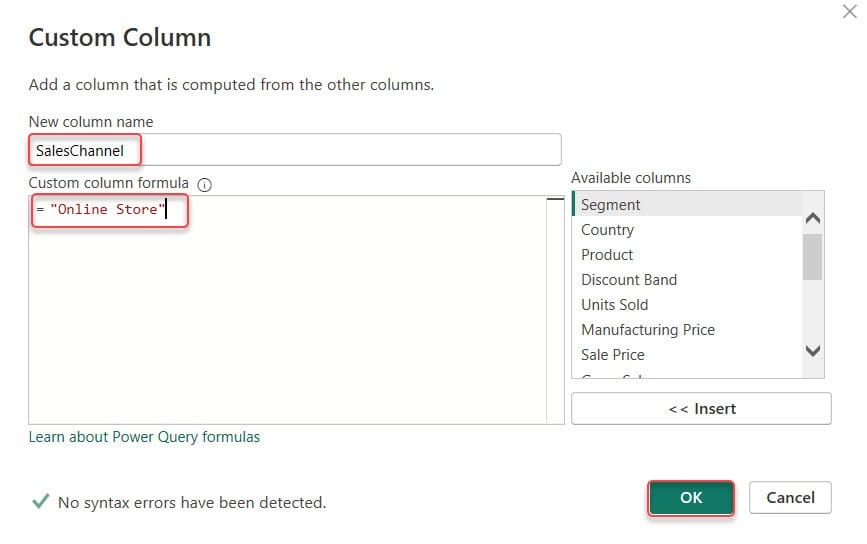
For this example, I want to add a new column named “SalesChannel” and set its value to “Online Store” for every row in your Sales dataset.
This method is ideal when you want the value to become a permanent part of your dataset before it even reaches the data model.
Follow the steps below:
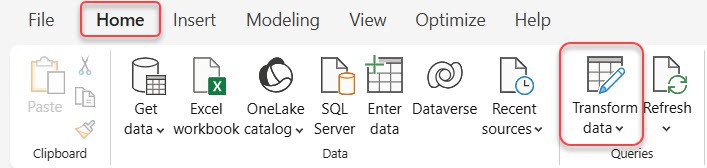
- In Power BI Desktop, go to the Home tab and select Transform data. This opens Power Query Editor.
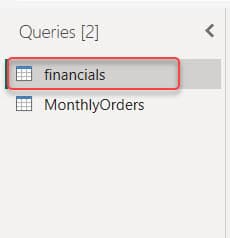
- In the Queries pane on the left, click the table where you want to add the fixed-value column.
- At the top, select the Add Column tab. Choose Custom Column from the ribbon.

- In the dialog box, give your column a meaningful name. For example, SalesChannel. In the formula box, simply type your fixed value using quotes (for text) or without quotes (for numbers). Click OK.
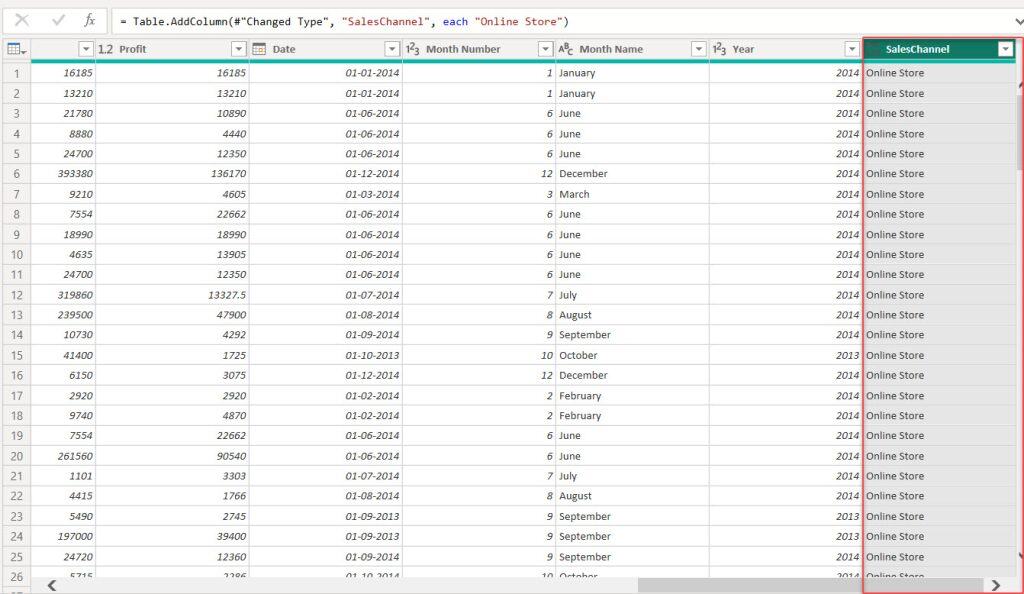
A new column with the same value in every row will be added. Check the screenshot below.
Add a Fixed Value Column Using a DAX Calculated Column in Power BI
This method is practical when you want to add the column after the data has already been loaded into the model. Unlike Power Query, DAX calculated columns do not modify the source data; they only exist inside the data model.
In this example, we will add a fixed date to every row.
Follow the steps below:
- In Power BI Desktop, switch to the Data View (table icon on the left).
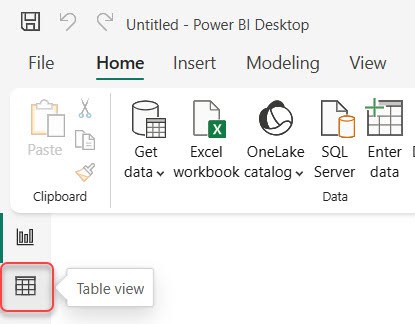
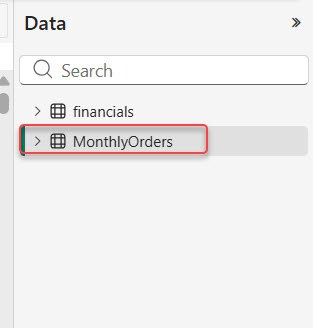
- Select the table where you want to add the fixed-value column.
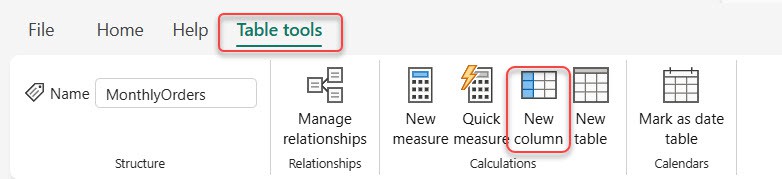
- Go to the Table tools tab in the ribbon. Click New column.
- In the formula bar, enter a DAX expression that returns a fixed date. For example:
ReportDate = DATE(2026, 01, 01)or
ReportDate = "2026-01-01"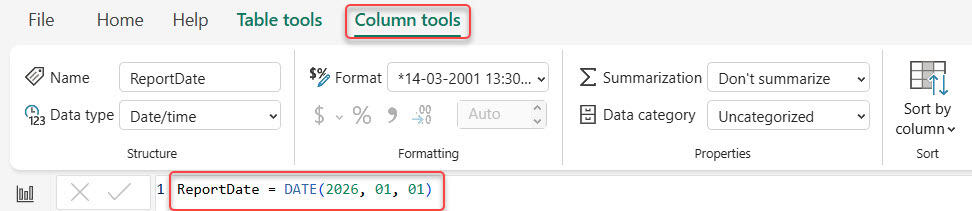
- Press Enter. Power BI will create a column named ReportDate with the same date for every row.
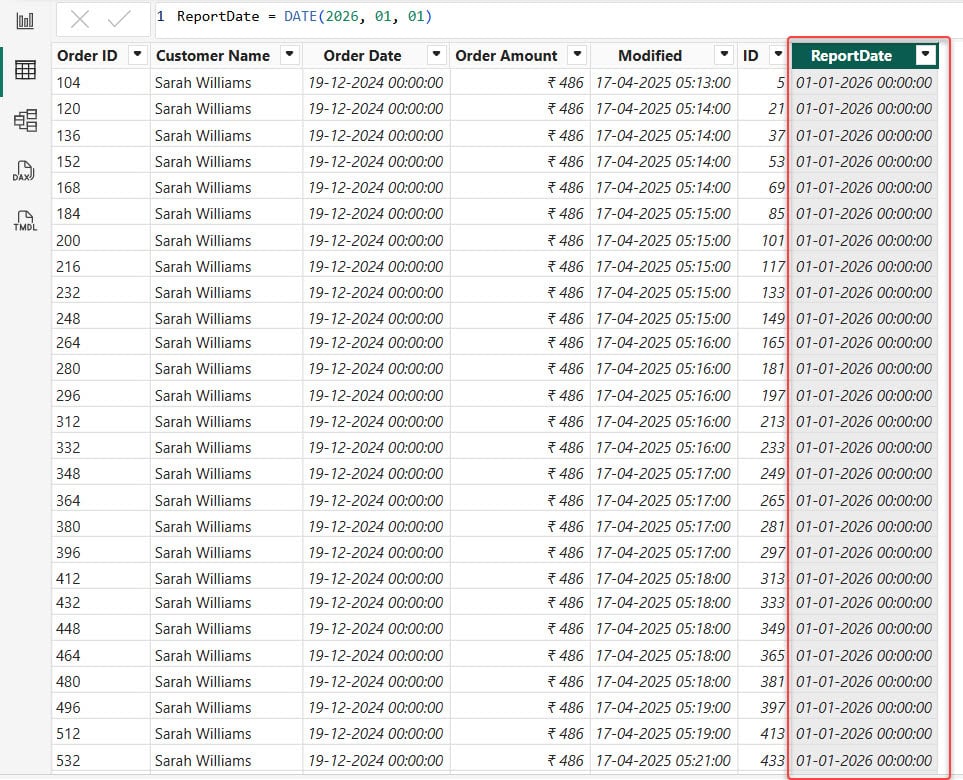
Now, you can use this date column in your visuals, filters, and calculations.
Add a Fixed Value Column Using Power BI Modeling
This method is helpful when you want to add a fixed value column quickly without using Power Query.
In this example, we will add a number to every row.
Follow the steps below:
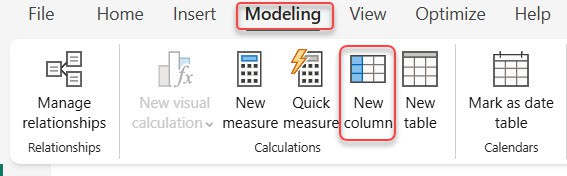
- In Power BI Desktop, click the Modeling tab at the top, then click New column on the ribbon.
- In the formula bar, type a fixed value directly.
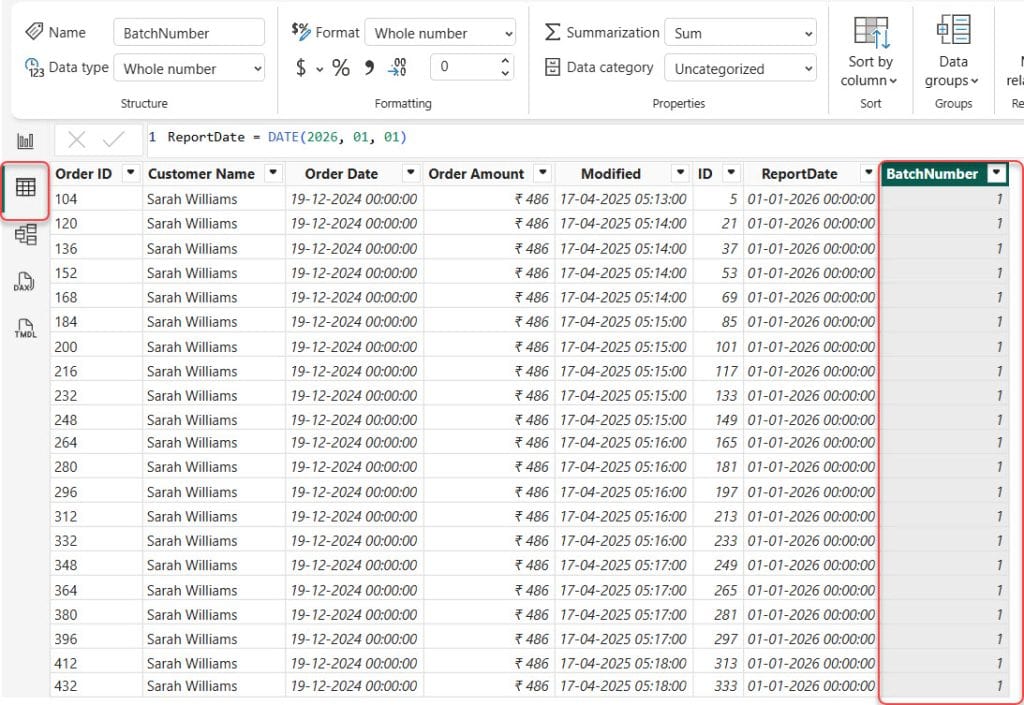
BatchNumber = 1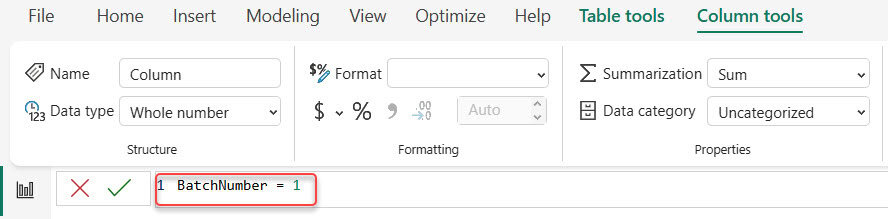
Then you can see the result by adding it to the visual or to the data view.
Add a Fixed Value With Conditional Logic in Power BI
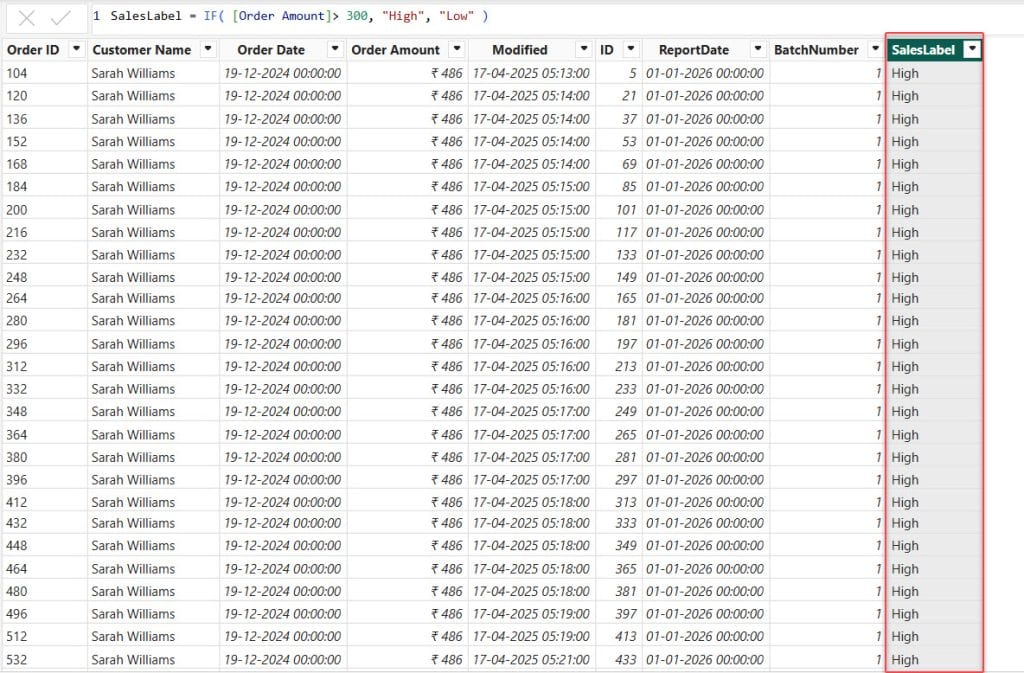
Sometimes, you don’t want the same value for all rows. Instead, you want a fixed value based on a condition. For example, if the OrderAmount is above 300, tag it as “High”; otherwise, tag it as “Low”.
This can be done using a DAX Calculated Column.
- In Power BI, go to Data View and select the table where you want the new column. Open the Table tools tab and click New column.
- Enter a DAX expression using IF, SWITCH, or any condition.
SalesLabel = IF( [Order Amount] > 300, "High", "Low" )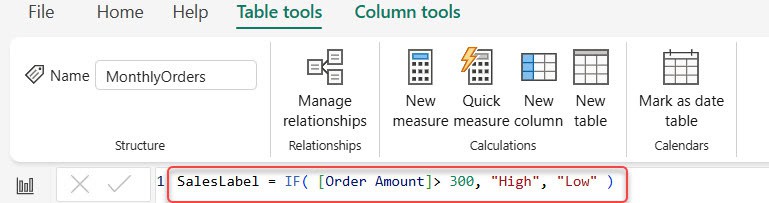
Power BI will create a fixed-value output based on the rule you defined.
Add a Fixed Value From Another Column in Power BI
Sometimes the fixed value you want is simply repeating another column’s value at the row level, for example, storing the maximum, minimum, or a first-row value across all rows.
This is also done using a DAX calculated column.
Add the same maximum SalesAmount to every row:
MaxSalesValue = CALCULATE(MAX('MonthlyOrders'[Order Amount]), ALL(MonthlyOrders))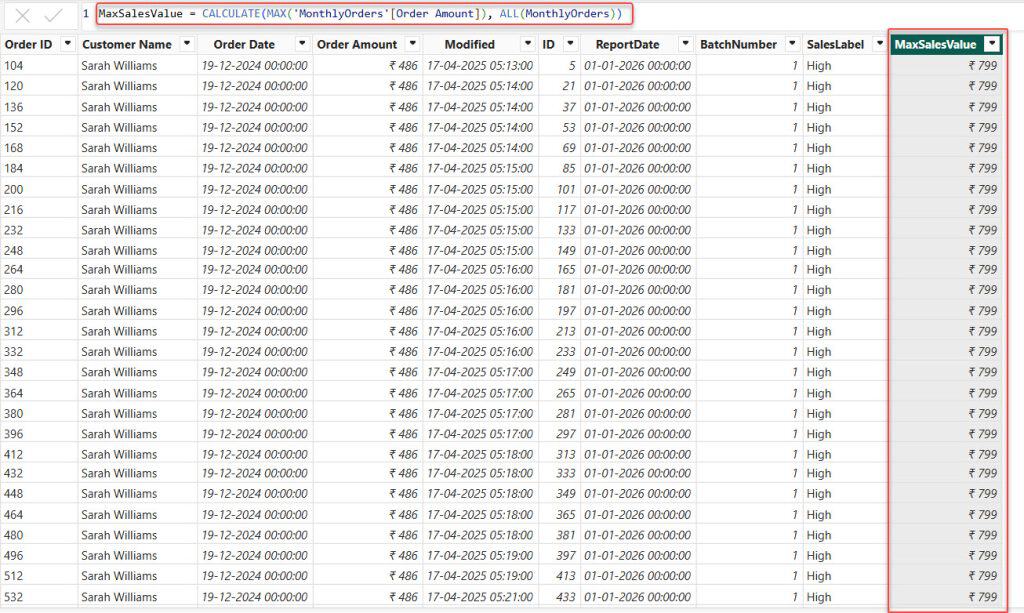
Add a Fixed Value From Another Table Using a DAX Calculated Column
For this example, I have two tables:
- Financials (contains Profit column)
- MonthlyOrders (you want to add the fixed value here)
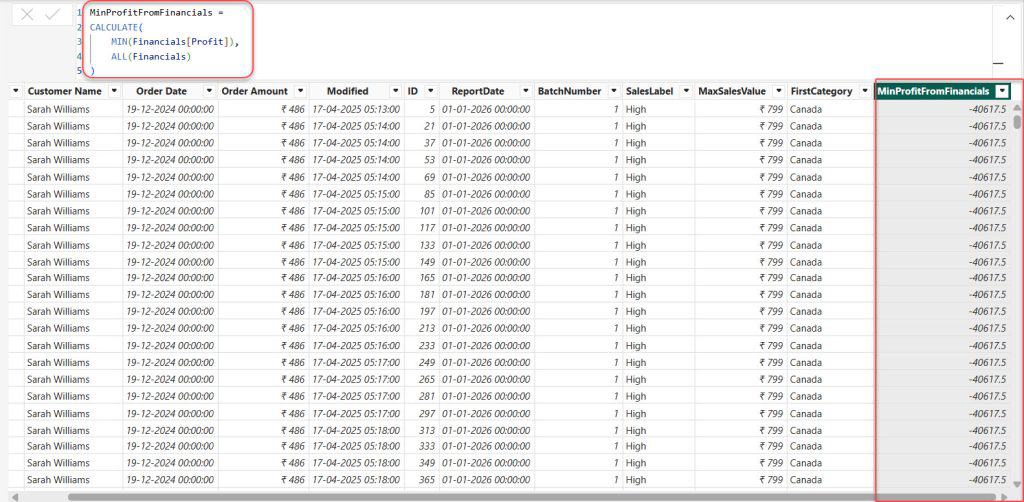
I want to add the minimum Profit from Financials into every row of MonthlyOrders.
This is also done using a DAX calculated column.
Follow the steps below:
- In Power BI, go to Data View and select the table where you want the new column. Open the Table tools tab and click New column.
- In the formula bar, put the following expression:
MinProfitFromFinancials =
CALCULATE(
    MIN(Financials[Profit]),
    ALL(Financials)
)
Add a Fixed Value Using a Measure in Power BI
Measures cannot create row-level columns, but you can create a fixed measure that always returns the same value. This is useful when you need a fixed value inside visuals.
To do this, follow the steps below:
- In Power BI Desktop, click the Modeling tab at the top, then click New measure on the ribbon.
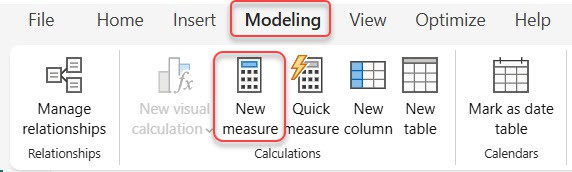
- In the formula bar, write a measure that returns a fixed number, text, or date.
FixedTarget = 100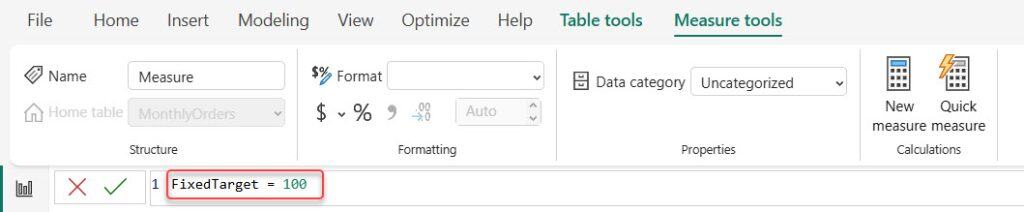
Drag this measure into a Card, Table, Matrix, or any visual where you want to display this constant value.
Because measures are recalculated based on filters, this fixed measure will return the same value regardless of the filters or slicers applied.
In this article, we explored how to add a fixed-value column in Power BI. We looked at how to create fixed values using Power Query, DAX calculated columns, and the Modeling view.
We also covered how to add fixed values using conditional logic, repeat values from another column, and how to add a fixed value from another table using a DAX calculated column.
Also, you may like:
- Add Data to Existing Table in Power BI
- Filter Data in Power BI Using Conditions from Another Column
- Append Columns in Power BI using Power Query Editor
- Compare Two Columns in Different Tables in Power BI
- Create a table in Power BI using Power Query Editor

Hey! I’m Bijay Kumar, founder of SPGuides.com and a Microsoft Business Applications MVP (Power Automate, Power Apps). I launched this site in 2020 because I truly enjoy working with SharePoint, Power Platform, and SharePoint Framework (SPFx), and wanted to share that passion through step-by-step tutorials, guides, and training videos. My mission is to help you learn these technologies so you can utilize SharePoint, enhance productivity, and potentially build business solutions along the way.