
If you’ve ever opened a SharePoint document library and found hundreds of files dumped in with no structure, you already know the pain. Folders are one of the simplest ways to bring order to the chaos — and creating them in SharePoint is easier than most people think.
In this tutorial, I’ll walk you through every method to create a folder in SharePoint — in a document library, inside a list, creating nested (sub) folders, doing it through Microsoft Teams, and even how to enable or disable the folder option when it’s missing. Let’s get into it.
Before jumping in, just check these two things:
- Permissions: You need at least Contribute access to the document library or list where you want to create folders. If you’re a visitor (read-only), you won’t see the option.
- Folder command enabled: By default, the folder option is turned on in document libraries. But sometimes, admins disable it. I’ll show you how to re-enable it later in this tutorial.
Method 1: Create a Folder in SharePoint Online (Modern Experience)
This is the most common scenario — you’re using SharePoint Online (part of Microsoft 365), and you want to add a folder to a document library.
Here’s how to do it:
- Go to your SharePoint site and open the document library where you want the folder. For example, let’s say it’s a library called Marketing Policies.
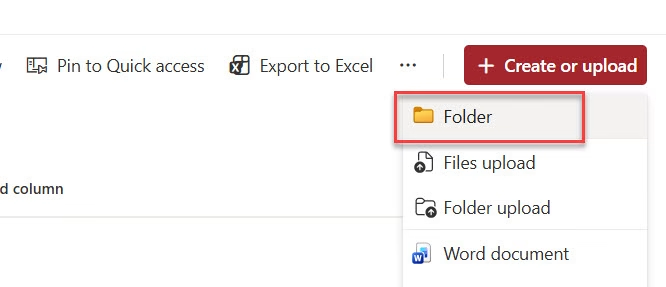
- Click the + Create or upload button at the top right of the SharePoint document library.
- From the dropdown, select Folder. You can refer to the screenshot below:
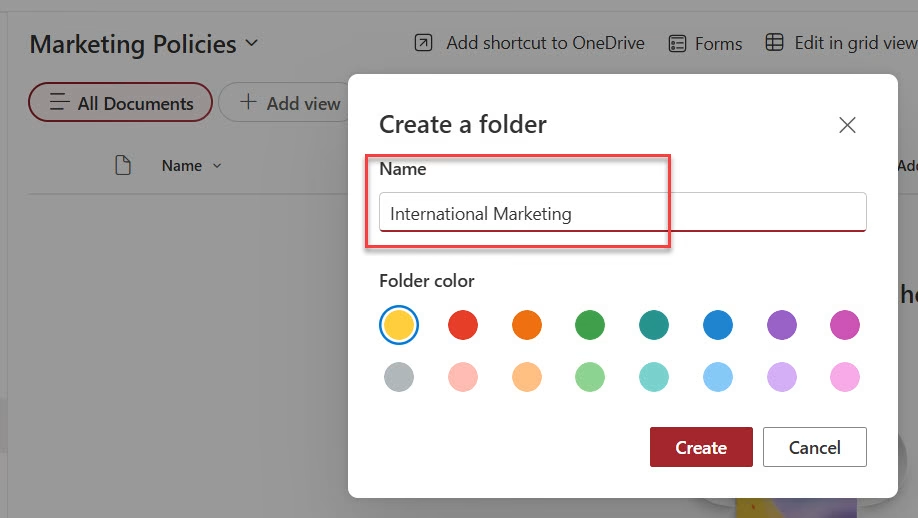
- A small dialog box appears. Type a Folder Name — something descriptive like International Marketing or Q1 Reports.
- You’ll also notice a Folder color option (it defaults to yellow). This is a nice visual touch if you want to color-code your folders — totally optional.
- Click Create. Here is the screenshot for your reference:
That’s it. Your folder shows up right there in the library. Click on it to open it, and you’re ready to start uploading files into it.
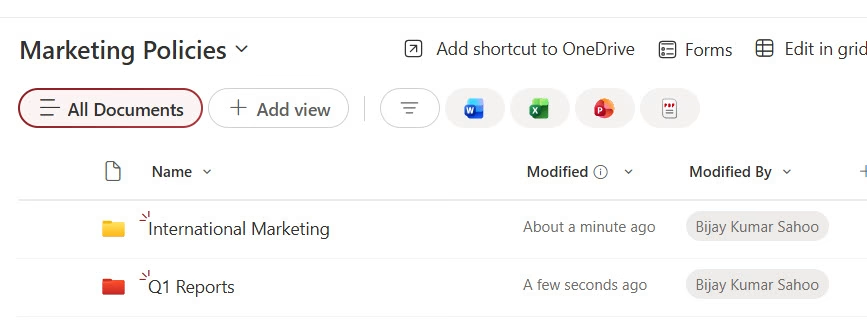
Here is how to the SharePoint document library looks with some folders.
Quick tip: SharePoint Online allows up to 30 million files and folders in a single document library. So don’t worry about running out of space anytime soon.
Method 2: Create a Folder in SharePoint Classic Experience
If your organization is still using the SharePoint Classic interface (you’ll know because it looks a bit older and has a ribbon toolbar at the top), the steps are slightly different.
- Navigate to your SharePoint site and open the document library.
- Click on the Files tab in the ribbon toolbar at the top.
- In the New group, click New Folder.
- Enter a name for your folder in the Name field.
- Click Create.
Done. The folder appears in your library just like in the modern experience.
Check out Create Choice Column With Fill-in Options in SharePoint Document Library
Method 3: Create a Subfolder (Nested Folder)
Sometimes a single level of folders isn’t enough. Maybe you have a Projects folder and you need separate subfolders for each project — like 2025 Projects > Project Alpha, Project Beta, and so on. SharePoint handles nested folders just fine.
Here’s how to create a subfolder:
- Open your document library and click into the parent folder where you want to create the subfolder. Make sure you’re inside that folder — look at the breadcrumb trail at the top to confirm your location.
- Once you’re inside the parent folder, click + New → Folder.
- Give the subfolder a name and click Create.
Here is a screenshot for your reference.
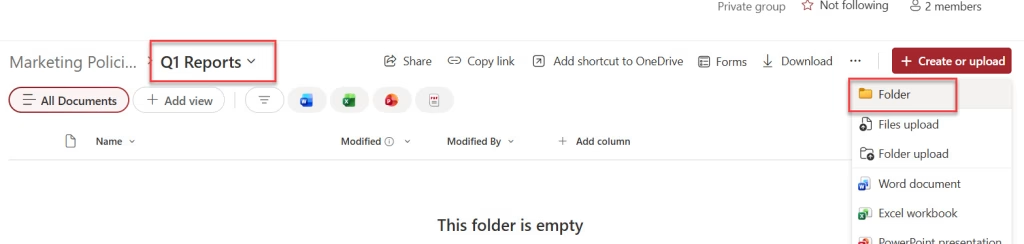
The breadcrumb navigation is your friend here. It shows you exactly where you are in the folder hierarchy, so you don’t accidentally create a folder at the wrong level.
You can nest folders inside folders as deep as you need — though from experience, going more than 3–4 levels deep can make navigation confusing for your team. Keep it manageable.
Read Get SharePoint Document Library Size using PnP PowerShell
Method 4: Create a Folder in a SharePoint List
Most people don’t realize you can also create folders inside a SharePoint list, not just a document library. This is useful when you have a large list and want to group items by category or project.
The catch: folder creation in lists is disabled by default. You need to turn it on first.
Step 1 — Enable folder creation in a list:
- Open your SharePoint list.
- Click the Gear (Settings) icon → List settings.
- Click Advanced settings.
- Scroll down to the Folders section.
- Under Make “New Folder” command available, select Yes.
- Click OK.
Step 2 — Create the folder:
- Go back to your list.
- Click + New → Folder.
- Enter a folder name and click Create.
The folder will now appear in your list, and you can move list items into it to group them.
Method 5: Create a Folder in SharePoint via Microsoft Teams
If your team mainly works inside Microsoft Teams, you don’t actually need to open SharePoint separately. Since Teams channels are backed by SharePoint document libraries, any folder you create in Teams shows up in SharePoint too — and vice versa.
Here’s how to do it directly from Teams:
- Open Microsoft Teams and go to the channel where you want to add a folder.
- Click on the Shared tab at the top of the channel.
- Click + New → Folder (or look for the New Folder button depending on your Teams version).
- Enter the folder name and click Create. Here is a screenshot for your reference.
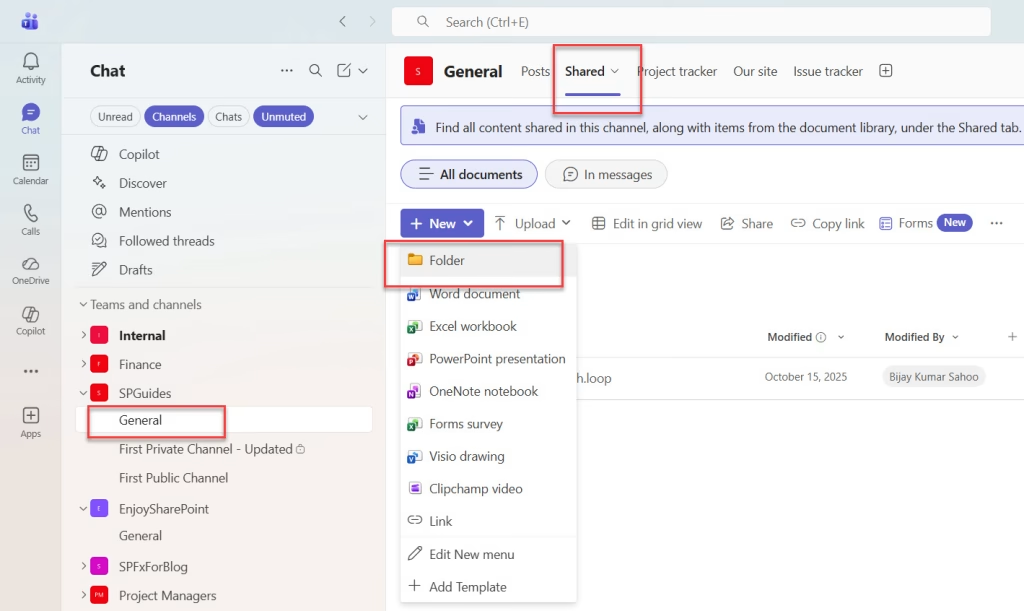
The folder instantly appears in both Teams and the connected SharePoint document library. This is handy if your team lives in Teams and doesn’t want to jump into SharePoint separately.
How to Rename, Move, or Delete a Folder
Once you’ve created a folder, managing it is straightforward. Here’s a quick rundown:
- Rename a folder: Hover over the folder, click the three dots (…) that appear, and select Rename.
- Move a folder: Select the folder (click the checkbox next to it), then click Move to from the top toolbar. Pick the destination library or folder.
- Delete a folder: Hover over it, click the three dots, and select Delete. Deleted folders go to the Recycle Bin, so you can restore them within 93 days if needed.
- Share a folder: Click the three dots → Share, and you can invite people to access just that folder with specific permissions.
Check out Delete Files From SharePoint Document Library Using Rest API in Power Automate
How to Enable or Disable the Folder Option in a Document Library
Sometimes you’ll click + New and not see the Folder option. That means it’s been disabled at the library level. Here’s how to turn it back on (you need to be a site owner or have design permissions):
- Open the document library.
- Click the Gear (Settings) icon at the top right.
- Select Library settings → More library settings.

- Click Advanced settings.
- Scroll down to the Folders section.
- Under Make “New Folder” command available, select Yes.
- Click OK. Here is a screenshot for your reference.

Go back to the library and the Folder option will be back in the + New menu.
To disable it (if you want to prevent users from creating folders), follow the same steps and select No instead.
Check out Create Folders and Subfolders in SharePoint document library using SPFx
Should You Use Folders or Views in SharePoint?
This is a fair question to ask. Folders work great when you want a simple, familiar file-explorer-style structure. But SharePoint also gives you something more powerful — metadata views. Here’s a quick comparison:
| Folders | Views (Metadata) |
|---|
| Folders | Views (Metadata) | |
|---|---|---|
| Best for | Simple file hierarchy | Large libraries with varied content |
| Navigation | Click through folder levels | Filter and sort from one screen |
| Search | Works, but limited to folder path | Searches across all metadata |
| Flexibility | Rigid structure | Highly flexible |
| Learning curve | None — everyone knows folders | Requires metadata setup upfront |
My honest take: for most teams, a combination works best. Use a light folder structure for top-level organization, and set up views with filters for day-to-day browsing. You don’t have to choose one or the other.
Check out Get SharePoint Document Library Folder Path in Power Automate
Best Practices for Naming and Organizing Folders in SharePoint
A few things I’ve learned that save a lot of headaches later:
- Keep folder names short and clear — “HR Policies 2026” is better than “All HR-Related Policy Documents for the Year 2025.”
- Avoid special characters in folder names — things like
# % & * : < > ? /can cause issues, especially when syncing with OneDrive. - Don’t go deeper than 3–4 folder levels — it gets hard to navigate and the file path can get too long for Windows sync.
- Use consistent naming conventions — if you name one folder “Q1-2026”, don’t name another “2026 Q2”. Pick a format and stick with it across your team.
- Review folder permissions occasionally — especially for sensitive folders. Folder-level permissions can be set in SharePoint, but they add complexity, so use them sparingly.
- Combine folders with metadata where possible — even inside a folder, adding columns like Department or Status makes finding files much faster.
Conclusion
Creating folders in SharePoint is genuinely simple once you know where to look. Whether you’re using the modern interface, the classic experience, Microsoft Teams, or working inside a list — the process takes less than a minute. The bigger skill is organizing those folders in a way that makes sense for your team long-term.
Start with a simple structure, keep folder names clean, and don’t nest too deep. That alone will make your SharePoint library a place people actually want to use instead of avoid.
You may also like:
- How to check if a file exists in the SharePoint document library in Power Automate?
- SPFx Upload File to SharePoint Document Library With Metadata
- Give SharePoint Library Upload Access to External Users
- How to Set Column Default Value in SharePoint Library?

Hey! I’m Bijay Kumar, founder of SPGuides.com and a Microsoft Business Applications MVP (Power Automate, Power Apps). I launched this site in 2020 because I truly enjoy working with SharePoint, Power Platform, and SharePoint Framework (SPFx), and wanted to share that passion through step-by-step tutorials, guides, and training videos. My mission is to help you learn these technologies so you can utilize SharePoint, enhance productivity, and potentially build business solutions along the way.


Thank you. This was excellent.
Glad you liked it.
Excellent work Bijay!