
If you’ve been building Power Apps for a while, you know the pain of creating dialog boxes. You had to overlay containers, mess with visibility variables, add close buttons, and write a bunch of code just to ask users a simple “Are you sure?” question.
Well, Microsoft finally worked on this and released the Power Apps Confirm() function. And honestly, it’s about time.
In this Power Apps tutorial, I’ll walk you through everything you need to know about the Confirm() function in Power Apps – what it does, how to use it, and real examples you can steal for your own apps.
What is the Confirm() Function in Power Apps?
The Confirm() function in Power Apps displays a modal dialog box on top of your current screen with two buttons – one to confirm and one to cancel. The user must click one of these buttons (or dismiss the dialog) before they can interact with anything else in your app.
Think of it like JavaScript’s confirm() but built natively into Power Apps with way more customization options.
The function returns:
trueIf the user clicks the confirm buttonfalseIf they click cancel or dismiss the dialog
That’s it. Simple and clean.
Prerequisites: What You Need to Enable First
Before you start using the Power Apps Confirm() function, you need to make sure a few settings are turned on in your app:
1. Modern Controls and Themes
- Go to Settings → Updates
- Turn on “Modern controls and themes“

2. Authoring Version
- Go to Settings → Support
- Make sure your authoring version is set to the latest (at minimum, version 3.26022.5 or higher)

Without these enabled, the function won’t work properly. You’ll just get errors, or nothing will happen.
Power Apps Confirm() Function Syntax
Here’s the simplest version:
Confirm("Are you sure?")This shows a dialog with your message and two default buttons – “Confirm” and “Cancel” (or “OK” and “Cancel” in model-driven apps, depending on localization).
But you can customize it further in a Power Apps Canvas app:
Confirm(
    "Are you sure you want to delete this record?",
    {
        Title: "Delete Confirmation",
        Subtitle: "This action cannot be undone",
        ConfirmButton: "Delete",
        CancelButton: "Cancel"
    }
)
Let me break down each parameter:
- Message (required): The main text that explains what the user is confirming
- Title (optional): Big, bold text at the top of the dialog
- Subtitle (optional): Smaller text between the title and message
- ConfirmButton (optional): Custom text for the confirm button (default is “Confirm” or “OK”)
- CancelButton (optional): Custom text for the cancel button (default is “Cancel”)

How to Use the Return Value of the Confirm() Function
The Power Apps Confirm() function returns true or false. You’ll almost always use it with an If() statement.
Here’s a simple example:
If(
    Confirm("Are you sure?"),
    Remove(Items, ThisItem)
)
This removes the item only if the user clicks confirm.
If you need to do different things based on their choice:
If(
    Confirm("What's your favorite color?", {
        ConfirmButton: "Red",
        CancelButton: "Green"
    }),
    Set(FavoriteColor, "Red"),
    Set(FavoriteColor, "Green")
)
You can also store the result in a variable and use it later:
Set(varUserConfirmed, Confirm("Do you want to proceed?"));

If(varUserConfirmed,
    Notify("Processing...", NotificationType.Information),
    Notify("Cancelled", NotificationType.Warning)
)
Power Apps Confirm() Function Examples
Let me show you six practical scenarios where you can use the Power Apps Confirm() function in a Power Apps canvas app.
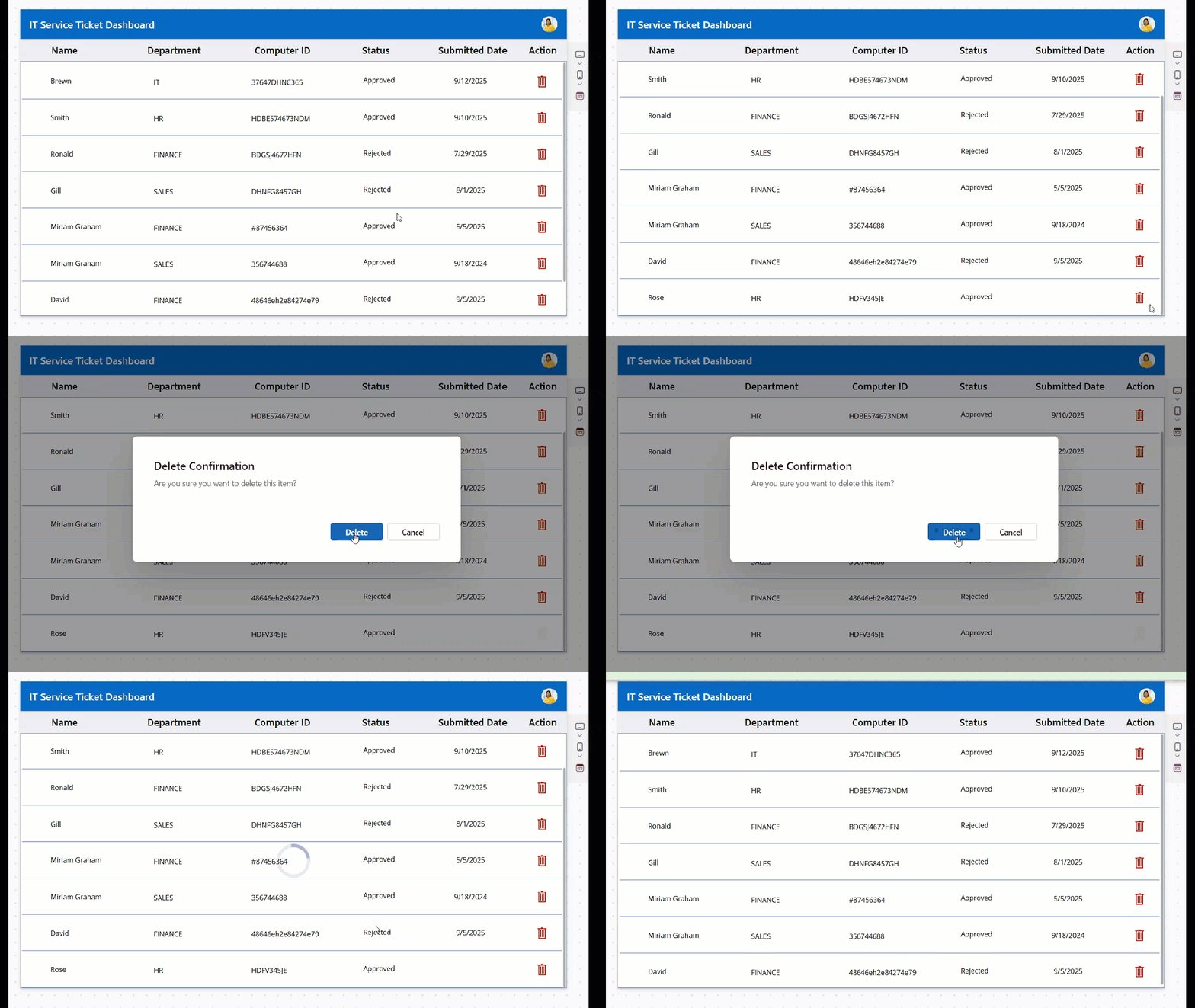
Example 1: Delete Confirmation in a Power Apps Gallery
Let’s say you have a Power Apps gallery showing records from SharePoint. Each item has a delete icon. Without confirmation, a single accidental click, and the record is gone forever.
Old way: Build a custom dialog with containers, set visibility variables, and write open/close logic.
New way with Confirm():
Put this in the OnSelect of your Delete/trash icon inside the gallery:
If(
    Confirm(
        "Are you sure you want to delete this item?",
        {
            Title: "Delete Confirmation",
            ConfirmButton: "Delete",
            CancelButton: "Cancel"
        }
    ),
    Remove(
        'IT Service Ticket',
        ThisItem
    );
    Notify(
        "Item deleted successfully",
        NotificationType.Success
    )
)
Here,
‘IT Service Ticket’ = SharePoint list name

That’s it. The user clicks delete, sees the dialog, and the item only gets removed if they confirm.
Example 2: Bulk Delete from a Power Apps Table Control
The Power Apps modern table control lets users select multiple rows. You want to delete all selected items at once – but definitely with confirmation.
Refer to the GIF below.
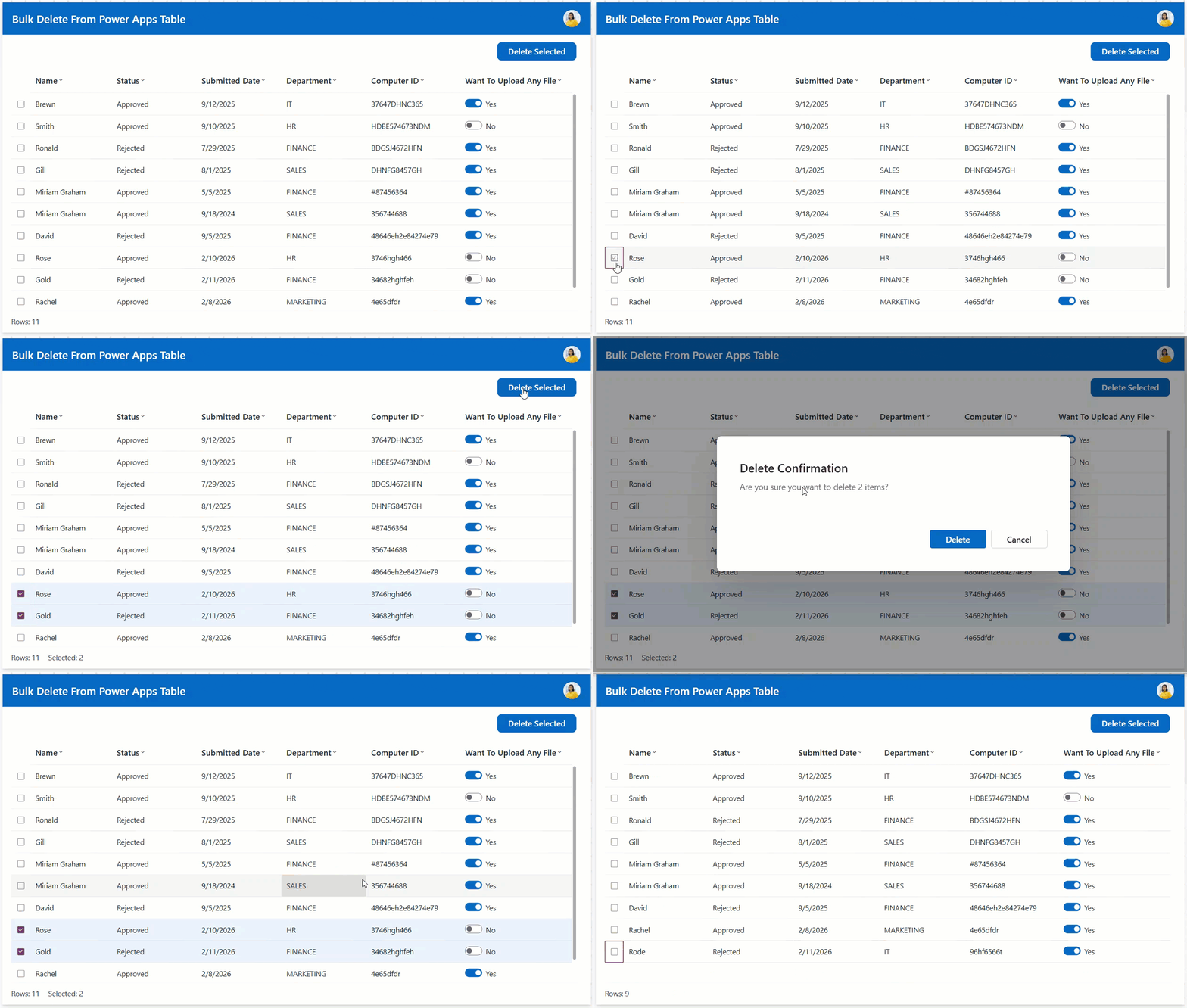
To achieve this, select the “Delete Selected” button and apply the code below on it’s OnSelect property:
If(
    Confirm(
        "Are you sure you want to delete " & CountRows(tbl_ServiceTickets.SelectedItems) & " items?",
        {
            Title: "Delete Confirmation",
            ConfirmButton: "Delete"
        }
    ),
    Remove(
        'IT Service Ticket',
        tbl_ServiceTickets.SelectedItems
    );
    Notify(
        "Items deleted successfully",
        NotificationType.Success
    )
)
Where,
- tbl_ServiceTickets = Modern table name
- ‘IT Service Ticket’ = SharePoint list name
This shows exactly how many items will be deleted in the confirmation message. Users know what they’re about to do.
Example 3: Unsaved Changes Warning in Power Apps Form
You have a Power Apps form screen where users can edit records. They make changes, but then hit the back button without saving.
You want to warn them: “Hey, you have unsaved changes. Are you sure you want to leave?”
On your Back button’s OnSelect:
If(
    Form1.Unsaved,
    If(
        Confirm(
            "You have unsaved changes. Are you sure you want to go back?",
            {
                Title: "Unsaved Changes",
                ConfirmButton: "Yes, go back",
                CancelButton: "No, stay here"
            }
        ),
        Navigate(
            Screen3,
            ScreenTransition.Cover
        )
    ),
    Back()
)
Here’s what happens:
- If the form has unsaved changes, show the dialog
- If they confirm, take them to a different screen
- If the form is clean (no unsaved changes), just go back without asking
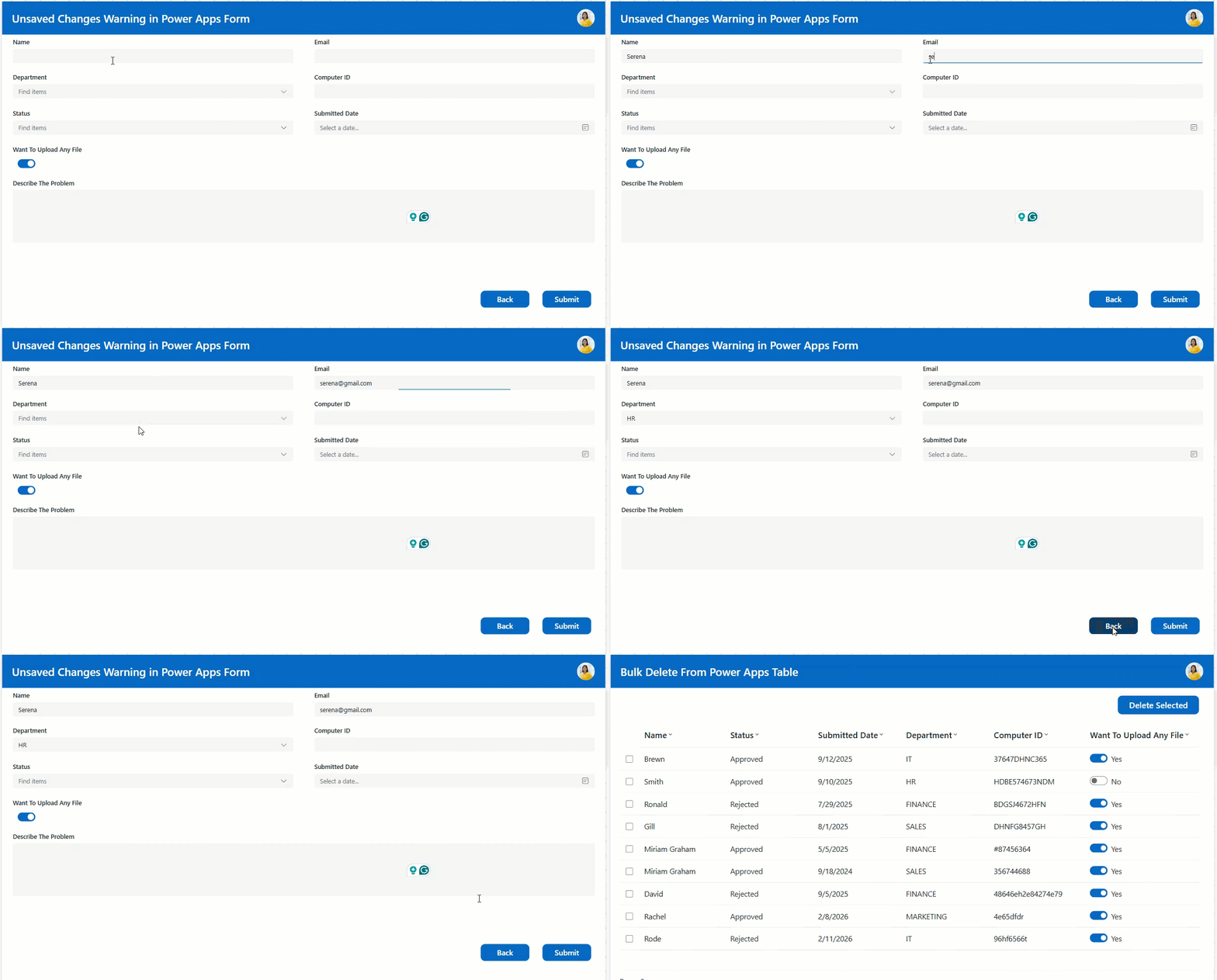
This prevents accidental data loss and makes your app feel more professional.
Example 4: Sign Out Confirmation
Users accidentally click the sign-out button repeatedly in their Power Apps apps. Let’s confirm before we boot them out.
On your sign-out button, you can write the following formula.
If(
    Confirm(
        "Are you sure you want to sign out?",
        {
            Title: "Sign Out"
        }
    ),
    // Your sign out logic here
    Navigate(LoginScreen, ScreenTransition.None)
)
Simple and effective.
Example 5: Form Submission Confirmation in Power Apps
Before submitting important data (such as IT service tickets, purchase orders, employee records, or approvals), you want users to double-check it in Power Apps.
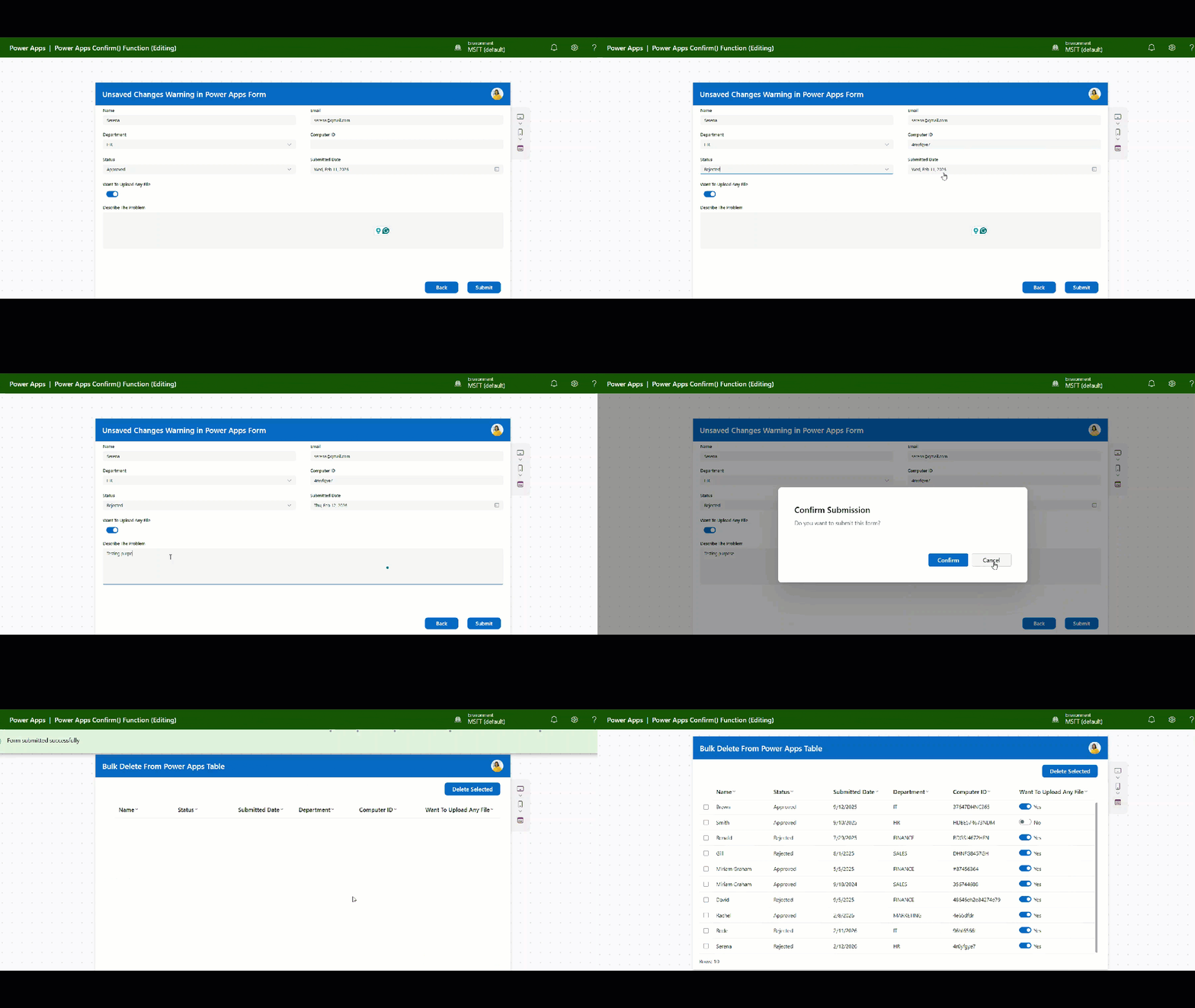
On your Power Apps Submit button:
If(
    Confirm(
        "Do you want to submit this form?",
        {Title: "Confirm Submission"}
    ),
    SubmitForm(Form1);
    ResetForm(Form1);
    Notify(
        "Form submitted successfully",
        NotificationType.Success
    );
    Navigate(scr_ITServiceDashboard)
)
The form only submits if they confirm. Otherwise, they stay on the screen and can review their entries.
Example 6: Overwrite Warning
Let’s say you have a “Generate Report” button that creates a new report. But if a report already exists, it will be overwritten.
You can check if the report exists and show a different message:
If(
    !IsEmpty(Filter(Reports, ReportDate = Today())),
    If(
        Confirm(
            "A report already exists for today. Do you want to overwrite it?",
            {
                Title: "Warning",
                ConfirmButton: "Yes, overwrite",
                CancelButton: "Cancel"
            }
        ),
        // Generate new report and overwrite
        Set(varGenerateReport, true)
    ),
    // No existing report, just generate
    Set(varGenerateReport, true)
)
This warns users before they accidentally lose existing data.
Important Things to Know
You always get two buttons, no more, no less
You can’t add a third button or have only one. The design is intentional – users must always have a way to cancel or dismiss the dialog.
If you need more than two options, use a different approach (like a dropdown or a custom screen with multiple buttons).
The dialog is modal
Modal means the user can’t interact with anything else until they dismiss the dialog. They can’t click outside and start doing other things. This is good for critical confirmations.
Dismissing the dialog = Cancel
If users press Escape or click outside the dialog, it’s treated the same as clicking Cancel. The function returns false.
It’s fully responsive
The dialog automatically adjusts for mobile, tablet, and desktop screens. You don’t need to write different code for different devices.
Button text is localized by default
If you don’t customize the button text, Power Apps uses the user’s language settings to show “OK” and “Cancel” in their language. But if you provide custom text, you need to handle localization yourself.
Common Mistakes and How to Avoid Them
Mistake 1: Not checking the return value
// Wrong
Confirm("Are you sure?");
Remove(Items, ThisItem);
This shows the dialog but removes the item regardless of what the user clicks. Always wrap it in an If().
Mistake 2: Using it for non-critical messages
Don’t use Confirm() for information messages like “Record saved successfully.” Use Notify() instead. Reserve Confirm() for actual decisions.
Mistake 3: Vague messages
// Not helpful
Confirm("Are you sure?")
Always be specific about what they’re confirming:
// Better
Confirm("Are you sure you want to delete this customer record? This cannot be undone.")
Mistake 4: Not enabling modern controls
If your Power Apps Confirm() function isn’t working, check your settings. Modern controls must be enabled.
Why This Function Matters
Before Confirm(), creating dialog boxes was a hassle. You had to:
- Create overlay containers
- Manage visibility variables
- Write open/close logic
- Handle the visual styling
- Make it responsive
- Ensure keyboard navigation works
It took 30+ minutes to do something that should have taken 30 seconds.
Now? One line of code.
This means:
- Faster development
- Consistent user experience across all apps
- Less buggy code (because you’re not building it yourself)
- Easier maintenance
Conclusion
The Confirm() Function is one of those features that seems small but makes a huge difference in day-to-day development.
Use it for:
- Delete confirmations
- Unsaved changes warnings
- Sign out confirmations
- Form submissions
- Any action that can’t be easily undone
Don’t use it for:
- Success/error messages (use
Notify()) - Information that doesn’t require a decision
- Non-critical confirmations
Start replacing your custom dialog code with Confirm(). Your future self will thank you.
And if you’re building new apps, make it a habit to add confirmation dialogs for destructive actions from the start. Users make mistakes. Give them a way to catch those mistakes before data disappears forever.
Also, you may like some more Power Apps tutorials:
- Send Approval Email Using Power Apps Button
- Set a Power Apps Dropdown Default Value from a SharePoint List
- String Interpolation in Power Apps
- Restore Deleted Apps in Power Apps
- Power Apps Modern Card Control

Hey! I’m Bijay Kumar, founder of SPGuides.com and a Microsoft Business Applications MVP (Power Automate, Power Apps). I launched this site in 2020 because I truly enjoy working with SharePoint, Power Platform, and SharePoint Framework (SPFx), and wanted to share that passion through step-by-step tutorials, guides, and training videos. My mission is to help you learn these technologies so you can utilize SharePoint, enhance productivity, and potentially build business solutions along the way.