
Last week, one of my subscribers asked me a question about filters in Power BI. They have a budget table with budget values for all 12 months, and actual values for only 9 months. They wanted to create a DAX measure that shows the full-year budget even when the Month filter is selected on the report page.
To do this, they wrote a formula like this:
Measure = CALCULATE(SUM(data[Sales]), data[version] = "Budget", ALL(data[month]))But this formula was still giving only 9 months of budget, not all 12.
The formula shows only 9 months because the filter on the version column is still active. When the measure filters data[version] = “Budget”, it is only picking rows that are available in the current filter context. Even though ALL(data[month]) removes the Month filter, the calculation still depends on the rows that exist in the table after all filters are applied.
In this case, the model is still affected by the relationship between the Month column and the fact table. Because the actual table has only 9 months of data, the context does not automatically expand to all 12 months. That is why the result shows only 9 months of budget, not the full 12 months.
To get the correct full-year budget, we need to remove the filter from the entire data table, not just the Month column. That is where functions like ALL(), ALLEXCEPT(), and FILTER() help you properly control the filter context.
In this tutorial, I will explain what ALL(), ALLEXCEPT(), and FILTER() functions are, along with their syntax and simple examples. After that, we will resolve the subscribers’ issue of obtaining the correct full-year budget measure by applying the appropriate filters in Power BI.
ALL(), ALLEXCEPT(), and FILTER() in Power BI
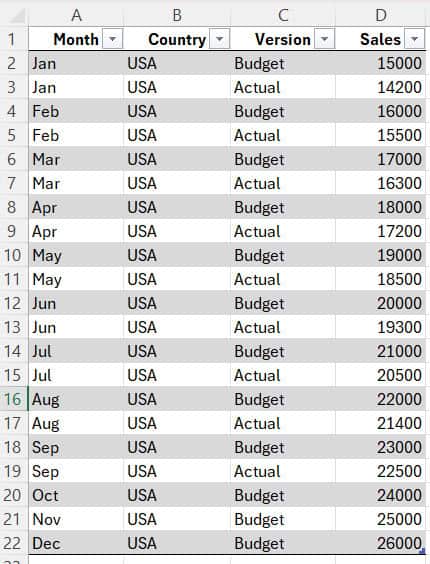
Before I tell you about All() functions, you must have data. To explain these filter functions clearly, I will use the SalesData table, which contains sales information for two versions: Budget and Actual.
ALL() Function in Power BI
The ALL() function in Power BI removes filters. For example, when a report page has slicers or filters applied, the same filter will apply to the visuals. But we want a measure that ignores those filters and calculates using the complete dataset.
In this type of case, the ALL() function helps by removing the filter from a single column when we specify a column, and removing all filters from the entire table when we pass the table name.
Syntax:
ALL(TableName)
ALL(TableName[ColumnName])
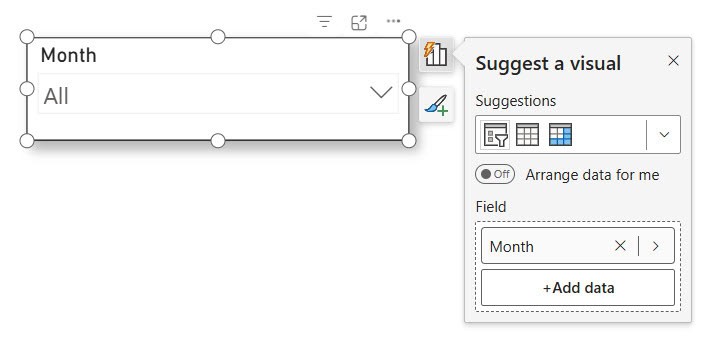
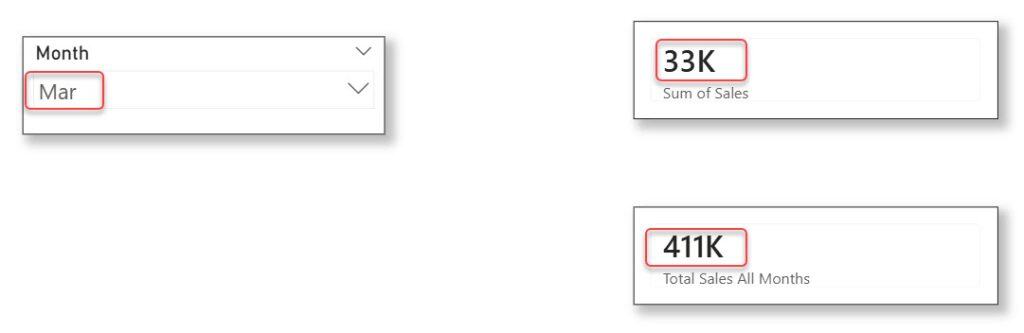
For example, I added a slicer visual in my report that shows all the months. When a user selects “March,” the report shows only March data. But in my case, I do not want the measure to filter by the selected month. I want the measure to show the total value for all 12 months. To do this, follow the steps given below.
- Open Power BI Desktop and load your report. I have already created a slicer visual that shows all the months.
- Add a card visual to check the sales value when March is selected.
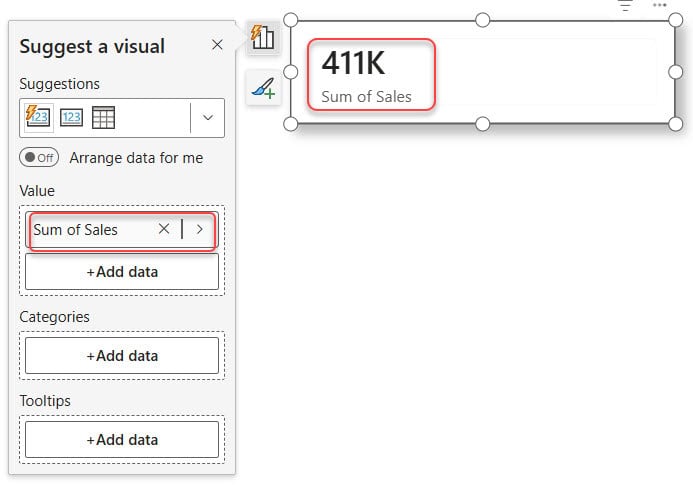
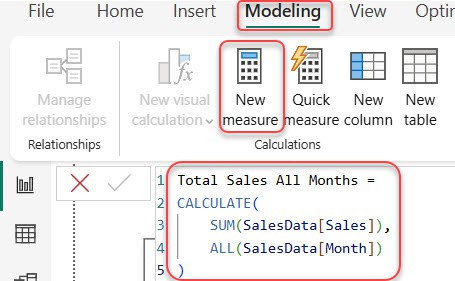
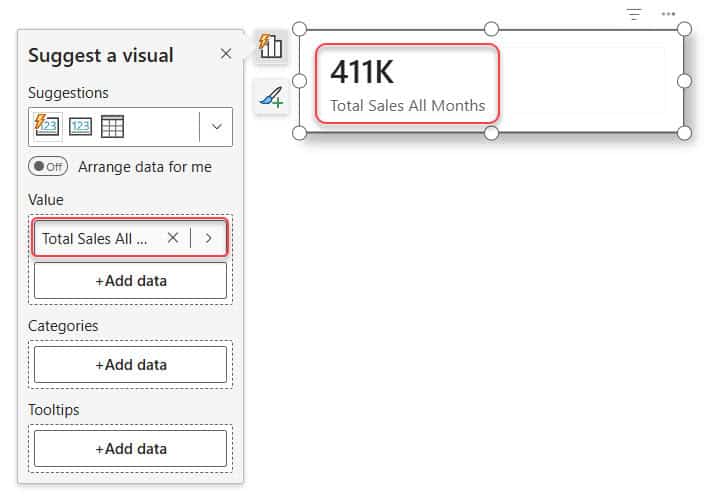
- Now create a new measure that returns the total sales for all 12 months, even when a month is selected in the slicer. To do this, go to the Modeling tab and click on New measure, then provide the DAX expression below:
Total Sales All Months =
CALCULATE(
    SUM(SalesData[Sales]),
    ALL(SalesData[Month])
)
- Add another card visual and use the new measure in this visual to compare the result with the normal month-filtered sales.
Select different months in the slicer and check both card visuals. You will see that the normal card visual changes based on the selected month, but the new measure still shows the total sales.
ALLEXCEPT() Function in Power BI
The ALLEXCEPT() function helps when you want to remove filters from a table but still keep specific filters active.
For example, you want the calculation to ignore the Month filter but still calculate values separately for each Country or Product. In this situation, ALLEXCEPT() is the right function because it clears all filters except the ones you choose to keep.
Syntax:
ALLEXCEPT(TableName, TableName[ColumnName])You can also keep more than one column:
ALLEXCEPT(TableName, TableName[Column1], TableName[Column2])I have sales data for the USA. When the user selects a month in the slicer, the report filters the data for that month. But I want to calculate the total budget for the entire year while keeping the data grouped by Country.
To do this, I will create a measure using ALLEXCEPT().
- Open Power BI Desktop and go to the Modeling tab. Click New measure and enter the DAX expression below:
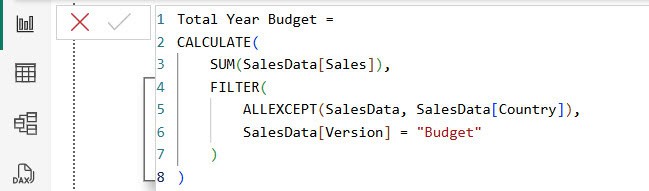
Total Year Budget =
CALCULATE(
    SUM(SalesData[Sales]),
    FILTER(
        ALLEXCEPT(SalesData, SalesData[Country]),
        SalesData[Version] = "Budget"
    )
)
- Add a card visual and use this measure.
- Select different months in the slicer and check the result.
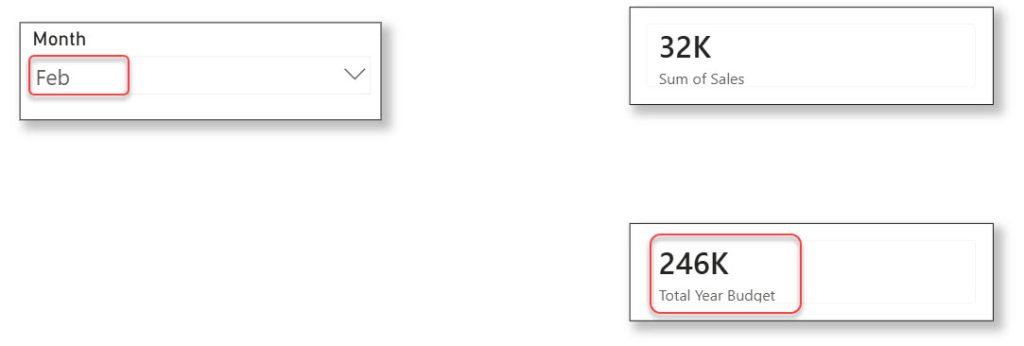
You will notice that the measure still shows the full-year budget. The value remains grouped by Country because ALLEXCEPT() keeps the Country filter active.
This way, ALLEXCEPT() helps you control how filters behave while keeping important filters unchanged.
This is the solution that the successor wants in their report.
FILTER() Function in Power BI
The FILTER() function is used when you want to apply your own custom condition on a table. This function checks each row one by one and keeps only those rows that match the rule that you write.
Syntax:
FILTER(TableName, Condition)In my case, I have both Budget and Actual values for each month. If I only want to calculate the Budget values, I can use FILTER() like this:
FILTER(SalesData, SalesData[Version] = "Budget")This expression keeps only the rows where Version is “Budget”. But we can not add this directly to the measure because it refers to multiple columns. Multiple columns cannot be converted to a scalar value.
So to create this, we need to use CALCULATE().
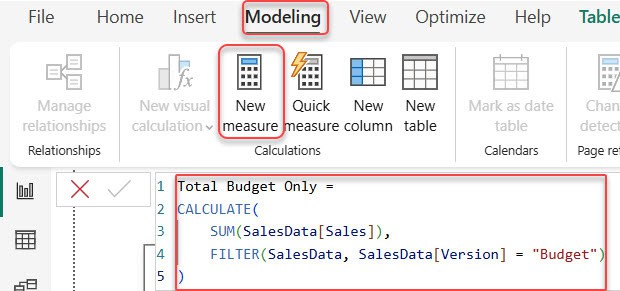
- Open Power BI Desktop and go to the Modeling tab.
- Click New measure and write the DAX expression below:
Total Budget Only =
CALCULATE(
    SUM(SalesData[Sales]),
    FILTER(SalesData, SalesData[Version] = "Budget")
)
- Add a card visual and apply this measure.
- Select different months from the slicer and check the result.

This measure will always calculate only the Budget values because the FILTER() logic keeps only those rows.
Also, you may like:
- Add Data to Existing Table in Power BI
- Append Columns in Power BI using Power Query Editor
- Compare Two Columns in Different Tables in Power BI
- Create a table in Power BI using Power Query Editor

Hey! I’m Bijay Kumar, founder of SPGuides.com and a Microsoft Business Applications MVP (Power Automate, Power Apps). I launched this site in 2020 because I truly enjoy working with SharePoint, Power Platform, and SharePoint Framework (SPFx), and wanted to share that passion through step-by-step tutorials, guides, and training videos. My mission is to help you learn these technologies so you can utilize SharePoint, enhance productivity, and potentially build business solutions along the way.

