
In this SPFx tutorial, we will learn about Fluent UI React combobox control examples inside the SPFx web part. It includes both single-select and multi-select combo boxes, as well as how to populate their options using choice fields from a SharePoint list.
Not only that, we will also cover how to save the selected values back into the SharePoint list when the user submits the data. I will also show you how to add the “Select All” option in the combobox control and how to group the choice options under a heading, etc.
By the end, you’ll learn how to fetch choice values dynamically from SharePoint and update the list with user-selected data using Fluent UI components.
SPFx ComboBox Example: Static Options and List Submission
In this section, we’ll first see how to use the Fluent UI React combobox control with static data in the SPFx webpart and save the combobox selected values to a SharePoint list.
The one below is the statement we need to import for using the combobox control.
import { ComboBox, IComboBoxOption, IComboBoxStyles, IComboBox } from '@fluentui/react/lib/ComboBox';The example below shows the commonly used properties in the combobox control.
 <ComboBox
      label="Multi-Select ComboBox"
      placeholder="Select options"
      multiSelect
      options={options}
      selectedKeys={selectedKeys}
      onChange={onChange}
      styles={comboBoxStyles}
      allowFreeform
      autoComplete="on"
      required
      disabled={false}
/>| Property | Description |
|---|---|
| label | It adds a title above the combo box control. |
| placeholder | It displays the text inside the box untill something is selected. |
| multiSelect | Allows multiple selection. |
| options | The list of items shown in combobox. |
| selectedKeys | It holds the currently selected option. |
| onChange | The event is triggered when the selection changes. |
| styles | Apply custom styles to the combobox. |
| allowFreeform | Allows the user to type a custom value |
| autoComplete | Enables typing suggestions. |
| required | Marks the field as needed. |
| disabled | Disables input if true |
Now, we’ll see an example of how to use the Fluent UI React Combobox control in the SPFx webpart. In the image below, I have a SharePoint list named “EventPlanning.”
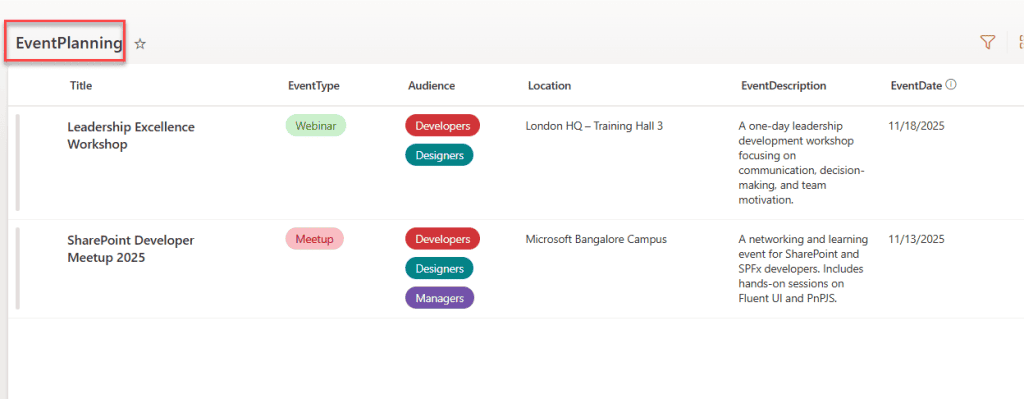
The above list contains the following fields:
| Column Name | Data Type |
|---|---|
| Title | Single line of text |
| EvenetType | Choice(Conference,Webinar,Workshop,Meetup,Internal Training) |
| Audience | Choice(Students,Managers,Designers,Developers) Allows multi-selection |
| Location | Single line of text |
| EventDescription | Multiple lines of text |
| EventDate | Date and Time |
In the below example SPFx webpart, you can see there is an “Event Planning Form” that allows users to fill data, so here we can see both single and multi-select comboboxes in that form, and save the selected items to the SharePoint list.
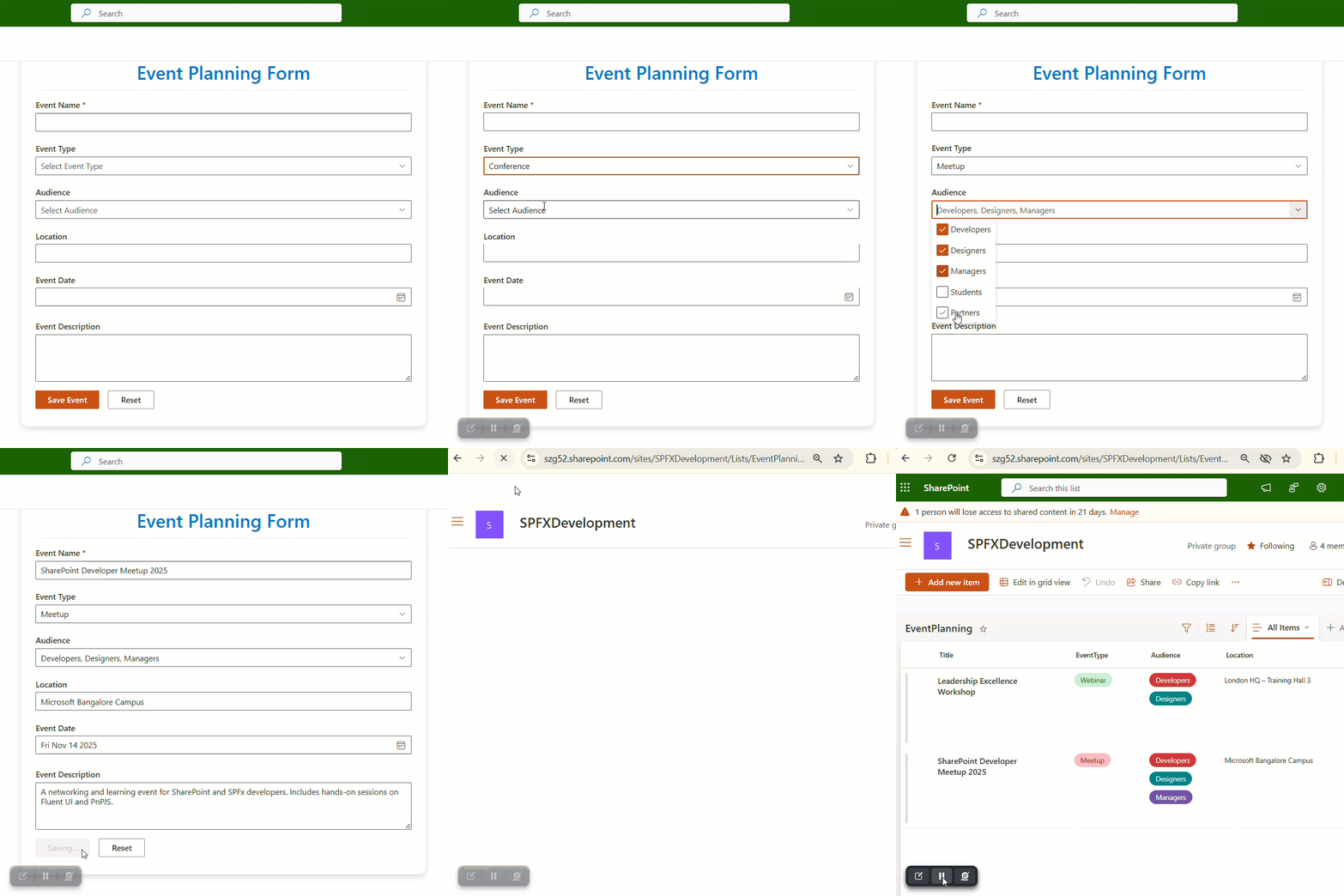
Follow the steps below to achieve this!
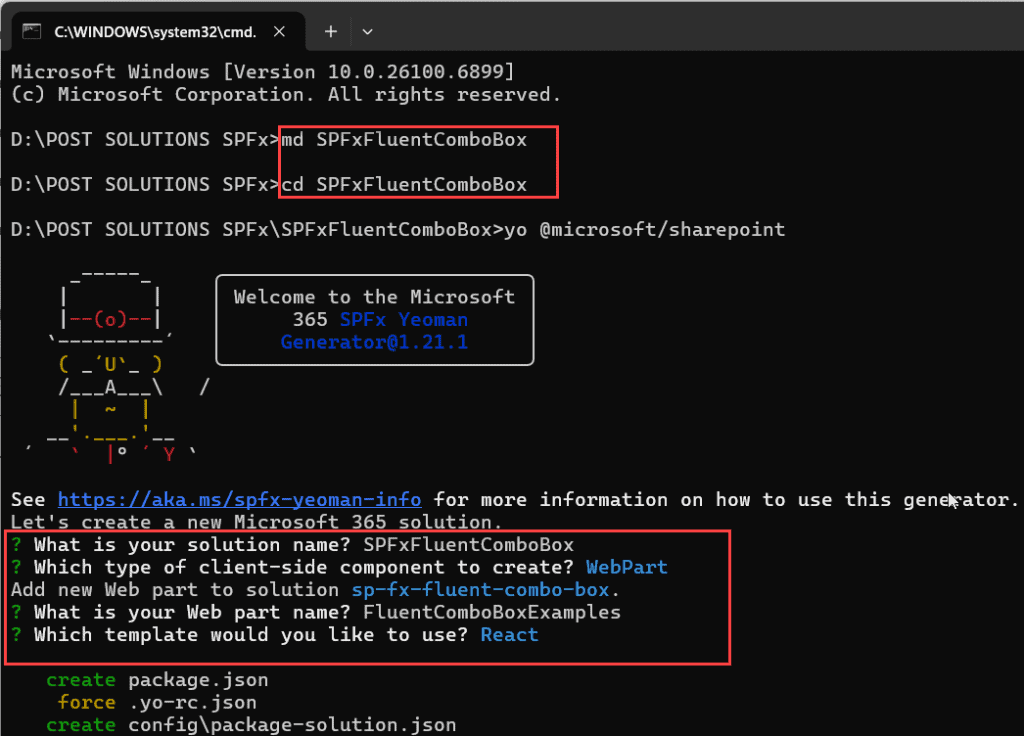
- Open Node.js command prompt in administrator mode. You can also use the Windows Command Prompt or PowerShell Command Prompt. Run the below command:
md SPFxFluentComboBox

cd SPFxFluentComboBox- Then, in the same directory, run the following command.
yo @microsoft/sharepointNow, it will ask you a few details, like below:
- What is your solution name? SPFxFluentComboBox
- Which type of client-side component to create? WebPart
- Add new Web part to solution sp-fx-fluent-combo-box.
- What is your Web part name? FluentComboBoxExamples
- Which template would you like to use? React
Note: To use Fluent UI React controls, we need to take the framework as React while creating SPFx webpart.
It will then take some time to create the solution. Once it is created, follow the steps below to install and set up the PnP JS and the Fluent UI React controls.
- Run the following command to install the PnP JS library into our solution.
npm install @pnp/sp --save- Also, run the below command to install Fluent UI into the solution.
npm install @fluentui/react- To import the PnP JS library into the solution, add the following statements in the .ts file.
import { spfi, SPFx } from "@pnp/sp";
import { SPFI } from "@pnp/sp";
import "@pnp/sp/webs";
import "@pnp/sp/lists";
import "@pnp/sp/items";
import "@pnp/sp/fields";- PnP needs to be initialized with the SharePoint context to connect properly to the SharePoint site. So, update your onInit() as below.
protected onInit(): Promise<void> {
    return this._getEnvironmentMessage().then(message => {
      this._environmentMessage = message;
      this._sp = spfi().using(SPFx(this.context));
    });
}- To hold the instance of the SPFI, create a private variable within the export default class in the .ts file.
private _sp: SPFI- Also, update the render() function within the .ts file, which will take this._sp as a prop.
public render(): void {
    const element: React.ReactElement<IFluentComboBoxExamplesProps> = React.createElement(
      FluentComboBoxExamples,
      {
        description: this.properties.description,
        isDarkTheme: this._isDarkTheme,
        environmentMessage: this._environmentMessage,
        hasTeamsContext: !!this.context.sdks.microsoftTeams,
        userDisplayName: this.context.pageContext.user.displayName,
        sp:this._sp,
        context:this.context,
      }
    );

    ReactDom.render(element, this.domElement);
}- We also need to include the sp as a prop in the Props.ts file.
import { WebPartContext } from "@microsoft/sp-webpart-base";
import { SPFI } from "@pnp/sp";
export interface IFluentComboBoxExamplesProps {
  description: string;
  isDarkTheme: boolean;
  environmentMessage: string;
  hasTeamsContext: boolean;
  userDisplayName: string;
  sp:SPFI;
  context: WebPartContext
}- Now, open the “FluentComboBoxExamples.tsx” and update its code with the one below.
import * as React from 'react';
import { IFluentComboBoxExamplesProps } from './IFluentComboBoxExamplesProps';
import { TextField, PrimaryButton, DefaultButton, Stack, DatePicker } from '@fluentui/react';
import { ComboBox, IComboBoxOption, IComboBoxStyles, IComboBox } from '@fluentui/react/lib/ComboBox';
import styles from './FluentComboBoxExamples.module.scss';

interface IEventFormState {
  eventName: string;
  eventType: string | undefined;
  audience: string[];
  location: string;
  eventDescription: string;
  eventDate: Date | undefined;
  isSaving: boolean;
}

export default class FluentComboBoxExamples extends React.Component<IFluentComboBoxExamplesProps, IEventFormState> {
  constructor(props: IFluentComboBoxExamplesProps) {
    super(props);

    this.state = {
      eventName: '',
      eventType: undefined,
      audience: [],
      location: '',
      eventDescription: '',
      eventDate: undefined,
      isSaving: false
    };
  }

  // Static ComboBox options
  private eventTypeOptions: IComboBoxOption[] = [
    { key: 'Conference', text: 'Conference' },
    { key: 'Webinar', text: 'Webinar' },
    { key: 'Workshop', text: 'Workshop' },
    { key: 'Meetup', text: 'Meetup' },
    { key: 'Internal Training', text: 'Internal Training' }
  ];

  private audienceOptions: IComboBoxOption[] = [
    { key: 'Developers', text: 'Developers' },
    { key: 'Designers', text: 'Designers' },
    { key: 'Managers', text: 'Managers' },
    { key: 'Students', text: 'Students' },
    { key: 'Partners', text: 'Partners' }
  ];

  // Save data to SharePoint list
  private _saveEvent = async (): Promise<void> => {
    const { sp } = this.props;
    const { eventName, eventType, audience, location, eventDescription, eventDate } = this.state;

    if (!eventName || !eventType) {
      alert("Please enter Event Name and select Event Type.");
      return;
    }

    this.setState({ isSaving: true });

    try {
      await sp.web.lists.getByTitle("EventPlanning").items.add({
        Title: eventName,
        EventType: eventType,
        Audience: audience ,
        Location: location,
        EventDescription: eventDescription,
        EventDate: eventDate ? eventDate.toISOString() : null
      });

      alert("Event saved successfully!");
      this._resetForm();
    } catch (error) {
      console.error("Error saving event:", error);
      alert("Failed to save event. Check console for details.");
    } finally {
      this.setState({ isSaving: false });
    }
  };

  // Reset form
  private _resetForm = (): void => {
    this.setState({
      eventName: '',
      eventType: undefined,
      audience: [],
      location: '',
      eventDescription: '',
      eventDate: undefined
    });
  };

  // Handle ComboBox changes
  private _onEventTypeChange = (
    event: React.FormEvent<IComboBox>,
    option?: IComboBoxOption
  ): void => {
    this.setState({ eventType: option ? option.text : undefined });
  };

  private _onAudienceChange = (
    event: React.FormEvent<IComboBox>,
    option?: IComboBoxOption
  ): void => {
    const { audience } = this.state;
    if (option) {
      const updated = option.selected
        ? [...audience, option.text]
        : audience.filter(a => a !== option.text);
      this.setState({ audience: updated });
    }
  };

  public render(): React.ReactElement<IFluentComboBoxExamplesProps> {
    const { eventName, eventType, location, eventDescription, eventDate, isSaving } = this.state;

    const comboBoxStyles: Partial<IComboBoxStyles> = { root: { width: '100%' } };

    return (
      <section className={styles.fluentComboBoxExamples}>
        <div className={styles.card}>
          <h2 className={styles.header}>Event Planning Form</h2>
          <Stack tokens={{ childrenGap: 15 }}>
            <TextField
              label="Event Name"
              value={eventName}
              required
              onChange={(e, newVal) => this.setState({ eventName: newVal || '' })}
            />

            <ComboBox
              label="Event Type"
              options={this.eventTypeOptions}
              placeholder="Select Event Type"
              selectedKey={eventType}
              onChange={this._onEventTypeChange}
              styles={comboBoxStyles}
            />

            <ComboBox
              label="Audience"
              multiSelect
              options={this.audienceOptions}
              placeholder="Select Audience"
              onChange={this._onAudienceChange}
              styles={comboBoxStyles}

            />

            <TextField
              label="Location"
              value={location}
              onChange={(e, val) => this.setState({ location: val || '' })}
            />

            <DatePicker
              label="Event Date"
              value={eventDate}
              onSelectDate={(date) => this.setState({ eventDate: date || undefined })}
            />

            <TextField
              label="Event Description"
              value={eventDescription}
              multiline
              rows={4}
              onChange={(e, val) => this.setState({ eventDescription: val || '' })}
            />

            <Stack horizontal tokens={{ childrenGap: 15 }}>
              <PrimaryButton
                text={isSaving ? "Saving..." : "Save Event"}
                onClick={this._saveEvent}
                disabled={isSaving}
              />
              <DefaultButton text="Reset" onClick={this._resetForm} />
            </Stack>
          </Stack>
        </div>
      </section>
    );
  }
}
Here:
- We imported the Fluent UI components, including TextField, ComboBox, DatePicker, and others, along with their styling from the .scss file.
- IEventFormState = Inside this state, we store all form fields, such as eventName, eventType, audience, location, eventDescription, eventDate, and a flag isSaving to handle the loading state.
- constructor()= Within the class, we initialized the states using this constructor.
- Two arrays, eventTypeOptions and audienceOptions, define the fixed dropdown values shown in the ComboBoxes. Each item has a key and text property used by Fluent UI.
- _saveEvent() = This method validates required fields before saving. Then uses PnPjs to add an item to the SharePoint list named “EventPlanning”. Also displays alerts on success or failure and resets the form after saving.
- _resetForm()= Clears all form fields back to their default empty state.
- _onEventTypeChange() = Updates the selected single value for Event Type.
- _onAudienceChange() = Handles multiple selections by adding or removing items in the audience array.
- render() = It displays a form with text fields, combo boxes, and a date picker. Then two buttons to save an item and reset the form control.
- isSaving disables the button and shows a loading state while saving.
- To apply styles for this form, add the below styles to the .scss file.
.fluentComboBoxExamples {
  display: flex;
  justify-content: center;
  padding: 30px;
}

.card {
  max-width: 650px;
  width: 100%;
  padding: 30px 25px;
  border-radius: 12px;
  background-color: var(--bodyBackground, #fff);
  box-shadow: 0 4px 10px rgba(0, 0, 0, 0.15);
}

.header {
  margin-bottom: 10px;
  font-size: 1.6rem;
  font-weight: 600;
  color: #0078d4;
  text-align: center;
  border-bottom: 1px solid #eee;
  padding-bottom: 10px;
}
That’s it; this way, you can easily use the Fluent UI React ComboBox control in the SPFx webpart and save the combo box values to a SharePoint list.
Check out Create SPFx Dynamic Accordion Webpart Using PnP Controls React
SPFx ComboBox Example: Dynamic Choice Options and Form Submission
In this section, we’ll learn how to load SharePoint list choice field values dynamically into the Fluent UI React combobox control.
In the example below, you can see that I dynamically added the SharePoint list choice values to those two combobox controls in the previous form. When I add new choice values to these fields, the combobox controls are dynamically updated with those values initially.
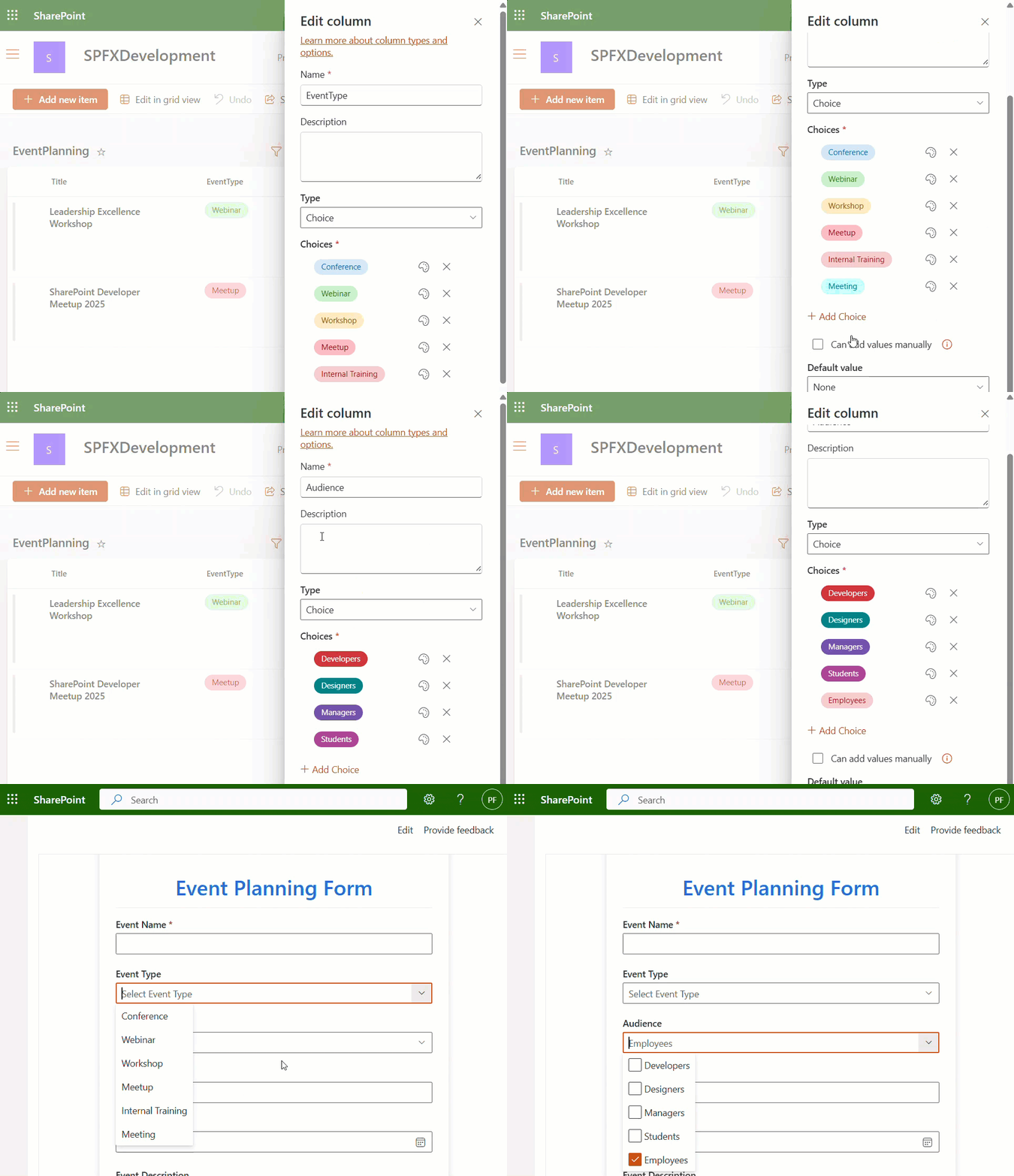
To achieve this, update the previous code present in the FluentComboBoxExamples.tsx file with the code below.
import * as React from 'react';
import { IFluentComboBoxExamplesProps } from './IFluentComboBoxExamplesProps';
import { TextField, PrimaryButton, DefaultButton, Stack, DatePicker } from '@fluentui/react';
import { ComboBox, IComboBoxOption, IComboBoxStyles, IComboBox } from '@fluentui/react/lib/ComboBox';
import styles from './FluentComboBoxExamples.module.scss';

interface IEventFormState {
  eventName: string;
  eventType: string | undefined;
  audience: string[];
  location: string;
  eventDescription: string;
  eventDate: Date | undefined;
  isSaving: boolean;
  eventTypeOptions: IComboBoxOption[];
  audienceOptions: IComboBoxOption[];
}

export default class FluentComboBoxExamples extends React.Component<IFluentComboBoxExamplesProps, IEventFormState> {
  constructor(props: IFluentComboBoxExamplesProps) {
    super(props);

    this.state = {
      eventName: '',
      eventType: undefined,
      audience: [],
      location: '',
      eventDescription: '',
      eventDate: undefined,
      isSaving: false,
      eventTypeOptions: [],
      audienceOptions: []
    };
  }

  public async componentDidMount(): Promise<void> {
    await this._loadEventTypeChoices();
    await this._loadAudienceChoices();
  }


private _loadEventTypeChoices = async (): Promise<void> => {
  try {
    const field = await this.props.sp.web.lists
      .getByTitle("EventPlanning")
      .fields.getByInternalNameOrTitle("EventType")();

    const choices = field?.Choices ?? [];
    const options: IComboBoxOption[] = choices.map((choice: string) => ({
      key: choice,
      text: choice
    }));

    this.setState({ eventTypeOptions: options });
  } catch (error) {
    console.error("Error loading EventType choices:", error);
  }
};


private _loadAudienceChoices = async (): Promise<void> => {
  try {
    const field = await this.props.sp.web.lists
      .getByTitle("EventPlanning")
      .fields.getByInternalNameOrTitle("Audience")();

    const choices = field?.Choices ?? [];
    const options: IComboBoxOption[] = choices.map((choice: string) => ({
      key: choice,
      text: choice
    }));

    this.setState({ audienceOptions: options });
  } catch (error) {
    console.error("Error loading Audience choices:", error);
  }
};

  private _saveEvent = async (): Promise<void> => {
    const { sp } = this.props;
    const { eventName, eventType, audience, location, eventDescription, eventDate } = this.state;

    if (!eventName || !eventType) {
      alert("Please enter Event Name and select Event Type.");
      return;
    }

    this.setState({ isSaving: true });

    try {
      await sp.web.lists.getByTitle("EventPlanning").items.add({
        Title: eventName,
        EventType: eventType,
        Audience: { results: audience },
        Location: location,
        EventDescription: eventDescription,
        EventDate: eventDate ? eventDate.toISOString() : null
      });

      alert("Event saved successfully!");
      this._resetForm();
    } catch (error) {
      console.error("Error saving event:", error);
      alert("Failed to save event. Check console for details.");
    } finally {
      this.setState({ isSaving: false });
    }
  };


  private _resetForm = (): void => {
    this.setState({
      eventName: '',
      eventType: undefined,
      audience: [],
      location: '',
      eventDescription: '',
      eventDate: undefined
    });
  };

  private _onEventTypeChange = (
    event: React.FormEvent<IComboBox>,
    option?: IComboBoxOption
  ): void => {
    this.setState({ eventType: option ? option.text : undefined });
  };

  private _onAudienceChange = (
    event: React.FormEvent<IComboBox>,
    option?: IComboBoxOption
  ): void => {
    const { audience } = this.state;
    if (option) {
      const updated = option.selected
        ? [...audience, option.text]
        : audience.filter(a => a !== option.text);
      this.setState({ audience: updated });
    }
  };

  public render(): React.ReactElement<IFluentComboBoxExamplesProps> {
    const { eventName, eventType, location, eventDescription, eventDate, isSaving, eventTypeOptions, audienceOptions } = this.state;

    const comboBoxStyles: Partial<IComboBoxStyles> = { root: { width: '100%' } };

    return (
      <section className={styles.fluentComboBoxExamples}>
        <div className={styles.card}>
          <h2 className={styles.header}>Event Planning Form</h2>
          <Stack tokens={{ childrenGap: 15 }}>
            <TextField
              label="Event Name"
              value={eventName}
              required
              onChange={(e, newVal) => this.setState({ eventName: newVal || '' })}
            />

            <ComboBox
              label="Event Type"
              options={eventTypeOptions}
              placeholder="Select Event Type"
              selectedKey={eventType}
              onChange={this._onEventTypeChange}
              styles={comboBoxStyles}
            />

            <ComboBox
              label="Audience"
              multiSelect
              options={audienceOptions}
              placeholder="Select Audience"
              onChange={this._onAudienceChange}
              styles={comboBoxStyles}
            />

            <TextField
              label="Location"
              value={location}
              onChange={(e, val) => this.setState({ location: val || '' })}
            />

            <DatePicker
              label="Event Date"
              value={eventDate}
              onSelectDate={(date) => this.setState({ eventDate: date || undefined })}
            />

            <TextField
              label="Event Description"
              value={eventDescription}
              multiline
              rows={4}
              onChange={(e, val) => this.setState({ eventDescription: val || '' })}
            />

            <Stack horizontal tokens={{ childrenGap: 15 }}>
              <PrimaryButton
                text={isSaving ? "Saving..." : "Save Event"}
                onClick={this._saveEvent}
                disabled={isSaving}
              />
              <DefaultButton text="Reset" onClick={this._resetForm} />
            </Stack>
          </Stack>
        </div>
      </section>
    );
  }
}
Here:
- We additionally added two new state variables:
- eventTypeOptions: IComboBoxOption[] = To store EventType field values.
- audienceOptions: IComboBoxOption[] = To store Audience field values.
- Then, we added componentDidMount() to automatically load ComboBox choices when the web part first renders. Inside it, we call both
- _loadEventTypeChoices() = This method fetches the EventType choice field values and updates them to the eventTypeOptions state.
- _loadAudienceChoices() = This method fetches the Audience choice field values and updates them to the audienceOptions state.
- Then we passed the eventTypeOptions state for the EventType combobox control’s options property.
- Same as the audienceOptions state passed to the Audience combobox control’s options property.
That’s how we can easily fetch SharePoint list choice field values dynamically into the Fluent UI React combobox control.
SPFx ComboBox Example: Load Choice Field Defaults
In this section, we’ll see how to fetch the default value assigned in the SharePoint choice field into the combo box control in the SPFx webpart.
In the example below, you see I assigned a default value to the choice field in the SharePoint list, and then when I reload the webpart, the combobox has that default value.
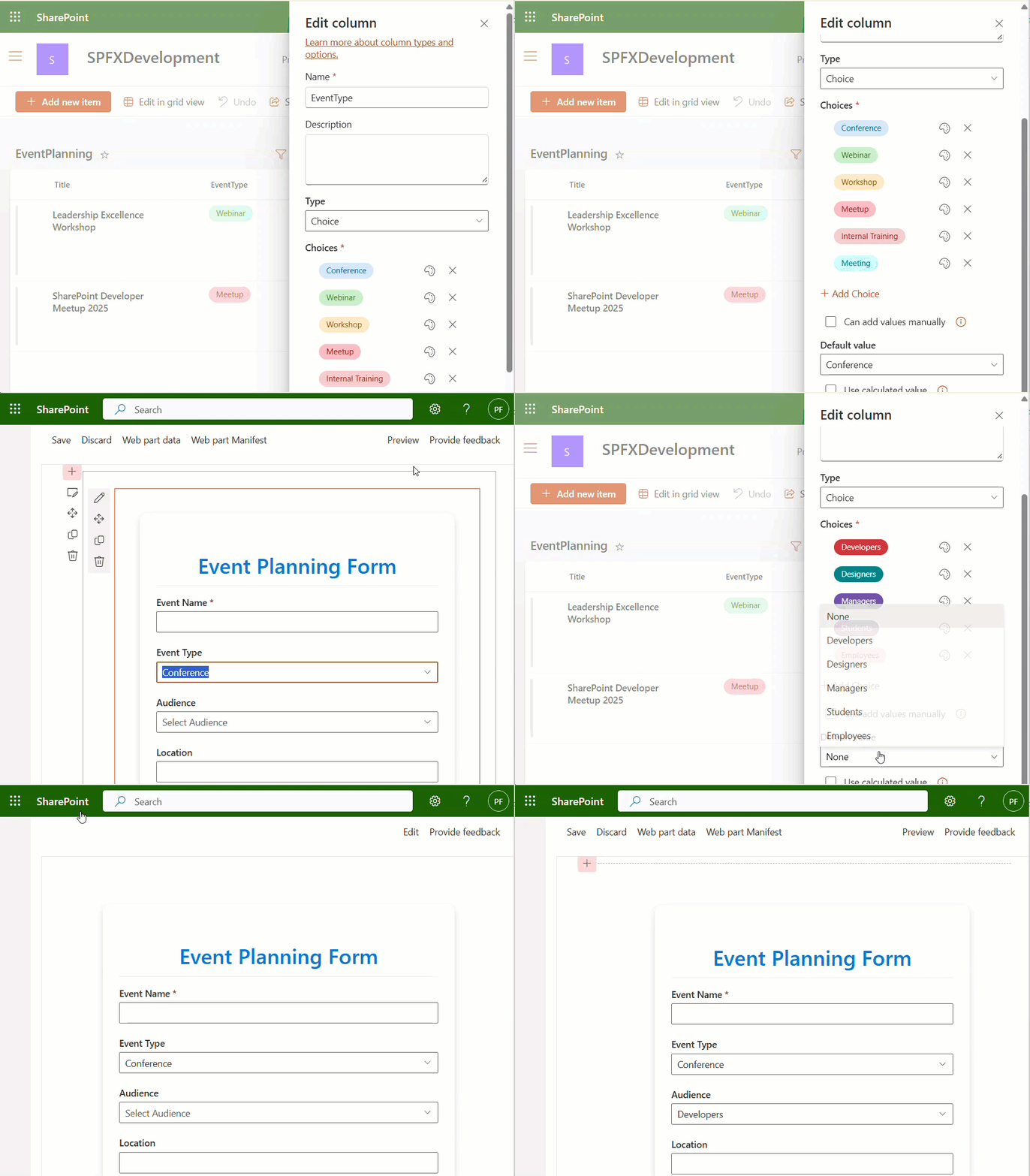
To achieve this, we simply need to add two additional state values and retrieve the default value from the choice field using the PnPJS library. Below you can get the complete updated code.
import * as React from 'react';
import { IFluentComboBoxExamplesProps } from './IFluentComboBoxExamplesProps';
import { TextField, PrimaryButton, DefaultButton, Stack, DatePicker } from '@fluentui/react';
import { ComboBox, IComboBoxOption, IComboBoxStyles, IComboBox } from '@fluentui/react/lib/ComboBox';
import styles from './FluentComboBoxExamples.module.scss';

interface IEventFormState {
  eventName: string;
  eventType: string | undefined;
  audience: string[];
  location: string;
  eventDescription: string;
  eventDate: Date | undefined;
  isSaving: boolean;
  eventTypeOptions: IComboBoxOption[];
  audienceOptions: IComboBoxOption[];
  defaultEventType?: string;
  defaultAudience?: string[];
}

export default class FluentComboBoxExamples extends React.Component<IFluentComboBoxExamplesProps, IEventFormState> {
  constructor(props: IFluentComboBoxExamplesProps) {
    super(props);

    this.state = {
      eventName: '',
      eventType: undefined,
      audience: [],
      location: '',
      eventDescription: '',
      eventDate: undefined,
      isSaving: false,
      eventTypeOptions: [],
      audienceOptions: [],
      defaultEventType: '',
      defaultAudience: []
    };
  }

  public async componentDidMount(): Promise<void> {
    await this._loadEventTypeChoices();
    await this._loadAudienceChoices();
  }

 // Load single-select choice field (EventType)
private _loadEventTypeChoices = async (): Promise<void> => {
  try {
    const field = await this.props.sp.web.lists
      .getByTitle("EventPlanning")
      .fields.getByInternalNameOrTitle("EventType")();

    const choices = field?.Choices ?? [];
    const defaultChoice = field?.DefaultValue || undefined;

    const options: IComboBoxOption[] = choices.map((choice: string) => ({
      key: choice,
      text: choice
    }));

    this.setState({
      eventTypeOptions: options,
      eventType: defaultChoice
    });
  } catch (error) {
    console.error("Error loading EventType choices:", error);
  }
};


// Load multi-select choice field (Audience)
private _loadAudienceChoices = async (): Promise<void> => {
  try {
    const field = await this.props.sp.web.lists
      .getByTitle("EventPlanning")
      .fields.getByInternalNameOrTitle("Audience")();

    const choices = field?.Choices ?? [];
    const defaultChoices = field?.DefaultValue ? [field.DefaultValue] : [];

    const options: IComboBoxOption[] = choices.map((choice: string) => ({
      key: choice,
      text: choice
    }));

    this.setState({
      audienceOptions: options,
      audience: defaultChoices
    });
  } catch (error) {
    console.error("Error loading Audience choices:", error);
  }
};


  // Save data to SharePoint list
  private _saveEvent = async (): Promise<void> => {
    const { sp } = this.props;
    const { eventName, eventType, audience, location, eventDescription, eventDate } = this.state;

    if (!eventName || !eventType) {
      alert("Please enter Event Name and select Event Type.");
      return;
    }

    this.setState({ isSaving: true });

    try {
      await sp.web.lists.getByTitle("EventPlanning").items.add({
        Title: eventName,
        EventType: eventType,
        Audience: { results: audience },
        Location: location,
        EventDescription: eventDescription,
        EventDate: eventDate ? eventDate.toISOString() : null
      });

      alert("Event saved successfully!");
      this._resetForm();
    } catch (error) {
      console.error("Error saving event:", error);
      alert("Failed to save event. Check console for details.");
    } finally {
      this.setState({ isSaving: false });
    }
  };

  // Reset form
  private _resetForm = (): void => {
    this.setState({
      eventName: '',
      eventType: undefined,
      audience: [],
      location: '',
      eventDescription: '',
      eventDate: undefined
    });
  };

  // Handle ComboBox changes
  private _onEventTypeChange = (
    event: React.FormEvent<IComboBox>,
    option?: IComboBoxOption
  ): void => {
    this.setState({ eventType: option ? option.text : undefined });
  };

  private _onAudienceChange = (
    event: React.FormEvent<IComboBox>,
    option?: IComboBoxOption
  ): void => {
    const { audience } = this.state;
    if (option) {
      const updated = option.selected
        ? [...audience, option.text]
        : audience.filter(a => a !== option.text);
      this.setState({ audience: updated });
    }
  };

  public render(): React.ReactElement<IFluentComboBoxExamplesProps> {
    const { eventName, eventType,audience, location, eventDescription, eventDate, isSaving, eventTypeOptions, audienceOptions } = this.state;

    const comboBoxStyles: Partial<IComboBoxStyles> = { root: { width: '100%' } };

    return (
      <section className={styles.fluentComboBoxExamples}>
        <div className={styles.card}>
          <h2 className={styles.header}>Event Planning Form</h2>
          <Stack tokens={{ childrenGap: 15 }}>
            <TextField
              label="Event Name"
              value={eventName}
              required
              onChange={(e, newVal) => this.setState({ eventName: newVal || '' })}
            />

            <ComboBox
              label="Event Type"
              options={eventTypeOptions}
              placeholder="Select Event Type"
              selectedKey={eventType}
              onChange={this._onEventTypeChange}
              styles={comboBoxStyles}
            />

            <ComboBox
              label="Audience"
              multiSelect
              options={audienceOptions}
              selectedKey={audience}
              placeholder="Select Audience"
              onChange={this._onAudienceChange}
              styles={comboBoxStyles}
            />

            <TextField
              label="Location"
              value={location}
              onChange={(e, val) => this.setState({ location: val || '' })}
            />

            <DatePicker
              label="Event Date"
              value={eventDate}
              onSelectDate={(date) => this.setState({ eventDate: date || undefined })}
            />

            <TextField
              label="Event Description"
              value={eventDescription}
              multiline
              rows={4}
              onChange={(e, val) => this.setState({ eventDescription: val || '' })}
            />

            <Stack horizontal tokens={{ childrenGap: 15 }}>
              <PrimaryButton
                text={isSaving ? "Saving..." : "Save Event"}
                onClick={this._saveEvent}
                disabled={isSaving}
              />
              <DefaultButton text="Reset" onClick={this._resetForm} />
            </Stack>
          </Stack>
        </div>
      </section>
    );
  }
}
Here:
- We additionally added the following state values:
- defaultEventType?: string;
- defaultAudience?: string[];
- Then, in the _loadEventTypeChoices() and _loadAudienceChoices() methods, we fetch the default choice values with the following line.
- const defaultChoices = field?.DefaultValue || undefined
- This line returns the DefaultValue if it is present; otherwise, it returns an undefined value.
SPFx ComboBox Example: Grouped Options with “Select All” Feature
Sometimes, we may need to select all options in the combobox control and also group them under a single heading. To achieve this, I created a sample example below, which groups the choice values under a heading and allows you to select all options at once.
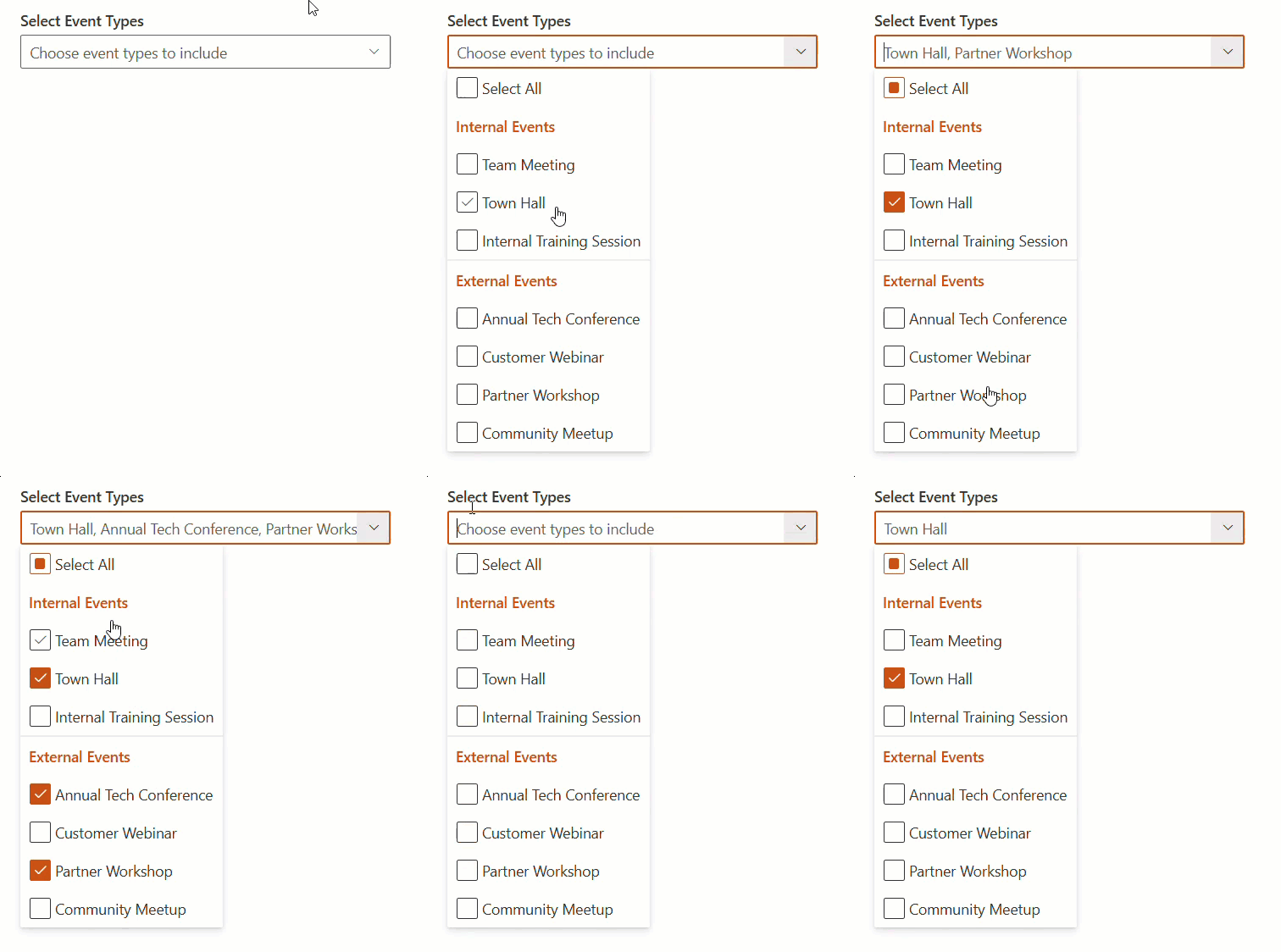
Here is the sample code that groups the choice values under a heading and allows selecting all options.
import * as React from 'react';
import styles from './ComboBoxGroupedOptions.module.scss';
import type { IComboBoxGroupedOptionsProps } from './IComboBoxGroupedOptionsProps';
import {
  ComboBox,
  IComboBox,
  IComboBoxOption,
  IComboBoxStyles,
  SelectableOptionMenuItemType
} from '@fluentui/react';

interface IEventSelectAllComboBoxState {
  selectedKeys: string[];
}
export default class ComboBoxGroupedOptions extends React.Component<IComboBoxGroupedOptionsProps, IEventSelectAllComboBoxState> {
  private eventOptions: IComboBoxOption[] = [
    { key: 'selectAll', text: 'Select All', itemType: SelectableOptionMenuItemType.SelectAll },

    { key: 'Header1', text: 'Internal Events', itemType: SelectableOptionMenuItemType.Header },
    { key: 'TeamMeeting', text: 'Team Meeting' },
    { key: 'TownHall', text: 'Town Hall' },
    { key: 'Training', text: 'Internal Training Session' },

    { key: 'divider1', text: '-', itemType: SelectableOptionMenuItemType.Divider },

    { key: 'Header2', text: 'External Events', itemType: SelectableOptionMenuItemType.Header },
    { key: 'Conference', text: 'Annual Tech Conference' },
    { key: 'Webinar', text: 'Customer Webinar' },
    { key: 'Workshop', text: 'Partner Workshop' },
    { key: 'Meetup', text: 'Community Meetup' }
  ];

  private comboBoxStyles: Partial<IComboBoxStyles> = { root: { maxWidth: 350 } };

  private selectableOptions = this.eventOptions.filter(
    opt =>
      (opt.itemType === SelectableOptionMenuItemType.Normal || opt.itemType === undefined) &&
      !opt.disabled
  );

  constructor(props: IComboBoxGroupedOptionsProps) {
    super(props);
    this.state = {
      selectedKeys: []
    };
  }

  private _onChange = (
    event: React.FormEvent<IComboBox>,
    option?: IComboBoxOption
  ): void => {
    const { selectedKeys } = this.state;
    const selected = option?.selected;
    const currentKeys = selectedKeys.filter(k => k !== 'selectAll');
    const allSelected = currentKeys.length === this.selectableOptions.length;

    if (option?.itemType === SelectableOptionMenuItemType.SelectAll) {
      this.setState({
        selectedKeys: allSelected ? [] : ['selectAll', ...this.selectableOptions.map(o => o.key as string)]
      });
    } else if (option) {
      const updatedKeys = selected
        ? [...currentKeys, option.key as string]
        : currentKeys.filter(k => k !== option.key);

      if (updatedKeys.length === this.selectableOptions.length) {
        updatedKeys.push('selectAll');
      }

      this.setState({ selectedKeys: updatedKeys });
    }
  };

  public render(): React.ReactElement<IComboBoxGroupedOptionsProps> {
    return (
      <section className={`${styles.comboBoxGroupedOptions} `}>
       <div>
        <ComboBox
          label="Select Event Types"
          placeholder="Choose event types to include"
          multiSelect
          options={this.eventOptions}
          selectedKey={this.state.selectedKeys}
          onChange={this._onChange}
          styles={this.comboBoxStyles}
        />
      </div>
      </section>
    );
  }
}
Here:
- Initially, we imported the SelectableOptionMenuItemType, an Enum from Fluent UI, which helps classify options in a ComboBox. For example, header, divider, normal, select all.
- The selectedKeys state keeps track of which items the user has selected.
- eventOptions = This contains the event options in the form of an array of objects, and each object has the key, text, and itemType.
- itemType: SelectableOptionMenuItemType.SelectAll = A special option that toggles all standard options on/off.
- itemType: SelectableOptionMenuItemType.Header = A heading that is non-selectable. Used to visually group related options.
- SelectableOptionMenuItemType.Divider = A horizontal divider between groups.
- SelectableOptionMenuItemType.Normal = A normal selectable option.
- selectableOptions = This method filters out only the actual selectable items, ignoring headers, dividers, or disabled options.
- _onChange = This function runs every time the user selects or deselects an option.
- Then it gets the current selections, checks if all items are already selected.
- If the user clicked “Select All”:
- If everything is already selected, it clears all.
- Otherwise, select all items.
- If the user clicked a normal option.
- Add or remove that option from selectedKeys.
- If all are selected after the change, also add ‘selectAll.’
- Then it gets the current selections, checks if all items are already selected.
- Then, in the render() method, we are displaying the combo box with the following main properties.
- multiSelect = Allows selecting multiple items at once.
- options = The event list with headers, dividers, etc.
- selectedKey = Keeps the ComboBox in sync with the selected items.
- onChange = Handles user interactions.
This way, we can easily use the Fluent UI React ComboBox control to display the ‘Select All’ option initially, and group the options under a heading.
I hope you found this article helpful! In this article, I have explained how to use the fluent ui React combobox control in the SharePoint framework webpart, with different examples. Follow this article if you are also looking to use the combobox control in your SPFx solutions.
Also, you may like:
- SharePoint Framework User Profile Web Part [Using MS Graph API]
- Send Email in SPFx using Microsoft Graph API and PnP JS
- SPFx SwatchColorPicker Office UI Fabric React Control example
- Configure SharePoint Framework Web Part Icon

Hey! I’m Bijay Kumar, founder of SPGuides.com and a Microsoft Business Applications MVP (Power Automate, Power Apps). I launched this site in 2020 because I truly enjoy working with SharePoint, Power Platform, and SharePoint Framework (SPFx), and wanted to share that passion through step-by-step tutorials, guides, and training videos. My mission is to help you learn these technologies so you can utilize SharePoint, enhance productivity, and potentially build business solutions along the way.