
Recently, one of our clients requested us to provide a solution for adding bulk Excel data to a SharePoint list programmatically. We can achieve this using a PnP PowerShell script.
So in this article, we’ll learn how to read an Excel file and add bulk data to a SharePoint list using PnP PowerShell.
Import Excel Data To SharePoint Online Using PowerShell
Here is the Excel file containing “Project Details,” including project title, description, assigned to, project manager’s email, start date, end date, status, budget, and more.

This is the SharePoint list named “Project Details” that contains the fields that are matched with the columns in Excel.
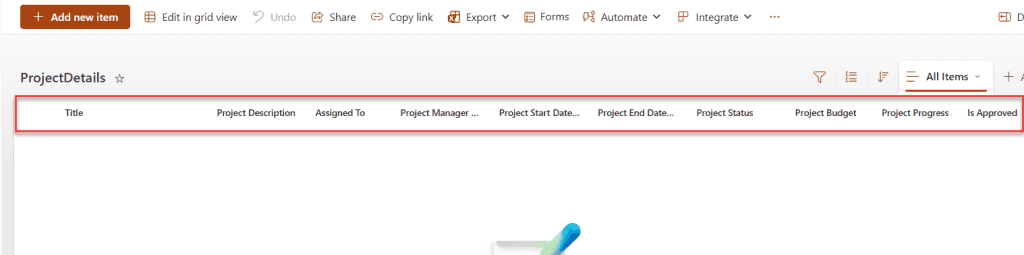
| Column Name | Data Type |
|---|---|
| Title | Default Single line of text |
| Project Description | Multiple lines of text |
| Assigned To | Single line of text |
| Project Manager Email | Single line of text |
| Project Start Date | Date and Time |
| Project End Date | Date and Time |
| Project Status | Choice |
| Project Budget | Currency |
| Project Progress | Number |
| Is Approved | Yes/No |
| Project URL | Hyperlink |
| Client Name | Single line of text |
| Client Contact Email | Single line of text |
Follow the steps below to add Excel data to a SharePoint list using PowerShell.
- Below is the PnP PowerShell script. Run this script on supported platforms such as Visual Studio Code or Windows PowerShell ISE.
$SiteURL = "Provide your site URL"
$ListName = "ProjectsDetails"
$CsvPath = "D:\TEMP\ProjectsData.csv"

Connect-PnPOnline -Url $SiteURL -ClientId "Provide Your Client ID" -Interactive

$projects = Import-Csv -Path $CsvPath

function Get-DateSafe($value) {
    if ([string]::IsNullOrWhiteSpace($value)) { return $null }

    try {
        return [datetime]::ParseExact($value, "dd-MM-yyyy", $null)
    }
    catch {
        try {
            return [datetime]$value
        }
        catch {
            return $null
        }
    }
}

foreach ($p in $projects) {
    Add-PnPListItem -List $ListName -Values @{
        "Title"               = $p."Project Title"
        "ProjectDescription"  = $p."Project Description"
        "AssignedTo"          = $p."Assigned To"
        "ProjectManagerEmail" = $p."Project Manager Email"
        "ProjectStartDate"    = Get-DateSafe $p."Project Start Date"
        "ProjectEndDate"      = Get-DateSafe $p."Project End Date"
        "ProjectStatus"       = $p."Project Status"
        "ProjectBudget"       = [double]$p."Project Budget"
        "ProjectProgress"     = [int]$p."Project Progress"
        "IsApproved"          = if ($p."Is Approved" -eq "TRUE") { $true } else { $false }
        "ProjectURL"          = $p."Project URL"
        "ClientName"          = $p."Client Name"
        "ClientContactEmail"  = $p."Client Contact Email"
    }
}

Write-Host "Project data uploaded successfully!" -ForegroundColor Green
Here:
- $SiteURL = Provide your SharePoint site url.
- $ListName = Provide your SharePoint list name.
- $CsvPath = Provide the Excel file path where it is located in your local system.
- Connect-PnPOnline = This command is used to connect to a SharePoint site using PnP PowerShell. For this command, we need to pass the following parameters:
- -Url = Site url.
- -ClientId = Application ID, which is registered in Microsoft Entra ID with proper permissions.
- -Interactive = User to log in while the script is running.
- Import-Csv -Path $CsvPath = This command will import the csv file using the path we mentioned and store that data into the $projects variable.
- Get-DateSafe() = This function converts date values from strings to date and time values.
- Using foreach(), we iterate over each record in $projects.
- Add-PnPListItem = This command adds a new item to a SharePoint list. Passing the following parameters to this command is mandatory.
- -List = List name
- -Values = each Excel field value needs to be assigned to the SharePoint list fields.
- Write-Host = It will display the message at the end.
- In the Terminal pane, you can see that data is being added to the SharePoint list.

- Once the code runs successfully, refresh your SharePoint list, and you will be able to see the added data as shown below.
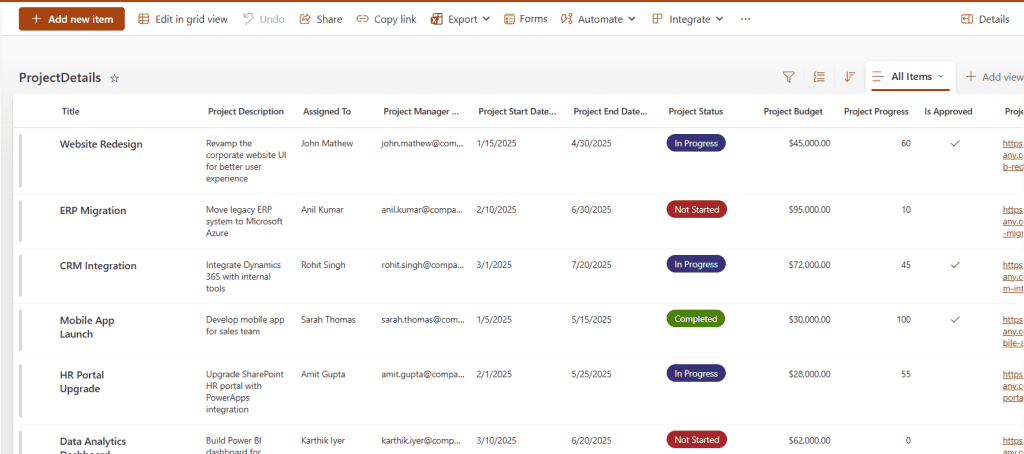
This way, we can easily add the Excel data to the SharePoint list using the PnP PowerShell.
I hope you found this article helpful!, In this article, I explain how to add bulk data from Excel to a SharePoint list using PnP PowerShell. Follow this article if you’re also trying to bulk-import data from Excel into a list programmatically.
Also, you may like:
- Get SharePoint List Column Details [Internal Name, Display Name, Data Type] Using PnP PowerShell
- Get SharePoint Document Library Size using PnP PowerShell
- Download All Files From A SharePoint Online Document Library Using PnP PowerShell
- SharePoint List Items CRUD Operations Using PnP PowerShell

Hey! I’m Bijay Kumar, founder of SPGuides.com and a Microsoft Business Applications MVP (Power Automate, Power Apps). I launched this site in 2020 because I truly enjoy working with SharePoint, Power Platform, and SharePoint Framework (SPFx), and wanted to share that passion through step-by-step tutorials, guides, and training videos. My mission is to help you learn these technologies so you can utilize SharePoint, enhance productivity, and potentially build business solutions along the way.

