
A few weeks earlier, I worked on a Project Management app using SPFx for a client. For this SPFx web part, we use a SharePoint list as the data source to store project details, and we were required to display the latest project details on the app home page.
Most of the time, I displayed SharePoint list items only in a tabular format using HTML, which made the web part look dull and simple. But this time, for this web part, the client requested that the project details be displayed in a different format to make them more attractive and easier for users to understand.
To achieve this, I used the PnP React Grid control to display the list items in a grid format. We can also display the data in a SharePoint list or library view format using the ListView control.
In this article, I will explain how to use PnP React controls to display SharePoint list items in an SPFx web part.
Advantages of Using PnP React Controls in SPFx Solutions
Before going to see the implementation of displaying the SharePoint list items in the SharePoint Framework web part using PnP React controls, let’s first understand the advantages of using these controls.
PnP React controls come with many built-in features, so we don’t have to build common functionality from scratch. They provide ready-made components that integrate well with SPFx, helping us save development time and create modern, good-looking web parts without writing much extra code.
PnP React GridLayout Control
- This control renders a responsive grid layout that adapts automatically to available space in the page.
- It follows the SharePoint web part layout design pattern, so it fits well visually with modern pages.
- You only need to provide your items and a render callback. The control handles the layout and item placement.
- It supports a compact layout for smaller screens or narrow panes, helping improve the mobile experience.
- You can control spacing and sizing using properties such as itemPadding, itemMinWidth, and itemMaxWidth.
PnP React ListView Control
- This control displays data in a SharePoint list or library view format.
- You can define which fields to show using the viewFields, making it easy to match our requirements.
- It supports selection modes (none, single, multi) so you can let users select one or more rows.
- It has built-in filtering (showFilter, defaultFilter) so users can search without extra coding.
- You can enable the grouping of items using the groupByFields property for better organization of list data.
- It also supports drag-and-drop within the list via dragDropFiles and onDrop.
- The compact mode lets you show a narrow view when space is limited.
You can also check this article on displaying list items in the document card format in the SPFx web part.
Display SharePoint List Items in SPFx Web Part: Using PnP React GridLayout Control
Here, we’ll learn how to display SharePoint list items in a grid view using the PnP React control in an SPFx web part. In the image below, you can see that I have a SharePoint list named “ProjectDetails” with some data.
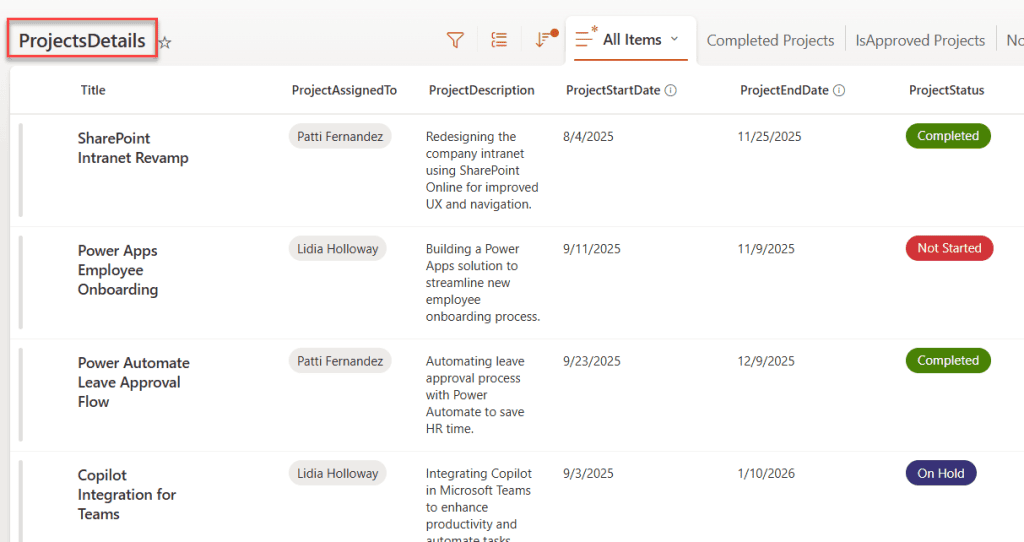
And this list contains the following fields:
| Column Name | Data Type |
|---|---|
| Title | Default field |
| ProjectAssignedTo | Person or Group |
| ProjectDescription | Multiple lines of text |
| ProjectStartDate | Date and Time |
| ProjectEndDate | Date and Time |
| ProjectStatus | Choice(On Hold, In Progress, Completed, Not Started) |
In the example below, I displayed the above SharePoint list data in a grid format. Each grid shows all the fields’ data, and I also applied background colors to differentiate the grids based on their status values.
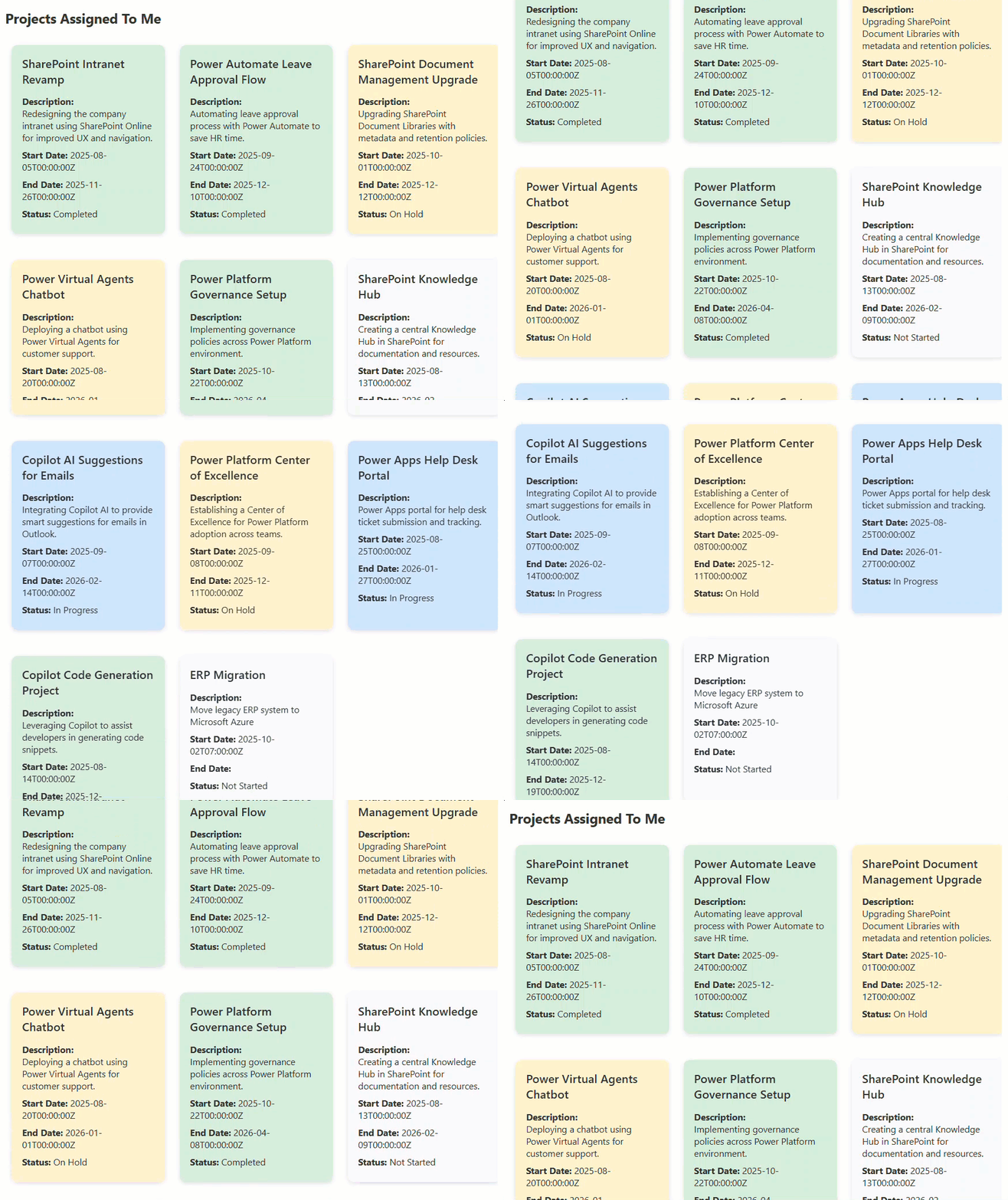
Now, we’ll see how to achieve this using PnP React controls in the SPFx web part. And by this time, I hope you are already familiar with creating an SPFx web part with the React framework. If not, check out this article.
- Run the command below to use PnP React controls in our SPFx web part.
npm install @pnp/spfx-controls-react --save --save-exact- Run the following command to install the PnP JS library into our solution.
npm install @pnp/sp --save- Once it’s done successfully, open the .ts file code, and we’ll now set up the PnPJS library instance.
Add the import statements and update onInit() and render() in your .ts file as shown below.
import { spfi, SPFx } from "@pnp/sp";
import { SPFI } from "@pnp/sp";
import "@pnp/sp/webs";
import "@pnp/sp/lists";
import "@pnp/sp/items";
import "@pnp/sp/fields";
export interface IListItemsCardWebPartProps {
  description: string;
}

export default class ListItemsCardWebPart extends BaseClientSideWebPart<IListItemsCardWebPartProps> {

  private _isDarkTheme: boolean = false;
  private _environmentMessage: string = '';
  private _sp: SPFI

  public render(): void {
    const element: React.ReactElement<IListItemsCardProps> = React.createElement(
      ListItemsCard,
      {
        description: this.properties.description,
        isDarkTheme: this._isDarkTheme,
        environmentMessage: this._environmentMessage,
        hasTeamsContext: !!this.context.sdks.microsoftTeams,
        userDisplayName: this.context.pageContext.user.displayName,
        sp:this._sp,
        context:this.context,
      }
    );

    ReactDom.render(element, this.domElement);
  }

  protected onInit(): Promise<void> {
    return this._getEnvironmentMessage().then(message => {
      this._environmentMessage = message;
      this._sp = spfi().using(SPFx(this.context));
    });
  }
Here:
- At the beginning, we imported all the PnPJS statements that are required to interact with SharePoint lists.
- Then we created the _sp variable to hold the PnPJS instance.
- Then, in the onInit() method, we initialized the _sp variable with the PnPJS instance.
- And in the Render() method, we are sending sp and context props.
- Then update your Props.ts file code with the code below.
import { WebPartContext } from "@microsoft/sp-webpart-base";
import { SPFI } from "@pnp/sp";
export interface IListItemsCardProps {
  description: string;
  isDarkTheme: boolean;
  environmentMessage: string;
  hasTeamsContext: boolean;
  userDisplayName: string;
  sp:SPFI;
  context: WebPartContext
}
Here, we defined the sp, context props data type.
- Now, open the .tsx file code, where we are writing the rendering web part code. Replace your default code with the code below.
import * as React from "react";
import styles from "./ListItemsCard.module.scss";
import { IListItemsCardProps } from "./IListItemsCardProps";
import { GridLayout } from "@pnp/spfx-controls-react/lib/GridLayout";

interface IProjectItem {
  id: number;
  title: string;
  description: string;
  assignedTo: string;
  startDate: string;
  endDate: string;
  status: string;
}

interface IListItemsCardState {
  items: IProjectItem[];
  loading: boolean;
}

export default class ListItemsCard extends React.Component<
  IListItemsCardProps,
  IListItemsCardState
> {
  constructor(props: IListItemsCardProps) {
    super(props);

    this.state = {
      items: [],
      loading: true,
    };
  }

  public componentDidMount(): void {
    this.loadItems();
  }
  private getStatusColor(status: string): string {
  switch (status) {
    case "Completed":
      return "#d4edda"; // light green
    case "In Progress":
      return "#cce5ff"; // light blue
    case "On Hold":
      return "#fff3cd"; // light yellow
    case "Not Started":
      return "#f8f9fa"; // light grey
    default:
      return "#ffffff"; // white
  }
}


  private async loadItems(): Promise<void> {
    try {
      const currentUser = this.props.context.pageContext.user.displayName;

      const items = await this.props.sp.web.lists
        .getByTitle("ProjectsDetails")
        .items.select(
          "Id",
          "Title",
          "ProjectDescription",
          "ProjectAssignedTo/Title",
          "ProjectStartDate",
          "ProjectEndDate",
          "ProjectStatus"
        )
        .expand("ProjectAssignedTo")
        .filter(`ProjectAssignedTo/Title eq '${currentUser}'`)
        ();

      const mappedItems: IProjectItem[] = items.map((i: any) => ({
        id: i.Id,
        title: i.Title,
        description: i.ProjectDescription,
        assignedTo: i.ProjectAssignedTo?.Title || "",
        startDate: i.ProjectStartDate,
        endDate: i.ProjectEndDate,
        status: i.ProjectStatus,
      }));

      this.setState({
        items: mappedItems,
        loading: false,
      });
    } catch (error) {
      console.error("Error loading items:", error);
      this.setState({ loading: false });
    }
  }

  public render(): React.ReactElement<IListItemsCardProps> {
    return (
      <section className={styles.listItemsCard}>
        <h2>Projects Assigned To Me</h2>

        {this.state.loading && <p>Loading...</p>}

        {!this.state.loading && this.state.items.length === 0 && (
          <p>No projects assigned to you.</p>
        )}

        {!this.state.loading && this.state.items.length > 0 && (
          <GridLayout
           items={this.state.items}
           onRenderGridItem={(item: IProjectItem) => (
    <div
      className={styles.card}
      style={{ backgroundColor: this.getStatusColor(item.status) }}
    >
      <div className={styles.cardHeader}>
        <h3 className={styles.title}>{item.title}</h3>
      </div>

      <div className={styles.row}>
        <strong>Description:</strong>
        <span className={styles.description}>{item.description}</span>
      </div>

      <div className={styles.row}><strong>Start Date:</strong> {item.startDate}</div>
      <div className={styles.row}><strong>End Date:</strong> {item.endDate}</div>
      <div className={styles.row}><strong>Status:</strong> {item.status}</div>
    </div>
  )}
/>

        )}
      </section>
    );
  }
}
Here:
- We imported the GridLayout control from the “@pnp/spfx-controls-react/lib/GridLayout library”.
- IProjectItem: This interface defines the SharePoint list item. This includes all the field data.
- IListItemsCardState: This state object contains the items and loading states; the items state stores the SharePoint list item, and loading displays a message until items are fetched.
- constructor: Within this, we initialized states with empty values.
- componentDidMount(): This is a React lifecycle method that will trigger when the web part is loaded.
- loadItems(): This method retrieves the SharePoint list items using PnPJS. Here, we are only fetching the items where the “ProjectAssignedTo” field contains the current logged-in user.
- getStatusColor(): This method returns colors based on the status field value, so we can apply them to the grid control.
- render(): First, we check whether the SharePoint list items have been fetched; if not, we display a message. If they are, then we are showing the GridLayout control, and for these items’ properties, we assigned the state, which contains the list data.
- This GridLayout control contains two properties:
- items: Need to assign the list items.
- onRenderGridItem: Need to provide the HTML code we want to render for each grid item.
- This GridLayout control contains two properties:
That’s it, now we will apply some styles to this web part.
- Add the following styles to your .SCSS file.
@import '~@fluentui/react/dist/sass/References.scss';

.listItemsCard {
  padding: 12px;
}

.cardHeader {
  margin-bottom: 10px;
}

.title {
  margin: 0;
  padding: 0;
  font-size: 18px;
  font-weight: 600;
}

.row {
  margin: 4px 0;
  font-size: 14px;
}

.card {
  background: #ffffff;
  padding: 16px;
  border-radius: 10px;
  box-shadow: 0 2px 8px rgba(0,0,0,0.12);
  height: 260px;
  margin: 10px;
  width: calc(100% - 35px);
  overflow: hidden;
  display: flex;
  flex-direction: column;
}

.description {
  display: -webkit-box;
  display: box; /* fallback */
  -webkit-box-orient: vertical;
  box-orient: vertical;
  line-clamp: 3;
  -webkit-line-clamp: 3;

  overflow: hidden;
  text-overflow: ellipsis;
}
Save the changes and run the gulp serve command; you can easily see the web part displaying list items in a grid view.
Check out SharePoint Framework (SPFx) Interview Questions and Answers
Display SharePoint List Items in SPFx Web Part: Using PnP React ListView Control
In this section, I will show you how to display SharePoint list items in a view format by using the PnP React ListView control.
Instead of showing only the specified SharePoint list fields data in this SPFx web part, in the example below, I added a PnP React ListView Picker control that automatically loads all the views present in the given SharePoint list.
So, when you choose a view from the picker, that view will be shown right below it. This is very helpful when you want to display a list view dynamically inside your SPFx web part, and that too in a list view format. You can see this in the example below.
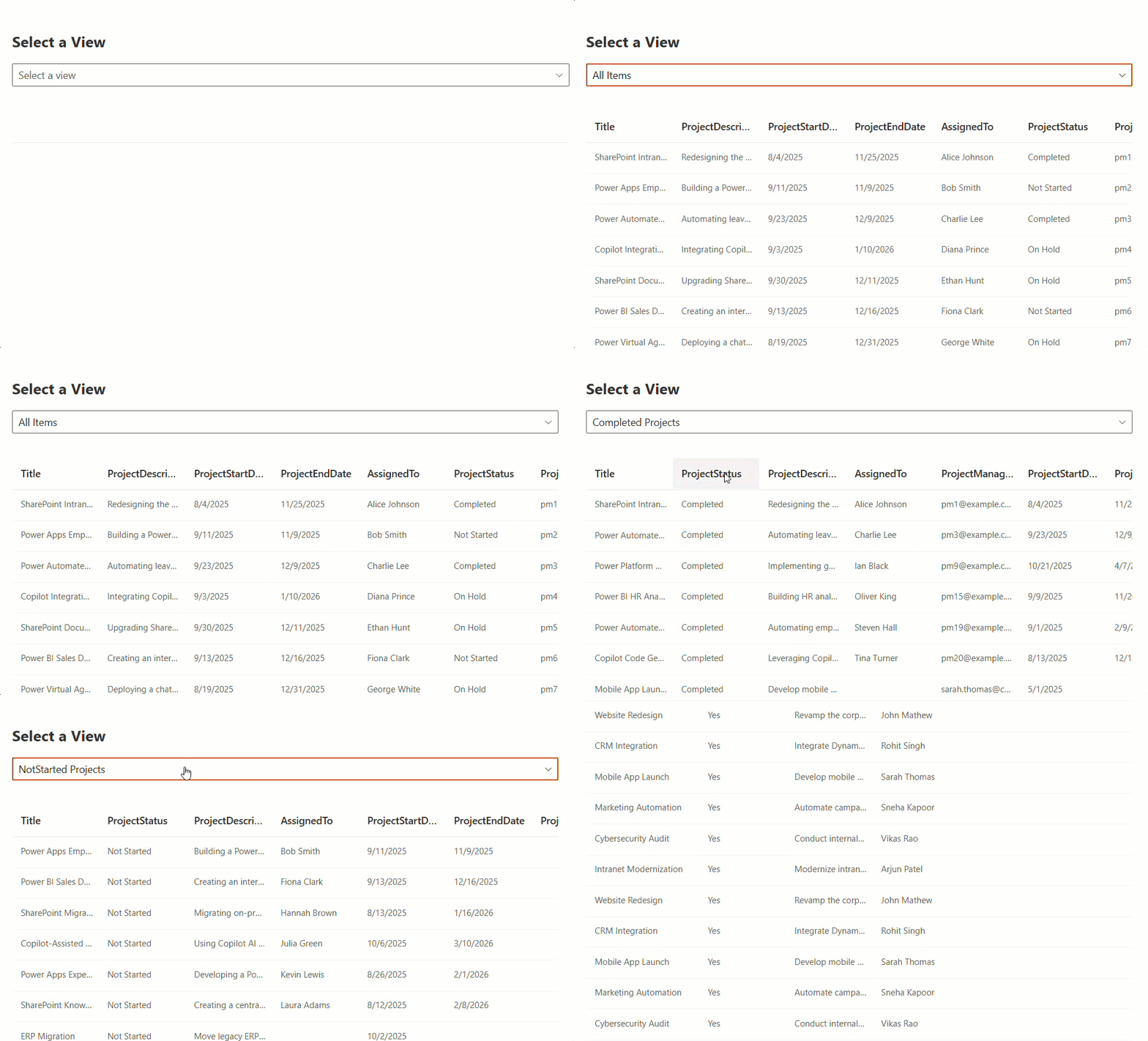
Let’s see how to achieve this example.
Note: To interact with SharePoint lists in the SPFx web part, we used the PnPJS library, as we did above. Please follow these steps.
- Once you set up the PnPJS instance, as in the example above, add the code below to the .tsx file.
import * as React from "react";
import styles from "./FetchListData.module.scss";
import type { IFetchListDataProps } from "./IFetchListDataProps";
import { ViewPicker } from "@pnp/spfx-controls-react/lib/ViewPicker";
import { ListView, IViewField } from "@pnp/spfx-controls-react/lib/ListView";

interface IFetchListDataState {
  items: any[];
  viewFields: IViewField[];
  selectedView: string | undefined;
}

export default class FetchListData extends React.Component<IFetchListDataProps, IFetchListDataState> {
  private listId: string = "eb361c0d-c289-42b3-b207-22f7946056f1";

  constructor(props: IFetchListDataProps) {
    super(props);
    this.state = {
      items: [],
      viewFields: [],
      selectedView: undefined
    };
  }
private loadView = async (viewId: string): Promise<void> => {
  try {
    const sp = this.props.sp;
    const view: { ListViewXml: string } = await sp.web.lists
      .getById(this.listId)
      .views.getById(viewId)();
    const viewXml: string = view.ListViewXml;
    const parser = new DOMParser();
    const xmlDoc = parser.parseFromString(viewXml, "text/xml");
    const fieldRefs: Element[] = Array.from(xmlDoc.getElementsByTagName("FieldRef"));

    let viewFieldNames: string[] = Array.from(
      new Set(
        fieldRefs
          .map((f) => f.getAttribute("Name"))
          .filter((x: string | null): x is string => !!x && x !== "LinkTitle")
      )
    );


    if (viewFieldNames.indexOf("Title") === -1) {
      viewFieldNames.unshift("Title");
    }

    console.log("View Fields:", viewFieldNames);
    const rendered: { Row?: Record<string, any>[] } = await sp.web.lists
      .getById(this.listId)
      .renderListDataAsStream({ ViewXml: viewXml });

    const allRows: Record<string, any>[] = rendered?.Row || [];
    const filteredRows = allRows.map((row) => {
      const obj: Record<string, any> = {};
      viewFieldNames.forEach((field) => {
        if (row[field] !== undefined) obj[field] = row[field];
      });
      return obj;
    });
    const viewFields: IViewField[] = viewFieldNames.map((field) => ({
      name: field,
      displayName: field,
      isResizable: true,
      minWidth: 100
    }));

    this.setState({
      items: filteredRows,
      viewFields,
      selectedView: viewId
    });
  } catch (error) {
    console.error("Error loading view:", error);
  }
};

  public render(): React.ReactElement<IFetchListDataProps> {
    return (
      <section className={styles.fetchListData}>
        <h2>Select a View</h2>

        <ViewPicker
          context={this.props.context}
          listId={this.listId}
          placeholder="Select a view"
          onSelectionChanged={(viewId) => {
            this.loadView(viewId as string);
          }}
          selectedView={this.state.selectedView}
          multiSelect={false}
        />

        <br />

        <ListView
          items={this.state.items}
          viewFields={this.state.viewFields}
          compact={false}
          selectionMode={0}
        />
      </section>
    );
  }
}
Here:
- At first, we imported the ViewPicker control from the “@pnp/spfx-controls-react/lib/ViewPicker” library. Also ListView, IViewField from “@pnp/spfx-controls-react/lib/ListView.”
- IFetchListDataState = This state interface contains the following states:
- items = To store the list items.
- viewFields = To define the fields needed for the list view control.
- selectedView = To track the selected view.
- listId = I assigned my SharePoint list GUID to this variable.
- Within the constructor(), I initialized the state with empty values.
- loadView() = This method loads the selected SharePoint view, reads its XML, extracts the fields, retrieves list items based on that view, and finally updates the ListView control.
- sp = At fiets we take the sp object from props.
- view = Here we are:
- Getting the list using the list ID.
- Getting the selected view using the view ID.
- Loading the full view details from SharePoint.
- This returns a response containing ListViewXML, which is the XML structure of the view.
- viewXML = Stores the XML string in a variable for processing.
- parser, xmlDoc = SharePoint is returning the view details in XML format, so we used a DOM parser to convert the XML string into an XML document, allowing us to extract fields.
- viewFieldNames = Reads the name attribute of each <FieldRef> and filters out Null/undefined values and LinkTitle. Also, using set(), we remove duplicates and convert it back to a regular array. The result is a clean list of field internal names in the selected view.
- In the if condition (viewFieldNames.indexOf(“Title”) === -1), we are checking if the Title field is not present in the view, and then we are making it visible in the view.
- rendered = will return a list of items exactly as the view defines them in the View XML. This returns an object containing the Row: [ list rows].
- allRows = read all the list item rows; if nothing is returned, we fall back to an empty array.
- filteredRows = Each SharePoint row returns many extra system fields. So here, we create a new, clean row object that copies only the fields from the selected view. This ensures the ListView control displays only the correct columns.
- viewFields = We convert each field name into an object that the ListView control understands: name, displayName, isResizable, and minWidth.
- Finally, we update the state:
- items = list rows
- ViewFields = column configuration
- selectedView = Currently selected view
- render() = Then, in this method(), we displayed the ViewPicker and ListView controls.
- ViewPicker = This control auto-populates the views in the given list.
- context = Passed the prop context.
- listId = Assigned the SharePoint list ID. Using this, it will load all the views present in the list.
- onSelectionChanged = Called the loadView() method by passing the selected view ID.
- selectedView = Assigned the state selectedView to track the selected view.
- multiSelect = false, not allowed to select multiple views.
- ListView = Used to display the selected view of the SharePoint list data.
- items = Assigned the state items, which contain the list items.
- viewFields = Assigned the state viewFields, which contain the fields of the selected view.
- compact = false so that the items won’t be in compact mode.
- selectionMode = 0, not allowing selection of any record in this control.
That’s it, this setup will render the web part with PnP React ListViewPicker and ListView control with data.
Conclusion
I hope you found two practical ways to display SharePoint list items in SPFx web part using the PnP React controls. In this tutorial, I explain how to fetch SharePoint list items using the PnPJS library in an SPFx web part, display them in various layouts, and discuss the advantages of using these controls.
You can download and try to run this solution with your SharePoint list data, and do let me know if you face any issues while running this SPFx web part.
These PnP React controls can also be used for SharePoint document libraries to display data in various formats in an SPFx web part.
You can also check out some of our SPFx-related blog posts below:
- SharePoint Framework (SPFx) Fluent UI Basic List Example
- Restrict SPFx List View Command Set Extension to Specific List/Library
- Create Folders and Subfolders in SharePoint document library using SPFx
- Get Current SharePoint Site Information in SPFx using MS Graph API

Hey! I’m Bijay Kumar, founder of SPGuides.com and a Microsoft Business Applications MVP (Power Automate, Power Apps). I launched this site in 2020 because I truly enjoy working with SharePoint, Power Platform, and SharePoint Framework (SPFx), and wanted to share that passion through step-by-step tutorials, guides, and training videos. My mission is to help you learn these technologies so you can utilize SharePoint, enhance productivity, and potentially build business solutions along the way.


Thank you so much
Please share the code in GitHub ..
const items: any[] = await web.lists.getByTitle(“FluentUIDetailsListWithCustomItemColumn”).items.select(“*”, “CustomerName/EMail”, “CustomerName/Title”).expand(“CustomerName/ID”).get();
Not Working
Thats a great tutorial. Thanks
If I wanted to get just one item, say where title = hello, how can this be achieved?