
While working on a Leave Management application, we needed a Request ID that had to be unique every time. Initially, I considered using the rand() function, but I realized there was still a chance of getting duplicate values.
After some research, I found that using a GUID (Globally Unique Identifier) is a much more reliable way to generate truly unique IDs in Power Automate.
In this tutorial, I will show you how to generate a new GUID in Power Automate. You will learn how to use the guid() function to create unique identifiers in different formats. I will also explain how to uniquely use a GUID to name files when saving SharePoint email attachments.
Additionally, I will guide you on retrieving the GUID of a Power Automate environment, a SharePoint site, and a SharePoint list using Power Automate.
Generate New Guid in Power Automate
Here, I will show you how to generate a new GUID. You can use the guid() method in Power Automate Flow to create a new GUID each time the flow runs.
I am using an Instant cloud flow with Manually trigger a flow and I have a Compose action with the below function:
guid() 
When you save the flow, running it manually will give a GUID:

Below are some more results when I rerun the flow.
6aca515b-42bc-4e16-b89a-c124ef14082d
fc0197b4-36de-4d94-9905-3170a2bd4339
a825251f-c5b7-425c-8e36-89c627971152
fd6e0326-492e-4405-b65f-58ce4a1a80c2
80810dd2-dde0-4037-8a40-2143270e88ee
Based on the results, we know the standard structure for a guid is xxxxxxxx-xxxx-xxxx-xxxx-xxxxxxxxxxxx and it’s always a sequence of 32 numbers.
Not only can we get the standard structure, but we can get it in different ways.
Different Structure GUID in Power Automate
In the above we see the standard structure, but now I will tell a different Structure:
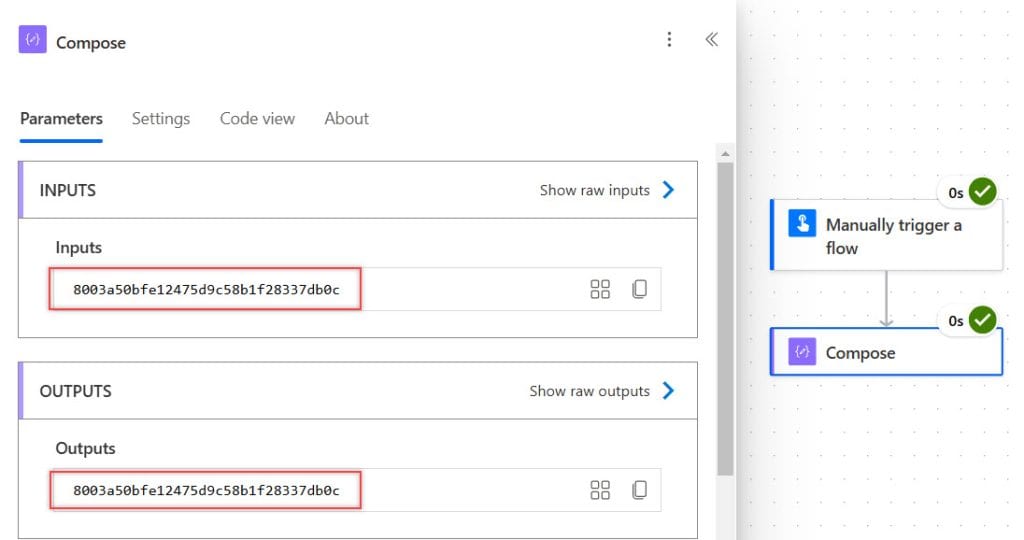
No Hyphens Format:
guid('N')This removes the hyphens, making it a continuous 32-character string.
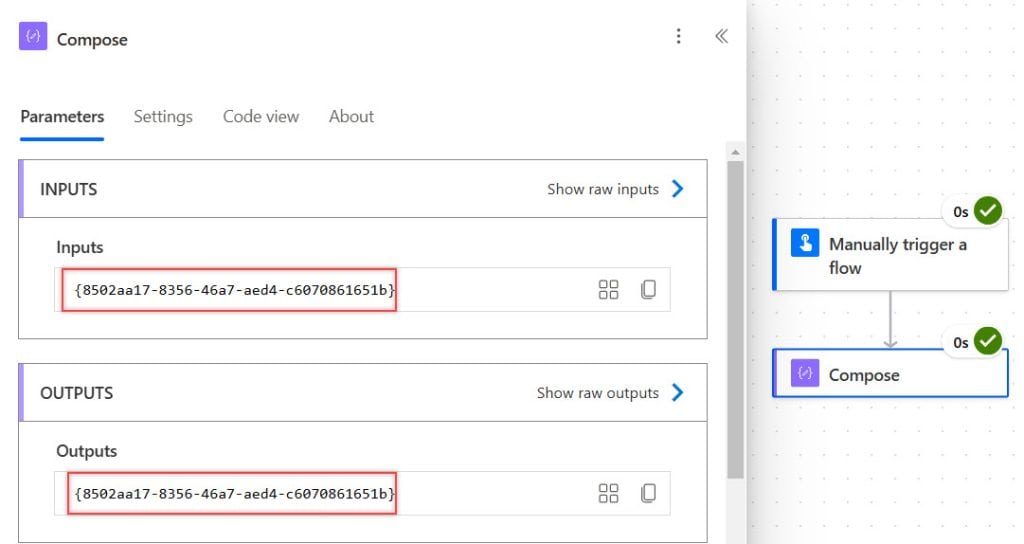
Braced Format:
guid('B')GUID is enclosed in curly brackets.
Parentheses Format:
guid('P')It returns the GUID, which is enclosed in parentheses.

Standard Hyphenated Format:
guid('D')It returns the default format with hyphens.
Hexadecimal Representation Format:
guid('X')This returns a structured hexadecimal representation, commonly used in low-level programming.

Give a File Name Using GUID in Power Automate
Let’s say you receive multiple email attachments daily and want to save them in a SharePoint document library while ensuring each file has a unique name. You can use a GUID (Globally Unique Identifier) in Power Automate to achieve this.
Note:
This example only explains how to generate a file name using GUID. If you want to learn how to save an attachment in a SharePoint document library, check out [this link].
In your Power Automate flow, when you reach the step where you need to set the file name (in the Create file action), follow the below steps:
1. Add Compose action and provide the below expression:
concat(guid(),outputs('Get_Attachment_(V2)')?['body/name'])
2. In the Create file action add the below parameters:
- Site address: Provide the SharePoint site address.
- Folder path: Select the Folder path from dynamic content.
- File name: Select the above compose action output from dynamic content.
- File content: Select the content bytes from dynamic content.

Once you receive the email with attachment, your file looks similar to the one below:

Get an Environment’s GUID In Power Automate
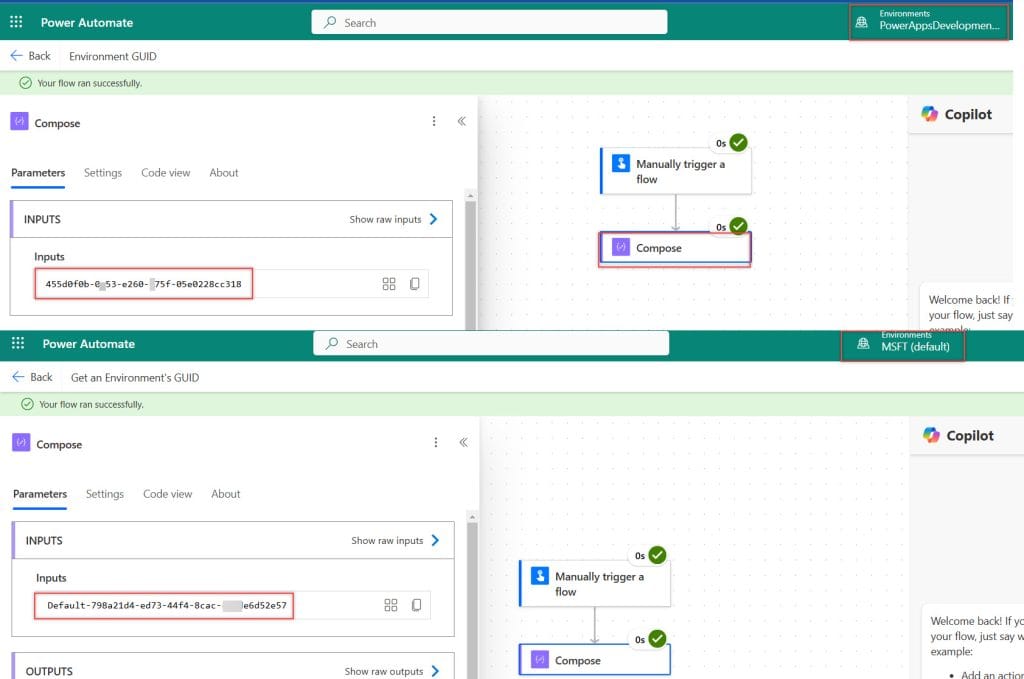
If you want to check your environment GUID in Power Automate, create an Instant cloud flow with Manually trigger a flow, and I have a Compose action with the below function:
workflow()['tags']['environmentName']
When you save and run the flow, it will generate a GUID for your environment. If you run it again in the same environment, the GUID will remain the same. However, if you use a different environment, it will change.
Get a Site GUID In Power Automate
You are building a Power Automate flow that interacts with SharePoint and requires the Site GUID for API calls or specific actions. Using Power Automate, you can retrieve the GUID of a SharePoint site dynamically.
To do this, follow the below steps:
1. Create an Instant Cloud Flow by selecting the ‘Manually trigger a flow’ trigger action.

2. Then add a Send an HTTP request to SharePoint action from sharePoint Connector with the below parameter:
- Site Address: Select the SharePoint Site Address
- Method: Select “GET” as the method
- URI: Provide the below URI:
_api/site/id- Header: Use the below headers to make REST API calls to SharePoint:
Accept: application/json;odata=verbose
3. Then add a Compose action and provide the below expression:
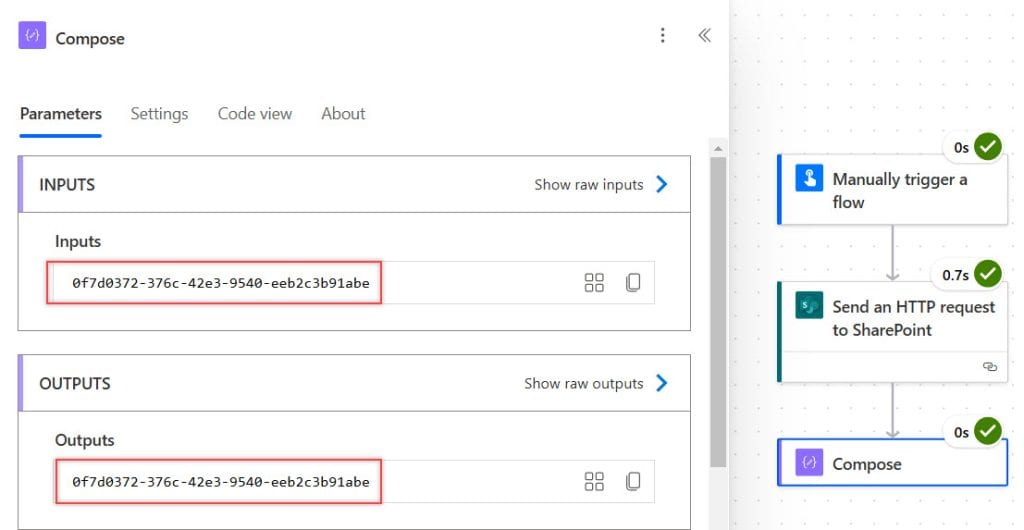
body('Send_an_HTTP_request_to_SharePoint')?['d']?['Id']
When you save the flow, running it manually, it will return a unique Site GUID like:
Get the GUID of a SharePoint List in Power Automate
Let’s say you have a SharePoint list and need its GUID for API calls in Power Automate. You can retrieve the List GUID dynamically using Power Automate.
To do this, follow the below steps:
1. Create an Instant Cloud Flow by selecting the ‘Manually trigger a flow’ trigger action. Then use the Send an HTTP request to SharePoint action:
- Site Address: Select your SharePoint site.
- Method: GET
- Uri:
_api/web/lists/GetByTitle('Your List Name')/Id
- Header: Use the below headers to make REST API calls to SharePoint:
Accept: application/json;odata=verbose
2. Then add a Compose action and provide the below expression:
body('Send_an_HTTP_request_to_SharePoint')?['d']?['Id']
When the flow runs, it will return the GUID of the SharePoint list, such as:

This way you can get the GUID of a SharePoint List in Power Automate.
Conclusion
In this tutorial, I covered how to generate a unique GUID in Power Automate using the guid() function and its different formats. I also explained using a GUID to create unique file names when saving email attachments in SharePoint. Additionally, I explained how to retrieve the GUID of a Power Automate environment, a SharePoint site, and a SharePoint list using the “Send an HTTP request to SharePoint” action.
Also, you may like some more Power Automate tutorials:
- Delete All Files In A SharePoint Folder Using Power Automate
- Check If the Column is Changed in Power Automate
- Get SharePoint Multi-Select Choice Values in Power Automate
- Create a PDF From SharePoint List Items Using Power Automate
- Create a SharePoint Online Communication Site Using Power Automate
- Check If the Filename Contains in Power Automate

Hey! I’m Bijay Kumar, founder of SPGuides.com and a Microsoft Business Applications MVP (Power Automate, Power Apps). I launched this site in 2020 because I truly enjoy working with SharePoint, Power Platform, and SharePoint Framework (SPFx), and wanted to share that passion through step-by-step tutorials, guides, and training videos. My mission is to help you learn these technologies so you can utilize SharePoint, enhance productivity, and potentially build business solutions along the way.

