
Someone changed the status on a customer request last week, and now nobody remembers the old value. Dataverse can tell you who changed it, when, and what it was before, but only if auditing was on.
In this tutorial, we’ll set up Dataverse version history the way Microsoft builds it: auditing at the environment, table and column level. Then we’ll open the Audit History of a row, use the Audit Summary view, and manage audit log retention.
We’ll also cover Power Apps version history, which is a different thing: restoring an earlier version of a canvas app.
Quick answer: Dataverse doesn’t have a version history button. It keeps row history through auditing. In the Power Platform admin center, open your environment > Settings > Audit and logs > Audit settings and turn on Start Auditing. Then turn on Audit changes to its data for the table and Enable auditing for its columns. Open a row in a model-driven app and select Related > Audit History.
What You Need Before You Start
Dataverse auditing works on all custom tables and most standard ones. If you’re new to the platform, start with what Microsoft Dataverse is and how it stores data. Here’s what we had in place before turning anything on:
- A role: System Administrator or System Customizer in the environment (or equal permissions). Without it, you’ll see the familiar privileges error.
- A table with data: we use a Service Request table whose Status choice column holds Open, In Progress or Closed.
- A model-driven app that shows the table, because the Audit History tab lives on its form.
- Log storage capacity: audit logs count against Dataverse log storage, not database storage.
If a setting is grayed out or you get a permissions message, see the commands unavailable due to your current privileges error before you continue.
What Is the Old Name of Dataverse?
Dataverse used to be called Common Data Service (CDS). Microsoft renamed it in November 2020 and changed the terms at the same time: entities became tables, fields became columns, records became rows, and option sets became choices. Older blog posts and forum answers still use the CDS names.
Step 1: Turn On Auditing for the Environment
Auditing works in layers. The environment switch comes first; a table or column setting does nothing until it’s on. Here’s the current path in the Power Platform admin center:
- Sign in to the Power Platform admin center and select Manage in the left pane.
- Select Environments, pick your environment, and select Settings.
- Expand Audit and logs and select Audit settings.
- Check Start Auditing.
- Under Retain these logs for, pick how long to keep logs. The default is Forever.
- Select Save.
Here’s the Settings page of our developer environment, named Power Platform, with Audit settings under Audit and logs:

On the Audit settings page, Start Auditing is a checkbox at the top, and the retention dropdown sits right below it. The Global Audit Settings link only opens the older legacy options; you don’t need it for this.

You’ll also see Log access (records sign-ins) and Read logs (sends read activity to Microsoft Purview, production environments only). Leave them off unless your compliance team asks for them; they add log volume.
There’s a second route if you run Dynamics 365 apps: Security > Compliance > Auditing lets you turn on auditing and cover the common Dynamics 365 tables in one pass.
Step 2: Turn On Auditing for the Table
Next, tell Dataverse which table to track. We did this on our Service Request table; the same steps work for any table you create in Microsoft Dataverse.
- In Power Apps, select the right environment, then Dataverse > Tables (or Tables in the left pane).
- Open the table, select Edit, then Edit table properties on the command bar.
- Expand Advanced options and select Audit changes to its data.
- Select Save, then publish the table.

Tip from our own setup: do this inside a solution. Then the audit setting travels with the table when you move it to test or production, though each environment still needs its own environment-level switch.
Step 3: Turn On Auditing for the Columns
Column auditing is the step most guides skip. Open the table, select Columns, open a column, expand Advanced options, and check Enable auditing. On our new custom Status column it was already checked by default, so you only confirm it there and turn it off for columns you don’t need.

Pick the columns people argue about: Status, Priority, Assigned To, amounts and dates. Leaving noisy columns off keeps your log storage smaller and the history easier to read.
Step 4: Add the Table to a Model-Driven App
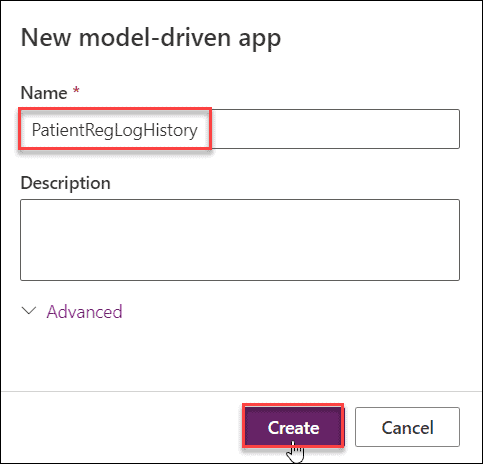
Audit History shows up on model-driven forms, not in canvas apps. If you don’t have an app for the table yet, our guide to building model-driven apps in Power Apps covers it in detail. The short version: create a blank model-driven app and give it a name.
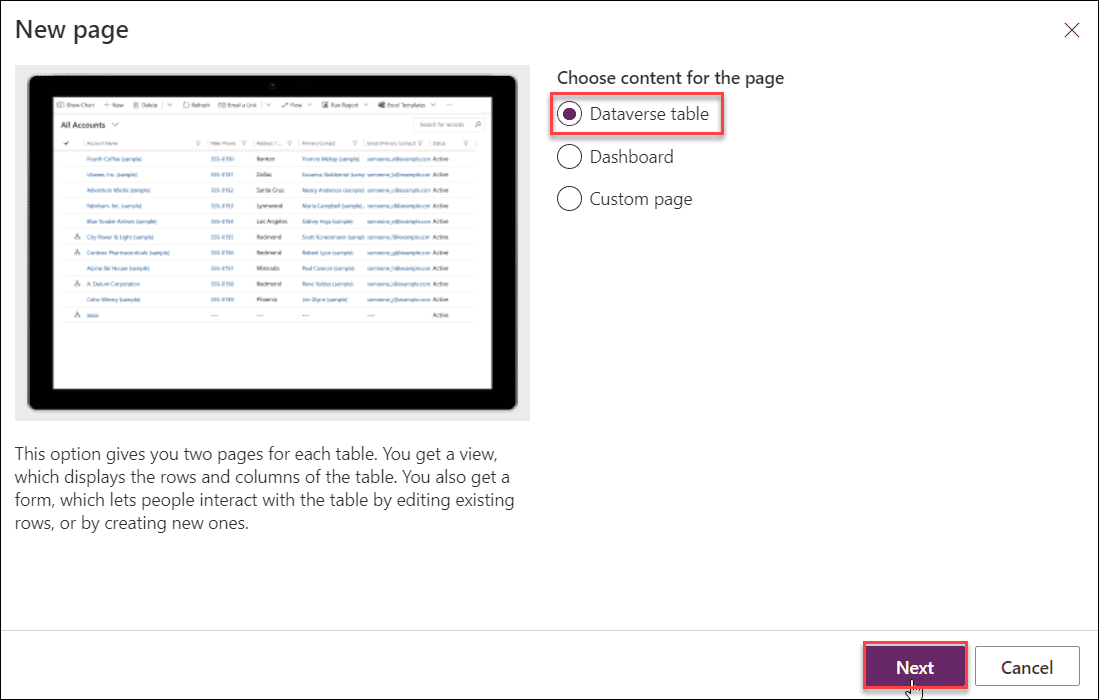
Select Add page, choose Dataverse table, and select Next:
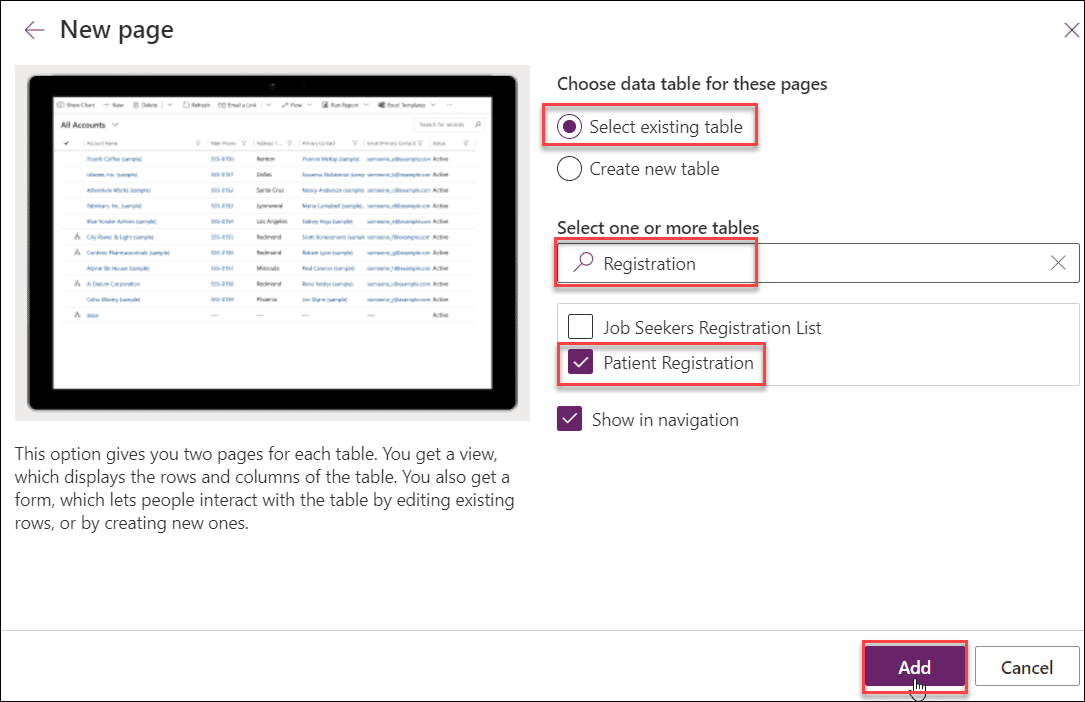
Choose Select existing table, search for your table, check it, and select Add. Then save, publish and play the app.
Step 5: Open the Audit History of a Row
Now change a row so there’s something to see. In the app, open the row, change a column you audited (we moved the Network Issue request’s Status from Open to In Progress), and save. Then select the Related tab and choose Audit History.

The grid lists each change with the date, the person who made it, the event (Create, Update, Delete, share and so on), the column, the old value and the new value. Use Filter on to see the history of a single column. New entries can take a little while to appear.

You’ll also see two setup rows at the bottom: Audit Enabled and Entity Audit Started. They mark when auditing began, so nothing older than those rows was recorded.
Users need the View Audit History privilege to open this tab. If a colleague sees an empty or missing tab, check their security role first.
How Do You See Audit Logs for the Whole Environment?
Audit History covers one row. The Audit Summary view lists every audit log in the environment, so you can answer questions such as “who deleted this record?” or “who changed a user’s role?” In the admin center, open the environment’s Settings > Audit and logs > Audit summary view, or open the Power Platform Environment Settings app from the Apps menu.

Users need the View Audit Summary privilege here. One quirk: to filter by table, use the Entity column’s Contains option; Equals doesn’t list any values.
Behind both views sits the Dataverse Audit table. You can’t export it from the UI, but developers can read it through the Web API or SDK. For other ways to pull rows into an app, see how to get data from Dataverse in Power Apps.
Dataverse Auditing Cheat Sheet
| Setting or task | Where you find it | What to know |
|---|---|---|
| Start Auditing | Admin center > Environments > Settings > Audit and logs > Audit settings | Required first; per environment |
| Log retention | Retain these logs for (same page) | Default Forever; custom up to 24,855 days |
| Audit changes to its data | Table > Edit table properties > Advanced options | Turns on the table |
| Enable auditing | Column > Advanced options | Pick only the columns you need |
| Audit History | Model-driven form > Related > Audit History | Needs View Audit History |
| Audit Summary view | Power Platform Environment Settings app | Needs View Audit Summary |
| Delete audit logs | Admin center > environment > Auditing > Delete audit logs | By table, access logs, or up to a date |
A retention change only applies to logs created after the change. Logs already written keep the retention period they were stamped with.
Power Apps Version History: Restore an Earlier App Version
People often search for Power Apps version history when they mean the app, not the data. Canvas apps keep a version every time you save, and you can roll back without touching any Dataverse rows. We use this all the time after a bad formula change.
- In Power Apps, select Apps and make sure you’re in the right environment.
- Select the app, then Details on the command bar.
- Open the Versions tab, then open the … menu on the version you want.
- Select Restore, then Restore again to confirm. Power Apps creates a new version from it.
- Optional: select Publish this version so users get it. The published one shows as Live.

Restore doesn’t publish on its own, so users keep the Live version until you do. For an app that was deleted rather than broken, see how to restore deleted apps in Power Apps.
| Dataverse version history (auditing) | Power Apps version history | |
|---|---|---|
| Tracks | Changes to rows and columns | Saved versions of an app |
| Turn on | Environment, table and column settings | Always on |
| View in | Audit History tab, Audit Summary view | App Details > Versions |
| Roll back | No restore; you read old values | Restore any version |
SharePoint lists are different again: they keep item versions on their own. If you use both, our post on updating SharePoint columns without a version change shows how list versioning behaves.
Common Mistakes to Avoid
- Turning on the table but not the environment. Nothing is logged until Start Auditing is on.
- Skipping column auditing. Columns you didn’t enable won’t show their changes.
- Expecting reads or exports to show up. Auditing doesn’t log retrieve or export operations; that’s activity logging in Microsoft Purview.
- Expecting a restore button for rows. Audit History shows old values; you copy them back yourself.
- Forgetting log storage. Audit logs use log capacity; set a retention period or delete old logs by table.
- Saving without a real change. An update is logged only when the new value differs from the old one.
Next Steps
Turn on auditing in a test environment, audit two or three key columns, and check the Audit History after a few edits. Then roll the same solution to production. Our Power Apps tutorials hub covers model-driven apps, security roles and Dataverse in more depth.
We’d keep going with one of these if you’re building on Dataverse:
Frequently Asked Questions
Does Dataverse have version history?
Not as a feature by that name. Dataverse keeps row history through auditing: turn it on for the environment, the table and the columns, then open Related > Audit History on a row.
Where do I enable auditing in Dataverse?
In the Power Platform admin center, open the environment, then Settings > Audit and logs > Audit settings. Microsoft documents every option in Manage Dataverse auditing.
How long are Dataverse audit logs kept?
Forever by default. You can choose a shorter period or a custom one of up to 24,855 days under Retain these logs for.
How do I restore a previous version of a Power Apps app?
Open Apps, select the app, then Details > Versions > Restore. See Restore your canvas app to a previous version.
What was Dataverse called before?
Common Data Service (CDS). Microsoft renamed it Microsoft Dataverse in November 2020.

Hey! I’m Bijay Kumar, founder of SPGuides.com and a Microsoft Business Applications MVP (Power Automate, Power Apps). I launched this site in 2020 because I truly enjoy working with SharePoint, Power Platform, and SharePoint Framework (SPFx), and wanted to share that passion through step-by-step tutorials, guides, and training videos. My mission is to help you learn these technologies so you can utilize SharePoint, enhance productivity, and potentially build business solutions along the way.